Transform Panel
The panel has collapsible sections (STYLESHEET, INPUT, OUTPUT METHOD, PARAMETERS), one primary Run Transform button and a Run automatically checkbox next to it. Results appear in the OUTPUT panel below the editor, not as an editor tab. Run options and advanced tools share the OPTIONS & TOOLS section at the top. For the task view see Run a transformation.
The Transform panel (open it from the Transform icon in the activity bar on the left) runs XSLT transformations. XPath, XQuery and JSONPath queries against the open document live in the Query Console - the panel shows a short hint with an Open Query Console button for them. The panel header reads TRANSFORM; the run options and tools are in the OPTIONS & TOOLS section (see OPTIONS & TOOLS below). Each section header is clickable to collapse or expand that section.
Tip
For a quick transform without opening this panel, right-click XML files in the Explorer and choose Transform with …. It shares the same recent-stylesheet list and shows its result in the same OUTPUT panel.
SCENARIO
Shown only while a project is open: pick one of the project's saved transformation scenarios to fill stylesheet, input, parameters and output method in one step, run it with Run Scenario (writes its output file), save the current settings as a scenario (disk button) or remove one (trash button). For a scenario with an expected result, Check compares the run's result with it; after a failed check, Differences opens both in the Compare view and Accept makes the current result the expected one. See Projects and Transformation Scenarios and Regression checks.
STYLESHEET
- Shows the name of the chosen XSLT stylesheet on its own line below the icon, the favorites/browse controls and Change (long names are shortened in the middle; hover for the full path). While no stylesheet is set, the row reads "No stylesheet — choose or drop a file" - clicking it works like Change.
- Use current tab (the arrow-into-box button in the row, also first in the Change menu) - makes the XSLT tab you are editing the stylesheet; enabled while an XSLT tab is active.
- Change opens a menu:
- Select XSLT file… - pick an
.xsl/.xsltfile from disk (it is also loaded into the editor). - Open tabs - every XSLT document open in the editor, the active tab first and marked
(active). It does not matter how the tab was opened: File → Open, the Explorer, a new
file, or a stylesheet the AI assistant generated and you opened in a
new tab. The transform runs the tab's editor text, including unsaved changes; an
unsaved tab is marked unsaved (relative
xsl:include/xsl:importpaths of an unsaved tab resolve against the input's folder). When you close a saved tab, its file stays the stylesheet. Debug and Save scenario need a saved stylesheet.
- Select XSLT file… - pick an
- The clock icon opens the recent stylesheets menu: reapply a recently used stylesheet in a single click (it is also loaded into the editor), or choose Clear recent to empty the list.
- The star icon opens your XSLT favorites - see Browsing favorites with ◀ / ▶ below. A picked stylesheet is also loaded into the editor.
- Drag & drop: drop an
.xsl/.xsltfile from your file manager straight onto the STYLESHEET row - it becomes the current stylesheet and is loaded into the editor, exactly as if you had picked it from a favorite. While dragging, the row glows green when the file can be loaded and red when it has the wrong extension (a red drop is rejected). As with favorites, the transform runs automatically as soon as both a stylesheet and an input are ready (while Run automatically is checked).
INPUT
The INPUT section shows which document the transform will use as its input (the name on its own line, the full path as tooltip; "No input — open a document or drop a file" while there is none):
- By default the input follows the active editor document: switch to another tab and the next run transforms that document (the shown input name updates live).
- Use current tab (the arrow-into-box button in the row, also in the Change menu) - makes the XML tab you are editing the input; it stays the input when you switch tabs. Enabled while an XML tab is active.
- Change opens a small menu:
- Select XML file… - transform a fixed XML file from disk instead, regardless of which editor tab is active.
- Use active editor - go back to following the active tab.
- Open tabs - every XML document open in the editor (saved or not, the active one first). The chosen tab stays the input while you switch to other tabs - for example to edit the stylesheet - and its current editor text is transformed. The chosen stylesheet tab is never offered as input.
- The star icon opens your XML favorites - see Browsing favorites with ◀ / ▶ below. A picked input is also opened in the editor and becomes the active tab.
- Drag & drop: drop an
.xmlfile from your file manager straight onto the INPUT row to transform that file - exactly like picking a favorite: it becomes the input and opens as the active editor tab. The same green (loadable) / red (rejected) drag-over feedback applies, and the transform runs automatically as soon as both a stylesheet and an input are ready (while Run automatically is checked).
Browsing favorites with ◀ / ▶
Pick stylesheets and input files straight from your Favorites and page through them, so you can run the same stylesheet over many files, or many stylesheets over one file, without ever opening a file chooser.
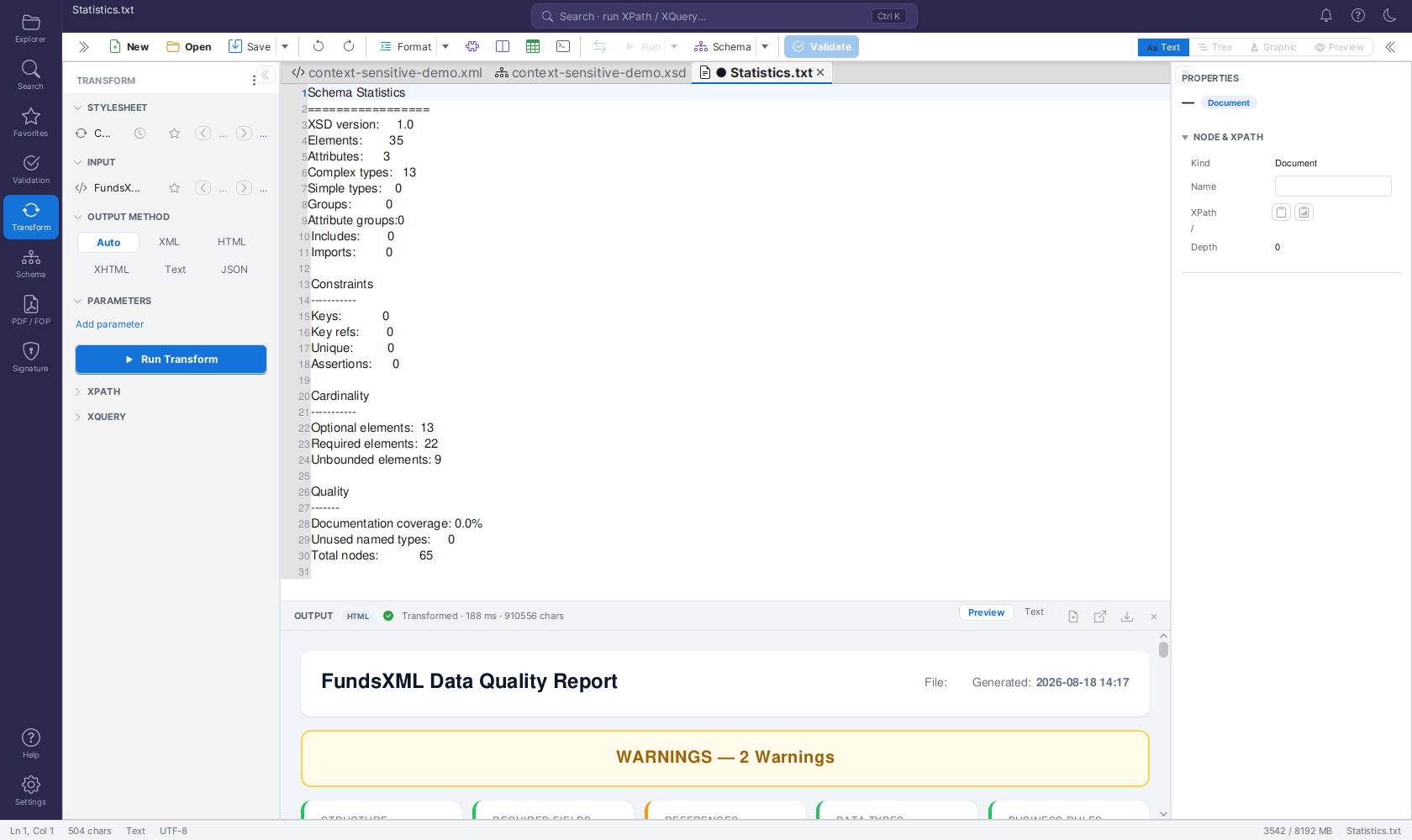
Both the STYLESHEET and the INPUT rows carry a star icon, a pair of ◀ / ▶ navigation buttons, and a small "i / n" position label. The ◀ / ▶ buttons and the label only appear once the browse list holds at least two entries.
- The star menu lists the favorites of the matching type - XSLT favorites for STYLESHEET, XML favorites for INPUT - grouped by their folder (category). An "All … favorites" entry at the top selects the whole list at once.
- Picking a favorite (or an "All"/folder entry) does three things: it sets the current file, it builds a browse list from that selection, and it loads the file into the editor. An input comes to the front as the active tab. A stylesheet opens behind the active tab while the input follows the active document (otherwise the stylesheet would become its own input); with a fixed input file it comes to the front too. The same happens on every ◀ / ▶ step.
- The ◀ / ▶ buttons then step backward and forward through that browse list. Browsing is cyclic: pressing ▶ on the last entry wraps to the first, and ◀ on the first wraps to the last. The "i / n" label shows your position (for example, 3 / 12).
- Each ◀ / ▶ step runs the transformation automatically (while Run automatically is checked) - but only once both sides are ready: a stylesheet is selected and an input is available (either a chosen input file or the active editor document). Until both are present, stepping just loads the file without transforming.
This supports two common workflows:
- Fix the input, step through stylesheets. Keep one XML file as input, then page through several data-quality or reporting stylesheets with ▶ to see each result in turn.
- Fix the stylesheet, step through inputs. Choose one XSLT stylesheet, then page through many XML input files with ▶ to apply the same transformation to each.
The existing Change file chooser, the clock (recent stylesheets) menu, and Use active editor all keep working exactly as before.
OUTPUT METHOD
A single dropdown with Auto, XML, HTML, XHTML, Text, JSON. Auto (the
default) detects the output format from the stylesheet's xsl:output declaration; pick a
concrete format to override the detection. For the method the stylesheet declares, its own
xsl:output settings win (indent, doctype-…, html-version, encoding): an
html-version="5" stylesheet gets an HTML5 doctype, indent="no" stays unindented.
Below it, two options apply where the stylesheet says nothing:
- Indent (on by default) - indent the result.
- Omit XML declaration (off by default) - leave out
<?xml …?>.
Both are remembered (settings transform.output.indent, transform.output.omitDeclaration) and also apply to
XSLT runs from the Run menu and to query results.
Once an external XSLT processor is configured, a Processor dropdown appears below it: the bundled Saxon HE or one of your processors. The choice is remembered.
START
Where the transformation starts. Saxon HE's XSLT 3.0 entry points, read from the stylesheet:
| Choice | What runs |
|---|---|
| Apply templates to the input (default) | The template rules matching the input's document node, in the default mode - the classic transformation. |
| Initial template (xsl:initial-template) | The stylesheet's xsl:initial-template. Preselected when the stylesheet has one. |
| Mode: … | The template rules of that mode on the input. |
| Template: … | A named template. |
| Function: f:name#n | A function declared visibility="public"; one field per argument appears below (typed as text, converted to the parameter's type). |
A template or function start needs no input document; with one, it is the global context item (. at the
top level). These starts run on the bundled Saxon HE - with an external processor the choice is disabled - and
without profile or trace. The command line has the same with
--initial-template / --initial-mode.
PARAMETERS
Define XSLT parameters as name = value rows:
- The parameters the stylesheet declares (
xsl:paramat the top level) appear as rows by themselves, with the declared type as placeholder (e.g.xs:integer); a required one (required="yes") is shown bold and the run stops with a message until it has a value. An offered row left empty keeps the stylesheet's default. - Add parameter adds a row of your own; each row has its own remove button.
- The values are text and are converted to the declared type:
21reachesas="xs:integer"as a number, a date asxs:date. A value that does not fit is reported with the parameter's name.
External XSLT processors
The XSLT processor choice runs the transformation with Saxon HE 13, xsltproc or another external program instead of the built-in Saxon HE - see External XSLT processors.
Debugging a stylesheet
Debug, next to Run Transform, starts the interactive debugger on the same stylesheet and input - see Debugger.
Queries (XPath, XQuery, JSONPath)
The Transform panel no longer has its own XPATH and XQUERY sections. Below the run controls, a short hint and an Open Query Console button take you to the Query Console, which runs XPath, XQuery and JSONPath queries against the open document and offers the saved queries (Snippets menu) and the XQuery Examples.
OPTIONS & TOOLS
The collapsible OPTIONS & TOOLS section at the top of the panel (open by default - click its header to collapse it) holds everything secondary. First the run options, as checkboxes:
| Option | What it does |
|---|---|
| Live preview | Re-runs the transform automatically (debounced) while you edit the input document. |
| Watch stylesheet file | Re-runs the transform whenever the chosen stylesheet changes on disk - handy while editing the stylesheet in another tool. |
| Profile run | The transform runs under the XSLT profiler and opens a Profile tab: hot spots by self time, call tree, flame graph and time per line (see XSLT Developer → Performance and Profiling). |
| Trace run | A transform also opens a Trace tool tab (template matches + xsl:message output). |
| Auto-open result tab | Additionally opens every successful result as a regular editor tab (HTML/XHTML results open rendered in the Preview view). Off by default. |
Below the options, the advanced tools are labelled rows (icon + name):
| Row | What it does |
|---|---|
| Debug XSLT… | Same as the Debug button next to Run Transform: opens the stylesheet (with the breakpoints set in its gutter) and the DEBUG dock below the editor - see Debugging a Stylesheet. |
| Batch Transform… | Runs the chosen stylesheet - or, when no stylesheet is set, the active XQuery document - over many XML files, with per-file results and "Save All". |
| Generate stylesheet… | Shown while the AI assistant is on: writes an XSLT stylesheet from the panel's input document and a target sample you choose (optionally its schema and notes). The stylesheet is compiled and run in a sandbox and its output checked before it opens as a new, unsaved tab - choose it there with Use current tab in the STYLESHEET row. See A stylesheet from a target sample. |
| Show Execution Plan | Opens a Plan tab with Saxon's execution plan of the stylesheet: every template and function after optimization (which steps were rewritten, inlined or pre-evaluated) - useful to understand why a stylesheet is slow. Also on the Run menu for an XSLT or XQuery tab. |
| Execution Statistics | Opens the Execution Statistics tool tab (duration, CPU and memory per XSLT/XQuery/validation run). Runs are only recorded while Record execution statistics is enabled in the Settings page's DEVELOPER card. |
Note
By default the stylesheet runs on Saxon's XSLT 3.0 processor, whatever its version
attribute says. With expert mode on (Settings → Schemas & Validation → Standards), an XSLT version picker
appears under the output method: XSLT 1.0 runs on the JDK's own XSLT 1.0 processor, and
XSLT 2.0 is checked for newer constructs first. When that check refuses a stylesheet,
the OUTPUT panel lists the issues and offers Run anyway. See
Language Versions.
The OUTPUT Panel (Results)
Transform and query results appear in an OUTPUT panel docked below the editor.
All Transform-panel results - XSLT transforms, XPath/JSONPath queries, and XQuery runs - appear in an OUTPUT panel that docks below the editor: the source document stays on top and the result shows underneath, while the Properties inspector keeps its full height. The panel persists across activity switches, so the last result stays visible while you work elsewhere.
The OUTPUT panel header shows:
- A format badge (XML, HTML, …) for the result.
- A status: a green check with
Transformed · N ms · M charson success (how long the run took and how large the output is), or a red error icon with the error message on failure. - View toggles - Preview | Text | Table:
- Text - the result in a read-only code editor (the default): line numbers, syntax highlighting matching the result format (XML or JSON; plain text otherwise), and font zoom with Ctrl+mouse wheel (Ctrl+0 resets). A very large result (over 2 million characters) shows only its start with a note; Open as Tab, Browser and Save… use the whole result.
- Preview - the result rendered as a web page; available for HTML/XHTML results only.
- Table - available for XQuery results (and Query Console XPath results) that return a sequence of items (auto-selected when applicable). Each item becomes a row, and the columns are taken from each item's child elements (or, if an item has no child elements, its attributes). A sequence of plain values is shown in a single value column.
- Actions:
- Open as Tab (Open result as editor tab) - opens the result as a regular document
(
Transform-Result.xml/.html/.json/.txt) that you can edit and save. An HTML/XHTML result opens as an HTML document rendered in the Preview view (switch to Text to see the markup); re-running the transform updates the open result tab, re-rendering the preview if it is showing. An XML result gets a schema for validation and IntelliSense like an opened file: thexsi:schemaLocation/xsi:noNamespaceSchemaLocationit declares (a relative location resolves against the input's folder), else a Schema Library entry, else the schema of the transform's input - if that schema declares the result's root element (e.g. a stylesheet that only adds or removes annotations). - Browser (Open in browser) - opens the result (typically HTML) in your system web browser.
- Save… (Save result…) - writes the result straight to a file.
- ✕ - hides the OUTPUT panel; it reappears automatically on the next run.
- Open as Tab (Open result as editor tab) - opens the result as a regular document
(
Note
In earlier versions, every transform opened a Transform-Result.* editor tab, and HTML
output additionally opened an "HTML Preview" tool tab. Both were replaced by the OUTPUT
panel: an editor tab now opens only via the panel's Open result as editor tab action
or the Auto-open result tab option in OPTIONS & TOOLS, and HTML is rendered inline via
the panel's Preview view.
Messages, trace and compile errors
Under the result, a Messages (n) strip lists what the run said besides its output - click it to open the list:
xsl:messageoutput ([INFO],[TERMINATE]),trace()output ([TRACE]) - it used to go to the console no one sees,- the stylesheet's compile warnings (
[WARNING …], e.g. a variable nothing uses) and, after a failed compile, its errors.
Double-click a line (or press Enter) to open the stylesheet - or the included / imported module - at that line.
When a stylesheet does not compile, the result area lists every error with its code, the position, the source line
with a ^ under the failing part (the token inside a select, a wrong attribute, an unknown instruction) and a hint
for the usual cause, for example:
[XPST0017] Cannot find a 1-argument function named ocunt() (line 3, column 22)
    <xsl:value-of select="ocunt(//item)"/>
                          ^^^^^
XSLT documents are also checked while you type: a pause compiles the stylesheet (with the open tabs' texts of
its includes and imports), wavy-underlines the errors in the text and lists them - and the warnings - in the
PROBLEMS panel (source XSLT; an error in a module names the module). Stylesheets over 2 MB are not checked;
the setting xslt.liveCheck=false turns it off.
See also
- Run a transformation - the steps from stylesheet to result, parameters, batch runs
- Debugger and Profile a transformation
- Test with XSpec - test suites for stylesheets
- XProc pipelines - run
.xplpipelines - External XSLT processors
- XSLT and XQuery examples - patterns to copy
- Projects & scenarios - keep a transformation with its input and output