Compare and merge
Tools → Compare with File… compares the active document (XML, XSD or any other text file) with another file, side by side, and lets you merge the differences. XML documents can also be compared by structure (Comparing as XML).
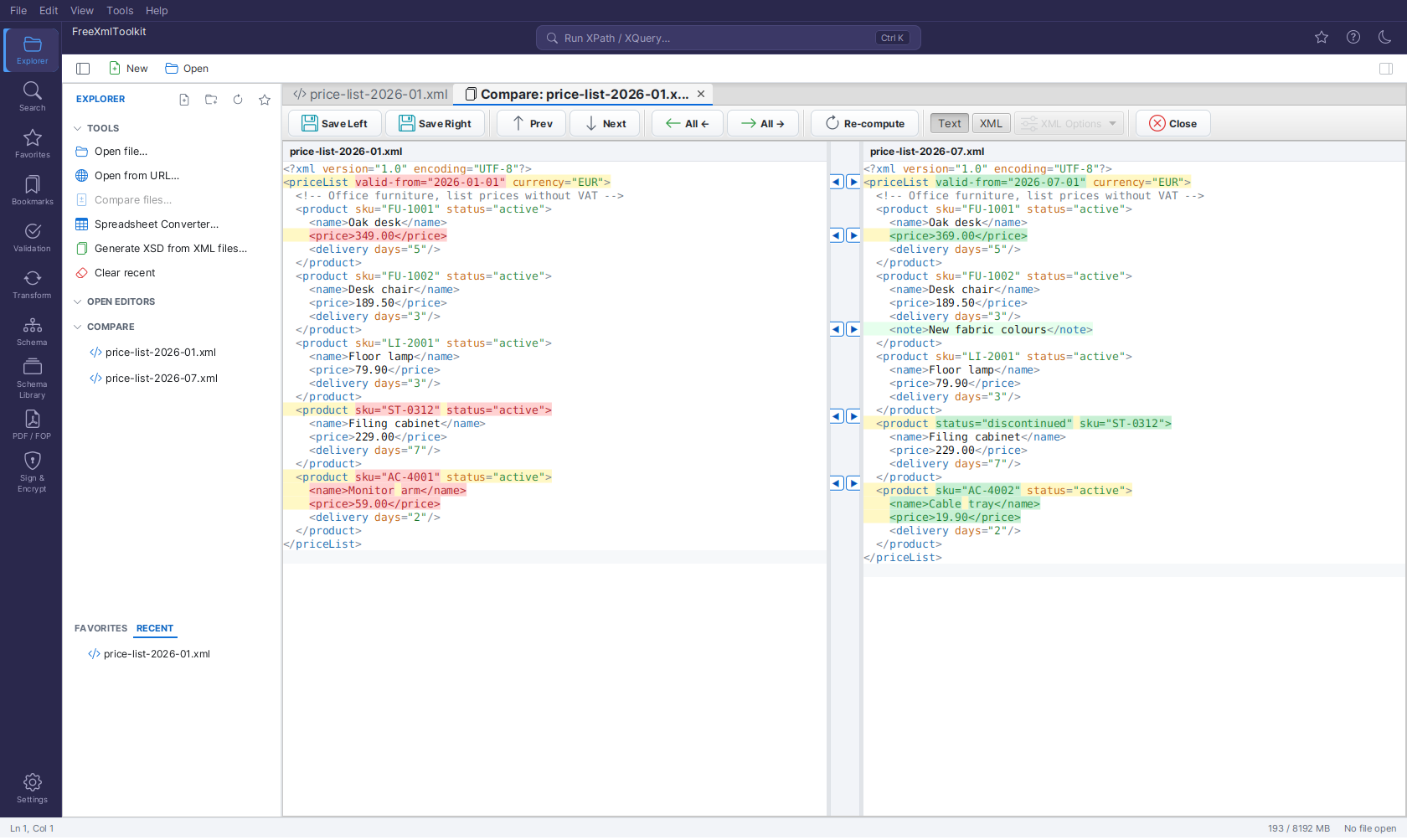 Two versions of a price list in the Text mode: changed lines and the changed parts inside them are marked
- Choose Tools → Compare with File… and pick a file to compare against the current document.
- A new tab opens titled
Compare: <left> ↔ <right>with synchronized scrolling and live re-diff. - Changed lines are highlighted, with intra-line word-level coloring.
Merge controls let you reconcile the two files:
| Control | Shortcut | Action |
|---|---|---|
| Prev / Next | Alt+Up / Alt+Down | Jump between changed chunks |
| Per-chunk arrows | - | Apply a single change left→right or right→left |
| All → / All ← | - | Apply every change in one direction |
| Re-compute | - | Recompute the diff manually |
| Save Left / Save Right | - | Write a pane back to its file |
The diff recomputes automatically about 300 ms after you stop typing.
Before you start
- Two files to compare; for a three-way merge also the version both were derived from.
Comparing as XML
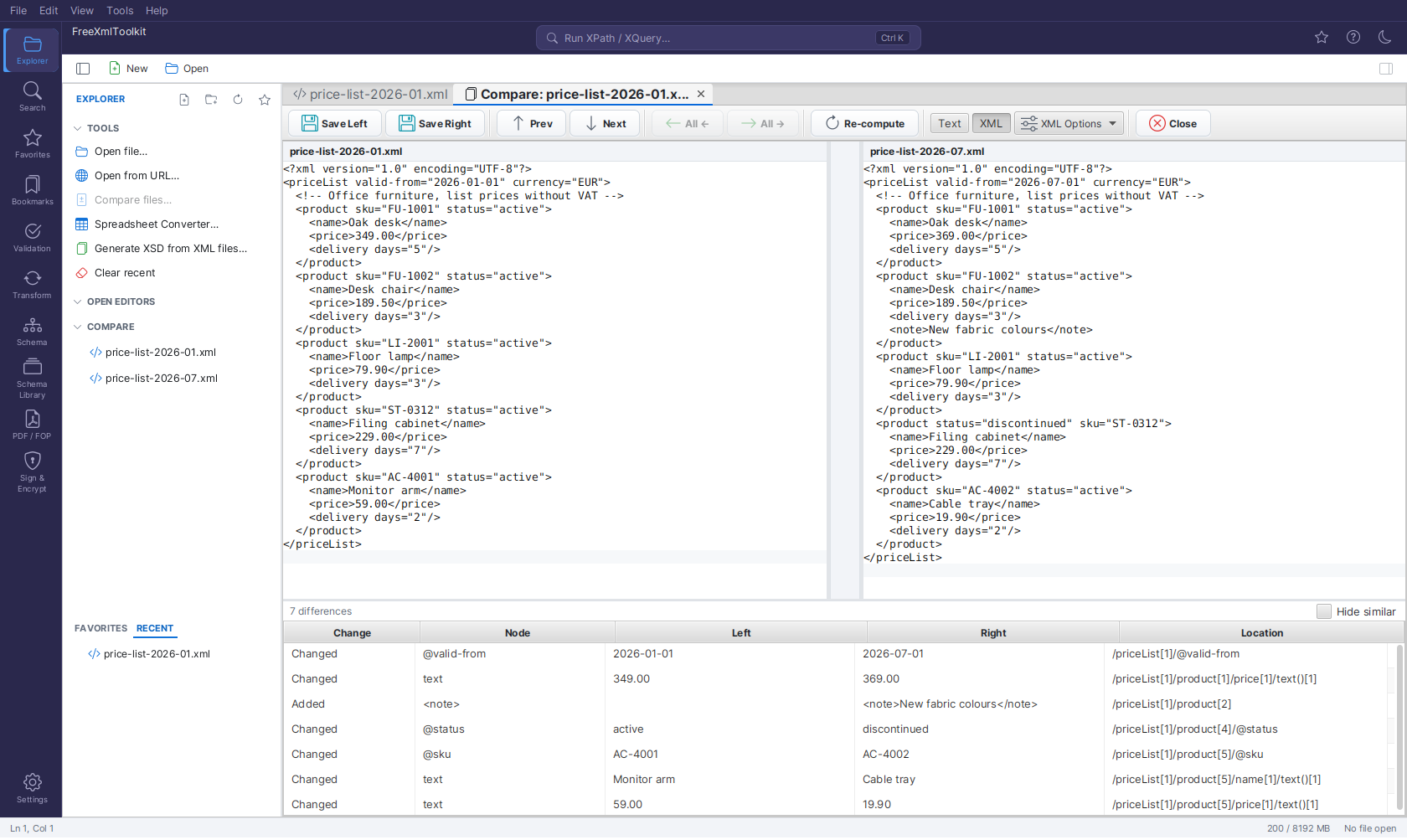 The XML mode lists every difference with its node, both values and its location
When both sides are XML, the XML button in the toolbar compares the documents by structure instead of by lines (Text switches back). Indentation, line breaks, the order of attributes, quote styles and the choice of namespace prefixes no longer count: two files that differ only in formatting are reported as equivalent. A list below the panes names each real difference:
| Column | Shows |
|---|---|
| Change | Added (only on the right), Removed (only on the left), Changed, Moved |
| Node | <element>, @attribute, text, comment, processing instruction, namespace |
| Left / Right | The value on each side; an added or removed element as its start tag |
| Location | The XPath of the node (of its parent where it is missing) |
Click a row, or use Prev / Next, to show the lines of that difference in both panes. Editing either side compares again. A side that is not well-formed is named with the line of the error.
XML Options decides what else is ignored; your choice is remembered:
| Option | Effect |
|---|---|
| Ignore whitespace differences (on) | Text is trimmed and runs of whitespace count as one space; whitespace between elements is ignored |
| Ignore comments | Comments are not compared |
| Report namespace prefix changes | Also list elements whose prefix changed while the namespace stayed the same |
| Ignore element order | Elements are paired regardless of their position (by name and attributes, then by text); moves are not listed |
| Key Attributes… | Attributes that identify an element among siblings of the same name, e.g. id: <item id="2"> is compared with <item id="2"> on the other side wherever it is |
| Ignore XPaths… | One XPath 1.0 expression per line; the nodes and attributes it selects are left out on both sides, with their content, e.g. //@timestamp or //p:generated (a prefix declared on a root element) |
| Numeric Tolerance… | Numbers in text or attribute values that differ by at most this much count as equal (0 = exact) |
| Evaluate placeholders (on) | The left document is the expected one and may hold XMLUnit placeholders instead of values that change from run to run (see below) |
Placeholders in the left document, as element text or attribute value:
| Placeholder | Matches |
|---|---|
${xmlunit.ignore} |
anything (also a missing attribute) |
${xmlunit.isNumber} |
a number |
${xmlunit.isDateTime} |
a date or date-time (ISO 8601 and common formats) |
${xmlunit.matchesRegex(^[A-Z]{3}-\d+$)} |
text the regular expression matches (whitespace is collapsed first unless Ignore whitespace differences is off) |
Similar differences — a moved element, CDATA instead of text, another schema location — still count, but XMLUnit rates them similar: the documents mean the same. They are shown in a muted colour, the summary counts them ("3 differences (2 similar)"), and Hide similar leaves them out of the list.
The XML mode only compares. To take changes over, switch back to Text and use the arrows, or All → / All ←. The view opens in the mode you used last.
Comparing folders
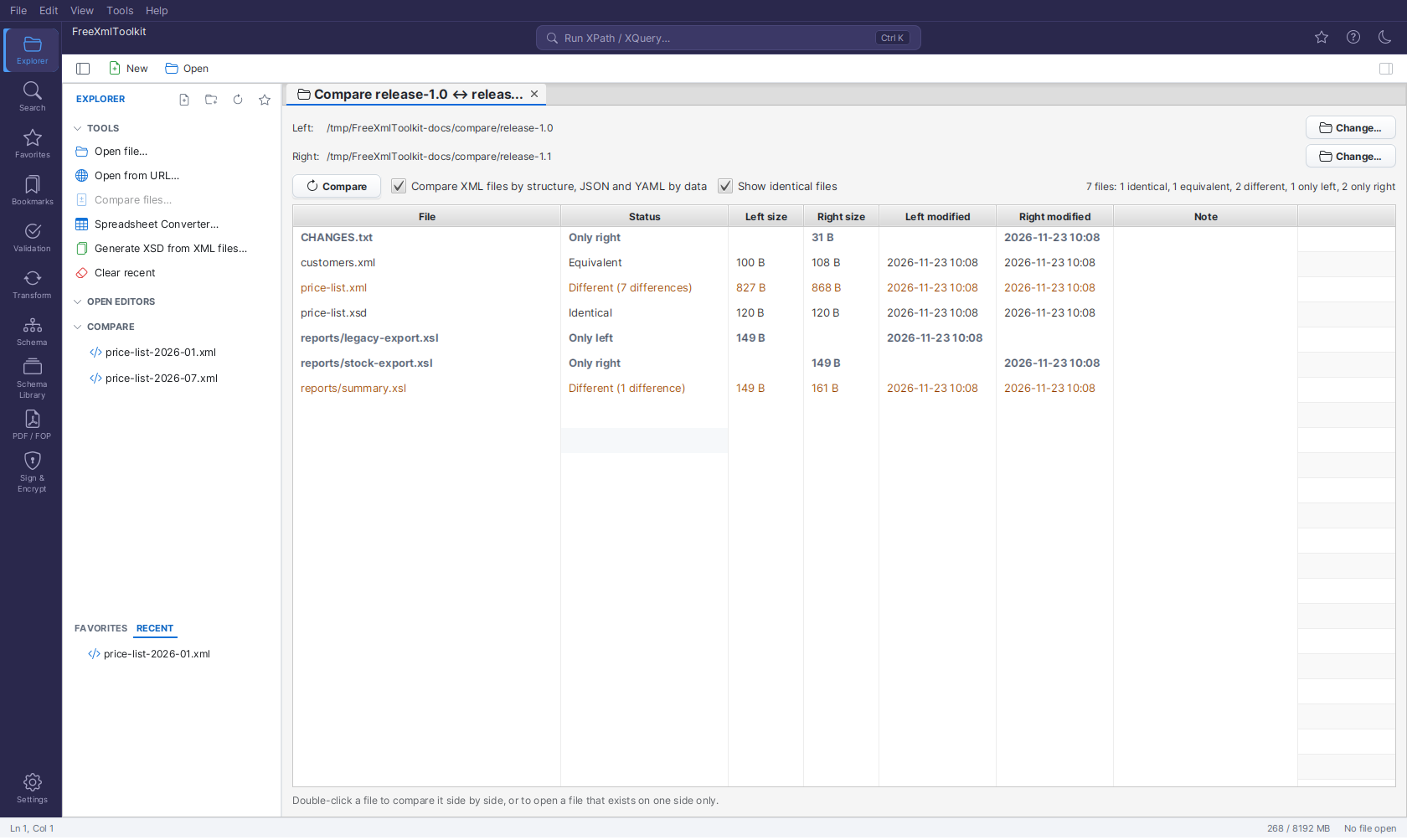 Two folders: identical, equivalent and different files, and files that exist on one side only
Tools → Compare Folders… asks for a left and a right folder and compares them file by file,
including subfolders (hidden folders such as .git are skipped). A tab lists the files that
differ:
| Status | Meaning |
|---|---|
| Identical | Same bytes |
| Equivalent | The bytes differ, but not the content. XML: formatting, attribute order, prefixes (the XML Options of the Compare view apply). JSON and YAML (.json, .jsonc, .json5, .yaml, .yml): compared by their data - member order, formatting, comments, quoting and anchors do not count; Ignore element order, Key attributes (key members of array items) and Numeric tolerance apply |
| Different | The content differs; for XML, JSON and YAML files with the number of differences |
| Only left / Only right | The file exists in one folder only |
Identical and equivalent files are hidden until you tick Show identical files. Double-click a file to open the pair in the Compare view, or to open a file that exists on one side only. Untick Compare XML files by structure, JSON and YAML by data to compare every file by its bytes. Change… picks another folder, Compare runs the comparison again. XML, JSON and YAML files above 32 MB and files that cannot be read as such (not well-formed XML, a YAML syntax error) are compared by their bytes (the Note column says so). A JSON or YAML pair opens in the Compare view's Data mode.
On the command line: fxt-cli compare.
Merging three files
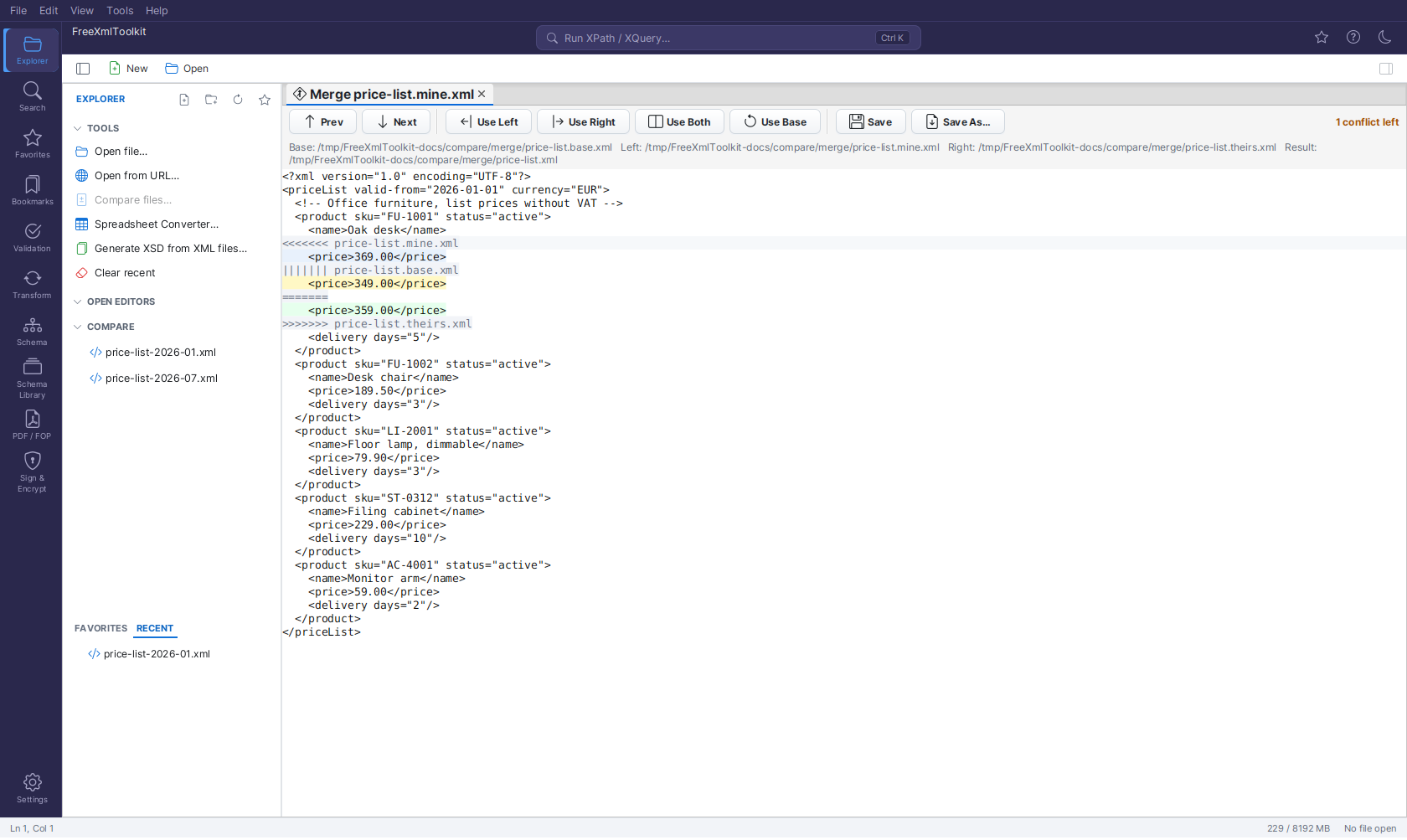 A merge with one conflict left, marked the way Git marks it
When two people changed the same file, Tools → Merge Files… combines both versions with their common ancestor (a three-way merge, as in Git). Choose the Base (the version both started from), Left (mine; the active document is suggested) and Right (theirs), and optionally the Result file that Save writes.
The merged text opens in a tab. Changes made on one side only, and the same change made on both sides, are taken over. Lines that both sides changed differently become a conflict block, marked like in Git:
<<<<<<< order-mine.xml
  <note>call first</note>
||||||| order-base.xml
  <note>none</note>
=======
  <note>urgent</note>
>>>>>>> order-theirs.xml
| Control | Action |
|---|---|
| Prev / Next | Jump to the previous or next conflict |
| Use Left / Use Right | Resolve the current conflict (at or after the caret) with one side |
| Use Both | Keep the left lines followed by the right ones |
| Use Base | Keep neither change |
| Save / Save As… | Write the result; with conflicts left you are asked first |
The text can also be edited directly. The status on the right counts the conflicts left; once there are none, it says whether the XML is well-formed. For XML files, two changes that differ only in whitespace (indentation) are not a conflict. Changes on adjacent lines count as one conflict, as in Git.
On the command line, also as a Git merge driver: fxt-cli merge.
Next steps
- fxt-cli: compare, merge, convert - the same comparison on the command line
- Projects & scenarios - compare transformation results with expected files
- Convert formats