Search and replace in files
The Search activity finds and replaces text across whole folders (Find in Files) and can search and replace by XPath as well.
Shortcut
Find in Files is Ctrl+Shift+F; formatting is Shift+Alt+F (see Keyboard Shortcuts).
Open the Search panel from the magnifying-glass icon in the activity bar (directly below Explorer), or press Ctrl+Shift+F - any text selected in the editor is prefilled as the search term - or Ctrl+Shift+H, which opens the same panel with the replace row already expanded. A Find text | Find by XPath toggle at the top switches between the panel's two modes.
Find text (Find in Files)
Searches all files of a folder for plain text. Results appear as you type - the search re-runs automatically after a short pause.
- Where it searches - the Search in folder line shows the folder's name (hover
for the full path, or "No folder — choose one" when none is set). By default it is the
folder opened in the Explorer workspace (falling back to the last-used directory);
the Browse button picks any other folder. The Files matching field filters which
files are searched - it defaults to the
XML-family extensions
(
*.xml,*.xsd,*.xsl,*.xslt,*.sch,*.schematron,*.json,*.xq,*.xquery,*.xqm,*.xqy,*.xpath,*.xpl,*.xproc). - Options - labelled switches below the search field: Match case, Whole word, Regex (regular expression) and Replace (shows the replace row).
- Results - before the first search, the result area shows a short hint on what to type. Matches are grouped file → matches in a tree with checkboxes. Click a match to open the file and select the exact match in the Text view. All matches in the active document are also highlighted in the editor (translucent amber).
- Limits - files larger than 20 MB and binary files are skipped, and at most 1000 matches are listed per file (the file then shows a "More matches not shown" note). Open documents with unsaved changes are searched via their live editor content, so what you see in the editor is what is found.
Replace in Files
Click the Replace switch (or open the panel with Ctrl+Shift+H) to reveal the replace row:
- Type the replacement text. In regular-expression mode, $1-style group references in the replacement insert the matched groups.
- Untick any matches you want to keep - only the checked matches are replaced.
- Click Replace… and confirm the summary dialog.
Replacements are applied safely:
- Open documents are edited in the editor, as exactly one undo step per document - press Ctrl+Z to revert everything at once, then save normally.
- Files not open in the editor are written to disk atomically, preserving their encoding (BOM, ISO-8859-1, …) and line endings.
- A file that changed on disk after the search ran is skipped and reported - it is never overwritten with stale results. Re-run the search and replace again.
Find by XPath
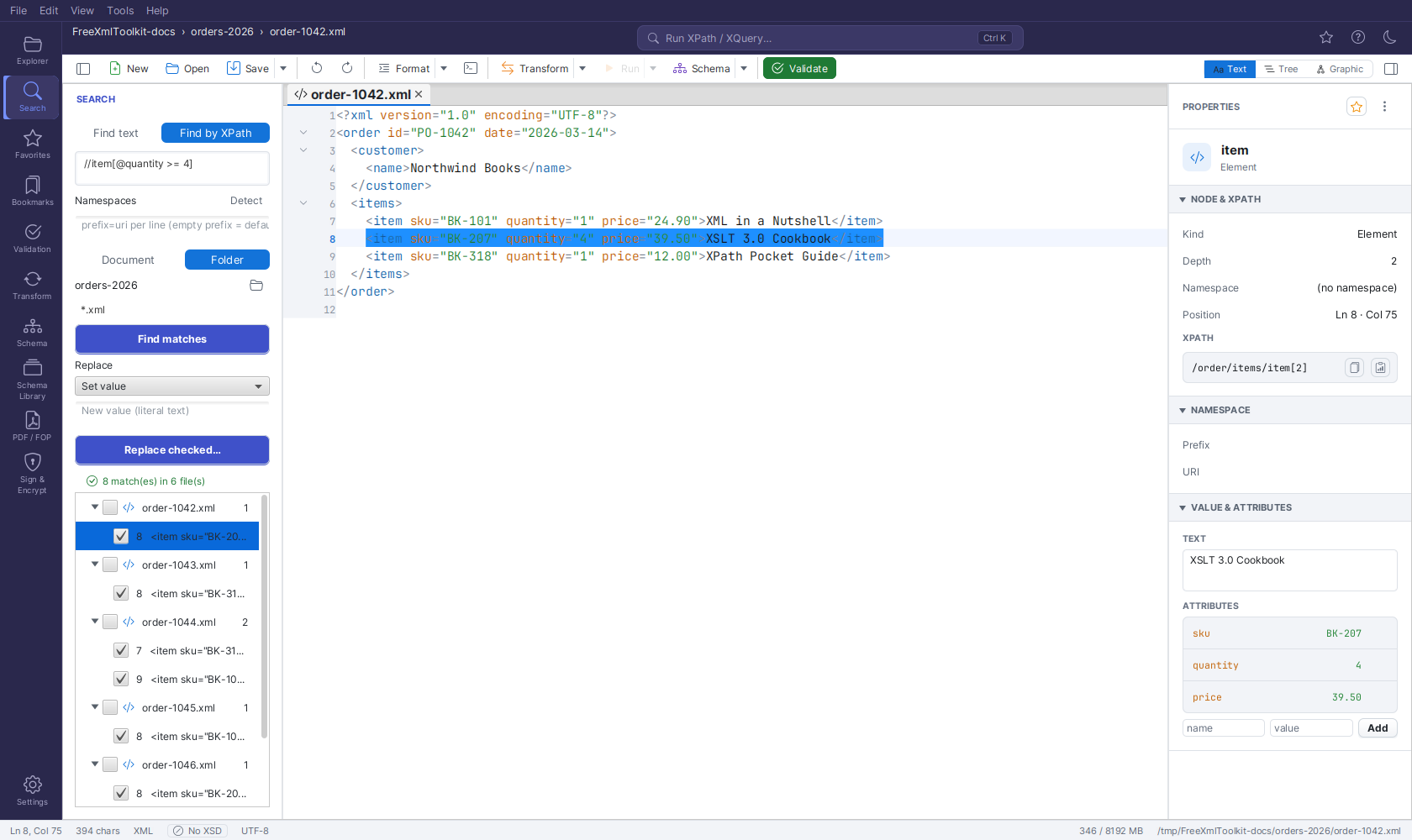 Eight matches of an XPath in six files of a folder, with the selected match shown in the editor
Find & replace by XPath in a document or across a folder. For queries against the open document, use the Query Console (Ctrl+K).
Evaluates an XPath 3.1 expression (Saxon; the map, array, math, fn and xs
prefixes are pre-declared) and lists the matching nodes:
- Scope - a Document | Folder toggle: evaluate against the active document,
or against every file of a folder (with its own file-glob filter, default
*.xml). The folder line shows the folder's name (full path as tooltip), or "No folder — choose one" when none is set. Before the first search, the result area shows a short hint. - Namespaces - enter bindings as
prefix=urilines (an empty prefix sets the default element namespace). The Detect button reads the bindings from the active document's root element, so you rarely have to type them. - Find matches lists the matched elements, attributes and text nodes with line numbers and a short preview. Click a result to navigate to the exact node; matches are highlighted in the editor. Nodes that cannot be mapped to a text position (comments, processing instructions) are excluded and reported as a count.
Replacing via XPath
Pick a Replace mode, then click Replace checked… and confirm - as in Find text mode, only the checked matches are changed:
| Mode | What it does |
|---|---|
| Set value | Sets the matched element's text (or the matched attribute's value) to a literal you type. |
| Compute value (XPath) | Computes the new value per match, with the matched node as the context - for example concat(., '-suffix') or string(number(.) * 2). |
| Delete nodes | Removes the matched nodes: elements (including the whole line when the element sits alone on it), attributes (with the surrounding whitespace), or text. |
| Replace with XML | Replaces matched elements with an XML fragment you enter. The fragment is checked for well-formedness, and multi-line fragments are re-indented to fit their new location. |
All XPath replacements are formatting-preserving text edits - outside the replaced ranges the document stays byte-for-byte identical. In the active document the whole replacement is one undo step (Ctrl+Z reverts it). In folder mode, open files are edited via the editor and all other files are written to disk atomically, with the same changed-on-disk staleness check as Find text mode.