description: Run XSLT 3.0 and XQuery 3.1 transformations with Saxon: parameters, live preview, scenarios and batch transformation.
Run a transformation
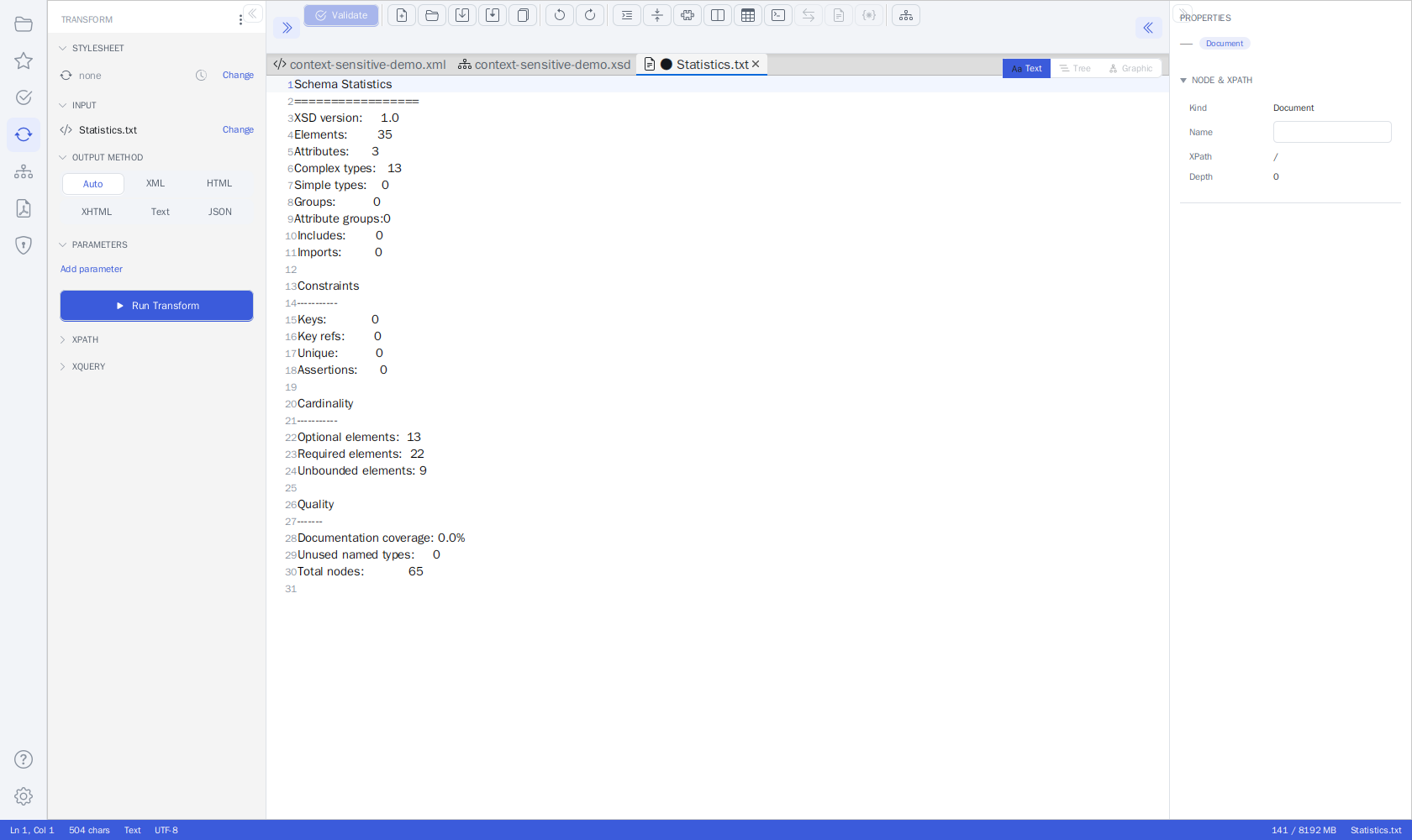
Pick a stylesheet and an input in the Transform panel, run it, and read the result in the OUTPUT panel below the editor. This page covers the everyday run, parameters, live preview and batch runs; every field of the panel is described in the Transform panel reference.
Before you start
- An XML input document and an XSLT stylesheet.
Run a stylesheet
1. Select your files
- Open your XML source file in the editor host so it is the active document - the panel's
INPUT section follows the active tab by default (use Change → Select XML file… to
transform a fixed file from disk instead, or drop an
.xmlfile from your file manager onto the INPUT row) - In the STYLESHEET section, click Change to choose an XSLT stylesheet (the clock
icon offers your recently used stylesheets) - or simply drop an
.xsl/.xsltfile from your file manager onto the STYLESHEET row
2. Run and view the result
Click Run Transform. The result appears in the OUTPUT panel that docks below the
editor - the source stays on top, the result shows underneath. The panel header shows a
format badge, a success/error status with timing (Transformed · N ms · M chars), and view
toggles:
| View | Description |
|---|---|
| Text | The result in a read-only code editor with line numbers and syntax highlighting (the default) |
| Preview | For HTML/XHTML output: the result rendered as a web page |
| Table | For XQuery (and Query Console XPath) results that return a sequence: the items shown as a table |
The OUTPUT METHOD defaults to Auto: the format (XML, HTML, XHTML, Text, JSON) is
detected from the stylesheet's xsl:output declaration. Pick a concrete format in the
dropdown to override the detection.
Running automatically
The Run automatically checkbox next to Run Transform (on by default) controls the automatic run that starts when you drop a stylesheet or input, pick one from your favorites, or browse with ◀ / ▶. Uncheck it to only set the file and run with Run Transform yourself.
Controls at a glance
| Control | Description |
|---|---|
| Run Transform | Runs the transformation with the current stylesheet and input |
| Run automatically | (Checkbox next to Run Transform, on by default) Runs as soon as a stylesheet or input is dropped, picked from favorites or browsed with ◀ / ▶ |
| Debug | (Next to Run Transform, also Shift+F5) Runs the stylesheet in the interactive debugger - breakpoints (toggle them in the saved stylesheet's gutter at any time, before or during a session; they are remembered per file), stepping, variables - in a DEBUG dock below the editor; see XSLT Developer |
| Transform with XSLT… | (Editor toolbar / Tools menu, XML documents) Opens this panel on the active document, asks for a stylesheet if none is set, and runs it |
| Open result as editor tab | (OUTPUT panel) Opens the result as an editable, savable document. HTML/XHTML results open as an HTML document rendered in the editor's read-only Preview view; re-running the transform updates the open tab |
| Open in browser | (OUTPUT panel) Opens the result in your default web browser |
| Save result… | (OUTPUT panel) Writes the result straight to a file |
| Watch stylesheet file | (OPTIONS & TOOLS checkbox) Re-runs automatically when the stylesheet changes on disk |
| Live preview | (OPTIONS & TOOLS checkbox) Re-runs automatically (debounced) while you edit the input document |
| Auto-open result tab | (OPTIONS & TOOLS checkbox) Also opens every successful result as an editor tab (off by default) |
The OPTIONS & TOOLS section sits at the top of the panel and is open by default - click its header to collapse it.
Live Preview and Watch Mode
Two checkboxes in the Transform panel's OPTIONS & TOOLS section re-run the transformation automatically:
- Live preview — re-runs (debounced) whenever you edit the input document.
- Watch stylesheet file — re-runs whenever the chosen stylesheet changes on disk, which is handy while editing the stylesheet in another tab or tool.
This is ideal for developing and debugging stylesheets: make a change, and the OUTPUT panel updates by itself.
Using XSLT Parameters
XSLT stylesheets can accept parameters to make them more flexible. The PARAMETERS section of the Transform panel lets you define these values.
Defining Parameters in XSLT
<?xml version="1.0" encoding="UTF-8"?>
<xsl:stylesheet version="1.0"
                xmlns:xsl="http://www.w3.org/1999/XSL/Transform">

  <!-- Define a parameter with a default value -->
  <xsl:param name="title" select="'Default Title'"/>
  <xsl:param name="show-prices" select="true()"/>
  <xsl:param name="currency" select="'EUR'"/>

  <xsl:template match="/">
    <html>
      <head><title><xsl:value-of select="$title"/></title></head>
      <body>
        <h1><xsl:value-of select="$title"/></h1>
        <xsl:if test="$show-prices">
          <!-- Show prices in the specified currency -->
        </xsl:if>
      </body>
    </html>
  </xsl:template>

</xsl:stylesheet>
Setting Parameter Values
- Expand the PARAMETERS section in the Transform panel
- Click Add parameter to create a new row
- Enter the parameter name (e.g.,
title) - Enter the value (e.g.,
My Custom Report)
Each row has its own remove button, and the values are passed to the stylesheet on every run.
Output Format
The Transform panel's OUTPUT METHOD section is a single dropdown with
Auto, XML, HTML, XHTML, Text, JSON. Auto (the default) detects the format from
the stylesheet's xsl:output declaration; pick a concrete format to override the detection.
Note
XSLT version selection (1.0/2.0/3.0) is intentionally not offered: Saxon HE auto-detects
the version from the stylesheet's version attribute.
Multi-File Batch Processing
Batch Transform… (Transform panel, OPTIONS & TOOLS section) runs the chosen stylesheet over many XML files at once - or, when no stylesheet is set, the active XQuery document.
- Open the stylesheet (or XQuery file) you want to apply, then pick OPTIONS & TOOLS → Batch Transform… — a Batch tool tab opens.
- Add the XML files to process (each file is transformed/queried independently).
- Run the batch: the table shows one row per file with its status, and selecting a row shows that file's RESULT.
- Save All… writes every result to a folder you choose.
The Explorer offers an even faster route: select several XML files in the workspace tree (Ctrl/Shift+click), right-click and choose Transform with <stylesheet> — the Batch tool tab opens pre-loaded with those files and starts automatically.
Tracing and Messages
Enable Trace run in OPTIONS & TOOLS to open a Trace tool tab with the next run. It
shows the sequence of template matches and all xsl:message output:
Tips
- Validate first - Make sure your XML and XSLT files are valid before transformation
- Check the OUTPUT panel status - If a transformation fails, the red error status in the OUTPUT panel header shows the error message
- Use the Preview view - For HTML output, the OUTPUT panel's Preview toggle shows you exactly how it will look
- Start with Live preview off for large files to avoid slow updates
- Star your stylesheets as favorites, then page through them with the STYLESHEET row's ◀ / ▶ buttons
- Use Batch Transform for processing multiple files efficiently
- Enable Profile run if transformations are slow - the per-template timings show where (see Profile a transformation)
- Enable Trace run when troubleshooting complex stylesheets
- Use the Examples menu to insert working XQuery templates, and try the files in the
examples/folder - Only process trusted stylesheets - see Security Features for details on XSLT extension security
Troubleshooting
| Problem | Solution |
|---|---|
| No output | Check the STYLESHEET row shows a stylesheet and the INPUT row shows the XML you expect |
| Syntax error | Read the red error status in the OUTPUT panel header |
| Slow transformation | Enable Profile run (OPTIONS & TOOLS) and check the per-template timings |
| Batch results empty | Ensure files were added to the Batch tab and the run has finished |
| Parameters not working | Verify parameter names match exactly |
| Java extension function not found | Java extensions are disabled by default for security. See Security Features |
Next steps
- Debugger - breakpoints, stepping, variables and watches
- Profile a transformation - where the time goes
- Test with XSpec
- External XSLT processors - Saxon HE 13, xsltproc and others
- XSLT and XQuery examples