The Schema panel
What the Schema activity and the editor offer while an XSD is open: the views of a schema, the tools of the side panel and the sample-data generators. Each tool is described in detail under Design schemas.
Before you start
- An XSD open in the editor; open the Schema activity.
XSD Views & Tools
When editing an XSD file, the editor host and the Schema activity provide:
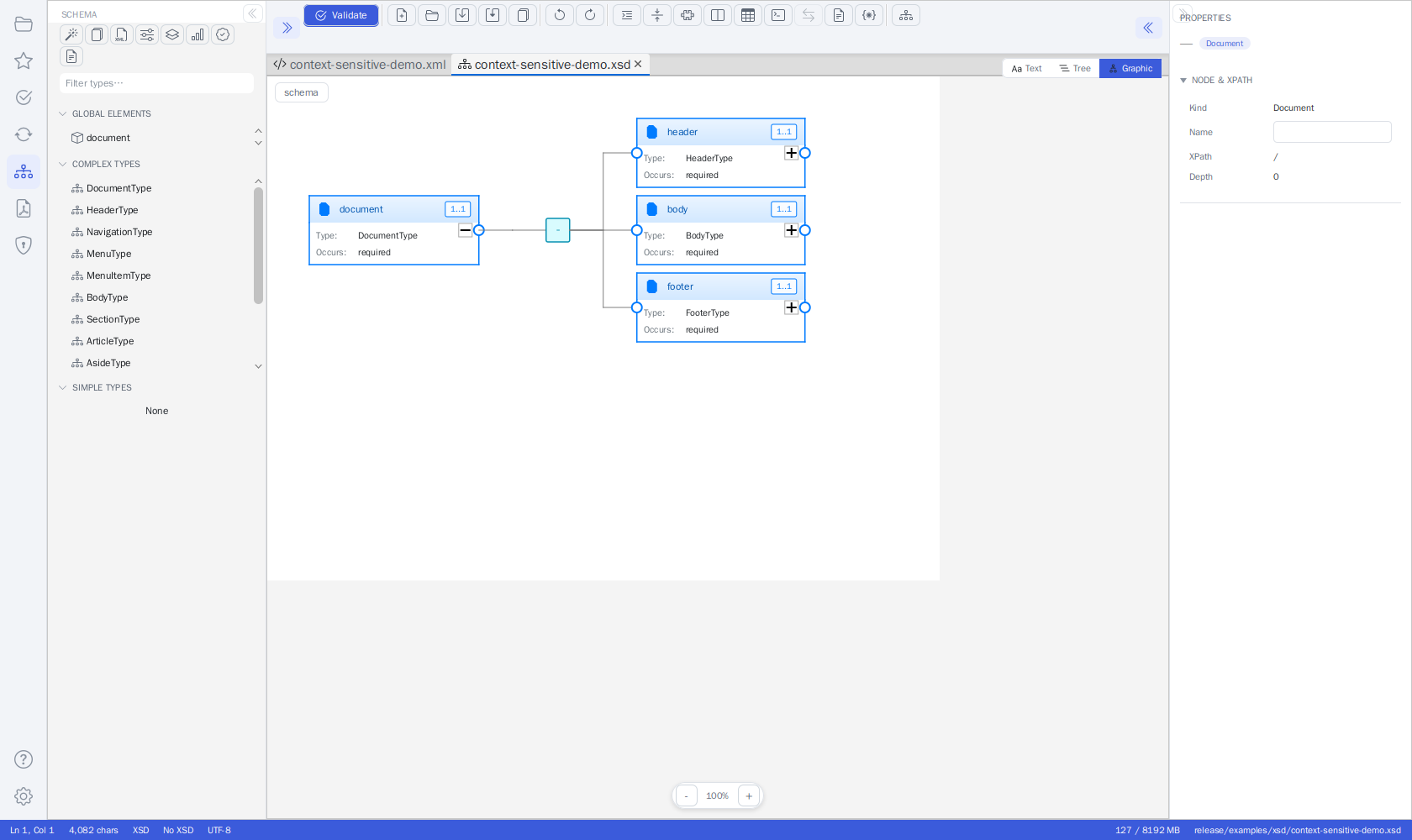 An XSD open in the Graphic view, with the Schema activity panel (Type Library, Flatten,
Schema Analysis, Generate Sample XML / Documentation) on the left.
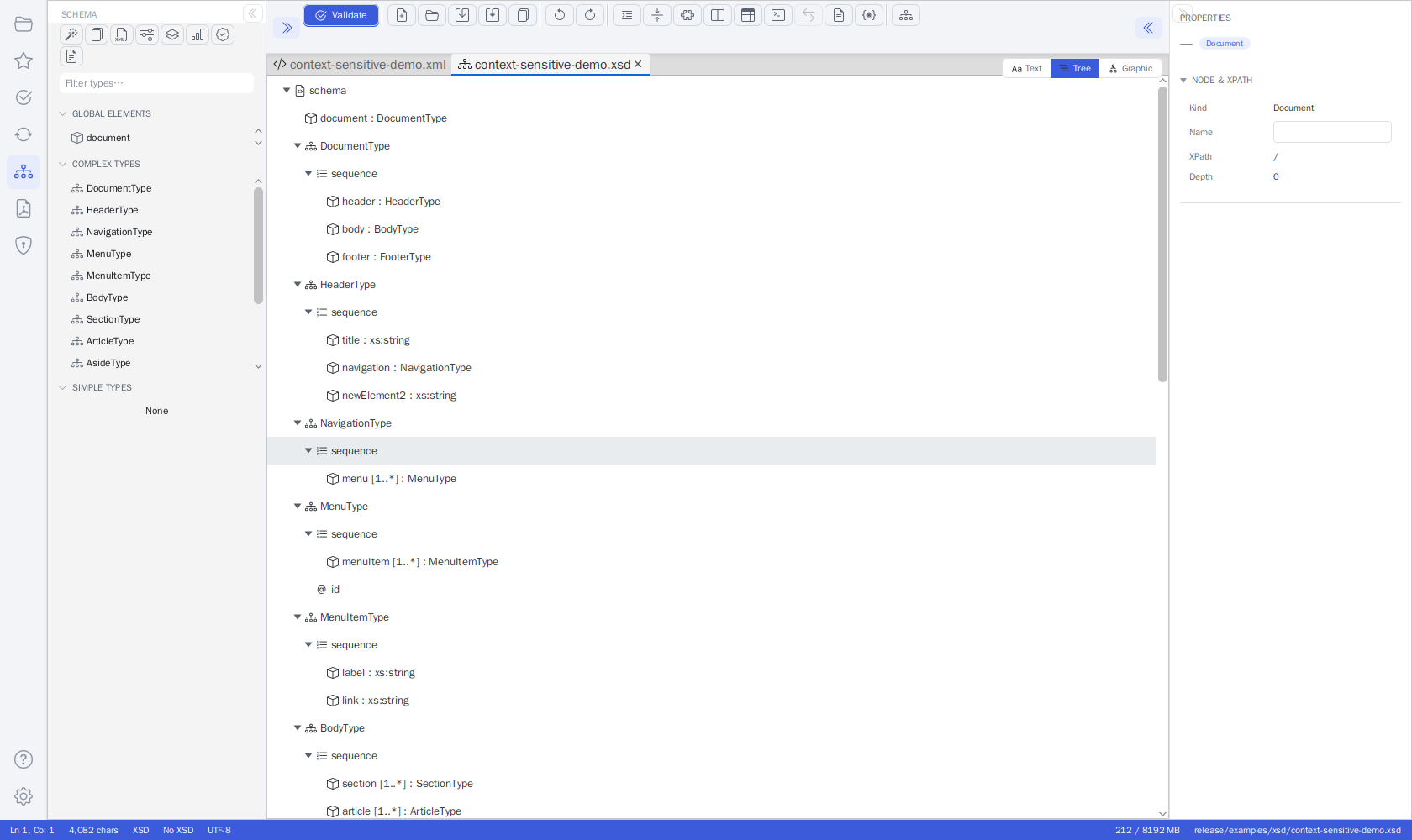 The same schema in the Tree view - select a node to edit its properties in the inspector.
- Text - Source code editing with syntax highlighting; moving the caret into a schema construct also lets you edit its properties in the Properties pane (see Properties Inspector)
- Graphic - Visual schema diagram of cards (name, type, cardinality - see Reading a Card); drag cards to move nodes, hold Ctrl (Cmd on macOS) to copy (see Moving and Copying by Drag and Drop)
- Type Editor - Edit ComplexTypes graphically, SimpleTypes with form editor
- Analysis - The Schema Analysis tool tab: statistics incl. complexity metrics, unused types / groups and circular references, a Types tab with usage locations and "Remove unused", quality checks with score, identity constraints, XPath validation - every finding reveals its node in the Tree view, and the whole report exports as CSV / JSON / HTML / PDF / Excel (see Schema Analysis)
- Documentation - Generate HTML/Word/PDF documentation (see below)
- Sample Data - Generate sample XML from the schema
- Flatten - Merge included schemas into a single standalone file. The Flatten Schema… button opens an options dialog first: strip annotations, strip XML comments, remove unused global types and groups, and minify the output — all checked by default for a minimal schema suited to server-side validation; uncheck everything for a plain flatten that keeps documentation. Imports (
xs:import, different namespaces) are never merged. See XSD Flattener for details.
Missing imported schemas resolve automatically
If a schema's xs:import points to a file that is not found next to the schema, the
toolkit looks it up in the Schema Library and your XML catalogs, then in the schema
cache, and finally downloads it from the declared or namespace URL into the cache -
so the imported types still appear in the Tree and Graphic views, even offline on
later loads. Nested imports inside imported schemas are followed too, and your own
schema files are never modified. See
Automatic Resolution of Imported Schemas.
The Schema Panel
The Schema activity's side panel lists the active schema's top-level declarations, grouped into GLOBAL ELEMENTS, COMPLEX TYPES, and SIMPLE TYPES (collapsible sections), with a filter field above them. Click a declaration to reveal it in the Tree view; double-click a type to open it in its dedicated Type Editor tab; right-click for Reveal in Tree / Open Type Editor / Find Usage. The + button in the COMPLEX TYPES and SIMPLE TYPES headers declares a new type and opens it in its Type Editor (see Creating a New Type). The schema tools (Generate Sample XML…, Sample XML with Options…, Flatten Schema…, Schema Analysis, Generate Documentation…) are labelled rows in the TOOLS section at the top of the panel - each row shows an icon and the tool's name, so nothing hides behind a tooltip. TOOLS starts open; click its header to collapse it.
Generate XSD from XML (infer a schema from the active XML document) and Generate XSD from XML Files… (infer one schema from several XML files) are not in the Schema panel - they are in the editor toolbar's Schema ▾ split menu.
The whole panel is a drop zone: drop an .xsd file from your
file manager anywhere on it to open that schema as a document - the panel then shows
its declarations. Unlike the picker drop targets elsewhere in the shell, this drop
opens the file rather than binding or selecting anything. While dragging, the panel
shows a dashed green border with a soft tint for an .xsd file and a dashed red
border for any other extension - a red drop is rejected and does not open the file.
Documentation Generator (editor area)
Generate Documentation… (Schema panel TOOLS section or the editor toolbar's Schema ▾ menu) opens the generator as a tab in the main editor area with the full option set:
- SOURCE & OUTPUT - the XSD (the active schema is pre-filled) and the output folder (HTML) or file (PDF/Word).
- FORMAT - HTML, PDF, or Word.
- OPTIONS - Markdown rendering (All documentation, Per node (
@markdown), or Off), type definitions in source code, documentation in diagrams, SVG overview page, metadata, the diagram image format (SVG/PNG/JPG), and a favicon (.ico/.png/.svg) embedded into the generated HTML site. See Generation Options for what the Markdown settings do. - PDF/WORD OPTIONS (shown for those formats) - page size (A4/Letter/Legal, PDF also A3), orientation, and the content building blocks (cover page, table of contents, data dictionary, schema/element diagrams). PDF additionally offers the color scheme (Blue/Green/Purple/Grayscale/Professional), a watermark (Draft/Confidential/Internal Use Only), page numbers, and PDF bookmarks.
- LANGUAGES - Scan languages discovers the
xml:langdocumentation languages in the schema; pick which to include and the fallback language. - PROGRESS - the right-hand log streams the pipeline's task messages live while generating; the run can be cancelled, and the result can open automatically.
Schema Panel: Sample-Data Generation
Open the Schema panel from the activity bar while an XSD file is active. Alongside type browsing, the panel offers actions to generate sample XML from the schema:
- Generate Sample XML - The simple generator. It builds one sample document using mandatory-only / maximum-occurrence options and realistic example values.
- Sample XML with Options… - Opens a dialog for full control over how the sample data is built (see below).
Advanced Sample-Data Generation
A rule-based generator with per-XPath strategies, batch output, and reusable profiles.
The advanced dialog turns the schema's XPaths into an editable table. For each XPath you choose a generation Strategy plus a value or pattern:
| Strategy | What It Produces |
|---|---|
| Auto | Type-based automatic value (the default) |
| Fixed Value | A fixed literal you type |
| Sequence | An auto-incrementing value from a pattern (for example ORD-{seq:4}) |
| Enum Cycle | Cycles through the allowed enumeration values |
| Template | A string built from a template with placeholders |
| Random from List | A random pick from a comma-separated list |
| XPath Reference | Copies the value from another XPath |
| XSD Example | An example value taken from the schema's annotations |
| Omit / Empty / Null | Skip the node, leave it empty, or set xsi:nil |
You can also set batch options - a count and a file-name pattern (for example
order_001.xml, order_002.xml) - and Save / Load named profiles so you can reuse
a configuration later.
The dialog can either generate a single document (which opens in a new tab) or a batch of files written to a folder you choose. For a full walkthrough, see Profiled XML Generation and the Sample XML Generator section of the XSD Tools guide.