Text view
The Text View provides raw XSD source code editing.
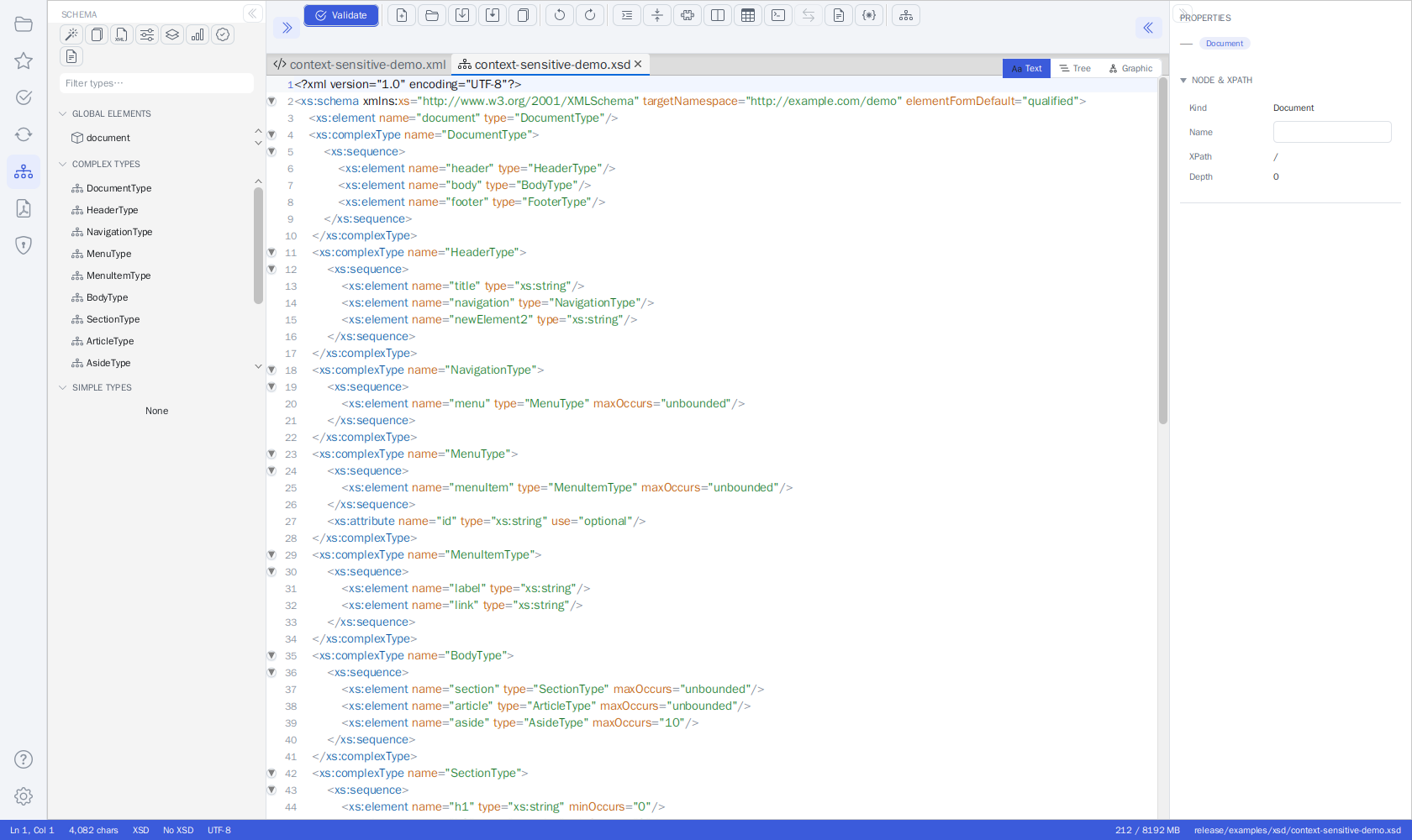 The XSD in the Text view (Schema activity panel on the left, inspector on the right)
Before you start
- An XSD open in the editor.
Features
- Full Code Editor: View and edit the raw XSD source code
- Syntax Highlighting: Color-coded code for easy reading
- Search and Replace: Find and change text quickly
- Query Console: Query the schema with XPath/XQuery (Ctrl+Shift+X)
- Save as Favorite: Quick access to frequently used schemas
- Editable Properties pane: Move the text caret into a schema construct to select it and edit its properties without leaving the text editor (see below)
Editing Schema Properties from Any View
You can edit a schema node's properties directly from the Text view, the same way as in the Tree and Graphic views.
The XSD editor has three views - Text, Tree, and Graphic - and all three share one in-memory schema model. The Properties pane works in every view:
- Tree and Graphic views: Select a node to edit its name, type, cardinality/occurrence, use, form, constraints, documentation, and facets.
- Text view: Move the text caret into an XSD construct - such as an
xs:element,xs:complexType,xs:simpleType,xs:attribute, a compositor (xs:sequence,xs:choice,xs:all), or a facet - and the Properties pane selects the matching schema node and shows it editable. You get the same property editing as in the Tree and Graphic views, without leaving the source editor. Your edits round-trip back into the schema text as a minimal change that preserves your caret and scroll position.
If the caret is not inside a recognizable construct - for example inside an xs:annotation, a
comment, or blank space - the pane falls back to a read-only caret/XPath view.
Because all three views share one model, your edits and your Undo/Redo history are preserved when you switch between Text, Tree, and Graphic.
What You Can Edit in the Properties Pane
For the selected schema node you can edit:
- Name, type, cardinality/occurrence, use, form - The core properties of the node. The
Type field is a picker: it lists the schema's own simple and complex types (including
included and imported ones, with their namespace prefix) and every XSD built-in datatype,
filters as you type and explains the highlighted type in a side pane; free text is still
accepted for references it does not know. See Choosing a type with the type
picker for the keyboard shortcuts and what the side pane shows.
Compositors (
xs:sequence,xs:choice,xs:all), group references andxs:anyalso show editable minOccurs/maxOccurs and their Order in CARDINALITY & USE. - Facets - Add, edit, and remove facets such as patterns, enumerations, and length limits. In the facet list, click a value to edit it (Enter saves, Esc cancels), point at a row and click the trash icon to delete it, and use the row below the list to add one, which offers only the facets the base type allows, also through named, list and union types. Facets inherited from a base type appear in italics and are read-only. When all facets come from a named type, the add row is replaced by "Facets come from T – click to edit them there."; click it to select that type.
- App info (
xs:appinfo) - The machine-readable metadata attached to the node (for example the technical tags described in Documentation Generator). - Multi-language documentation (
xs:documentation) - One row per language. Use Add language to add a translation and the ✕ button to remove one. - Comments - Select an XSD comment in the tree to edit its text. To add a comment, choose Add Comment… from a node's right-click context menu.
- Constraints - In the CONSTRAINTS section, select a
key,keyref,unique, orassertconstraint and click Delete constraint to remove it.
The pane also shows information you cannot edit directly: the Base type and Derivation (restriction / extension / list / union), final for a simple type (in ADVANCED), the Order of the node in its parent compositor (e.g. 2 of 5 · sequence), and USED IN - for a global type, element or group every place that references it (click an entry to select the referring node), for a local declaration the global component that contains it. Editable values look like plain text until you point at them. See Properties Inspector for the full layout.
In the Tree/Graphic view, the Copy XPath and Copy Node buttons in NODE & XPATH copy the schema XPath and the XSD source of the selected node.
Tip
You can also edit a declaration from an XML document that uses this schema: select the element there and change type, cardinality, facets or documentation in its inspector - see Properties Inspector - Editing the bound schema.
Note
Structural editing (adding, deleting, and moving nodes) remains a Tree and Graphic capability via the right-click context menu. The Text view provides property editing through the Properties pane.