JSON & YAML
The JSON Editor provides a powerful environment for editing, validating, and querying JSON files with support for multiple JSON formats.
Overview
FreeXmlToolkit includes a full-featured JSON Editor that supports:
- Standard JSON - RFC 8259 compliant
- JSONC syntax - JSON with Comments (single-line // and block /* */)
- JSON5 syntax - trailing commas, unquoted keys, single-quoted strings, and comments
File extensions
.json, .jsonc and .json5 all open in the JSON editor
(tree view, grid view, JSONPath, schema binding). The flavor is detected from the content, not
from the extension - a .json file with comments is treated as JSONC just like a
.jsonc file. Only .json is offered for operating-system file associations
(.jsonc/.json5 have no MIME type in the shared databases).
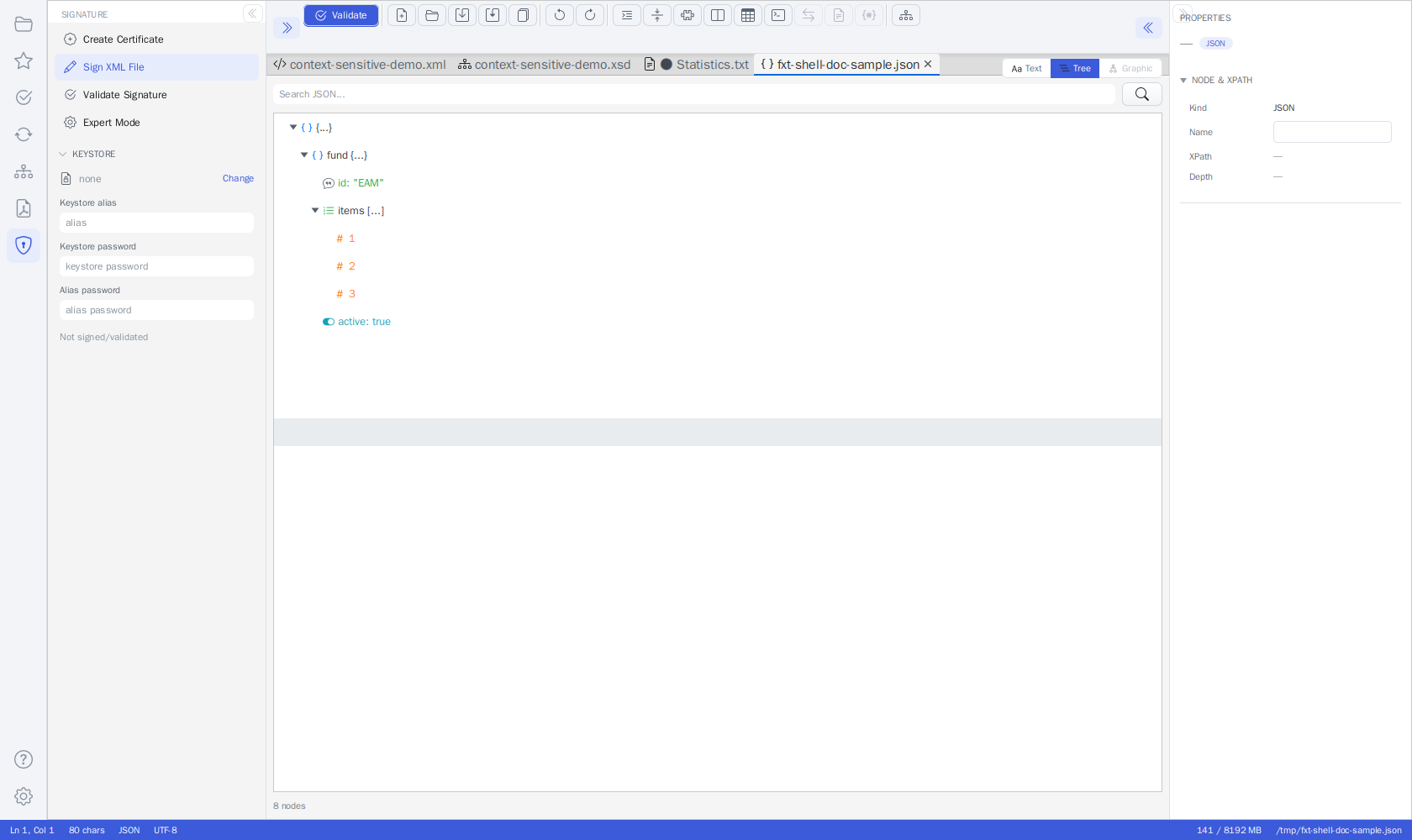 The Tree view of a JSON document
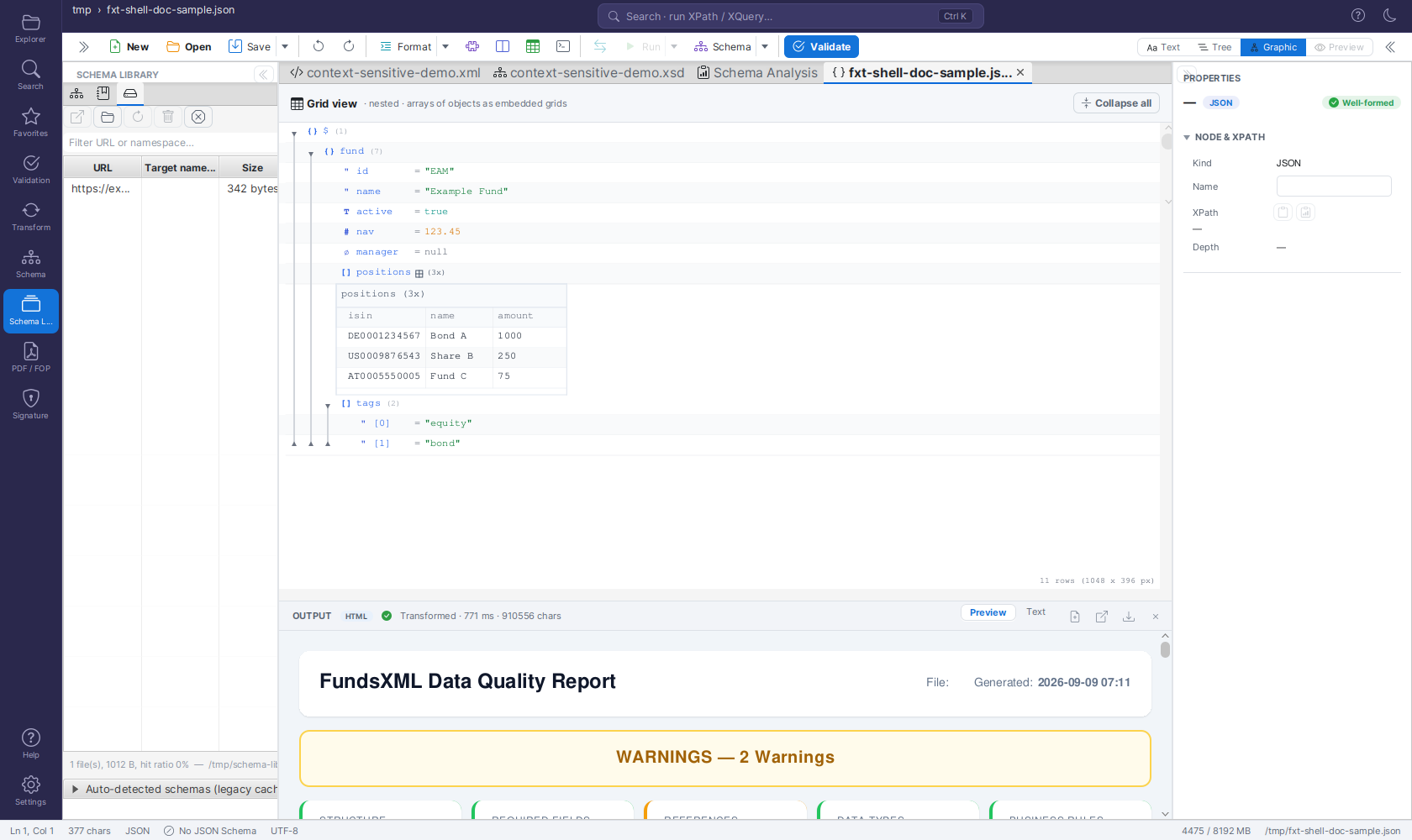 The same document in the Graphic (grid) view - the grid the shell also uses for XML
Features
Text Editor
| Feature | Description |
|---|---|
| Syntax Highlighting | Color-coded JSON for easy reading |
| Format | Pretty-print with the JSON indentation from Settings. Only whitespace changes: comments stay with their members, and quote style, numbers such as 0x1F, unquoted keys and trailing commas are kept |
| Sort Keys | Right-click → Sort Keys sorts the members of the top-level object, Sort Keys Recursively every object (also inside arrays); comments move with their members, one undo step. The grid offers both for the selected object |
| Folding | Fold objects, arrays and long block comments with the arrow in the gutter; Fold All / Unfold All in the context menu |
| Schema completion | With a JSON Schema bound, Ctrl+Space lists the properties the object may still get (required ones first, with type and description) and, at a value, the allowed values (enum, const, default, examples, true/false, null). It also opens by itself after typing " at a key or : after a key. A property is inserted with a value skeleton ("", {}, []) and the caret inside |
| Schema hover | Hovering a key or value adds what the schema says: title, type, whether it is required, description, allowed values, format and limits such as minimum or pattern |
| Problems in place | Validation problems are underlined (a schema violation at the member's key, a syntax error at its token), the line gets a red badge, and hovering shows the message. The marks go away with the next edit until the next validation |
| Minify | Compress JSON by removing whitespace |
| Undo/Redo | Full undo/redo support |
| Line Numbers | Numbered lines for easy navigation |
| Drag & Drop | Drop JSON files directly into the editor |
Tree View
The tree view provides a hierarchical view of your JSON structure:
| Feature | Description |
|---|---|
| Interactive Navigation | Click on nodes to jump to that location in the text |
| Expand/Collapse | Expand or collapse nodes to focus on specific areas |
| Search | Search for keys or values within the tree |
| Sync with Editor | Synchronize selection between tree and text |
| Type Icons | Visual icons for objects, arrays, strings, numbers, booleans, and null |
| Delete | Press Delete to remove the selected property or array item completely; the next one is selected and one Undo restores it |
The tree shares the document model with the grid view and the Properties inspector, so an edit made there shows up in the tree immediately, and Ctrl+F searches keys and values.
Grid View
The Graphic view mode shows the document as the editable grid - the very same grid the shell uses for XML files, so it is instantly familiar:
| Feature | Description |
|---|---|
| Rows | The root $, object properties (key = value) and array items ([0], [1], …); objects and arrays collapse/expand |
| Type glyphs | {} object, [] array, " string, # number, T/F boolean, ∅ null - each in its own colour; strings are shown quoted |
| Arrays of objects | Rendered as embedded tables (one column per key); click a column header to sort, expand nested objects inline |
| Inline editing | Double-click a value; the type is kept (numbers must stay numbers, booleans toggle, null stays null unless you type text). Double-click a key to rename it |
| Context menu | Add Property / Array Item / Sibling Before / After, Rename Key (F2), Duplicate (Ctrl+D), Copy / Cut / Paste as Sibling / Paste as Child, Copy Cell Content (Ctrl+Shift+C), Copy JSONPath (Ctrl+Alt+X), Copy Node (JSON) (Ctrl+Alt+C), Change Type, Move Up/Down (Alt+↑/↓), Expand All / Collapse All, Sort Column, Delete |
| Undo/Redo | Every grid edit is one undo step (Ctrl+Z / Ctrl+Y) and is written back into the text |
| Search | Ctrl+F finds keys and values, revealing matches inside collapsed nodes |
| Zoom & layout | Zoom the whole grid with Ctrl+mouse wheel, Ctrl + / Ctrl − or the header's zoom pill (Ctrl 0 resets; the factor is shared with the XML grid). Nothing is cut off - long strings wrap onto further lines - and the columns of an array table can be dragged to a new width (double-click the separator to auto-fit). Expand all / Collapse all buttons sit in the header |
See Grid View - JSON for details.
Properties Inspector
The Properties inspector on the right (Ctrl+Shift+P) works for JSON documents too. Select a node in the Tree or Graphic (grid) view and the inspector shows:
- the key - editable for object properties (renaming a key here is the same as Rename Key in the grid; duplicate keys are refused),
- the node type (object, array, string, number, boolean, null) and its depth,
- the JSONPath of the node in the NODE & XPATH line (e.g.
$.items[1]) - click it to copy the path, - the value - editable for strings, numbers, booleans and
null; the type is kept, so a number stays a number.
Edits made in the inspector are undoable (Ctrl+Z) and written back into the text just like grid edits. See Properties Inspector - JSON Files for details.
With a JSON Schema bound, the inspector's JSON SCHEMA section shows what the schema says about
the selected value: type, required, description, allowed values, default, format, limits
(minimum, maxLength, pattern, …) and, for an object, its declared properties (* = required).
The schema help follows $ref (also into other files, local or downloaded), merges allOf, offers the
branches of anyOf / oneOf that fit the document (a const or enum on a member picks the
branch) and applies if / then / else when the document decides the condition. It is a guide,
not a validator: unevaluatedProperties, dependentRequired and conditions on patterns or ranges
are not evaluated - Validate checks everything.
Quick Fixes
Some schema violations come with a quick fix - the light bulb in the gutter, or Quick Fix on the problem in the Problems list:
| Violation | Fix |
|---|---|
A required property is missing (required) |
Add required property "…": added as the object's last member, in the object's layout, with a value from the schema (its const, default, first enum value or a sample of its type) |
A value is not one of the allowed ones (enum, const) |
Replace with … one of the allowed values |
A property the schema does not allow (additionalProperties: false) |
Remove property "…" (with its comma and line) |
A fix changes only the affected text (comments and formatting stay) and is one undo step; the document is validated again right after.
Generate a Sample
Generate Sample (XML / JSON)… (toolbar Schema ▾, Tools menu) on a JSON document creates a
sample instance in a new tab: from the open document when it is a JSON Schema, otherwise from
the schema bound to it. Choose Required properties only or All declared properties.
Values come from const, default, enum and examples, else from the type, honouring
format (date-time, email, uri, uuid, …), pattern (common patterns), minimum / maximum,
multipleOf, minLength and minItems. Recursive schemas stop after 8 levels; with all
properties, the members of every oneOf branch are filled in, so such a sample may need a
manual choice.
Hover Information
When you hover over any element in the JSON editor, you'll see:
- JSONPath - The full path to the current element (e.g., $.store.book[0].title)
- Type - The JSON type (object, array, string, number, boolean, null)
- Key - The property key name
- Value - A preview of the value (truncated for long values)
JSONPath Queries
Execute JSONPath queries to extract data from your JSON documents:
| Query Example | Description |
|---|---|
$.store.book[*].author |
All authors in the store |
$..author |
All authors anywhere in the document |
$.store.book[?(@.price < 10)] |
Books cheaper than 10 |
$.store.book[0,1] |
First two books |
$.store.book[-1:] |
Last book |
To run a query: 1. Open the Query Console (terminal icon in the toolbar, or Ctrl+Shift+X) - with a JSON document active its mode toggle reads JSONPath and it evaluates JSONPath 2. Enter your JSONPath expression 3. Run it to see the results in the console's result pane
Validation
Syntax Validation
Click Validate to check if your JSON is syntactically correct. Parse errors are reported with line and column; double-click a problem to jump there. Comments, trailing commas and the other JSONC / JSON5 forms are valid in such files, and a JSON Schema validates them too.
JSON Schema Validation
JSON documents bind a JSON Schema the same way XML documents bind an XSD:
- Automatic: a top-level
"$schema"member pointing at a schema file or URL (e.g."$schema": "./product-schema.json") is detected when the file opens. Relative paths resolve against the document's folder;http(s)URLs are downloaded and cached. (Values pointing atjson-schema.orgmeta-schemas are dialect declarations, not bindings, and are ignored - unless you map that meta-schema URI in the Schema Library yourself; none are bundled.) If the$schemaURI isn't directly resolvable, the Schema Library is consulted next - see Schema Library. - By file name: a document without
"$schema"gets the schema of a Schema Library mapping whose file names match it (tsconfig*.json), or - when switched on - the one the SchemaStore catalog knows for its name (package.json,.eslintrc.json,composer.json, …). - Manual: click the JSON Schema indicator in the status bar, use the
JSON Schema source row in the Validation panel (Change link, favorites
star, or drag & drop a
.jsonschema onto the row or the status bar).
Validation runs via Run Validation in the panel, the toolbar's Validate button / F8, or continuously while typing (Validate while typing, on by default). Schema violations appear in the PROBLEMS list with the offending line number — clicking a problem jumps to it — and are marked in the text (underline, gutter badge, hover) and in the grid (red row marker with the messages as tooltip). Each problem also carries the failing schema keyword and the JSON pointer of the invalid value.
The validator supports JSON Schema Draft-07, 2019-09, and 2020-12;
the dialect is selected by the schema's own $schema declaration (2020-12 is
the default for schemas without one). Relative $refs between schema files
resolve as expected.
Ready-made examples
The examples/json/ folder shipped with the application contains a complete
demo set: a product-catalog schema with a relative $ref, a valid and a
deliberately invalid instance (six line-navigable violations), and one
dialect demo each for Draft-07 and 2019-09. Open
examples/json/products-invalid.json and press F8 to see it in action.
Keyboard Shortcuts
The complete list is on the Keyboard Shortcuts page (and in the app under Help → Keyboard Shortcuts).
JSON-specific, in the Graphic (grid) view:
| Shortcut | Action |
|---|---|
F2 |
Rename the selected key |
Ctrl+D |
Duplicate the selected node (elsewhere Ctrl+D adds the file to favorites) |
Alt+↑ / Alt+↓ |
Move the selected node up / down |
Ctrl+Alt+X / Ctrl+Alt+C |
Copy JSONPath / Copy Node (JSON) |
Ctrl+Shift+C |
Copy Cell Content |
Supported Formats
All three flavors below are recognized in .json, .jsonc and .json5 files; the
editor auto-detects the flavor from the content: comments make it JSONC; single-quoted strings,
unquoted keys, trailing commas or JSON5 numbers (0x1F, .5, +1, Infinity) make it JSON5. A
// or a colon inside a string value does not count, so a plain JSON file with URLs stays JSON.
JSON (Standard)
Grid edits rewrite JSONC / JSON5 as standard JSON
Comments, unquoted keys, single quotes and trailing commas are not part of the document model behind the tree and grid views. Editing in the grid (or through the Properties inspector) therefore rewrites the file as standard JSON on the first edit - the grid warns you once when it opens such a file. Edit in the Text view to keep them.
JSONC syntax (JSON with Comments)
JSON5 syntax
{
  // Unquoted keys
  name: 'John',
  // Single quotes
  city: 'New York',
  // Trailing commas allowed
  items: [1, 2, 3,],
}
YAML
YAML files (.yaml, .yml) open in the same editor as JSON, with what YAML needs:
- Syntax colours for keys, strings, numbers, booleans, null, comments, anchors and aliases
(
&base,*base), tags (!Ref,!!str), directives and document markers (---). - Folding by indentation: a key folds with everything indented below it (also a sequence
written at the key's own indentation), a block scalar (
|,>) with its key, and each document from its---. - Syntax check while you type. A YAML error (wrong indentation, a missing bracket, a duplicate key) is underlined at its line and column and listed in the Problems panel.
- Validation against a JSON Schema, with the same validator as JSON. Problems are underlined on
the key they concern. The schema is found like this:
- a project binding for the file,
- a comment
# yaml-language-server: $schema=<url or path>anywhere in the file (the convention of the YAML language server, so files prepared for VS Code work as they are), - a top-level
$schema: <url or path>key, - the file's name: a Schema Library mapping
with file names (
docker-compose*.yml), then - when switched on - the SchemaStore catalog, which knows GitHub workflows, docker-compose, GitLab CI, OpenAPI and hundreds of other file types, - Set Schema… (or a JSON Schema dropped on the schema indicator in the status bar).
A declared $schema id is looked up in the Schema Library and catalogs
first, like JSON's. A file with several documents is validated as an array of them.
- Completion from the schema (Ctrl+Space, or typing :): the keys a mapping may still get
(required ones first, each with its description and type), the allowed values of a key
(enum, const, default, examples, true/false, null), and for a new sequence item
(-) the keys of its mapping. A new key of type object or array starts its block on the next
line. Hovering a key shows its path (JSONPath), its type and what the schema says about it.
- Format (Shift+Alt+F) writes the document again in block style with the indentation of
Settings. It only runs when nothing would be lost: a document with comments, anchors and
aliases, tags or directives is left as it is, with a note. Minify is not offered for YAML.
- JSONPath in the Query Console: a YAML document is queried as its data
($.spec.containers[*].image); the result is JSON. Copy JSONPath in the context menu and
the Properties Inspector show the path of the key or value at the caret.
- Generate Sample (Schema ▾) writes a sample YAML document from the bound JSON Schema.
- New File (type YAML) starts with ---; the templates YAML document with a JSON Schema
(writes the # yaml-language-server: $schema=… comment), Docker Compose file and GitHub
Actions workflow give a ready skeleton.
- Compare with File… compares two JSON or YAML documents - also a JSON file against a YAML file -
by their data in the Data mode of the Compare view: member order, formatting, comments, quoting
and anchors do not count, 1.0 equals 1, and an inserted array item is one difference. Each
difference names its JSONPath and selects its lines on both sides. The options Ignore element
order, Key attributes (here: key members such as id that pair the objects of an array) and
Numeric tolerance apply to it.
- Command line: fxt-cli validate checks YAML files (declared schema, file-name patterns, with
--schemastore the SchemaStore catalog), fxt-cli query -e '$.jobs.*.runs-on' ci.yml runs
JSONPath on them and fxt-cli compare compares them by their data - see Command Line.
The MCP tool validate checks JSON and YAML too (MCP server).
- Convert to JSON / XML (Tools menu), see below.
Tree and Grid for YAML
YAML documents have the same Tree and Graphic (grid) views as JSON, over the document's
data: edit values, rename keys, add, delete, move and retype entries, use the table view for
sequences of mappings, filters and the Properties Inspector. A file with several documents shows
them as an array ($[0], $[1], …).
Every edit is written back into the YAML text at its place: only the changed value, key, entry
or item is replaced, so comments, blank lines, quoting, flow collections ([a, b]), block scalars,
anchors and tags elsewhere stay as they are. A new entry takes the indentation of its neighbours.
Undo (Ctrl+Z) takes the edit back in the text as well.
A few changes cannot be placed in the text like this: moving entries in a part that holds comments,
changing a value that is shared through an alias (*base), adding or removing a whole document.
For those the editor asks once per document whether it may write the whole document again in block
style (as Format does), which removes comments, anchors, tags and directives; Cancel takes the
change back. Validation markers of the grid point at the YAML lines.
Toolbar
JSON files use the single-row editor toolbar. Related actions sit in split buttons with a visible ▾ arrow menu; see Workspace - Toolbar for the full reference.
With a JSON file active, the relevant actions are:
| Button | Description |
|---|---|
| New | Open the guided New File dialog (includes JSON) |
| Open | Open an existing file |
| Save ▾ | Save the current document; the arrow menu holds Save As… and Save All |
| Undo / Redo | Undo or redo changes (icon buttons) |
| Format ▾ | Pretty-print the JSON with the indentation from Settings → Editor (JSON indent); the arrow menu holds Minify (compress by removing whitespace; null members are kept) |
| Query Console | Toggle the bottom query console - for JSON documents it runs JSONPath queries (icon button, Ctrl+Shift+X) |
| Validate | Check the JSON syntax (F8) |
Actions that do not apply to JSON (e.g. Run or the XSLT transform) are greyed out. The Tree and Graphic (grid) views are switched with the Text/Tree/Graphic view switch at the right end of the toolbar.
Tree View Icons
| Icon | Type |
|---|---|
{ } |
Object (blue) |
[ ] |
Array (green) |
" " |
String (gray) |
# |
Number (orange) |
| Toggle | Boolean (cyan) |
- |
Null (gray, italic) |
// |
Comment (green, italic) |
Tips and Best Practices
- Use the Tree View for navigating large JSON documents, and the Grid View to edit arrays of objects like a table
- Enable Auto-Format after pasting JSON from external sources
- Use JSONPath to quickly extract specific data
- Validate against Schema to ensure data quality
- Drag and Drop files for quick access
Related
- XML Editor - Edit XML files with similar features
- XSLT Developer - Transform JSON to other formats
Converting between XML, JSON and YAML is described under Convert formats.