description: Open XML files of several gigabytes in the Large File Viewer: text, structure, statistics, validation, and editing a part of the file.
Large File Viewer
The Large File Viewer shows text and XML files of any size: a 1 GB file opens in a few seconds and needs only a few megabytes of memory. It reads the file from disk as you scroll, instead of loading it into the editor. Use it for files that are too large for the editor, or when you only want to look at, search, analyse or change a part of a large file.
Opening a file in the viewer
- Opening a large file: a file of 50 MB or more asks how to open it: Open in Viewer, Open in Editor or Cancel. A file too large for the editor's memory limit (see Memory and large files) offers only the viewer.
- File → Open in Large File Viewer… opens any file in the viewer, whatever its size.
The tab is named <file> (viewer). While the file is read for the first time, a progress bar
shows how far it is (a 1 GB file takes a few seconds on an SSD); Cancel stops it. The bar above
the text shows the size, the number of lines and the encoding.
The viewer has five tabs: Text, Problems, Structure, Graphic and Statistics. The last three are available for XML files.
Text
| Action | How |
|---|---|
| Scroll | Mouse wheel, scroll bar, Page Up / Page Down, Home / End |
| Go to a line | Type the number into Line (or press Ctrl+G) and press Enter |
| Select | Click a row; Shift+click or Shift+arrow keys extend the selection |
| Copy | Ctrl+C copies the selected rows (up to 100,000) |
| Find | Type into Find (or press Ctrl+F) and press Enter; Regex and Match case refine the search |
| Next / previous match | F3 / Shift+F3, or click a match in the list below the text |
| Show in Structure | Right-click a row or a match → Show in Structure |
The search runs in the background over the whole file and lists up to 10,000 matches with their line numbers; clicking one shows its line. Show in Structure opens the Structure tab at the element that contains the row (or the match), with the tree expanded down to it. The status bar shows the line and the byte offset of the selection.
XML is coloured line by line (tags, attributes, values, comments). A line longer than 4 KB, such as a
minified document on one line, is shown as several rows; the continuation rows are marked with ↪
instead of a line number. A match that spans two such rows is not found.
Structure (XML)
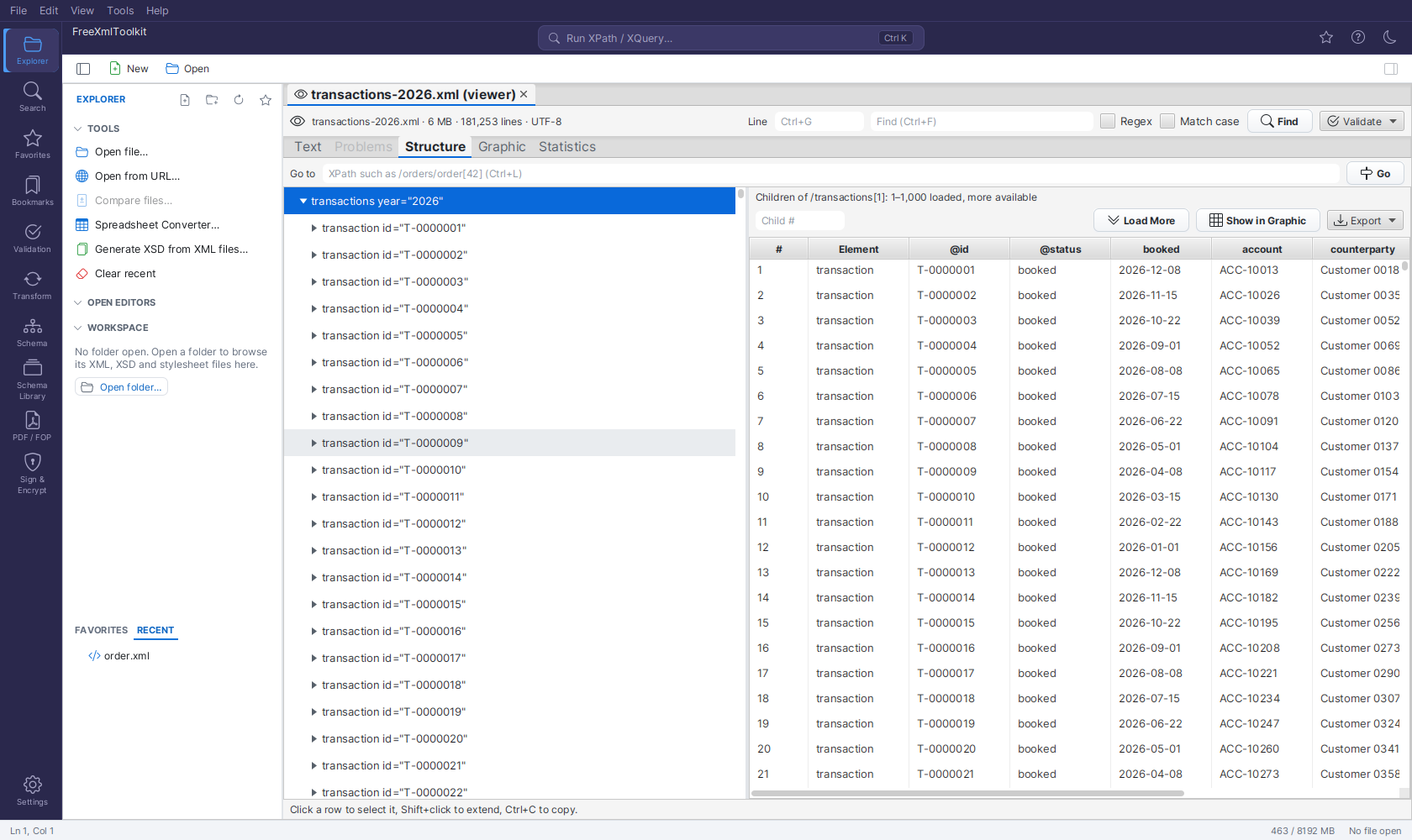 The children of the selected element as a table, loaded a page at a time
The Structure tab shows the elements without reading the whole file:
- Tree (left): the root element; expanding an element lists its children, 1,000 at a time. Load more… at the end of a list reads the next 1,000, Previous page… at its start the 1,000 before. Each element shows its name, its first attribute and, for an element with only text, the text.
- Table (right): the children of the selected element as records, one row per child. The columns
are the children's attributes (
@id, …) and the texts of their simple child elements (elements that contain only text, such as<amount>), so a file of records reads like a spreadsheet. The first column is the child's number. Load More adds the next 1,000 children.
Jump to any element:
| Action | How |
|---|---|
| Go to an element by its path | Type it into Go to (or press Ctrl+L) and press Enter: /orders/order[42], order[42]/item[2], *[3] (the third child, whatever its name). A step without a position means the first. |
| Go to child number n | Type the number into Child # above the table and press Enter |
The tree is expanded down to the element and the page of 1,000 children that contains it is shown, so even child 1,500,000 of the root is reached in seconds. To jump to a child number, the children of the element are counted once (a few seconds for a 1 GB file); after that the table shows "of n" with the total.
Right-click an element in the tree or a row in the table:
- Show in Text (or double-click a row): the element in the Text tab.
- Show in Graphic (or Alt+double-click a row): the element in the Graphic tab, where it can be edited (see below).
- Open as New Document: the element (up to 50 MB) as a new, unsaved document in the editor.
- Copy XPath: the element's path, such as
/orders[1]/order[42].
Export ▾ above the table writes all children of the selected element — not only the loaded 1,000 — to a CSV file (UTF-8, Excel-compatible) or an Excel workbook (a summary sheet and the records; a new sheet every 1,048,575 rows). The columns are the same as in the table; values are not cut. The export reads the file twice (first the columns, then the rows), so memory stays flat: two million records take about half a minute.
The structure is read from the bytes of the file on demand, so the first 1,000 children of the root
of a 1 GB file appear in well under a second. Reading assumes a well-formed document; DTD
declarations are skipped; the predefined entities and character references (é) are decoded,
other entities are not expanded.
Graphic: view and edit a part of the file (XML)
The Graphic tab shows a part of the file — a window — in the same grid as the editor's Graphic view: repeating elements as tables, nested elements, sorting, filters and inline editing. A window is at most 20 MB:
- an element that fits is shown as a whole (inside its parent);
- for a larger element, such as a root with millions of records, the window holds a page of up to 1,000 of its children. Choosing Show in Graphic on a row of the table starts the window at that row. ◀ / ▶ move to the previous / next children.
Opening the tab without choosing an element shows the whole document when it fits, else the first 1,000 children of the root.
Editing
Change values, attributes and elements in the grid as in the editor; Undo / Redo (Ctrl+Z / Ctrl+Y) work within the window. The header shows ● edited while the window has changes that are not written yet.
- Apply to File (Ctrl+S) writes the window into the file. Only the window's bytes are replaced; everything before and after it stays byte for byte as it was. The file is written to a temporary file next to it, which then replaces the original, so the original is untouched if writing fails or is cancelled. Afterwards the file is indexed again and the same window is shown. A 1 GB file takes about 10–20 seconds on an SSD.
- Discard drops the changes and reads the window again from the file.
Moving to another window, reloading or closing the tab with changes that are not written asks first: Apply to File, Discard or Cancel. Quitting the application offers to discard them.
Notes on writing:
- The window's content is written as the grid formats it (indentation, attribute quotes); the rest of the file keeps its formatting.
- The attributes of the window's parent element (the grid's top row) cannot be changed from a window of its children; only the children are written.
- Characters the file's encoding cannot represent (for example € in an ISO-8859-1 file) are written as
character references (
€). - If another program changed the file since the window was read, Apply to File refuses; reload the file first.
- With Settings → Appearance → Memory → Large File Viewer: keep a backup (.bak) when writing, the
previous version is kept as
<name>.baknext to the file (the next write replaces it); the status line names it.
Statistics (XML)
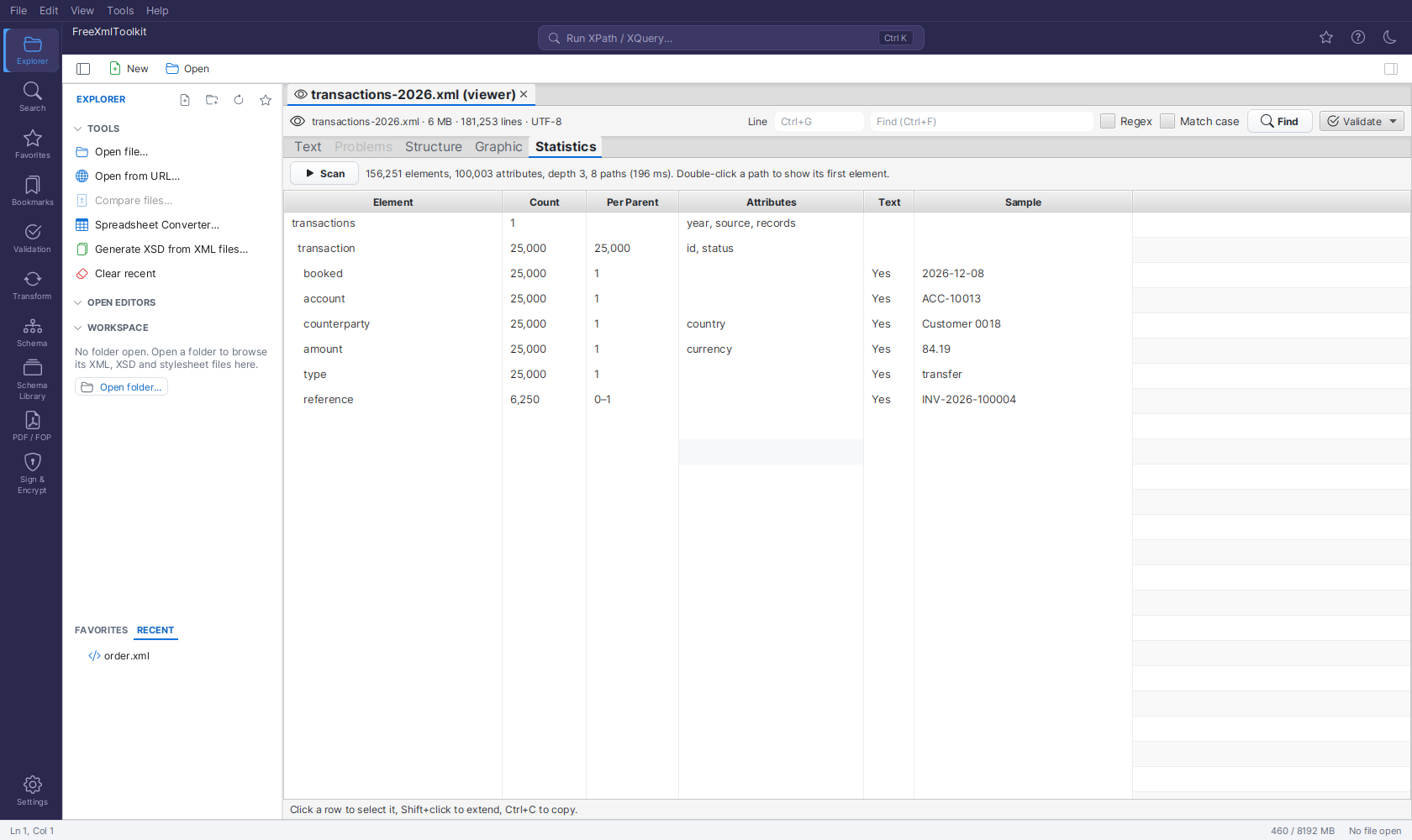 Counts, occurrences per parent, attributes and a sample value for every element
Scan reads the whole file once and lists every element path (names from the root, without
positions, such as /orders/order/item):
| Column | Shows |
|---|---|
| Element | The element, indented by its depth (the full path in the tooltip) |
| Count | How many elements have this path |
| Per Parent | How often it occurs in one parent element: one number, or the range (0–3 means some parents have none) |
| Attributes | The attribute names seen |
| Text | Whether the element has text of its own |
| Sample | The first text found |
The summary line counts elements, attributes, the depth and the paths. Double-click a path to show its first element in the Structure tab. A 1 GB file takes about 10 seconds; at most 10,000 different paths are listed.
Validation
Validate in the toolbar checks the whole file while reading it as a stream, so memory stays flat whatever its size (a 1 GB file: well-formedness in about 10 seconds, XML Schema validation in about 25 seconds, with less than 20 MB of memory):
| Item | Checks |
|---|---|
| Against the Declared Schema | The schema the document names (xsi:schemaLocation / xsi:noNamespaceSchemaLocation, resolved as in the editor, also through the Schema Library); the menu shows its file name, or "(none)" |
| Against a Schema… | An XML Schema (.xsd, 1.0 or 1.1) you choose |
| Well-Formedness Only | That the document is well-formed XML |
The Problems tab lists severity, line, column and message; double-click a problem to see its line in the Text tab. The check stops after 1,000 problems, and at the first error that makes the document not well-formed. A progress bar shows how far it is; Cancel stops it. Schematron is not available for large files.
fxt-cli validate validates XML files of 64 MB or more the same way (without Schematron), see
Command Line.
Changes on disk
When another program changes or deletes the file while it is open, a bar above the tabs says so; Reload indexes the file again (and asks first if the Graphic tab has changes that are not written). The viewer's own Apply to File is no change from outside.
Limits
- Edits are made window by window (at most 20 MB each). To change the whole file at once, open it in the editor if it fits the memory limit.
- UTF-8, ASCII and single-byte encodings such as ISO-8859-1 are supported; UTF-16 and UTF-32 files are not.
- Writing needs free space for a second copy of the file in its folder (a third one with the
.bakbackup).
Next steps
- Validate folders and export results
- fxt-cli: validate and query - streaming validation of very large files