Types
Named types are the building blocks of a schema. The Type Library lists them and shows where each is used; the Type Editor opens one type on its own to edit it.
Before you start
- An XSD open in the editor; open the Schema activity.
Type Library
The Schema activity's side panel is your type library: it lists the active schema's top-level declarations so you can browse, find, and open every type in the schema.
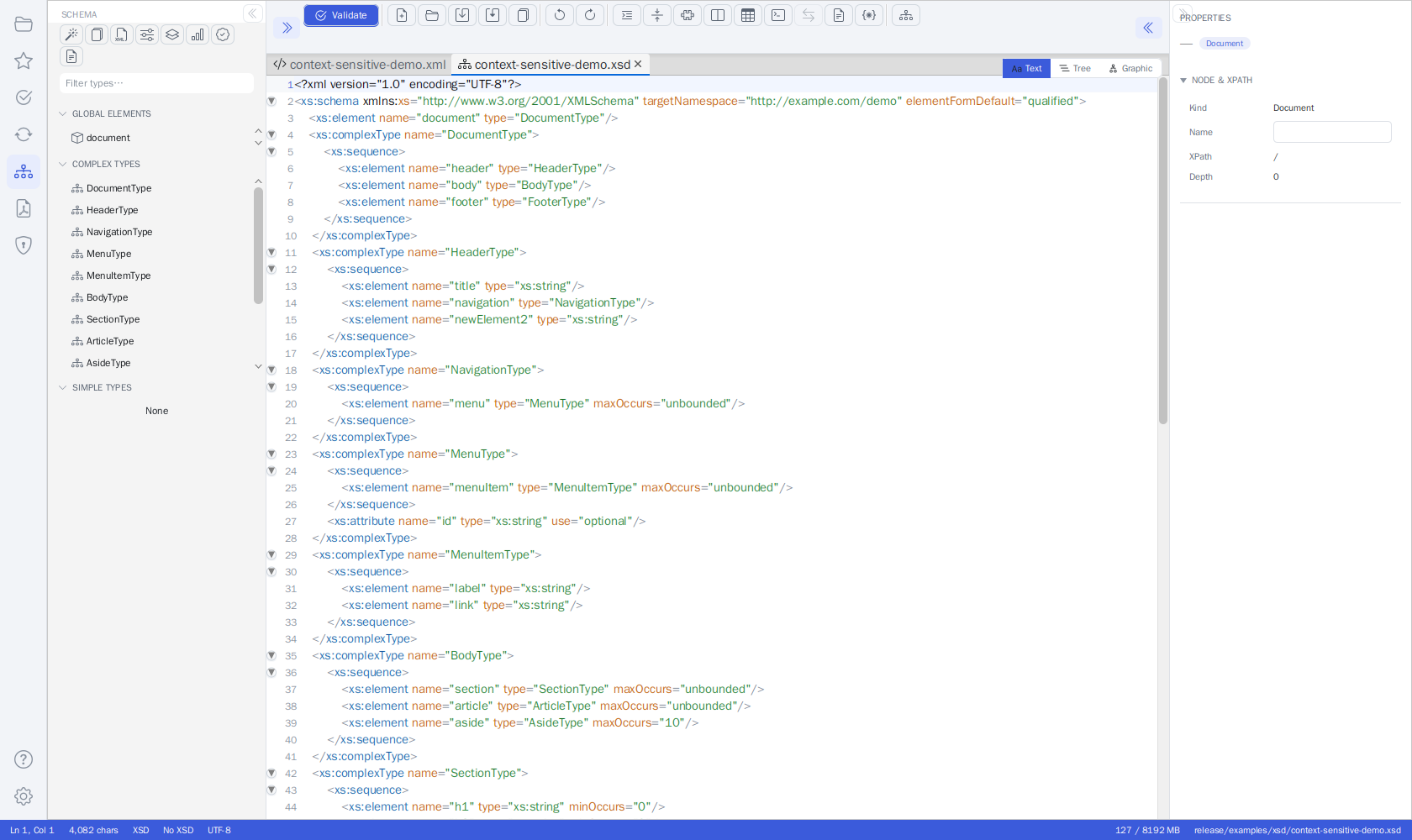 The Schema activity's Type Library, with the schema diagram in the editor host
Features
| Feature | Description |
|---|---|
| Grouped lists | Declarations grouped into GLOBAL ELEMENTS, COMPLEX TYPES, and SIMPLE TYPES (collapsible sections) |
| Filter | A filter field on top narrows all three lists by name as you type |
| Reveal in Tree | Click a declaration to reveal it in the schema's Tree view |
| Open Type Editor | Double-click a type to open it in its own Type Editor tab |
| Find Usage | Right-click a type to find the places where it is used |
| New type | The + button in the COMPLEX TYPES / SIMPLE TYPES header (or right-click → New Complex Type… / New Simple Type…) declares a new top-level type - see Creating a New Type |
| Schema tools | Labelled rows in the TOOLS section at the top of the panel, above the filter field (open by default): Generate Sample XML…, Sample XML with Options…, Flatten Schema…, Schema Analysis, and Generate Documentation… |
| Generate XSD from XML | Not in the Schema panel: Generate XSD from XML and Generate XSD from XML Files… are in the editor toolbar's Schema ▾ split menu |
How to Use
- Open your XSD file
- Open the Schema activity from the activity bar
- Browse the grouped lists, or type in the filter field to narrow them
- Click a declaration to reveal it in the Tree view
- Double-click a type - or right-click and choose Open Type Editor - to edit it; right-click also offers Reveal in Tree and Find Usage
Tip
The whole panel is a drop zone: drop an .xsd file from your file manager anywhere on
it to open that schema as a document.
Type Editor
The Type Editor provides dedicated editing for ComplexTypes and SimpleTypes.
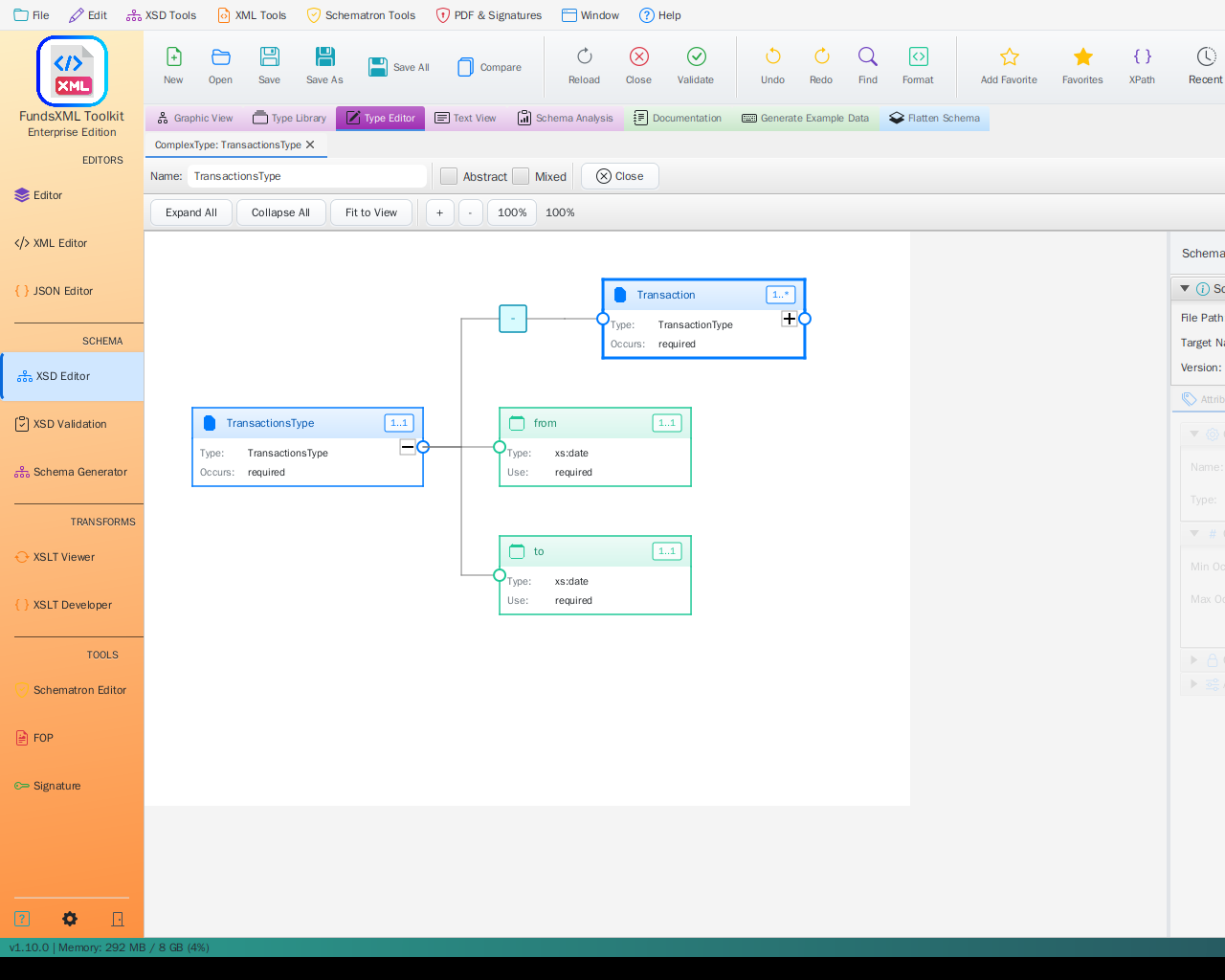 A named type opened in its own Type Editor tab in the editor area
Features
| Feature | Description |
|---|---|
| Tab-Based Editing | Each type opens in its own tab in the editor area; a named type used inside a Type Editor opens in a further Type Editor tab (double-click its frame title or Edit Type '…') - see Named Types in Frames |
| ComplexType Editor | Graphical editing in the card diagram of the Graphic view |
| SimpleType Editor | Form-based editing with facet panels |
ComplexType Editor
For ComplexTypes, the tab shows the same card diagram as the Graphic view - see Reading a Card for what each card shows:
- The type is the root card of the diagram, with its compositors, child elements and attributes below it
- A title chip at the top left names the selected card (or the type), and the zoom control at the bottom right zooms out, in, or back to 100%
- A bar above the diagram edits the type's Name, Abstract and Mixed settings. These apply to the schema right away and can be undone there (Ctrl+Z in the schema's tab)
- Add, delete and modify elements, attributes and Sequence / Choice / All compositors through the cards' context menus, as in the Graphic view; the properties pane beside the diagram edits the selected node
- Changes to the diagram are kept in the tab until you click Save to schema (or press Ctrl+S); they are then written into the schema. Close the tab with Close, Esc or its ×
SimpleType Editor
For SimpleTypes, you get a 5-panel form editor:
| Panel | Description |
|---|---|
| General | Name and Final attribute |
| Restriction | Base type and facets |
| List | Item type (enabled for list types and types without derivation yet) |
| Union | Member types (enabled for union types and types without derivation yet) |
| Annotation | Documentation and AppInfo |
The Base type, Item type and Add Member Type… fields are the same
type picker as in the inspector, limited to what a simple type may
derive from: the schema's other simple types and the built-in datatypes (complex types,
xs:anyType and the type itself are left out).
Creating a New Type
New top-level types can be declared from three places:
- Graphic view: right-click the schema node or an empty area of the diagram → Add Complex Type… / Add Simple Type…
- Tree view: right-click the schema (root) node → New Complex Type… / New Simple Type…
- Schema panel: the + button in the COMPLEX TYPES or SIMPLE TYPES section header
A small dialog asks for the kind and the name. A free name is suggested (NewComplexType,
NewComplexType2, …); the name is checked while you type - it must be a valid XML name
(no spaces or :) and must not be used by another simple or complex type of the schema, so
OK stays disabled until it is.
| Kind | Starts as |
|---|---|
| Complex type | An empty xs:sequence - add child elements and attributes right away |
| Simple type | A restriction of xs:string - pick another base type and add facets |
The new type is added next to the schema's other types of the same kind, appears in the Type Library and opens in its own Type Editor tab. The diagram itself shows global elements only; assign the new type to an element with the type picker. One Undo removes the type again.
How to Use
- In the Schema panel's Type Library, find the type (use the filter field for large schemas)
- Double-click it - or right-click and choose Open Type Editor. Alternatively, pick Type Editor… from the editor toolbar's Schema ▾ menu and choose a type by name.
- The type opens in its own Type Editor tab in the editor area
- Make your changes
- Click Save or use Ctrl+S
Next steps
- Graphic view - named types appear as frames
- Schema analysis - unused types