Flatten a schema
Combine multiple XSD files into a single, standalone file. Useful when your schema is split across several files via <xs:include>, or when you want a minimal schema for a validation server.
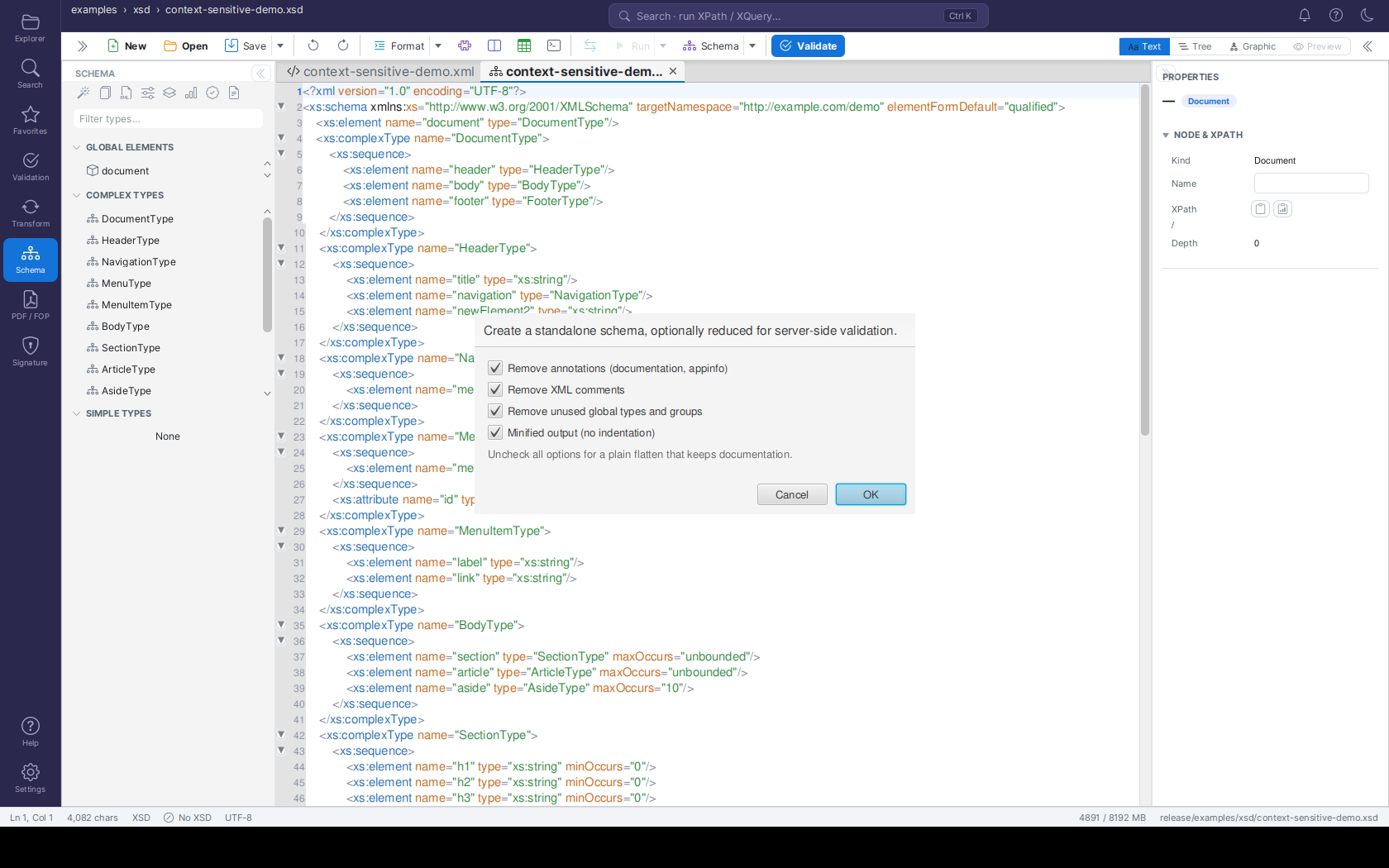 The Flatten Schema options dialog over an open schema — all reductions enabled by default
Before you start
- An XSD open in the editor, with the files it includes reachable.
How to Use
- Open your main XSD file in the editor
- In the Schema activity's side panel, click the Flatten Schema… tool button
- The Flatten Schema dialog opens. Output file is preset to the folder of your schema with
_flattened.xsdappended to its name (FundsXML.xsd→FundsXML_flattened.xsd). Change it, or pick another file with Browse… - Pick which reductions you want (see below) and click OK
- The flattened schema is written to the output file and opened in a new editor tab. If the file already exists you are asked before it is overwritten; the original schema itself can never be chosen as the output
Leave Output file empty to open the result as an unsaved tab (Flattened.xsd) instead —
this is also the default for a schema that has not been saved yet.
Flatten Options
Before flattening, a dialog lets you reduce the output. The four reduction options are checked by default, which produces the smallest possible schema — ideal for deploying to a validation server:
| Option | What it does |
|---|---|
| Remove annotations (documentation, appinfo) | Strips all xs:documentation and xs:appinfo content — the human-readable descriptions a validator does not need |
| Remove XML comments | Strips all XML comments, including comments at the top of the file |
| Remove unused global types and groups | Removes global types, groups and attribute groups that are not reachable from any global element or attribute — dead weight in large schema libraries. (Skipped automatically if the schema uses xs:redefine or xs:override.) |
| Minified output (no indentation) | Collapses the whitespace between tags for the smallest file size |
Track source files (xs:appinfo) |
Off by default. Adds an fxt:sourceFile annotation to every global component that came from an included file, naming that file — see below |
Uncheck all four reduction options for a plain flatten that keeps documentation, comments and formatting — the previous behavior.
Keeping Track of Where Components Came From
Flattening merges every included file into one document, which normally loses the information
about which file a type or element originally came from. Tick Track source files to keep it:
each global element, type, group, attribute group and attribute that was pulled in from an
xs:include gets an annotation naming its origin.
<xs:complexType name="PersonType">
    <xs:annotation>
        <xs:appinfo>
            <fxt:sourceFile xmlns:fxt="http://freexmltoolkit.org/schema/flattening">types.xsd</fxt:sourceFile>
        </xs:appinfo>
    </xs:annotation>
    ...
</xs:complexType>
The markers are added after the reductions, so they survive Remove annotations — you can combine a fully reduced schema with full origin tracking. Components defined in the main file are not marked, and a stale marker from an earlier flatten is replaced rather than duplicated. The option needs a saved file: for unsaved content there is no directory to resolve includes against, so nothing is merged and nothing is marked.
The reduced schema is verified to still compile as a valid schema before it is shown, so you can deploy it with confidence.
What Happens to Includes and Imports
xs:include— Included schemas (same namespace) are merged into the output, and the resolved include directives are removed: the flattened schema is standalone. If an include cannot be resolved, its directive is kept in the output so you can see what is missing.xs:import— Imported schemas (different namespaces) are not merged; the import declarations stay untouched.
When saving schemas from the graphical editor, xs:include and xs:import declarations are preserved. The flattener only merges included content when you explicitly flatten — it does not alter your original schema structure.
When to Use
- Deploying a minimal, resource-efficient schema to a validation server
- Distributing schemas to partners
- Tools that don't support includes
- Simplifying complex schema sets
- Creating self-contained schemas
Next steps
- Schema analysis - find unused types first
- Schema Library - how imports are resolved