Auto-Completion (IntelliSense)
The XML Editor includes smart auto-completion that helps you write XML faster and with fewer errors.
Before you start
- For suggestions from a schema the document needs a bound XSD (see Binding an XSD Schema). XSLT stylesheets get suggestions without one.
Overview
 The XML Editor with a schema-backed document - typing
< shows context-valid element suggestions
When you type < in the XML Editor, a popup appears showing only the elements that are valid at your current position. This is based on your XSD schema.
Inside a start tag, typing a space (or pressing Ctrl+Space) suggests the attributes of that element - from your XSD schema, or, in XSLT stylesheets, from a built-in XSLT 3.0 catalog that needs no schema at all.
Key Features
1. Smart Element Suggestions
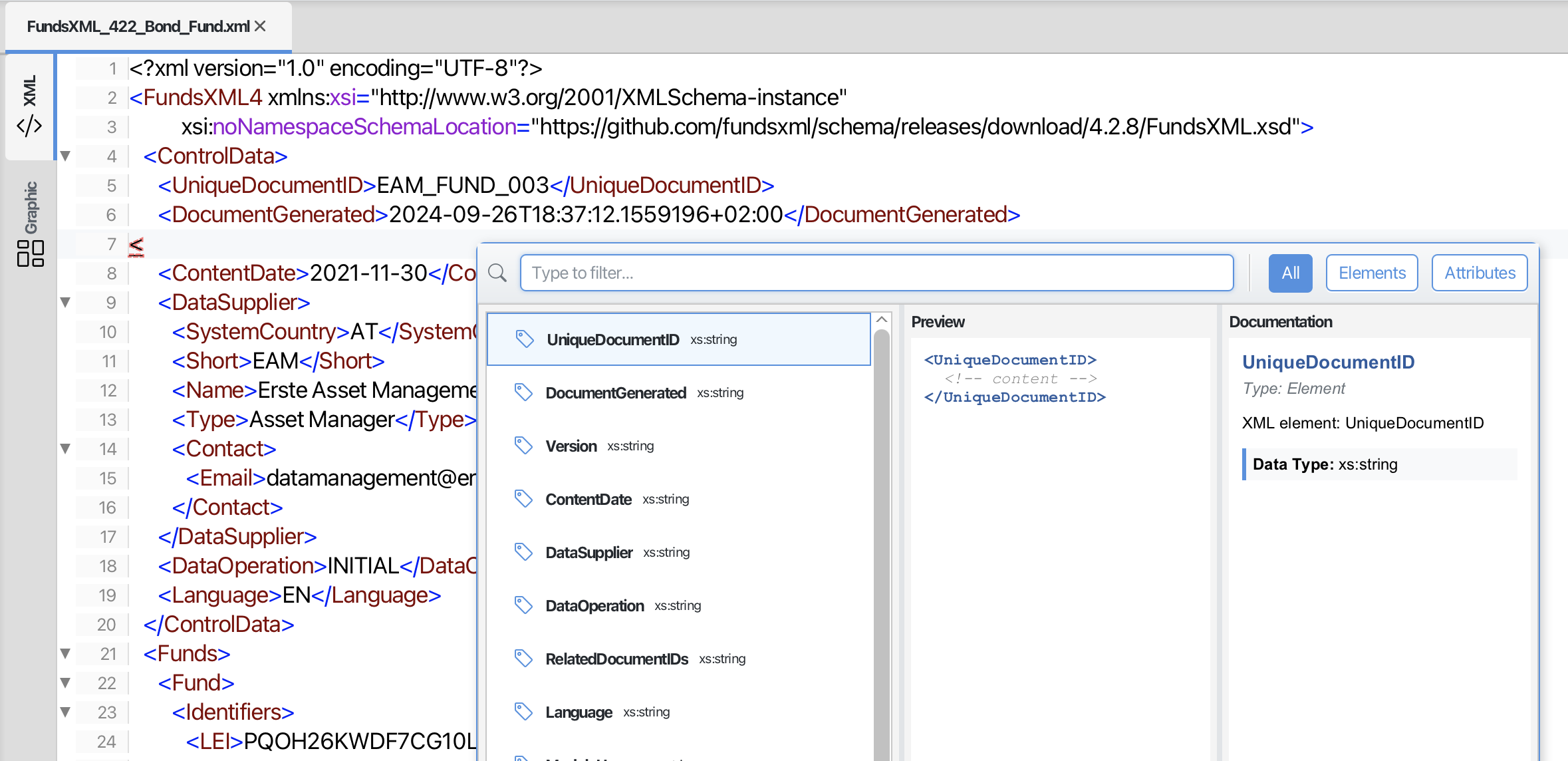 The list holds only what the schema allows at the caret
- Context-Aware: Shows only valid child elements for your current location
- Position-Aware: Inside an
xs:sequenceonly the elements that may follow the siblings already present are offered - an element that has reached itsmaxOccurs(or anxs:choicewhose alternative is already there) disappears from the list. Elements that already exist after the cursor are respected too, so you cannot insert a child in the wrong order. Completion is strict about position: only what the schema allows at exactly that spot is listed. - Repeatable elements: When the element you are inside may itself repeat (for example a
FundsXML
<Fund>withmaxOccurs="unbounded"), only its remaining children are offered - the list does not start over with the first child just because the element can occur again. Only a repeatable group (xs:sequence/xs:choicewithmaxOccursabove 1) starts over once all of its members are present. - Namespace-Aware: Suggestions are inserted with the prefix your document declares for the
element's namespace. A child of a type imported from another namespace (e.g.
c:streetwhen the document declaresxmlns:c="…") is inserted as<c:street></c:street>; elements in the default namespace stay unprefixed. Typing the local name (<st) still matchesc:street. - Based on Schema: Suggestions come from your loaded XSD schema
- Reduces Errors: You can't accidentally add invalid elements
2. Path-Specific Values
Elements with the same name at different locations show their correct values:
| Location | Suggested Values |
|---|---|
/Document/ControlData/Version |
4.0.0, 4.0.1, 4.1.0 |
/Document/Report/Version |
V3, V3S1, V3S2 |
3. Automatic Tag Closing
When you type an opening tag like <element>, the editor automatically adds the closing tag </element>.
4. Attribute Suggestions (Schema-Bound XML)
New in 2.6.0
When your document is bound to an XSD schema, the editor also helps with attributes:
- Where: Place the cursor inside a start tag (for example after
<Fund) and type a space, or press Ctrl+Space - What: All attributes the schema declares for that element, including those from attribute groups
- Order: Required attributes come first, followed by the optional ones
- Details: The tooltip shows each attribute's type and its documentation from the schema
- No duplicates: Attributes that are already in the tag are not suggested again
- Insertion: Accepting a suggestion inserts
name=""and places the cursor between the quotes, ready for the value - Values: If the attribute's type is an enumeration or
xs:boolean, its values (true/false) open right after the attribute is inserted; Ctrl+Space inside the quotes shows them again
5. XSLT Stylesheets (Works Without a Schema)
New in 2.6.0
XSLT stylesheets get auto-completion even when no schema is bound. The editor knows every
XSLT 3.0 instruction and declaration (including newer ones such as xsl:iterate,
xsl:mode, xsl:accumulator, xsl:merge and xsl:evaluate).
Element suggestions follow the context you are in:
| Cursor position | Suggested elements |
|---|---|
Directly inside xsl:stylesheet |
Declarations (xsl:template, xsl:variable, xsl:output, …) |
Inside xsl:choose |
xsl:when, xsl:otherwise |
| Inside a template or other instruction | Instructions (xsl:value-of, xsl:if, xsl:for-each, …) |
Attribute suggestions appear when you type a space inside an XSLT start tag such as
<xsl:variable, <xsl:template or <xsl:param (or press Ctrl+Space there):
- Required attributes first - for example
nameforxsl:variable - Then the element's own optional attributes - for example
selectoras - Then the standard attributes every XSLT element accepts -
use-when,expand-text,xpath-default-namespace,exclude-result-prefixes,version, and others
Attributes already present in the tag are left out, and accepting one inserts name="" with
the cursor between the quotes.
Attribute value suggestions: when you insert an attribute that only allows a fixed set of values, the values open automatically (press Ctrl+Space inside the quotes to show them again), for example:
| Attribute | Suggested values |
|---|---|
method on xsl:output |
xml, html, xhtml, text, json, adaptive |
indent and other yes/no attributes |
yes, no |
order / data-type / case-order on xsl:sort |
ascending, descending / text, number / upper-first, lower-first |
validation |
strict, lax, preserve, strip |
on-no-match on xsl:mode |
text-only-copy, shallow-copy, deep-copy, shallow-skip, deep-skip, fail |
visibility |
public, private, final, abstract (depending on the element) |
version |
3.0, 2.0, 1.0 |
Good to know:
- Any prefix bound to the XSLT namespace works - not only
xsl: - Literal result elements (for example
<html>or<div>inside a template) get no XSLT attribute suggestions - Start tags that span several lines are supported: press Ctrl+Space after a line break inside the tag
How to Use
Step 1: Load an XSD Schema
If your XML already references its schema (via xsi:schemaLocation), it is picked up
automatically - and if you add or change that reference while editing, the new schema is
picked up on the next validation run and IntelliSense follows automatically. Otherwise,
bind one yourself:
- Open your XML file in the editor
- Click the "No XSD" indicator in the status bar (or the toolbar's Schema button - Set XSD Schema…)
- Select your XSD file
The indicator changes to "XSD: name", and the binding drives both auto-completion and schema validation.
Step 2: Use Auto-Completion
- Position your cursor where you want to add an element
- Type
< - A popup shows valid elements for this location
- Use ↑/↓ arrow keys to navigate
- Press Enter to insert the selected element
- Press Escape to close without selecting
Step 3: Add Attributes
- Place the cursor inside a start tag, after the element name (e.g.
<xsl:variable|) - Type a space, or press Ctrl+Space
- Pick an attribute - the editor inserts
name=""with the cursor between the quotes - If the attribute has a fixed set of values, they appear right away - pick one with Enter (or press Escape and type your own value)
Example
1. Inside <document>, type <
   → Shows: header, body, footer

2. Inside <body>, type <
   → Shows: section, article, aside

3. Inside <section>, type <
   → Shows: title, paragraph, list
Keyboard Shortcuts
| Key | Action |
|---|---|
< |
Open auto-completion |
Space (inside a start tag) |
Suggest attributes |
Ctrl+Space |
Open auto-completion on demand (elements, attributes or attribute values, depending on the cursor position) |
↑ ↓ |
Navigate suggestions |
Enter |
Insert selected element or attribute |
Escape |
Close popup |
> |
Close the current tag |
Benefits
| Benefit | Description |
|---|---|
| Faster Writing | No need to remember element names |
| Fewer Errors | Only valid elements are suggested |
| Schema Compliance | Your XML always matches the schema |
| Easy Learning | Discover available elements as you type |
Troubleshooting
No Suggestions Appearing?
- Make sure an XSD schema is loaded
- Check that your cursor is inside an element
- Verify the schema file is valid
Wrong Suggestions?
- Check that the correct schema is loaded
- Verify the XML structure is valid up to your cursor position
Nothing Offered Although the Element Is Empty?
The list also honours the elements that already exist after the cursor. If you type <
directly in front of the first existing child of a sequence, nothing may legally go there -
move the cursor after the last child that belongs before your new element.
The First Child Is Offered Again Inside a Repeatable Element?
It no longer is. Earlier versions treated a repeatable element like a repeatable group and
restarted its content model. If you want to add another occurrence of the element itself,
close the current one and type < after it.
No Attribute Suggestions?
- Make sure the cursor is inside the start tag, after the element name and before
> - For ordinary XML files, an XSD schema must be bound - attributes come from the schema
- In XSLT, only XSLT elements get attribute suggestions; literal result elements such as
<div>do not - Attributes that are already in the tag are intentionally not offered again
- In a start tag that spans several lines, press Ctrl+Space to open the list
Prefix Missing or Unexpected?
Prefixes are taken from the xmlns declarations of your document. If the namespace of the
suggested element is not declared at all, the prefix used inside the schema is inserted -
add the matching xmlns: declaration to the root element.
Next steps
- Grid view - entry helpers in the grid
- Schema Library - schemas found by namespace
- Templates