JSON grid
JSON documents (.json, .jsonc, .json5) get the same grid in the Graphic view -
same header strip, same rows, same keyboard shortcuts and context menu - so a JSON file
looks and feels exactly like an XML file in the grid:
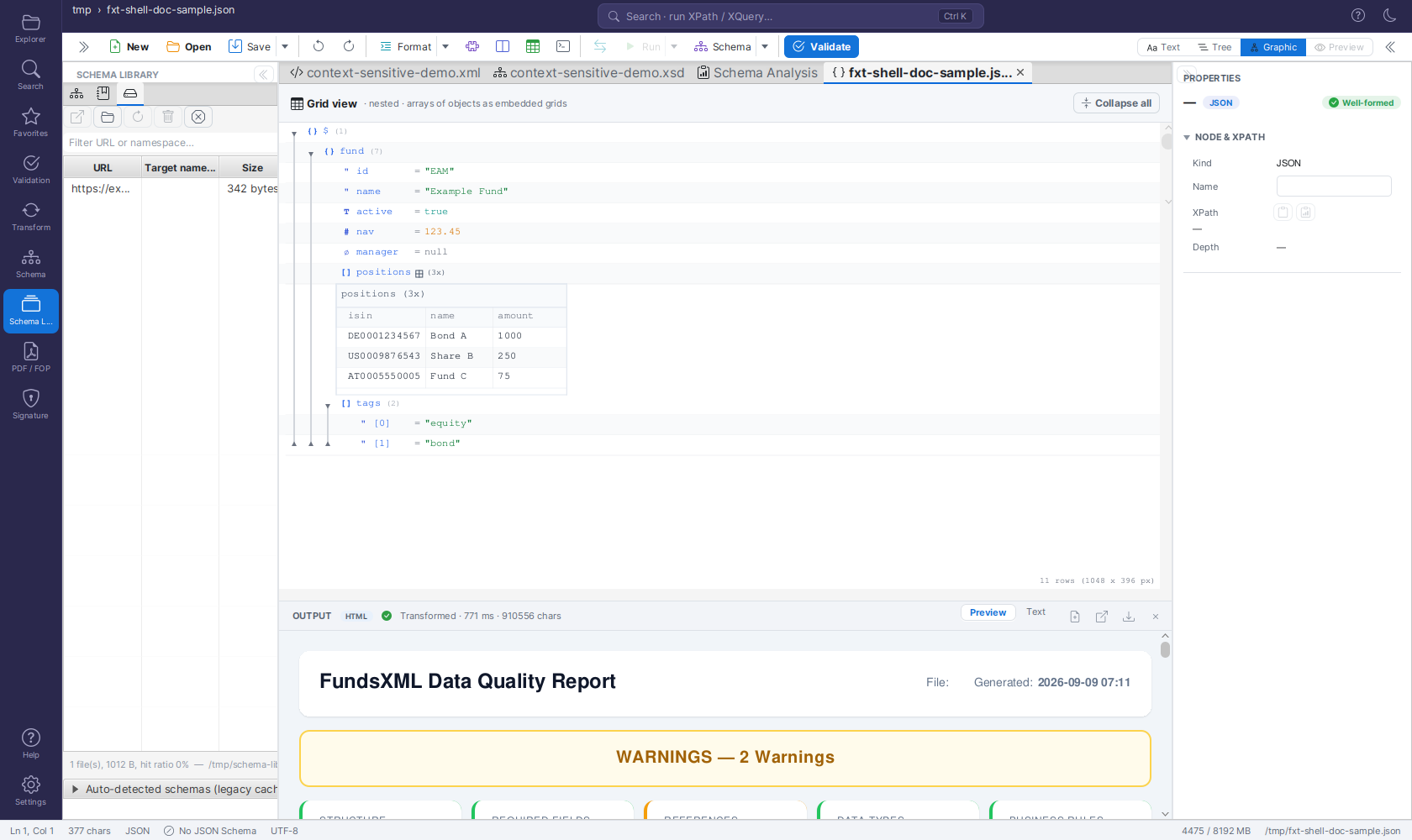
- The root value is the
$row; object properties and array items ([0],[1], …) are the rows beneath it. Objects and arrays are collapsible containers showing their child count; scalar properties show askey = valuerows. - Every row carries a type glyph in its own colour:
{}object,[]array,"string,#number,T/Fboolean and∅null. Strings are shown quoted (= "Alice") - like XML leaf values - so"42"and42are never confused. - Arrays of objects are rendered as embedded grids (a table with one column per key, merged across all items), exactly like repeating elements in XML. The arrow in a column header sorts the array (numbers, dates and strings are recognised), nested objects expand inline; a click on the header's name selects the column, + / − open and close its nested objects level by level, as in XML.
- Inline editing keeps the value's type: double-click a number and type a number
(anything else is rejected with a hint and the editor stays open), booleans toggle between
true/false,nullstaysnullunless you type text. Double-click a key to rename it (duplicate keys are refused). - The context menu mirrors the XML one: Add (Property / Array Item / Sibling Before /
After), Rename Key (F2), Duplicate (Ctrl+D), Copy / Cut / Paste as Sibling /
Paste as Child, Copy Cell Content, Copy JSONPath (Ctrl+Alt+X - e.g.
$.items[1].name), Copy Node (JSON) (Ctrl+Alt+C), Change Type (String / Number / Boolean / Null / Object / Array), Move Up / Down (Alt+↑/↓), Expand Fully / Collapse Unselected, Display as Table, Flip Rows/Columns, Copy Table as Tab-separated Text, Expand All / Collapse All, Sort Column and Delete. Copy Cell Content is Ctrl+Shift+C, as in the XML grid. - Delete in a table works as in the XML grid: on selected cells only their properties are removed (key and value - no empty value is left), the objects stay; rows selected on their row numbers are deleted as whole objects. One Undo restores everything.
- All edits go through the document's undo history (Ctrl+Z / Ctrl+Y) and are written back into the text - the Text, Tree and Graphic views share one model, and the Properties inspector edits keys and values from any of them.
- Same layout and controls as the XML grid. Objects and arrays are nested blocks with one-line previews when collapsed; the header strip offers the zoom pill, Optimal widths, Wrap, Expand all / Collapse all and the ⋯ menu (cell-height limit, sibling groups); name and table columns can be dragged to a new width (double-click to auto-fit). Expand Fully (Ctrl+Shift++) and Collapse Unselected (Ctrl+Shift+−), Display as Table / Flip Rows/Columns for arrays of objects, the scroll header, sticky table headers and the search in table cells all work as described above. Table cells can be selected and copied as tab-separated text (Ctrl+C or Copy Table as Tab-separated Text). Ctrl+V pastes tab-separated cells (e.g. from a spreadsheet) from the selected cell on: a number or boolean cell keeps its type (a value that does not fit is skipped), a missing property is added as a string, and rows beyond the table become new objects - all in one undo step. The zoom factor is shared with the XML grid.
- Change a value's type by clicking its type glyph (or Ctrl+Alt+T on the selected row):
a popup lists the other types. Number ↔ String ↔ Boolean ↔ Null convert the value
(
"42"→42); Object and Array start empty. One undo step. - Drag & drop: drag a row by its name cell onto another row - the upper part of the name
cell inserts before it, the lower part after it, the middle of an object or array
into it; hold Ctrl to copy instead of move. A property moved into another object
keeps its key (made unique with
_copyif it is taken); an item moved into an object gets the keyitem. JSON text dragged in from another application becomes a new value (an object dropped into an object adds its properties), plain text a string; dropped on a value cell it replaces the value. A node can never be dropped into itself. - Table submenu (right-click a cell of an array-of-objects table): Insert Row Before / After, Append Row (a new object with every column as an empty string), Insert Column Before / After… (the key in every object, next to the clicked column) and Rename Column… (also a double-click on the column header; refused as a whole when an object already uses the new key). Each is one undo step.
- Sort Keys / Sort Keys Recursively on an object (or a member of it) sorts its properties by key - recursively also every object below it, inside arrays too. One undo step.
- Filters (JSONPath): right-click an object or array → Filter… and enter a JSONPath
expression relative to it (
$is that value), e.g.$.orders[?(@.total > 100)]or$..email. Only the matches stay visible, with their parents and everything below them; a table keeps only its matching rows. Started on a value row (city = "Graz") the dialog suggests$[?(@['city'] == 'Graz')]on the array holding the objects. Filter to Focus, Filter Active and Remove (All) Filters work as in the XML grid; filters are not saved in the document. - Validation markers: after Validate (or while typing with live validation), the rows of values with a problem get a red marker with the messages as tooltip, as in the XML grid.
- Entry helpers: the header's entry-helpers toggle opens the side panel. With a JSON Schema
bound, Siblings lists the properties the selected value's object may have, Children
those of the selected object (required ones marked
!, present ones greyed) and Values the allowed values of the selected scalar. Insert / Append / Add and a double-click add the property with a starting value from the schema (itsconst,default, or an empty value of its type) or set the value - each one undo step. - XML only: Wrap in Element, Edit as Raw Text, formulas and saving filters in the document.
Comments and JSON5 syntax are not preserved
The grid edits the parsed model. Comments (JSONC) and JSON5 syntax (unquoted keys, single quotes, trailing commas) are not part of it, so the first grid edit rewrites the file as standard JSON. The grid shows a warning the first time it opens such a file; if you need to keep the comments, edit in the Text view instead.
Next steps
- Grid view - everything the XML grid offers
- JSON & YAML