Validate folders and export results
Validate every file of a folder in one run and export the findings.
Before you start
- A folder of files, and the schema for them unless each file declares its own.
Validate a folder
Validate multiple XML files at once. Useful for testing entire folders of XML documents.
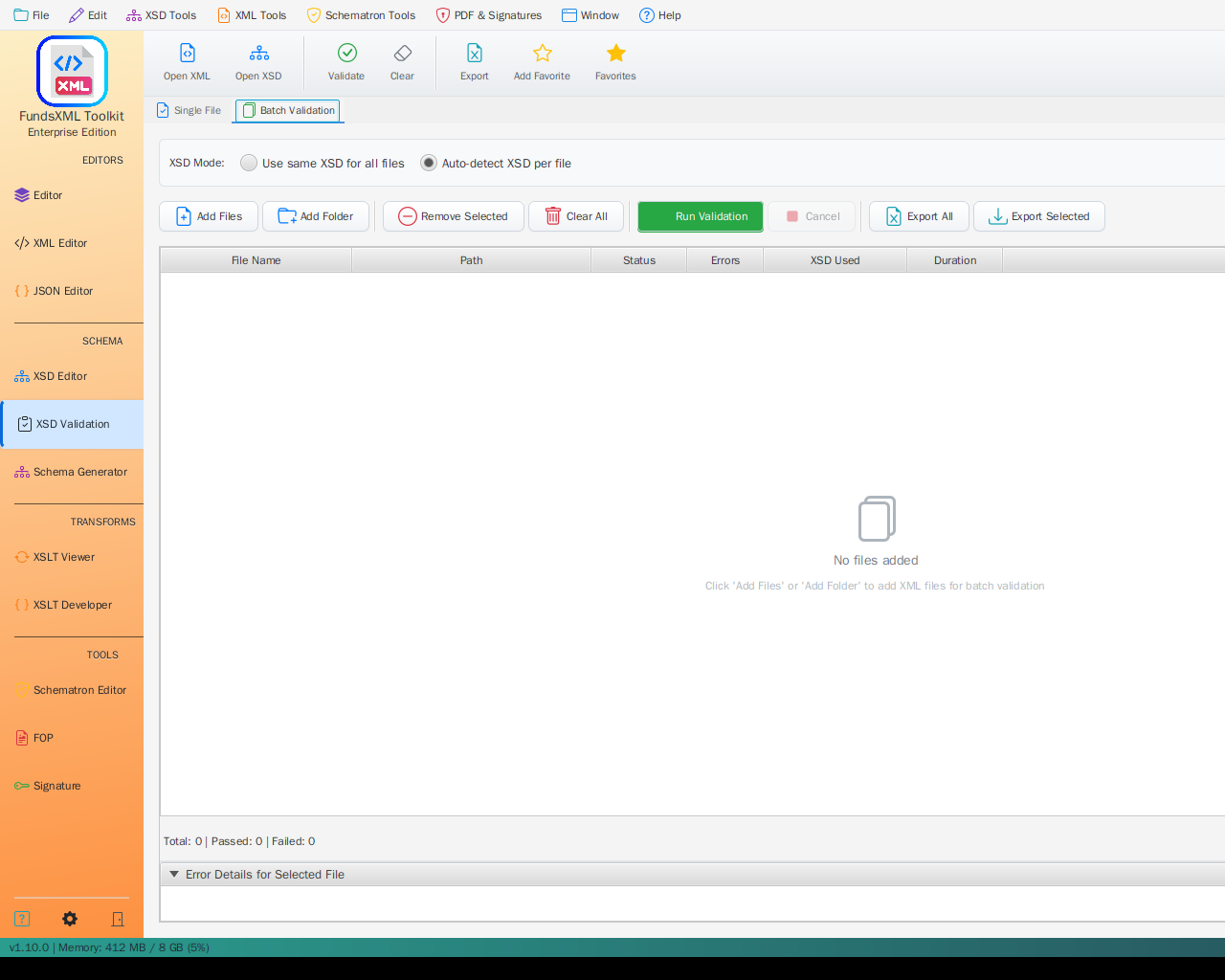 Batch validation with multiple files
Which Schema Is Used
There is no per-run schema picker. A batch run validates every selected file against the XSD (and Schematron) currently bound to the active document - the ones shown in the Validation panel's SOURCES section and in the status bar's XSD indicator:
| Bound in SOURCES | What the batch run does |
|---|---|
| XSD | Every file is validated against that one schema |
| Schematron | Every file is additionally checked against that Schematron |
| (nothing bound) | Every file gets a well-formedness check only |
The files' own xsi:schemaLocation references are not consulted during a batch run.
To validate a folder against a particular schema, open any XML document, bind the XSD
(Change in the SOURCES row, the ★ favorites menu, drag & drop, or the toolbar's
Schema button), then start the batch.
Running Batch Validation
In the Validation panel's Batch mode, Run Validation opens a small menu so you can pick files or a whole folder in one step.
- Open the Validation panel and switch the mode toggle to Batch.
- Click Run Validation and choose how to pick the files:
- Select XML files… - a file chooser where you select one or more XML files.
- Select folder… - a folder chooser; every
*.xmlfile in the folder and all of its subfolders is validated. - Watch progress while the files are validated.
Results
The RESULTS list shows one row per file:
| Indicator | Description |
|---|---|
| Status icon | Red ✕ = errors, orange ⚠ = warnings only, green ✓ = valid |
| File name | Name of the XML file |
| Badge | Number of problems found in that file |
The RESULTS list and the panel's PROBLEMS list are only shown in Batch mode (starting a batch run switches to it). Select a row to see that file's problems in the PROBLEMS section; double-click a row to open the file in the editor. A plain-text report of the run (schema names plus one line per file) opens as a document via Open Last Batch Report in the panel's REPORTS & CHECKS section. A running batch can be cancelled from the progress bar; the results collected so far are kept.
Summary
The RESULTS header shows a summary of the run, for example:
and the panel's status line repeats it ("2 of 25 file(s) failed").
Exporting Results
There is one export: the Export Problems to Excel row (Excel icon) in the panel's REPORTS & CHECKS section. It is enabled whenever the list contains problems and writes exactly the problems currently shown:
- after a single-file run, the active document's problems;
- after a batch run, the problems of the file selected in RESULTS - pick a row first, then export. There is no all-files export; use Open Last Batch Report for a per-file overview of the whole run.
The suggested file name is <document>-problems.xlsx. The workbook contains:
| Sheet | Content |
|---|---|
| Summary | Source file, export timestamp, application version, and counts (total, errors, warnings) |
| Problems | One row per problem: #, Source, Severity (errors in red, warnings in amber), Line, Message - with a frozen header row and an auto-filter |
All Excel files FreeXmlToolkit writes share one look - the Data Dictionary, the Schema Analysis report, the XML → Excel conversion and this export: a dark header row, striped rows with a thin rule, no gridlines, coloured sheet tabs, and an info sheet with a title and sections. Every sheet prints one page wide.
Next steps
- Working with problems
- Projects & scenarios - validate a whole project
- CI recipes