First steps
In about 15 minutes you open a document, validate it against its schema, look at it in three views, turn it into an HTML page and run a query against it. You need nothing but the installed application (Install); the example files come with it.
1. Open the example
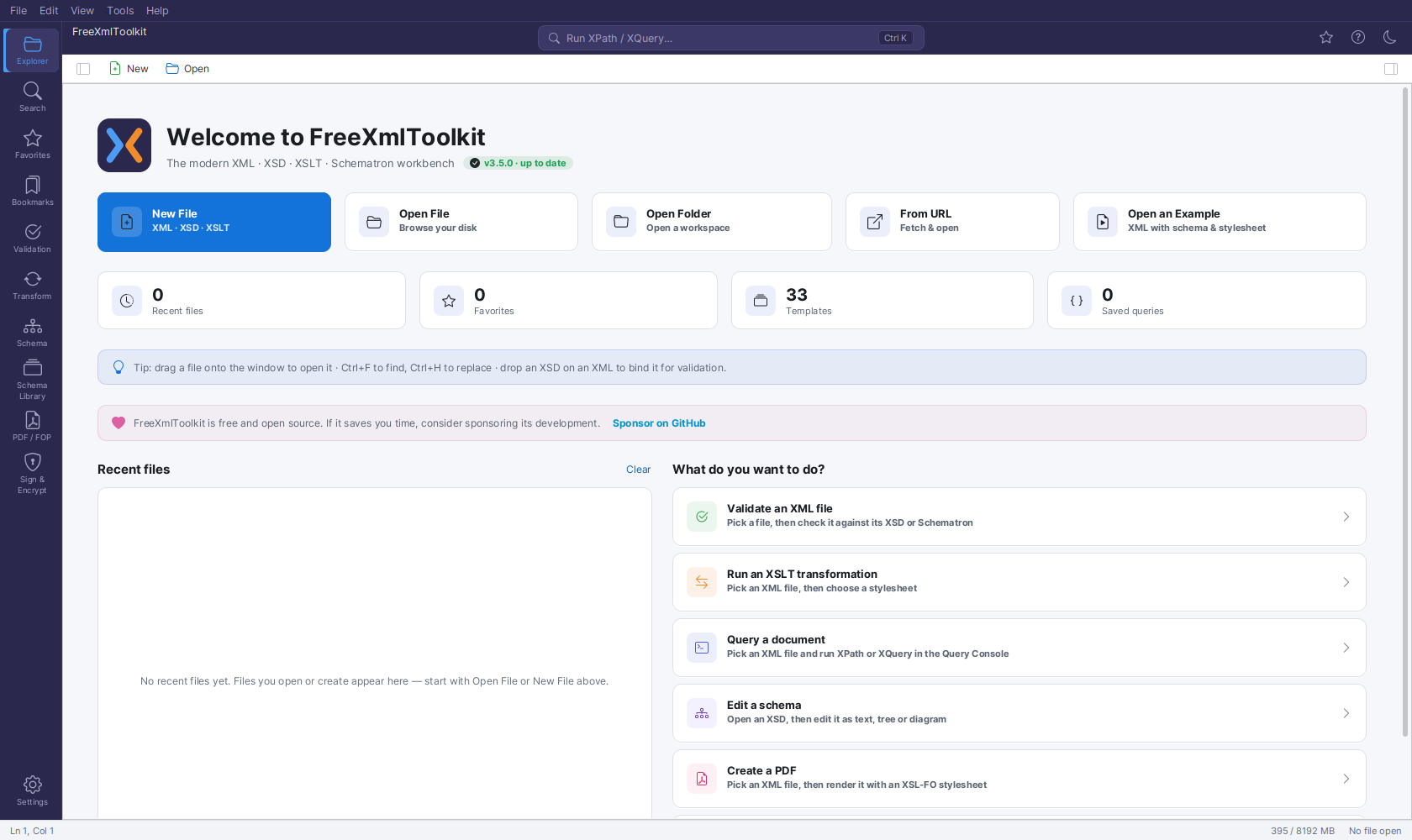 The Welcome page of a new installation with Open an Example
- Start FreeXmlToolkit. It opens on the Welcome page.
- Click Open an Example.
The application copies three files into ~/.freeXmlToolkit/examples/getting-started/ in your home
folder and opens order.xml, a small purchase order:
| File | What it is |
|---|---|
order.xml |
The order. It names its schema, so the editor validates it without further setup. |
order.xsd |
The schema for the order. |
order-summary.xslt |
A stylesheet that turns the order into an HTML summary. |
If you have edited these files before, your versions are kept.
2. Validate, break and repair
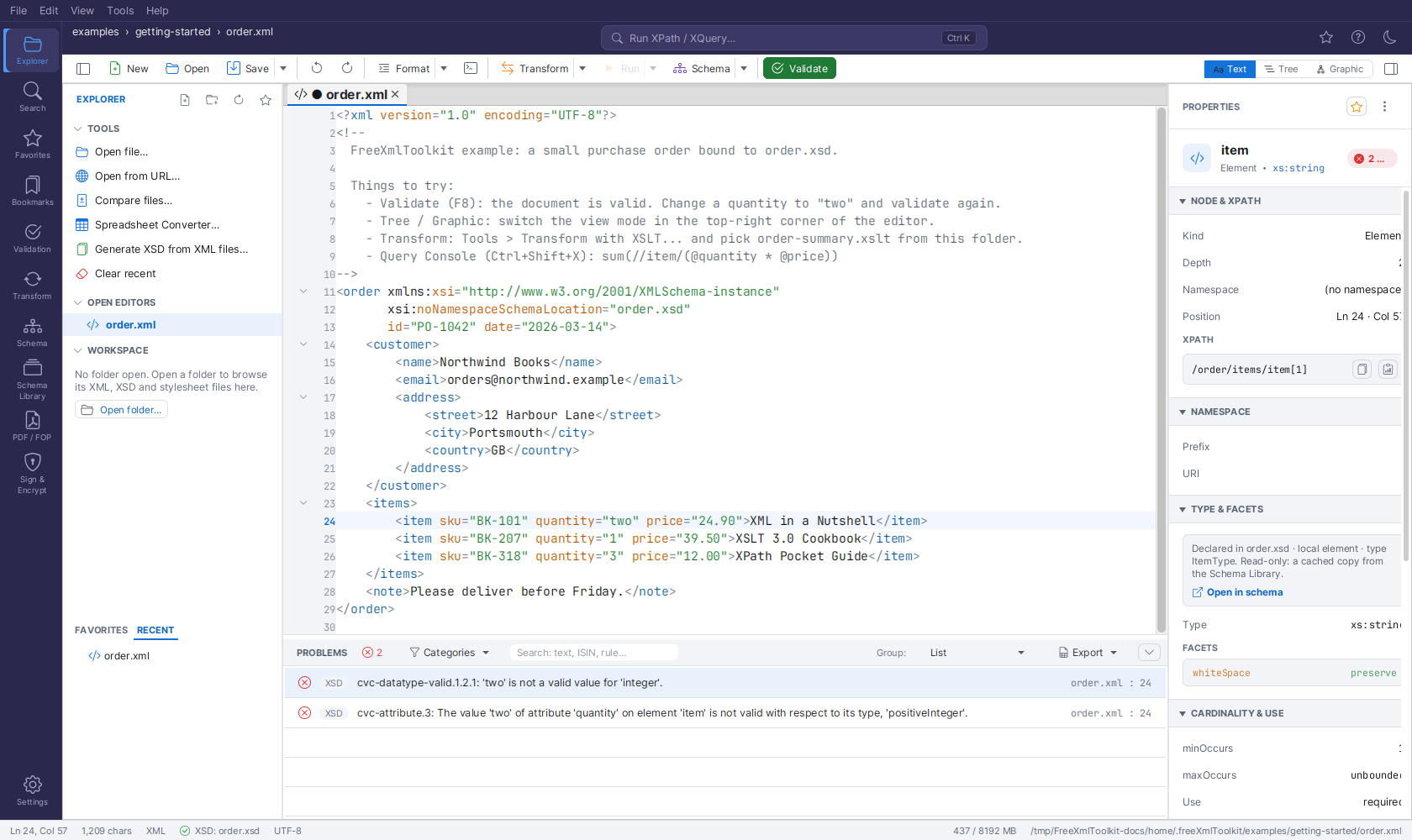 A quantity of
two instead of a number: the problem is marked in line 24 and explained in the Problems panel
- Press F8. The document is valid.
- In the first
<item>, changequantity="2"toquantity="two". - Press F8 again. The PROBLEMS panel below the editor lists the error: the schema wants a positive whole number.
- Select the problem. The caret moves to the line that caused it.
- Change the value back to
2and press F8 once more.
Tip
Type < inside <items>: the editor offers only what the schema allows at that place.
Ctrl+Space opens the same list.
More: Validate, Working with problems.
3. Look at the document in three views
Use the view switch in the top-right corner of the editor:
- Text is the source.
- Tree shows the elements as an outline.
- Graphic shows the document as a grid; the three
<item>elements become one table.
The views share one document and one undo history, so you can change a value in the grid and undo it in the text. On the right, the Properties panel shows the type and the documentation the schema has for the selected node.
4. Transform it
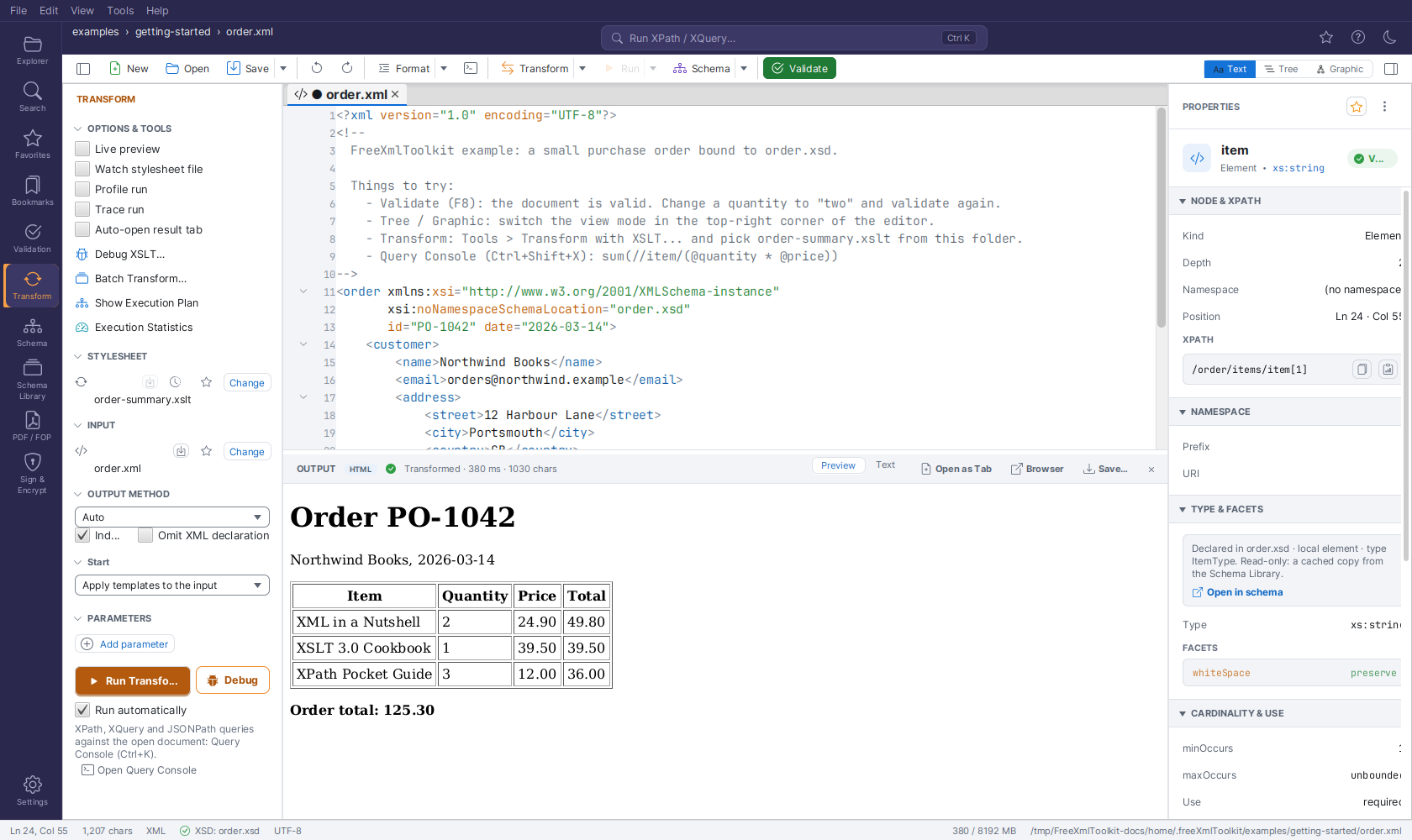 The order transformed to HTML, shown in the OUTPUT panel
- Choose Tools → Transform with XSLT….
- Pick
order-summary.xsltfrom the example folder.
The result, an HTML summary of the order, appears in the OUTPUT panel.
More: Transform & query, Debugger.
5. Ask the document a question
- Press Ctrl+Shift+X to open the Query Console.
- Enter
sum(//item/(@quantity * @price))and run it with Ctrl+Enter.
The answer is the order total, 125.3.
More: Query console.
What you learned
- A document that names its schema is validated as you work; F8 validates on demand.
- Text, Tree and Graphic are three views of the same document.
- Transformations and queries run against the open document, without leaving the editor.
Next steps
- Tour of the workspace - what every part of the window is for
- Design schemas - open
order.xsdand switch to the Graphic view - Projects & scenarios - bind schemas to files and keep transformations
- Keyboard shortcuts
More example files
The installation folder contains an examples/ folder with larger samples:
- xml/ - Sample XML documents (FundsXML4 instances, valid and deliberately invalid)
- xsd/ - Sample XSD schemas (including FundsXML 4.2.11)
- xslt/ - XSLT stylesheets (HTML reports, JSON and CSV export)
- xsl/ - XSL-FO stylesheets for PDF reports
- xquery/ - XQuery 3.1 data-quality checks
- xpath/ - XPath 3.1 snippets for the Query Console
- xproc/ - XProc 3.0 pipelines (identity, slimming, CSV/JSON export, reports)
- schematron/ - Schematron business rules
- catalog/ - OASIS XML catalog example for the Schema Library
- json/ - JSON Schema validation demos (
$schemaauto-binding, valid/invalid instances, Draft-07 / 2019-09 / 2020-12 dialects) - signature/ - Signed XML document with demo keystore
- templates/ - XML snippet templates
- profiles/ - XML generation profiles