Bookmarks
Mark lines in any text editor and come back to them later - also after a restart. Bookmarks work in every text document: XML, XSD, XSLT, Schematron, XQuery / XPath, JSON, YAML and plain text.
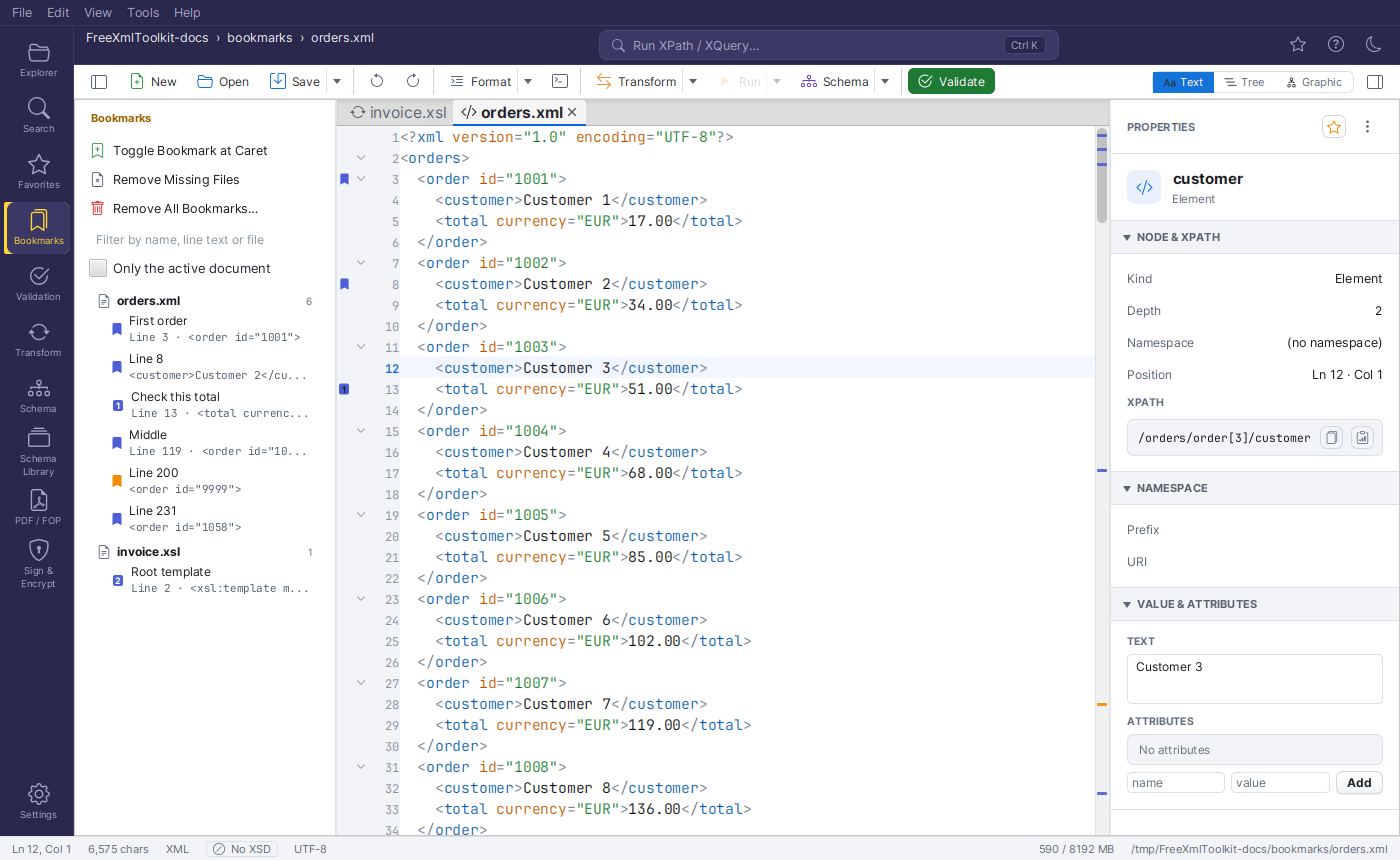
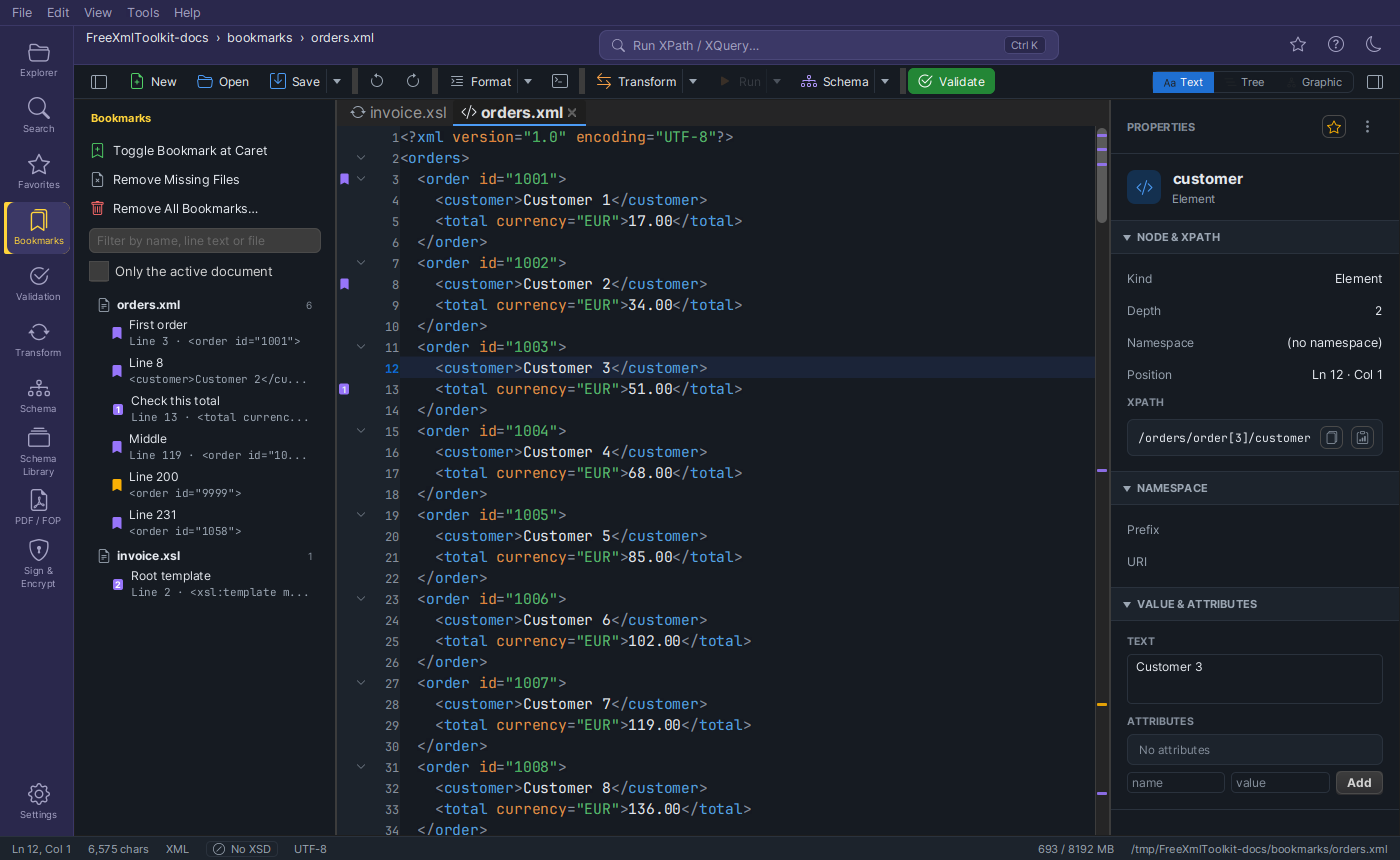 Bookmarks in the gutter (a numbered one shows its digit), their marks over the scroll bar and the Bookmarks panel
Setting a bookmark
- Click left of the line number (the narrow column in the gutter), or
- press Ctrl+F2 (Cmd+F2 on macOS) - the caret line gets a bookmark, a second press removes it, or
- Edit → Bookmarks → Toggle Bookmark, or the editor's context menu Bookmark ▸ Add Bookmark.
A bookmark shows as a small blue bookmark next to the line and as a mark on the editor's scroll bar, so you see where in a long file your bookmarks are. Click a mark on the scroll bar to jump there.
Naming a bookmark
A name tells you later what the bookmark was for. Right-click the bookmark in the gutter and choose Name Bookmark…, or press Ctrl+Shift+F2 on the line (a line without a bookmark gets one). Leave the name empty to remove it. Hover over a bookmark to see its name.
Quick bookmarks 1–9
Give up to nine bookmarks a number and jump to them from anywhere:
| Shortcut | Action |
|---|---|
| Ctrl+Shift+1 … Ctrl+Shift+9 | Give the caret line quick number 1 … 9 (the same keys again take the number off) |
| Ctrl+1 … Ctrl+9 | Jump to quick bookmark 1 … 9 - its file opens if it is not open |
A number belongs to one bookmark at a time: giving it to another line takes it from the first one. Numbered bookmarks show their digit in the gutter. You can also choose the number from the bookmark's context menu (Quick Number ▸).
Moving between bookmarks
| Shortcut | Action |
|---|---|
| F2 | Next bookmark after the caret (in the text editor) |
| Shift+F2 | Previous bookmark |
After the last bookmark of a document, F2 continues with the next file that has bookmarks (in the order of the Bookmarks panel); when the document is the only one, it starts over at its first bookmark. The same commands are in Edit → Bookmarks.
The Bookmarks panel
The Bookmarks activity (bookmark icon in the activity bar, or Edit → Bookmarks → Show All Bookmarks) lists the bookmarks of all files, grouped by file:
- each bookmark shows its name (or Line N), its line and the line's text,
- click a bookmark (or press Enter) to show it - its file opens if needed,
- F2 names the selected bookmark, Delete removes it (on a file row: all of that file's bookmarks),
- the filter searches names, line texts and file names,
- Only the active document shows just the bookmarks of the document in front,
- right-click for Show, Name Bookmark…, Quick Number ▸ and Remove Bookmark, or on a file for Remove All Bookmarks in This File….
The actions at the top: Toggle Bookmark at Caret, Remove Missing Files (forgets the bookmarks of files that no longer exist - they are shown crossed out) and Remove All Bookmarks….
Removing bookmarks
- Click the bookmark in the gutter, or press Ctrl+F2 on its line.
- Edit → Bookmarks → Remove Bookmarks in Document… removes all bookmarks of the active document (after asking).
- Remove All Bookmarks… in the panel removes those of every file.
Bookmarks follow your edits
Bookmarks stay on their line while you edit: lines inserted or deleted above a bookmark move it along. When the bookmarked line itself is deleted, the bookmark moves to the line where the deletion happened instead of disappearing. Save As takes the bookmarks along to the new file (the original file keeps its own); the bookmarks of a new, never-saved document are kept once it is saved.
Files changed outside the editor
Each bookmark remembers the text of its line. When a file is opened or reloaded and changed in the meantime
(another program, git pull), the bookmark looks for its text near the old place (up to 50 lines away) and moves
there. If the text cannot be found, the bookmark stays on its line and turns amber - check the line and set the
bookmark again. A short note tells you how many bookmarks moved or lost their line.
Where bookmarks are stored
Bookmarks are saved in ~/.freeXmlToolkit/bookmarks.json (file path → bookmarks) a moment after each change and
when the application closes. They never leave your computer.