Query Console & Query Documents
XPath, XQuery and JSONPath queries run either in the Query Console at the bottom of the editor (Ctrl+K) or as query documents (.xq, .xpath) with an input selector.
Before you start
- A document open in the editor to run the query against.
Query Console
Run XPath, XQuery and JSONPath against the open document right from the editor. This is the one place for queries - the Transform panel links here with its Open Query Console button.
The Query Console is a panel that opens along the bottom of the editor. Toggle it with the terminal icon in the editor toolbar or with Ctrl+Shift+X; Ctrl+K (or a click on the header search pill) opens it and focuses the query input. Close it with the ✕ button at its top right. It runs against whichever document is currently active, so it is the fastest way to probe an XML or JSON file while you work.
The same queries run on the command line with fxt-cli query, e.g.
fxt-cli query -e 'count(//Position)' data/ for every XML file of a folder.
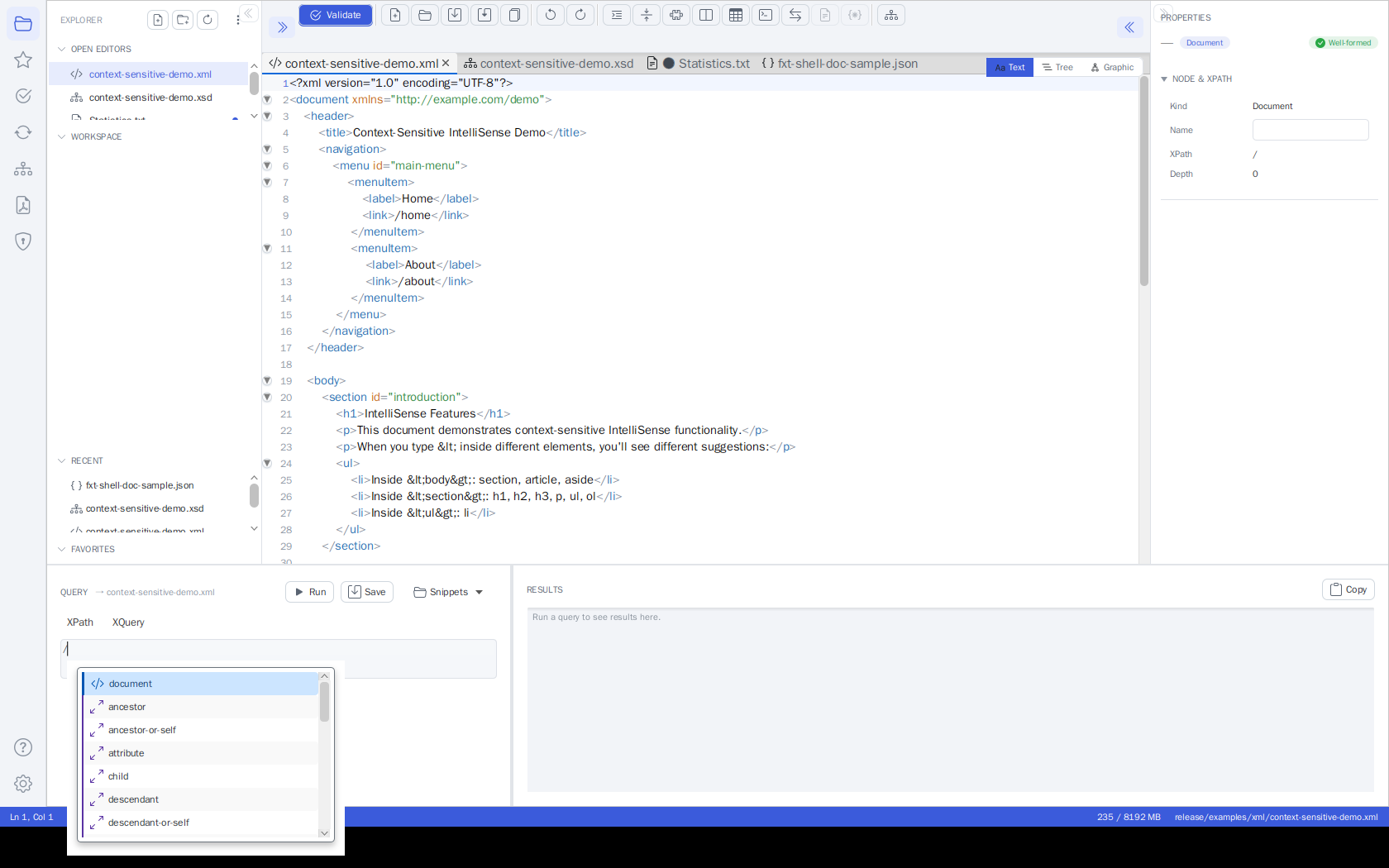 The Query Console with IntelliSense: typing
/ in the XPath input opens the completion popup
(document elements and axes). The mode toggle and Run are on the left; on the right, the results
pane shows the previous run's XML result with syntax highlighting.
Layout
- Left - the query:
- An XPath | XQuery mode switch; the active mode is filled in the accent colour. The mode is also named on the Run button (Run XPath / Run XQuery), in the hint below the input (XPath mode · …) and in the empty input's example. While a JSON document is active, the XPath segment reads JSONPath. Next to the switch: the document the query runs against.
- The query input with IntelliSense (autocomplete): suggestions pop up as you type after
/,//,@,[,(,$and::, or on demand with Ctrl+Space. It suggests element and attribute names from the active document, XPath/XQuery functions, axes, operators and (in XQuery mode) FLWOR keywords. Use ↑/↓ to navigate and Enter/Tab to accept. - The query is syntax-highlighted as you type: keywords, functions, axes, variables, strings, numbers and comments each get their own color.
- To run: press Ctrl+Enter in either mode (Enter inserts a new line, so queries can span several lines; a hint below the query says so). The Run button works in both modes.
- Run - Execute the query against the active document.
- Save - Save the current expression as a reusable snippet (see below).
- Snippets - A menu of your saved XPath and XQuery snippets; pick one to load it (the console switches to the matching mode automatically).
- Examples - Inserts a built-in XQuery example: Simple, FLWOR, HTML report or Data-quality check.
- Ask AI… - Shown while the AI assistant is on: describe what you want in your own words; the model writes the XPath or XQuery (for the current mode), the application runs it against the active document and shows the item count and first results, and Insert into the console puts it into the input. Running it stays your action. XML documents only. See A question → XPath or XQuery.
- Right - the results:
- A read-only, selectable results editor with line numbers showing the query result. XML results are syntax-highlighted (tags, attributes, values, comments), and JSON results (e.g. from JSONPath queries) get JSON highlighting; scalar results and messages stay plain.
- Copy - Copy the full result to the clipboard.
- Table - Shows the last XPath or XQuery result as a table in the OUTPUT panel: each result item is a row, its child elements (or, without any, its attributes) are the columns; plain values fill a single value column. Enabled after a run on an XML document whose result has at least one item (not for JSONPath). An XPath result is projected at the console's XPath version.
Like the text editor, every console area zooms with the mouse: hold Ctrl and scroll the mouse wheel over the query input or the results to change that area's font size (Ctrl+0 resets it to the size of the editor font).
Running a Query
- Open the console (Ctrl+K, the header search pill, the terminal icon, or Ctrl+Shift+X) - it opens focused on the query input.
- Choose XPath or XQuery with the mode toggle.
- Type your expression, then click Run (in XPath mode, Enter also runs).
- The result appears on the right. Use Copy to put it on the clipboard.
See When a query fails for how errors are shown.
The console always runs against the active document. For an XML document it evaluates the expression directly; for a JSON document the toggle reads JSONPath and the input is evaluated as a JSONPath expression. When no document is open, Run is disabled and the results pane shows "No document open."
The map:, array: and math: function namespaces are
pre-declared in the console, so XPath 3.1 expressions using map:merge(),
array:size(), math:pow() etc. run directly - no namespace prolog needed.
Namespaces of the document. The prefixes the document declares are declared for the query too: on a document with
xmlns:fx="…", //fx:Fund runs without declare namespace (a declaration in the query wins). When the root element
is in a default namespace (<FundsXML xmlns="…">), a Default namespace chip appears next to the target:
- On (default): names without a prefix match the document's default namespace, so
//Fundfinds the funds. - Off: names without a prefix match only elements in no namespace, as the XPath standard says; write
*:Fundor a prefix. Completion then proposes*:Fund.
The chip, the setting under Settings → Schemas & Validation → Queries and query files share one choice. XPath 1.0 cannot bind a default namespace, so the chip is hidden there.
Hits while typing. When the expression checks without errors, the console runs it in the background and the line
under the input says what it would find: "3 hits (preview, Ctrl+Enter runs)", "Result: 42" or "No hit". The
preview runs on documents up to 5 MB, stops after 1.5 seconds and skips expressions that read files (doc(),
collection(), unparsed-text()). It marks nothing in the document - that stays Run's job. Turn it off under
Settings → Schemas & Validation → Queries.
Cancel and time limit. While a query runs, Run turns into Cancel with the seconds so far. An XQuery stops at
once (at its next for/let clause, function call or constructor); an XPath expression cannot be interrupted, so the
console stops waiting and the expression finishes in the background without showing its result. A run stops on its own
after the time limit (60 seconds by default, 0 = none; Settings → Queries). One run computes the text, the table and
the hits together.
Note
The Query Console is an additional, faster access point - it does not replace the Transform activity. For XSLT transformations, parameters, recent-stylesheet history, watch-and-rerun, and the OUTPUT panel's result table and HTML preview, use the Transform Panel.
Variables, trace and the execution plan
- External variables. An XQuery that declares
declare variable $n as xs:integer external;gets a field for each such variable under the input (required ones in bold, the type as placeholder). The values are text, converted to the declared type. A query file (.xq) asks for a required value on its first run and remembers it for that file. - Trace.
trace()output of the last XQuery run is listed in the Trace (n) menu next to the results; a click copies a line. - Show Execution Plan (the diagram button in XQuery mode, and Run ▾ → Show Execution Plan for a
.xqtab) opens Saxon's plan of the query after optimization in a tab.
When a query fails
The console checks the expression while you type (it is compiled, not run, shortly after you stop typing):
- A syntax or static error (missing bracket, unknown function, variable or prefix) gets a red wavy underline,
and the line under the input names it, for example XPST0003 · column 7: expected "]", found "
" . - A compiler warning gets an amber underline. The most useful one says that a
/step will fail because its left side is a value, not a node (distinct-values(//Ccy)/../Name) - before you run it. - Resting the mouse on an underline shows the message.
When a run fails, the RESULTS area shows the error instead of the result:
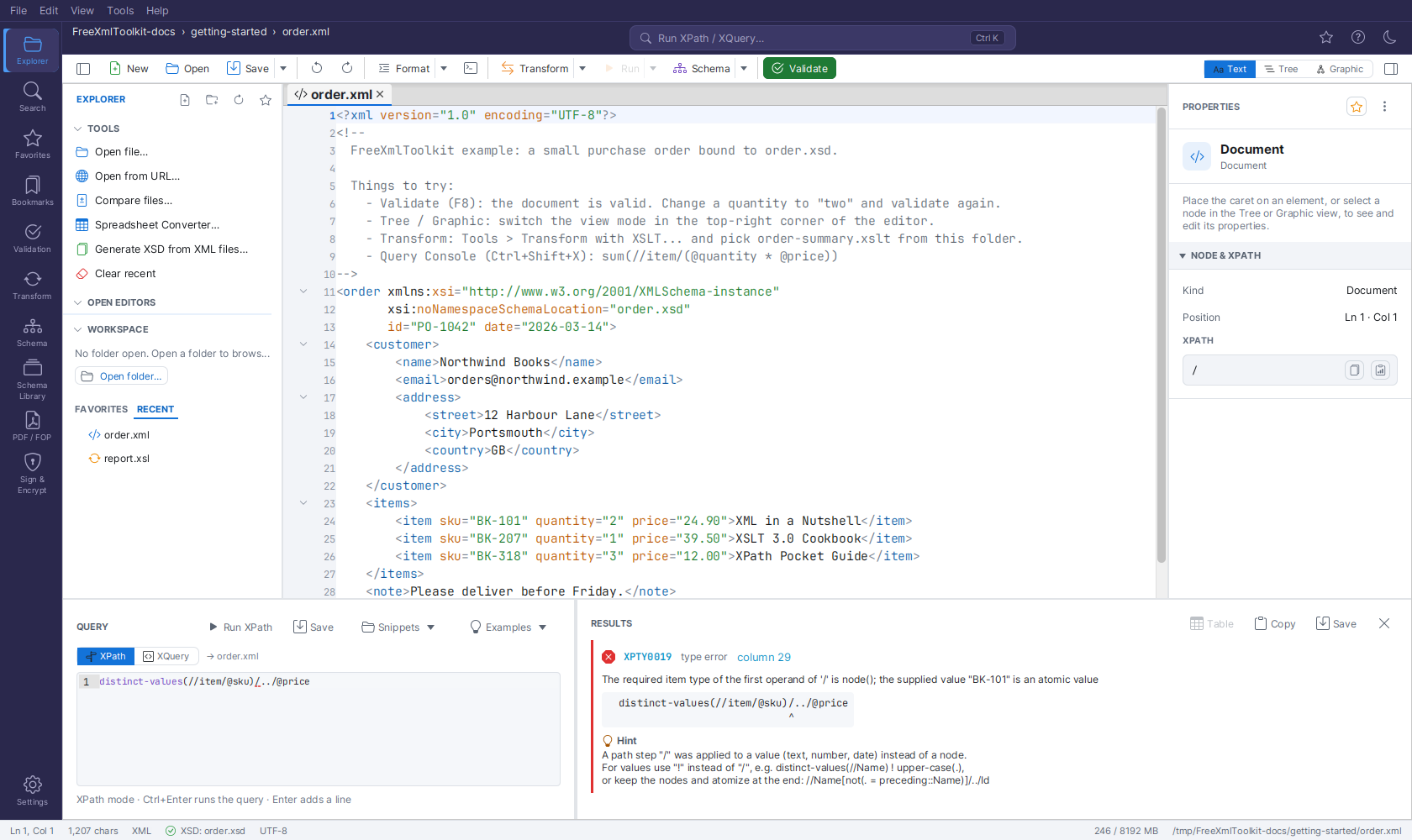
- Code (e.g.
XPTY0019) as a link to its explanation in the W3C specification, the kind (syntax, static, type or run-time error) and the position - a click puts the cursor at the error in the input. - The message without Saxon's internal notation, and the query line with a
^under the error. The error is also underlined in the input until you change it. - A Hint with the usual cause and how to write it instead, for the errors made most often:
| Error | Typical cause | Hint |
|---|---|---|
XPTY0019 |
A / step on a value, e.g. distinct-values(//Ccy)/../Name |
Use ! for values, or keep the nodes and atomize at the end |
XPTY0020 |
An axis step in a predicate on values, e.g. distinct-values(//Ccy)[../Name] |
Filter the nodes before they become values: //Fund[Ccy = "EUR"]/Name |
XPTY0004 |
Several values where one is needed (//Fund/Name + 1), or text where a number is needed ("5" + 1) |
Pick one with [1], aggregate, or use !; convert with number(.), xs:date(@Date) |
FORG0001 |
A value in the wrong format for a cast, e.g. xs:decimal("1.234,5") |
xs:date needs 2026-11-17, xs:decimal a dot; number(.) gives NaN instead of failing |
SXXP0003 |
The document is not well-formed XML - the query may be fine | Shown as error in the document with document line 3, column 14; a click on it opens the document there. Validate (F8) lists all problems |
FODC0002, FODC0005, XTDE1162, FOUT1170 |
doc() / unparsed-text() cannot find or read a file |
Relative paths resolve next to the saved document (an unsaved one has no location); absolute paths are file: URIs: doc("file:///C:/data/funds.xml"), not C:\data\funds.xml |
- Did you mean buttons for an unknown function (
distinct-value→distinct-values; also "substring() exists, but takes 2 or 3 arguments"), an unknown variable ($nme→$name) or an undeclared prefix (*:Fund, or in XQuery adeclare namespacewith the document's namespace). A click corrects the input. - Ask AI to fix (when the AI assistant is on) sends the query and the error to the assistant; its corrected query is checked against the document before it is offered.
Copy and Save in the RESULTS header take the error as text, with position and hint.
When a query finds nothing although the document is in a namespace and the query uses names without a prefix
(//Fund on <funds xmlns="urn:…">), the line under the input explains it and suggests *:Fund.
With XPath 1.0 chosen as the version (expert mode), errors carry the same codes as the newer versions
(XPST0003, XPST0017 unknown function, XPST0008 unknown variable) with a position where the XPath 1.0 engine names
a token; a function that exists only in a later version says so: "distinct-values() exists from XPath 2.0 on; the
query runs as XPath 1.0." The check while typing uses the XPath 1.0 engine too. For XQuery 1.0 / 3.0 the check while
typing reports constructs and functions the version does not have (FXT-COMPAT, at their position) before you run.
An error inside an imported module names the module and its line ("in module lib.xq, line 2") instead of marking
a place in the query.
In an XPath or XQuery file (.xpath, .xq), the same check runs while you type, and a failed Run Query is
underlined in the editor and listed in the Problems panel with line and column. The next successful run removes
it. fxt-cli query prints the same text (see Command Line). A query file imports its modules
(import module … at "lib.xq") and resolves its own relative paths next to the query file; the run target is the
document's base URI, so doc(resolve-uri('rates.xml', base-uri(.))) reads a file next to the target.
Showing Results in the Document
When a result contains nodes of the document - elements, attributes or text, as in
//Position[TotalPercentage > 30] - the RESULTS header shows a Text | Hits switch and a
counter such as 1 of 2. Hits lists every result item; a click on a node (or Enter, or
the arrows next to the counter, F3 / Shift+F3 while the console has the focus) shows it
in the view you are in, without switching it:
- Text - every hit is highlighted, the current one is selected.
- Tree - the node is selected and scrolled into view.
- Graphic - every hit is highlighted in the grid: a whole table row when the hit is a member of repeating elements, only the cell when it is a node inside one, the row otherwise. The current hit is opened, selected and briefly flashed.
Values that are not nodes of the document - sum(...), strings, numbers, elements an XQuery
builds - appear in the list without a link and are not highlighted; a result with no nodes shows
no switch at all. After the document changes the hits are stale ("Document changed - run the query
again"); running the query again finds the new places. Hits are shown for XPath and XQuery against
XML documents (not JSONPath).
Saving and Loading Snippets
Reusable XPath and XQuery expressions are saved as snippets:
- Save - Prompts for a name and stores the current expression. XPath snippets are saved as
.xpathfiles and XQuery snippets as.xqueryfiles. - Snippets - Lists every saved snippet, prefixed with its kind (XPath / XQuery). Selecting one loads it into the console and switches to the matching mode.
Snippets are kept in the shared query folder.
Saved snippets can be managed directly from the menu. Each snippet's submenu offers, next to Load into console and Open in editor:
- Overwrite with current query - Replaces the saved expression with the console's current
input of the snippet's kind (an
.xpathsnippet always takes the XPath input, an.xquerysnippet the XQuery input), after a confirmation. - Rename… - Prompts for a new name (pre-filled with the current one). Names already in use are refused.
- Delete… - Deletes the snippet file, after a confirmation.
The entries in the FUNDSXML section (see below) are read-only - they are re-registered from the FundsXML content cache on every start and therefore offer no management actions.
Looking for ready-made queries? The installation's examples/xpath/ folder contains
32 XPath 3.1 examples and examples/xquery/ contains 17 XQuery 3.1 scripts
(data-quality checks plus a reporting series producing CSV, ASCII tables/charts,
Markdown and JSON), all written for the FundsXML4 sample files in examples/xml/.
Paste them into the console, or copy the .xpath files into your query folder to have
them appear in the Snippets menu. See the README.md in each folder for details.
When the optional FundsXML extension is enabled, the Snippets menu also shows a FUNDSXML section with the XPath/XQuery example queries shipped with the FundsXML examples (for example fund-summary, top-holdings, look-through, aggregate-by-assettype). Selecting one loads it into the console and switches the XPath/XQuery mode to match. These entries come from the FundsXML content cache and are re-registered automatically on every start.
XPath / XQuery Autocomplete
The XPath/XQuery inputs of the Query Console offer context-aware
autocomplete in both the XPath and
XQuery input fields. Suggestions appear automatically after trigger characters (/, [, @, (,
$, ::) or on demand with Ctrl+Space. Depending on context it suggests element names, attribute
names, XPath axes, functions, and (in XQuery) variables. The functions are Saxon's own library (over 200, with
map:, array: and math:), each with its signature (substring($value as xs:string?, $start as xs:numeric[,
$length as xs:numeric?])) - and only those of the chosen language version: XPath 2.0 does not offer
parse-json. Navigate with the arrow keys and press
Enter or Tab to insert; Escape dismisses the popup. Functions and axes are inserted with
their parentheses / :: automatically.
Saving, Loading and Examples
Saved queries are the Query Console's Snippets menu, and its Examples menu inserts the built-in XQuery examples - see Saving and Loading Snippets.
Query Documents & the Input Selector
XPath and XQuery files are first-class editor documents: open a
.xq or .xpath file (or any file from examples/xpath/ and examples/xquery/),
press Run Query, and read the result in the OUTPUT panel - no console or panel
switching required.
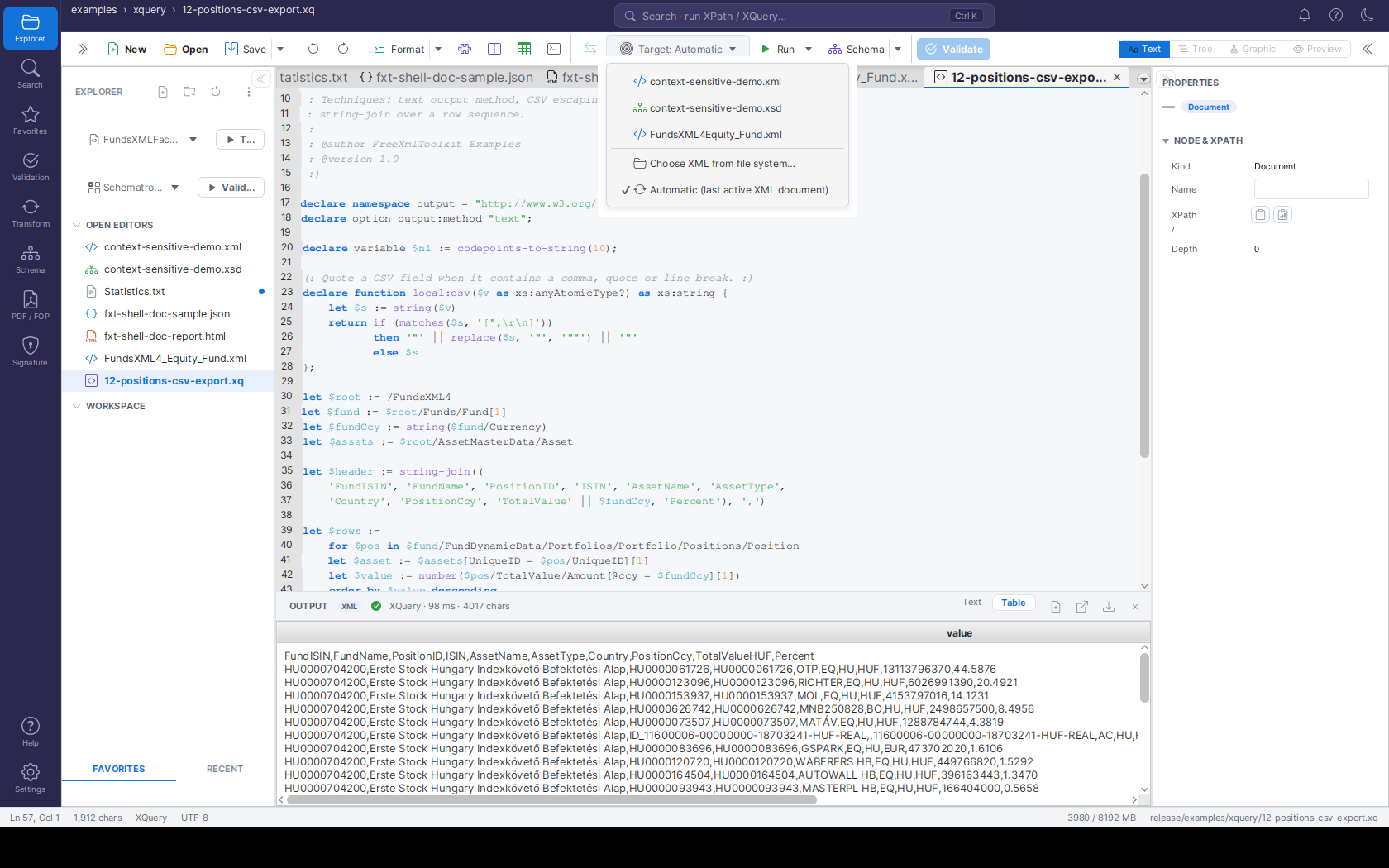 An XQuery document from
examples/xquery/ with the Input dropdown open: pick an
open XML-family document, a file from disk, or Automatic (the most recently active XML
document, here checked). Below, the OUTPUT panel shows the query's CSV result.
Query documents
.xq, .xquery, .xqm, .xqy (XQuery) and .xpath (XPath) files open in a dedicated
query editor with XPath/XQuery syntax highlighting and the same context-aware
autocomplete as the Query Console. They appear in the
Explorer workspace tree, the file choosers and drag & drop like every other supported
type.
Running
- Run Query (the toolbar's Run button, or
Ctrl+Enter) runs the active XPath/XQuery document. The Run ▾ arrow menu lists all three run actions explicitly. - Run Transform does the same for an active XSLT stylesheet - output format
auto-detected from its
xsl:outputdeclaration. - Run Pipeline covers XProc documents (see XProc Pipelines).
Results appear in the OUTPUT panel docked below the editor, with execution time and result size in the status line. A tabular XQuery result (a sequence of similar elements) additionally offers a Table view; HTML results get a preview, and everything can be opened as an editor tab, opened in the browser, or saved from the panel's header buttons.
The Input dropdown
The query, stylesheet or pipeline runs against an XML input document. The Input dropdown in the editor toolbar (its label reads "Input: …" followed by the chosen document) (shown only for query/XSLT/XProc documents) controls which one:
- Automatic (last active XML document) - the default: the most recently active XML-family document (XML, XSD, XSLT, Schematron, XProc). The active document itself is never chosen - an XSLT stylesheet does not transform itself.
- An open document - pick any other open XML-family tab. The run uses the tab's live editor text, including unsaved changes.
- Choose XML from file system… - pick a file without opening it; it is read fresh on every run.
The choice is remembered per document for the session. If a chosen target tab is closed, the run falls back to Automatic. With no XML-family document available at all, Run Query/Run Transform show a short guard message instead of failing.
Tip
Ready-made queries ship in examples/xpath/ (32 expressions) and examples/xquery/
(17 scripts) - open any of them and press Ctrl+Enter against a FundsXML sample from
examples/xml/. See Bundled Example Collections.
Next steps
- XSLT and XQuery examples
- Debugger - step through an XQuery
- fxt-cli: validate and query -
queryon the command line