Validate against an XSD
Validate your XML files against XSD schemas to check if documents follow the rules defined in the schema. Supports both single file and batch validation.
Before you start
- An XML document and its XSD.
Overview
The XSD Validation tool provides two modes:
| Mode | Description |
|---|---|
| Single File | Validate one XML file at a time |
| Batch Validation | Validate multiple XML files at once |
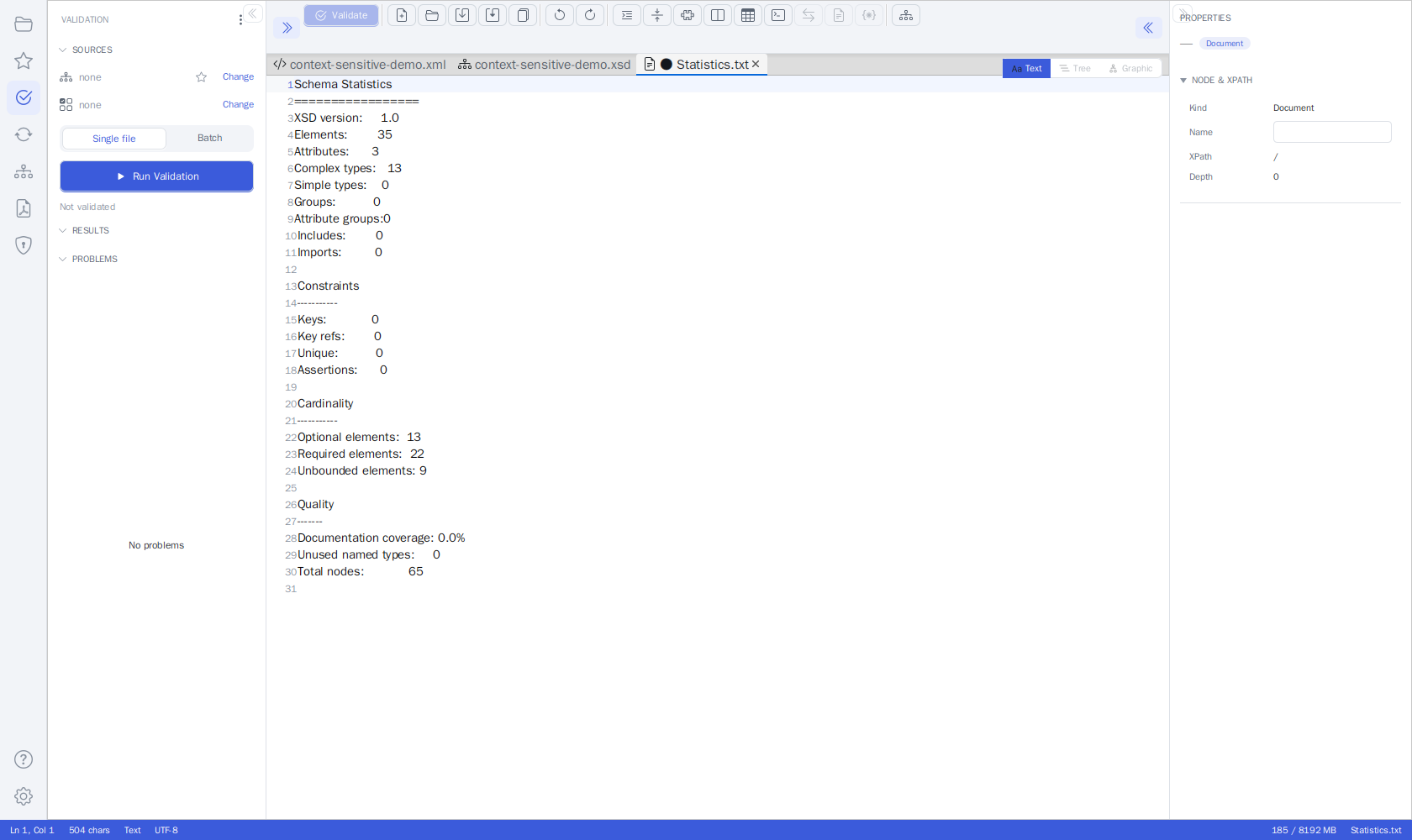
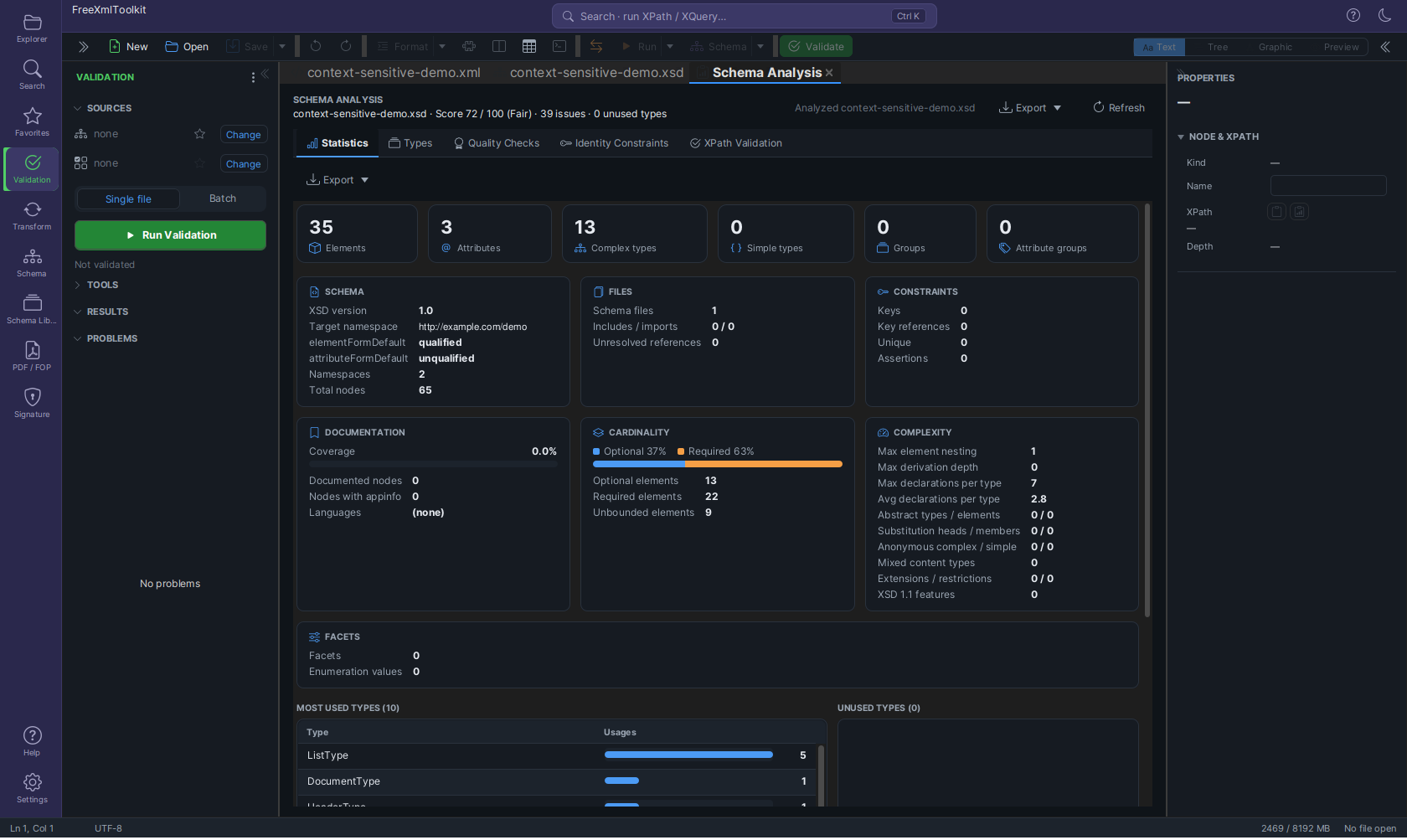 XSD and Schematron validation live in the Validation activity panel
What Does It Check?
| Check | Description |
|---|---|
| Structure | Are elements in the right order? |
| Required Fields | Are all mandatory elements present? |
| Data Types | Are values the correct type (text, number, date)? |
| Constraints | Do values meet length, range, or pattern requirements? |
| XSD 1.1 Assertions | Do values pass custom assertion rules? |
Single File Validation
Use this mode to validate one XML file against a schema.
Step 1: Load Your Files
- Open the XML file in the editor (Ctrl+O, the Explorer, or drag & drop).
- Schema selection:
- Automatic: Schema references inside the XML (
xsi:schemaLocation/xsi:noNamespaceSchemaLocation) are found automatically. The reference is re-read from the editor content before every validation run, so adding, changing, or removing it takes effect immediately - no save needed, and untitled documents work too. If you remove the reference, validation falls back to a well-formedness check and the status bar shows "No XSD". A schema you bound manually is never overridden by this automatic detection. If the document has noxsi:schemaLocation, the Schema Library is consulted by root namespace (or root element) - see Schema Library. A declared location is also checked against your XML catalogs and library mappings before anything is downloaded, and the status bar indicator shows how the schema was found: "XSD: name" (declared), "(catalog)", "(library)" or "(manual)". - Manual: Bind an XSD yourself - click the "No XSD" chip in the status bar (or
click the toolbar's Schema button - Set XSD Schema…), pick a schema in the Validation panel's
SOURCES section, or simply drop an
.xsdfile from your file manager onto the panel's XSD source row or onto the status bar's XSD indicator. The binding drives both validation and IntelliSense.
Step 2: Validate
Click the toolbar's Validate button or press F8 to start validation.
Step 3: View Results
The panel's status line reports the outcome right away:
| Status line | Meaning |
|---|---|
| Valid | The document conforms to the bound XSD (and Schematron, if one is bound) |
| Well-formed · no schema bound | No schema is bound - only the well-formedness check ran and it passed (neutral, not green: bind an XSD in SOURCES to validate) |
| 1 problem / N problems | Problems were found; they are listed in the PROBLEMS panel below the editor |
In Single file mode the side panel does not repeat the problem list: below the status line it shows a row such as "3 problems — show below the editor". Click it to expand and focus the PROBLEMS panel below the editor.
Each entry in the problem list reads [source] Ln N: message:
- Source -
XSD,Well-formed, orSchematron, so you can tell which check reported it - Line number - where the problem is
- Severity icon - red ✕ for errors, orange ⚠ for warnings
Selecting a problem shows it in the current view (Text: its line; Tree and Graphic: its element). The same problems are mirrored in the PROBLEMS panel below the editor, whose header shows error and warning counters; see Jump to Validation Errors for navigation details.
Validate while typing (on by default, toggle in the panel header's ⋮ menu) re-runs validation shortly after every edit, tab switch, or schema change, so the list stays current without pressing F8.
Favorites Integration
Save frequently used XML and XSD files to favorites for quick access:
- Ctrl+D - add the active document to favorites
- Ctrl+Shift+D - show the Favorites side panel (or collapse it when it is already shown)
- The ★ menu on each SOURCES row lists your favorites of that type (XSD, Schematron, or JSON) - one click binds the schema without a file chooser.
Supported Standards
| Standard | Support |
|---|---|
| XSD 1.0 | Full support |
| XSD 1.1 (with assertions) | Full support |
The validation engine uses Xerces 2.12.2 with full XSD 1.1 support.
A schema may start with a <!DOCTYPE …> naming a DTD, as the W3C's own schemas do
(XMLSchema.dtd). The DTD plays no part in validation and is never loaded, neither from
disk nor from the network, so a missing DTD file does no harm.
Tips
- If your XML already references its schema via
xsi:schemaLocation, just open it - the schema is bound automatically and the status bar shows how it was found - Use Batch Validation for testing multiple files efficiently - remember that all files are checked against the XSD bound to the active document
- Export to Excel when working with large documents or sharing results; the Problems sheet has an auto-filter, so you can narrow it by source or severity in Excel
- There is no filter inside the panel: in a batch run, the red ✕ / orange ⚠ icons and the count badges in RESULTS show at a glance which files need attention, and the PROBLEMS panel below the editor counts errors and warnings separately in its header
- Double-click a file in RESULTS to open it in the editor; select a problem to jump to its line
- Not sure what a message means? With the optional AI assistant on, right-click the problem → Explain with AI, or Fix with AI for a change that is validated against the schema before you apply it
Next steps
- Validate folders and export results
- Working with problems
- Schematron for rules a schema cannot express