description: Create PDF from XML with XSL-FO and Apache FOP: preview, PDF/A, and external processors such as Antenna House and RenderX XEP.
PDF Generator (FOP)
Create professional PDF documents from your XML files using Apache FOP (Formatting Objects Processor).
Before you start
- An XML document and a stylesheet that turns it into XSL-FO.
Overview
The PDF Generator combines your XML data with an XSL-FO stylesheet to create formatted PDF documents.
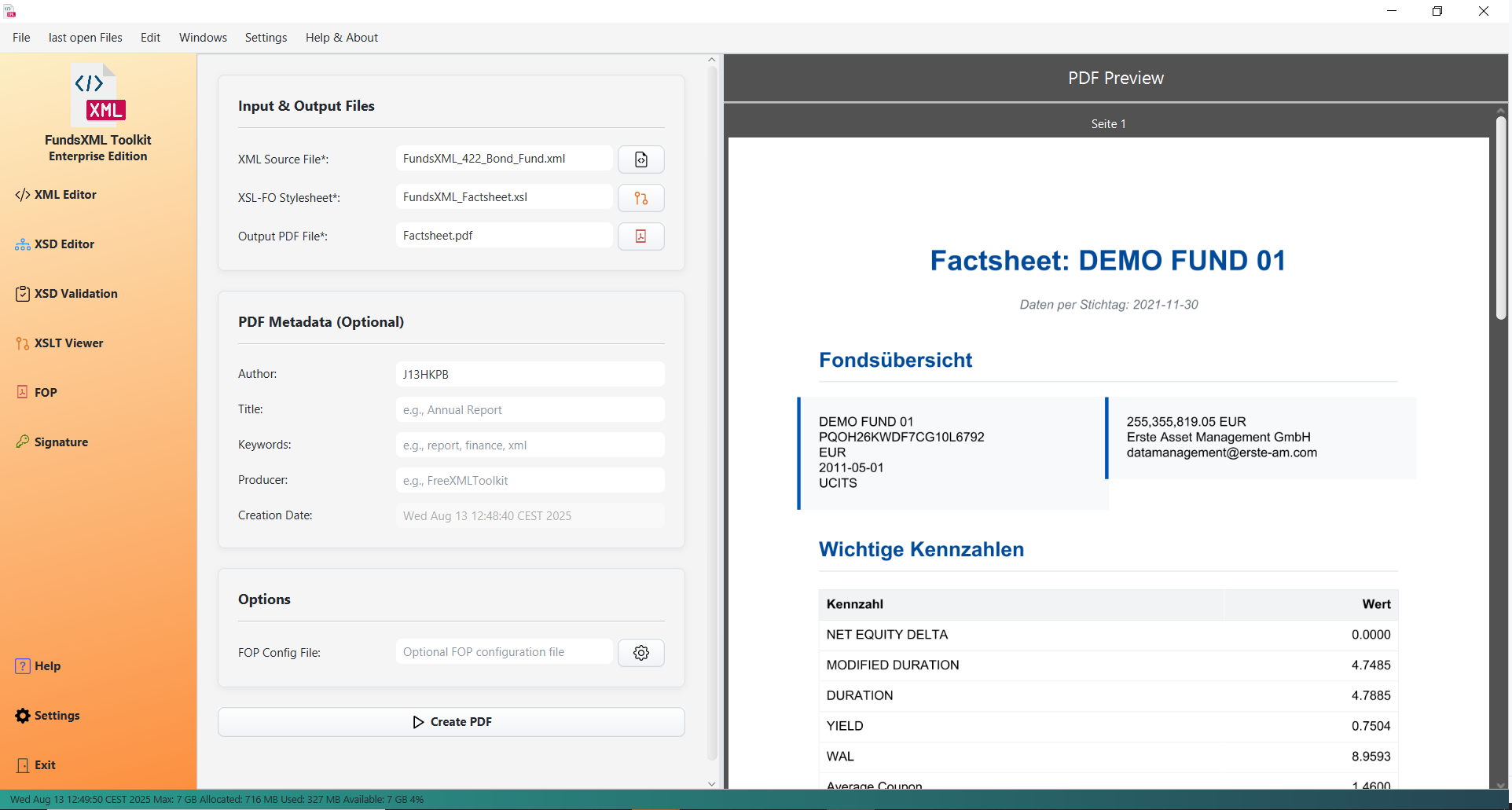 The PDF / FOP panel with the input files, metadata, and options set
How It Works
- XML File - Your data (the content you want in the PDF)
- XSL-FO Stylesheet - A template defining layout and formatting
- PDF Output - The generated document
The PDF / FOP Panel
Open the PDF / FOP activity from the activity bar. The panel is organized into these sections plus the primary action:
| Section | Contents |
|---|---|
| TOOLS | Debug stylesheet… runs the XSL-FO stylesheet in the XSLT debugger; Render PDF from FO… renders the FO of the latest run (e.g. of a debug run) to a PDF |
| INPUT | The XML (follows the active editor; Change fixes it to a file) and the XSL-FO stylesheet. Each slot shows the file name on its own line (full path as tooltip); an empty slot shows a hint such as "No stylesheet — choose or drop a file" and works like Change when clicked |
| METADATA | PDF Title, Author (pre-filled from your user name), Subject |
| OPTIONS | PDF/A-1b compliant toggle and the Page size dropdown (A4/Letter · Portrait/Landscape) |
| Generate PDF | Asks for the output file and renders off the UI thread (XSLT → XSL-FO → PDF) |
| RESULT | Preview PDF, Open PDF, Show intermediate FO (the XSL-FO the stylesheet produced, as an editor tab) and Messages & events (n) (the stylesheet's xsl:message output and every event Apache FOP raised, in the OUTPUT panel) |
The sections in detail
- INPUT - The XML (follows the active editor; Change can fix it to a file) and the
XSL-FO stylesheet (Change). Each slot shows its caption, the favorites button and
Change on the first line and the file name on its own second line (full path as
tooltip); an empty slot shows a hint such as "No stylesheet — choose or drop a file",
and clicking it works like Change. Both rows also carry a star
menu next to their Change link - XML favorites for the input, XSLT favorites
for the stylesheet - so you can pick a favorited file in one click (see
Favorites). Both rows are also drop
targets: drop an
.xmlfile onto the XML row or an.xsl/.xsltfile onto the stylesheet row - the row glows green while a loadable file hovers over it and red for a wrong file type (which is rejected), and the drop behaves exactly like a favorite: the file is also loaded into the editor (the XML as the active tab, the stylesheet behind it unless the XML input is fixed). - METADATA - PDF document Title, Author (pre-filled from your configured user name) and Subject, embedded into the generated PDF.
- OPTIONS - PDF/A-1b compliant renders an archival-grade PDF (requires the
stylesheet to use embeddable system fonts - the built-in base-14 fonts like Helvetica
cannot be embedded, and the error message will say so). Page size is a dropdown (A4/Letter,
Portrait/Landscape); a hint below it explains that the choice is passed as the
page-sizeandpage-orientationparameters and only applies if the stylesheet uses them. - Generate PDF asks for the output file, renders off the UI thread (XSLT → XSL-FO →
PDF), and opens the result in the in-app PDF preview; the RESULT rows Preview
PDF and Open PDF re-open it any time. Show intermediate FO opens the XSL-FO the
stylesheet produced as an editor tab, and Messages & events (n) lists the stylesheet's
xsl:messageoutput and every event Apache FOP raised (substituted fonts, overflowing content, unknown properties, …) in the OUTPUT panel - the status line counts the FOP warnings. A failed generation puts the stylesheet error with its location, or FOP's reason, into OUTPUT as well. - TOOLS → Debug stylesheet… runs the XSL-FO stylesheet in the XSLT debugger (breakpoints, stepping, variables, live messages); the page-size parameters are passed on. The FO a finished debug run produced lands in OUTPUT and in the panel's result, so Show intermediate FO and Render PDF from FO… (renders that FO to a PDF of your choice) work right after debugging.
Step-by-Step Guide
Step 1: Select Your Files
- Open your XML data file in the editor (or pick one via the INPUT section's Change, or
drop an
.xmlfile from your file manager onto the XML row) - Click Change on the stylesheet row to select your XSL-FO stylesheet - or drop
an
.xsl/.xsltfile onto the row
You can also drag and drop files directly into the application.
Step 2: Set PDF Metadata (Optional)
Add metadata to your PDF document in the METADATA section:
| Field | Description |
|---|---|
| Title | Document title |
| Author | Your name or organization (pre-filled from the configured user name) |
| Subject | What the document is about |
Step 3: Options (Optional)
- PDF/A-1b compliant - produces an archival-grade PDF. The stylesheet must use
embeddable system fonts (e.g.
Liberation Sans); the PDF base-14 fonts (Helvetica, Times, Courier) cannot be embedded and FOP will report exactly that. - Page size - a dropdown whose value is passed to the stylesheet as the XSLT parameters
page-size(A4/Letter) andpage-orientation(Portrait/Landscape). As the hint below the dropdown says, it only applies if the stylesheet uses these parameters - stylesheets that declare them can switch theirfo:simple-page-masteraccordingly; others ignore the setting. - Processor - which program renders the XSL-FO: the bundled Apache FOP or an
external XSL-FO processor you configured. Manage processors…
opens the list. With an external processor, the metadata fields and PDF/A are only available
when its arguments pass them on (
${title},${pdfa}…). - XSLT processor - shown once an external XSLT processor is configured: which program turns the XML into XSL-FO, the bundled Saxon HE or one of yours. Starts at the default XSLT processor of the settings.
Step 4: Generate the PDF
Click Generate PDF. You are asked where to save the output file, and the PDF is rendered in the background - the application stays responsive throughout.
Step 5: Preview
The generated PDF opens in the built-in PDF preview, a tab next to your documents. You can: - Page through the document with the arrow buttons in its toolbar (Page 1 / 2) - Scroll within a page; it is fitted to the tab's width - Review the layout and formatting without leaving the app
The Preview PDF and Open PDF buttons re-open the last result at any time.
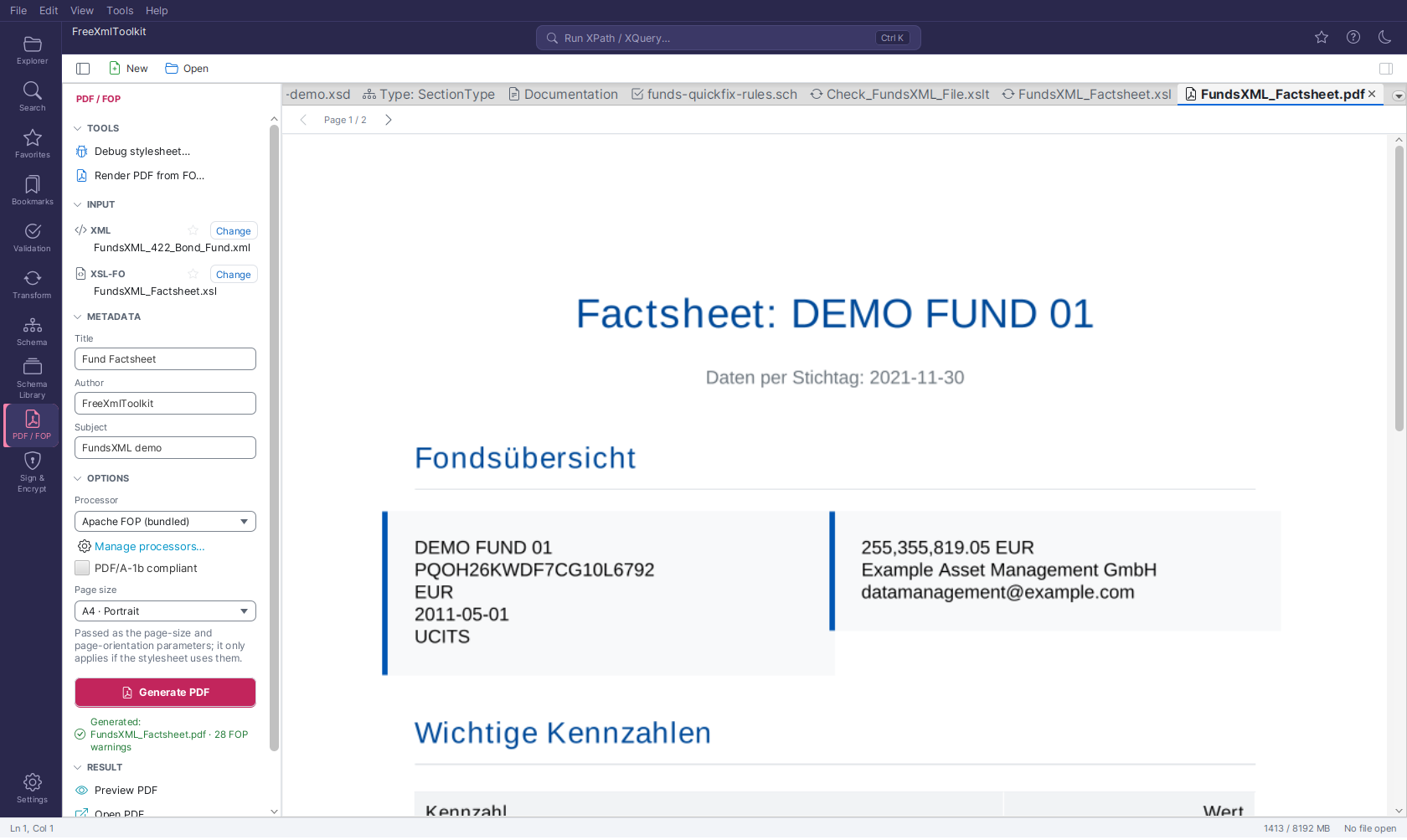 The generated factsheet in the preview tab; the RESULT section lists the follow-up actions
Step 6: Understand what FOP did
Every generation keeps the intermediate XSL-FO and the messages of both stages:
- Show intermediate FO opens the FO document the stylesheet produced as an editor tab - the quickest way to see whether a layout problem comes from the stylesheet (wrong FO) or from FOP (right FO, unexpected rendering).
- Messages & events (n) shows the stylesheet's
xsl:messageoutput and every event FOP raised while rendering - a substituted font, content that overflows its area, an unknown property - in the OUTPUT panel. The status line after a successful run counts the FOP warnings, so a Generated: report.pdf · 2 FOP warnings is worth a look. - A failed generation puts the stylesheet error (with its line in the
.xslfile) or FOP's reason into OUTPUT as well.
Debugging the stylesheet
TOOLS → Debug stylesheet… runs the XSL-FO stylesheet in the interactive
XSLT debugger: set breakpoints in the
stylesheet's gutter, step through templates, watch variables and the context node, read
xsl:message output live. The page-size and orientation parameters are passed on. When the
debug run finishes, its FO is in the OUTPUT panel and in the panel's result, so Show
intermediate FO and Render PDF from FO… work right away - the latter renders exactly the
FO you just debugged to a PDF of your choice.
Favorites Integration
Save frequently used XML and XSL-FO files for quick access:
- Both INPUT rows carry a star menu next to their Change link - XML favorites for the input, XSLT favorites for the stylesheet - so you can pick a favorited file in one click.
- Ctrl+D (or the Favorites panel's Add current) stars the active document.
- The Favorites activity (star icon in the activity bar) lists all your saved files.
Learn more: Favorites System
Features
| Feature | Description |
|---|---|
| Drag & Drop | Drop an .xml file onto the XML row or an .xsl / .xslt file onto the stylesheet row; like a favorite pick, the file is also loaded into the editor |
| Built-in Viewer | Preview PDFs without leaving the app |
| PDF Metadata | Add title, author, and subject |
| PDF/A-1b | Optional archival-grade output |
| Background Rendering | Generation runs off the UI thread |
| Favorites | Quick access to frequently used files |
XSL-FO Basics
XSL-FO (Extensible Stylesheet Language Formatting Objects) defines how your XML content should be formatted in the PDF.
Simple Example
<?xml version="1.0" encoding="UTF-8"?>
<xsl:stylesheet version="1.0"
    xmlns:xsl="http://www.w3.org/1999/XSL/Transform"
    xmlns:fo="http://www.w3.org/1999/XSL/Format">

  <xsl:template match="/">
    <fo:root>
      <fo:layout-master-set>
        <fo:simple-page-master master-name="A4"
            page-height="29.7cm" page-width="21cm"
            margin="2cm">
          <fo:region-body/>
        </fo:simple-page-master>
      </fo:layout-master-set>

      <fo:page-sequence master-reference="A4">
        <fo:flow flow-name="xsl-region-body">
          <fo:block font-size="24pt" font-weight="bold">
            <xsl:value-of select="/document/title"/>
          </fo:block>
          <fo:block font-size="12pt">
            <xsl:value-of select="/document/content"/>
          </fo:block>
        </fo:flow>
      </fo:page-sequence>
    </fo:root>
  </xsl:template>

</xsl:stylesheet>
Common FO Elements
| Element | Description |
|---|---|
fo:block |
Paragraph or block of text |
fo:inline |
Inline text formatting |
fo:table |
Tables with rows and cells |
fo:external-graphic |
Images |
fo:page-number |
Current page number |
fo:leader |
Dots, lines, or space (for TOC) |
External XSL-FO Processors
Instead of the bundled Apache FOP, the PDF can be rendered by any formatter that has a command
line: Antenna House Formatter (AHFCmd), RenderX XEP (xep), a separately installed
Apache FOP (another version, your own fop.xconf with fonts), or a script of your own. The
XSLT stage (XML → XSL-FO) still runs inside FreeXmlToolkit, so Show intermediate
FO, the stylesheet's messages and the debugger work the same; only the rendering is handed to
the external program. The XSLT stage itself runs on Saxon HE or on an
external XSLT processor (XSLT processor in the panel).
Set one up: Settings → Extensions → XSL-FO Processors (or Manage processors… in the PDF/FOP panel) → Add…
| Field | Meaning |
|---|---|
| Preset | Fills the arguments for Apache FOP, Antenna House, XEP or Custom |
| Name | Shown in the panel; also used by scenarios and fxt-cli fop --processor |
| Program | The executable or script. Empty: the preset's program is looked up on the PATH (Find on PATH shows it) |
| Arguments | The argument template (below) |
| Working folder | Where the program runs. Empty: the stylesheet's folder |
| Time limit | The program is stopped after this many seconds (default 300) |
Test renders a one-page document with the current settings and shows the program's output - use it before saving. Use as Default makes a processor the default for the panel, PDF scenarios and the command line.
Argument template
Arguments are separated by spaces; an argument with spaces goes in double quotes. The program is started directly, never through a shell. Placeholders:
| Placeholder | Value |
|---|---|
${fo} |
The XSL-FO file to render (required) |
${pdf} / ${out} |
The PDF to write (required) |
${xml}, ${xsl} |
The XML input and the stylesheet (empty when rendering a finished FO) |
${baseDir} |
The stylesheet's folder |
${title}, ${author}, ${subject} |
The PDF metadata from the panel |
${pdfa} |
Present when PDF/A was asked for; expands to nothing |
Arguments in square brackets are an optional group, left out when one of its placeholders
is empty: [-title ${title}] passes the title only when there is one, and
[-pdfprofile PDF/A-1b ${pdfa}] adds the flag only for PDF/A.
The presets start with:
| Preset | Program | Arguments |
|---|---|---|
| Apache FOP (external) | fop |
-fo ${fo} -pdf ${pdf} [-pdfprofile PDF/A-1b ${pdfa}] |
| Antenna House Formatter | AHFCmd |
-d ${fo} -o ${pdf} |
| RenderX XEP | xep |
-fo ${fo} -pdf ${pdf} |
Check your formatter's manual for further options (configuration file, PDF version, fonts) and
add them to the template, e.g. -c /etc/fop/fop.xconf for Apache FOP.
How a run works
- The XSL-FO is written to a temporary file in the stylesheet's folder (
.fxt-render-….fo, deleted afterwards), so relative image and font references resolve as they would next to the stylesheet. If that folder is not writable, the temp folder is used. - The program runs with the expanded arguments in the working folder.
- It succeeded when it exits with code 0 and wrote the PDF (an old PDF of the same name is removed first, so it never passes for a new one).
- Its console output appears under Messages & events: lines with error, fatal or severe count as errors, lines with warn / warning as warnings.
Cancel in the panel stops the program (and the processes it started).
An administrator can turn external processors off with fop.external.allowed=false in the
policy, or hand out a processor list with fop.processors - see Administration.
Tips
- Validate first - Ensure your XML and XSL-FO files are valid before generating
- Check error messages - If generation fails, read the error details
- Use the preview - Review the PDF in the built-in viewer
- Save to favorites - Quick access to frequently used files
- PDF/A and fonts - For PDF/A-1b output, use embeddable system fonts in your stylesheet (the PDF base-14 fonts like Helvetica cannot be embedded)
Troubleshooting
| Problem | Solution |
|---|---|
| No output | Check the INPUT section shows both the XML and the XSL-FO stylesheet |
| Font issues (PDF/A) | Use embeddable system fonts in the stylesheet - see the PDF/A-1b note above |
| Image not showing | Check image path is correct and accessible |
| Generation fails | The status shows a short reason; the OUTPUT panel has the stylesheet error with its line, or FOP's reason. Show intermediate FO tells you whether the FO itself is what you expect |
| PDF looks wrong (fonts, overflow) | Open Messages & events - FOP reports substituted fonts and overflowing content there |
| External processor: "program not found" | Set Program to the full path, or use Find on PATH; on Windows choose the .exe or .bat |
| External processor: images missing | Relative paths resolve against the stylesheet's folder - set Working folder or pass the base folder to the program (${baseDir}) |
| A template does not fire / wrong values | TOOLS → Debug stylesheet… and step through it - see Debugging the stylesheet |
Next steps
- Debugger - step through the XSL-FO stylesheet
- fxt-cli: transform and publish -
fopon the command line