Transform Panel
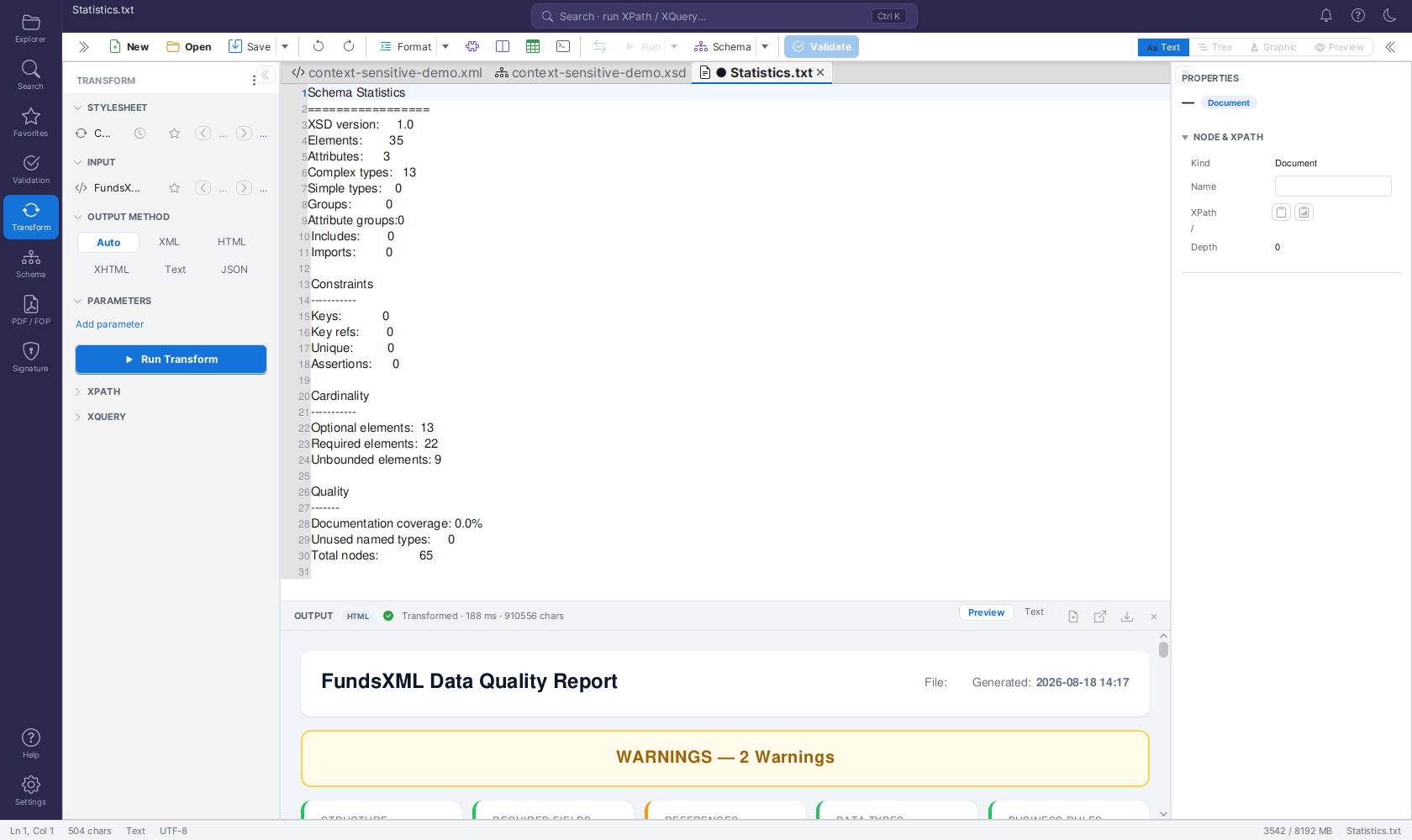
The panel is organized into collapsible sections (STYLESHEET, INPUT, OUTPUT METHOD, PARAMETERS) with a single primary Run Transform button and a Run automatically checkbox next to it. Results do not open as an editor tab - they appear in the OUTPUT panel docked below the editor. The run options (checkboxes) and the advanced tools share the collapsed OPTIONS & TOOLS section below the run button.
The Transform panel (open it from the Transform icon in the activity bar on the left) runs XSLT transformations. XPath, XQuery and JSONPath queries against the open document live in the Query Console - the panel shows a short hint with an Open Query Console button for them. The panel header reads TRANSFORM; the run options and tools are in the OPTIONS & TOOLS section (see OPTIONS & TOOLS below). Each section header is clickable to collapse or expand that section.
Tip
For a quick transform without opening this panel, right-click XML files in the Explorer and choose Transform with …. It shares the same recent-stylesheet list and shows its result in the same OUTPUT panel.
STYLESHEET
- Shows the name of the chosen XSLT stylesheet on its own line below the icon, the favorites/browse controls and Change (long names are shortened in the middle; hover for the full path). While no stylesheet is set, the row reads "No stylesheet — choose or drop a file" - clicking it works like Change.
- Change - pick an
.xsl/.xsltfile from disk (it is also loaded into the editor). - The clock icon opens the recent stylesheets menu: reapply a recently used stylesheet in a single click (it is also loaded into the editor), or choose Clear recent to empty the list.
- The star icon opens your XSLT favorites - see Browsing favorites with ◀ / ▶ below. A picked stylesheet is also loaded into the editor.
- Drag & drop: drop an
.xsl/.xsltfile from your file manager straight onto the STYLESHEET row - it becomes the current stylesheet and is loaded into the editor, exactly as if you had picked it from a favorite. While dragging, the row glows green when the file can be loaded and red when it has the wrong extension (a red drop is rejected). As with favorites, the transform runs automatically as soon as both a stylesheet and an input are ready (while Run automatically is checked).
INPUT
The INPUT section shows which document the transform will use as its input (the name on its own line, the full path as tooltip; "No input — open a document or drop a file" while there is none):
- By default the input follows the active editor document: switch to another tab and the next run transforms that document (the shown input name updates live).
- Change opens a small menu with two options:
- Select XML file… - transform a fixed XML file from disk instead, regardless of which editor tab is active.
- Use active editor - go back to following the active tab.
- The star icon opens your XML favorites - see Browsing favorites with ◀ / ▶ below. A picked input is also opened in the editor and becomes the active tab.
- Drag & drop: drop an
.xmlfile from your file manager straight onto the INPUT row to transform that file - exactly like picking a favorite: it becomes the input and opens as the active editor tab. The same green (loadable) / red (rejected) drag-over feedback applies, and the transform runs automatically as soon as both a stylesheet and an input are ready (while Run automatically is checked).
Browsing favorites with ◀ / ▶
Pick stylesheets and input files straight from your Favorites and page through them, so you can run the same stylesheet over many files, or many stylesheets over one file, without ever opening a file chooser.
Both the STYLESHEET and the INPUT rows carry a star icon, a pair of ◀ / ▶ navigation buttons, and a small "i / n" position label. The ◀ / ▶ buttons and the label only appear once the browse list holds at least two entries.
- The star menu lists the favorites of the matching type - XSLT favorites for STYLESHEET, XML favorites for INPUT - grouped by their folder (category). An "All … favorites" entry at the top selects the whole list at once.
- Picking a favorite (or an "All"/folder entry) does three things: it sets the current file, it builds a browse list from that selection, and it loads the file into the editor. An input comes to the front as the active tab. A stylesheet opens behind the active tab while the input follows the active document (otherwise the stylesheet would become its own input); with a fixed input file it comes to the front too. The same happens on every ◀ / ▶ step.
- The ◀ / ▶ buttons then step backward and forward through that browse list. Browsing is cyclic: pressing ▶ on the last entry wraps to the first, and ◀ on the first wraps to the last. The "i / n" label shows your position (for example, 3 / 12).
- Each ◀ / ▶ step runs the transformation automatically (while Run automatically is checked) - but only once both sides are ready: a stylesheet is selected and an input is available (either a chosen input file or the active editor document). Until both are present, stepping just loads the file without transforming.
This supports two common workflows:
- Fix the input, step through stylesheets. Keep one XML file as input, then page through several data-quality or reporting stylesheets with ▶ to see each result in turn.
- Fix the stylesheet, step through inputs. Choose one XSLT stylesheet, then page through many XML input files with ▶ to apply the same transformation to each.
The existing Change file chooser, the clock (recent stylesheets) menu, and Use active editor all keep working exactly as before.
OUTPUT METHOD
A single dropdown with Auto, XML, HTML, XHTML, Text, JSON. Auto (the
default) detects the output format from the stylesheet's xsl:output declaration; pick a
concrete format to override the detection.
PARAMETERS
Define XSLT parameters as name = value rows:
- Add parameter adds a new row.
- Each row has its own remove button.
- The values are passed to the stylesheet on every run.
Running a Transformation
- Choose a stylesheet (STYLESHEET → Change, or pick one from the recent menu).
- Check the INPUT section shows the document you want to transform.
- Click Run Transform.
The Run automatically checkbox next to Run Transform (on by default) controls the automatic run that starts when you drop a stylesheet or input, pick one from your favorites, or browse with ◀ / ▶. Uncheck it to only set the file and run with Run Transform yourself.
The result appears in the OUTPUT panel below the editor - see The OUTPUT Panel below.
Debugging a Stylesheet
Debug (next to Run Transform) runs the same stylesheet over the same input as Run Transform (the INPUT file when one is set by dropping, a favorite or ◀ / ▶ browsing, otherwise the active document) in the interactive XSLT debugger. The other ways in are Tools → Debug with XSLT…, the Transform ▾ → Debug with XSLT… toolbar entry, Run ▾ → Debug Transform for an active XSLT document (against the toolbar's Input target), the PDF / FOP panel's Debug stylesheet…, and Shift+F5 whenever a document is open.
What happens:
- The stylesheet opens as a document. The debugger runs its editor text - unsaved changes
included, also of open included modules - under the file's location, so relative
xsl:include/xsl:importhrefs resolve (a new stylesheet must be saved once). Every saved XSLT document already has a breakpoint gutter: click the slot left of a line to toggle a red breakpoint, before or during a session (the click does not move the caret). Breakpoints are remembered per file across sessions and restarts, including those set in included modules. - The DEBUG dock opens below the editor, so the stylesheet stays visible while you step. The dock shares its space with OUTPUT; a small OUTPUT | DEBUG strip switches between them, and a result that arrives while DEBUG is in front marks the OUTPUT toggle.
- The run starts and pauses at the first instruction when there are no breakpoints (Pause on entry, a toggle in the dock's header), otherwise at the first breakpoint. The paused line is tinted in the editor and marked with a green arrow in the gutter (a yellow arrow on a breakpoint line). When Saxon pauses inside an included module, that file opens, with its own breakpoints in its gutter.
The dock's header holds the controls - Continue (F5), Pause (F6, breaks into a running transformation), Run to Cursor (Ctrl+F10; also gutter right-click → Run to Here, and it starts the debugger when none runs), Step Into (F7), Step Over (F8), Step Out (Shift+F8), Restart (runs again from the start with the same breakpoints, reading the stylesheet again from the editor), Stop, Pause on entry, Mute (all breakpoints off, steps still work), Show in editor, Show input (the paused context node in the input XML, which is tinted blue there), Evaluate (Alt+F8: any XPath in the selected frame, with a history on Up/Down) and ✕ (ends the session). Below it, two tab groups show the paused state - Variables | Watch on the left, Call Stack | Messages | Breakpoints | Output on the right, with a draggable divider whose position is remembered. Messages and Breakpoints carry a count badge; a failed run brings Messages to the front. The panels:
| Panel | Shows |
|---|---|
| Variables | The context item (.), position() / last(), the XSLT context (mode, current-group() / current-grouping-key(), regex-group(n), tunnel parameters, accumulator values), every local variable in scope and every global variable that has been evaluated so far - with real values and XDM types, as a tree: nodes unfold into attributes and children, sequences, maps and arrays into their items; each row's XPath can be watched. While paused, the stylesheet also shows each variable's value at the end of its declaration line (details), and resting the mouse on a $variable (or a selected XPath) shows its value in a popup. Click a value to open it in a window with the full, highlighted value, Copy, and an XPath field that runs against it (details) |
| Watch | Your XPath expressions, evaluated against the paused context item with the variables in scope (count(item), $total, position()); re-evaluated at every pause. Add / Remove sit above the table (or Variables → right-click → Add to Watches); Delete removes, F2 / double-click edits an expression; click a value to open the full result. Watches are saved per stylesheet |
| Call Stack | Template and function frames (instructions nested inside them are dimmed), each with its module and line; loops show their current item, e.g. ForEach (3 of 222); double-click jumps there, also into an include. Selecting a frame switches Variables and Watch to that frame (its context item, own locals and the globals). Enter / Open Value… opens the frame's context item, with XPath over that frame's own variables |
| Messages | xsl:message output and Saxon warnings as they happen, with their stylesheet location; double-click jumps to the line. Filter by level and text, Copy, Clear |
| Breakpoints | All breakpoints of the session, grouped by file (checkbox = enabled · file · line · condition · hit rule · hits of this run; after a completed run, breakpoints it never reached are flagged and drawn amber in the gutter) with Remove / Edit… / Template… (break whenever a template rule, named template, function or mode is entered, at any line) / Clear all / Break on ▾ (dynamic errors - pausing at the failing instruction with its variables -, terminating or all xsl:message) above the list (Delete removes the selected one); double-click jumps to the line; right-click an entry for per-file Enable / Disable / Remove and Export / Import Breakpoints…. Right-click a gutter slot for a conditional breakpoint (XPath, pauses only when true), a logpoint (writes item {@id}-style messages to Messages, optionally without pausing) or a hit count rule (exactly / from / every N-th hit) - details |
| Output | The output written so far, refreshed at every pause; the complete result once the run finishes. Secondary results (xsl:result-document, kept in memory) are selectable; Documents lists and opens what doc() / document() / collection() loaded |
When the run ends, the status reads Finished · N ms and the result lands in the OUTPUT panel (the OUTPUT toggle lights up; DEBUG stays in front so the messages remain readable). A failed run shows the error with its location in Messages. The debugger runs on its own Saxon processor, so a normal Run Transform during a paused session is unaffected. Tools → Debug Configuration… saves per stylesheet the input (Run target or a file), parameters, output format and pause on entry; Re-run Last Debug (Ctrl+Shift+F5) repeats the last debug run with its input read again. Details and stylesheet tips: XSLT Developer → Interactive Live Debugger.
Queries (XPath, XQuery, JSONPath)
The Transform panel no longer has its own XPATH and XQUERY sections. Below the run controls, a short hint and an Open Query Console button take you to the Query Console, which runs XPath, XQuery and JSONPath queries against the open document and offers the saved queries (Snippets menu) and the XQuery Examples.
OPTIONS & TOOLS
The collapsible OPTIONS & TOOLS section below the Run Transform button (collapsed by default - click its header to expand it) holds everything secondary. First the run options, as checkboxes:
| Option | What it does |
|---|---|
| Live preview | Re-runs the transform automatically (debounced) while you edit the input document. |
| Watch stylesheet file | Re-runs the transform whenever the chosen stylesheet changes on disk - handy while editing the stylesheet in another tool. |
| Profile run | A transform also opens a read-only Profile tool tab (timings + per-template execution times). |
| Trace run | A transform also opens a Trace tool tab (template matches + xsl:message output). |
| Auto-open result tab | Additionally opens every successful result as a regular editor tab (HTML/XHTML results open rendered in the Preview view). Off by default. |
Below the options, the advanced tools are labelled rows (icon + name):
| Row | What it does |
|---|---|
| Debug XSLT… | Same as the Debug button next to Run Transform: opens the stylesheet (with the breakpoints set in its gutter) and the DEBUG dock below the editor - see Debugging a Stylesheet. |
| Batch Transform… | Runs the chosen stylesheet - or, when no stylesheet is set, the active XQuery document - over many XML files, with per-file results and "Save All". |
| Execution Statistics | Opens the Execution Statistics tool tab (duration, CPU and memory per XSLT/XQuery/validation run). Runs are only recorded while Record execution statistics is enabled in the Settings page's DEVELOPER card. |
XSLT version selection (1.0/2.0/3.0) is intentionally not offered: Saxon HE auto-detects the version from the stylesheet's
versionattribute, so an explicit selector would be cosmetic.
The OUTPUT Panel (Results)
Transform and query results appear in an OUTPUT panel docked below the editor instead of opening editor tabs and a separate HTML-preview tool tab.
All Transform-panel results - XSLT transforms, XPath/JSONPath queries, and XQuery runs - appear in an OUTPUT panel that docks below the editor: the source document stays on top and the result shows underneath, while the Properties inspector keeps its full height. The panel persists across activity switches, so the last result stays visible while you work elsewhere.
The OUTPUT panel header shows:
- A format badge (XML, HTML, …) for the result.
- A status: a green check with
Transformed · N ms · M charson success (how long the run took and how large the output is), or a red error icon with the error message on failure. - View toggles - Preview | Text | Table:
- Text - the result in a read-only code editor (the default): line numbers, syntax highlighting matching the result format (XML or JSON; plain text otherwise), and font zoom with Ctrl+mouse wheel (Ctrl+0 resets).
- Preview - the result rendered as a web page; available for HTML/XHTML results only.
- Table - available for XQuery results that return a sequence of items (auto-selected when applicable). Each item becomes a row, and the columns are taken from each item's child elements (or, if an item has no child elements, its attributes). A sequence of plain values is shown in a single value column.
- Actions:
- Open as Tab (Open result as editor tab) - opens the result as a regular document
(
Transform-Result.xml/.html/.json/.txt) that you can edit and save. An HTML/XHTML result opens as an HTML document rendered in the Preview view (switch to Text to see the markup); re-running the transform updates the open result tab, re-rendering the preview if it is showing. - Browser (Open in browser) - opens the result (typically HTML) in your system web browser.
- Save… (Save result…) - writes the result straight to a file.
- ✕ - hides the OUTPUT panel; it reappears automatically on the next run.
- Open as Tab (Open result as editor tab) - opens the result as a regular document
(
Note
In earlier versions, every transform opened a Transform-Result.* editor tab, and HTML
output additionally opened an "HTML Preview" tool tab. Both were replaced by the OUTPUT
panel: an editor tab now opens only via the panel's Open result as editor tab action
or the Auto-open result tab option in OPTIONS & TOOLS, and HTML is rendered inline via
the panel's Preview view.