XML Digital Signatures
Version: 2.1.0
Note: Signing, signature validation (including detailed and PKIX trust/chain/revocation/timestamp validation) and self-signed certificate creation live in the Unified Shell's Signature activity panel - they are reached through the shell rather than a dedicated sidebar tab.
This tool lets you digitally sign XML documents and verify signatures. A digital signature proves that a document is authentic and hasn't been changed.
Overview
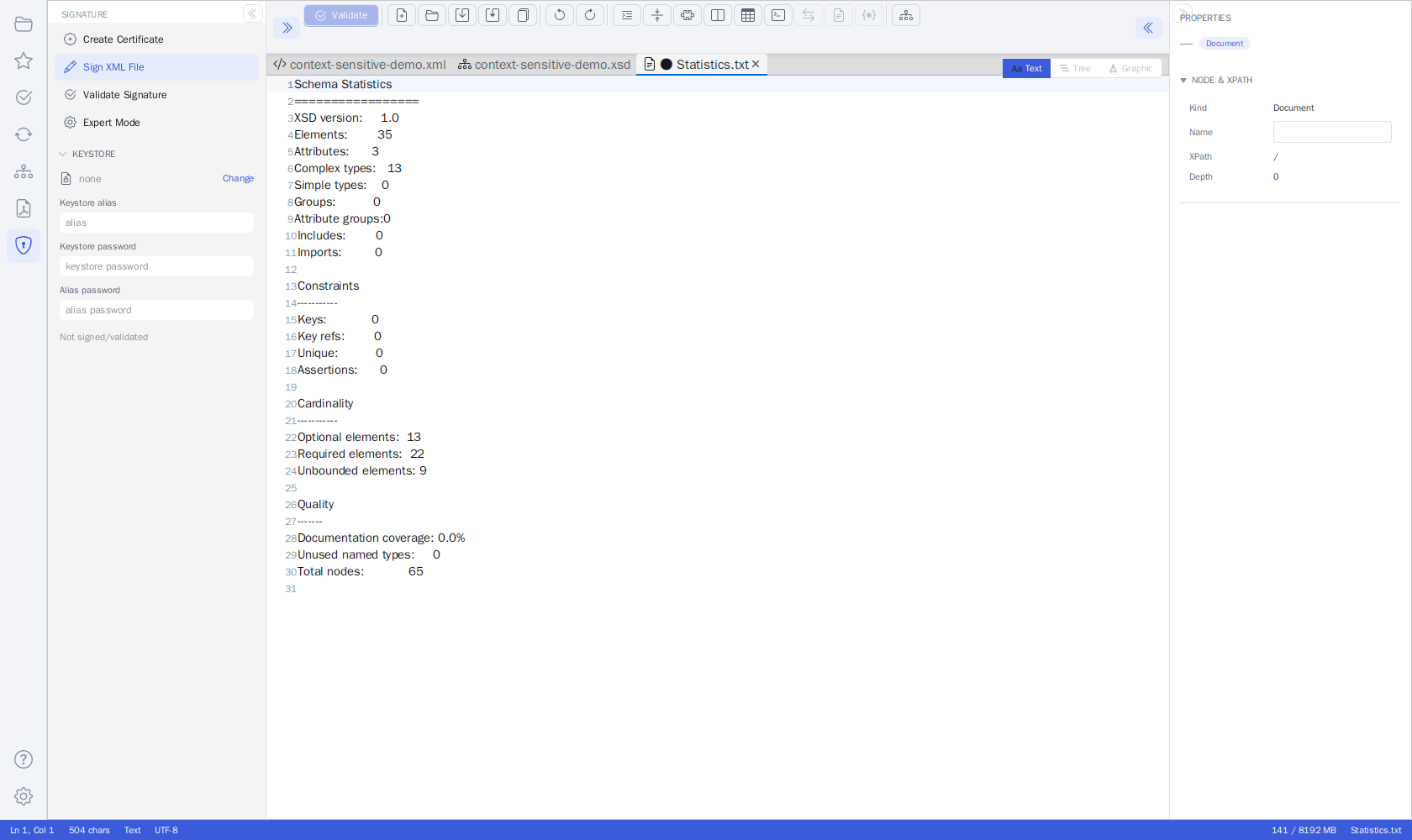 Signing, validation and certificate creation now live in the Unified Shell's Signature activity panel
What Can You Do?
In the Unified Shell, open the Signature activity from the activity bar. The top of the panel is an action nav of four buttons - rendered as raised, bordered buttons so they are recognizable as clickable. Selecting one shows the matching form below the shared KEYSTORE section (keystore file, alias, passwords):
| Action | Description |
|---|---|
| Create Certificate | Generate your own digital ID (keystore) |
| Sign XML File | Opens the Sign XML Document card in the editor area (default) |
| Validate Signature | Check if the signed document is valid (plus a detailed report) |
| Expert Mode | PKIX trust validation against a trust store, with optional revocation check |
The KEYSTORE Section
The KEYSTORE section sits directly below the action nav and is shared by all actions:
| Field | Description |
|---|---|
| Keystore row | The selected keystore file (none until you pick one). Click Change to browse, pick a favorite from the star menu, or drop a file from your file manager (.jks, .keystore, .p12, .pfx) |
| Keystore alias | Name of the key entry in the keystore |
| Keystore password | Password protecting the keystore file (also used to open a password-protected trust store in Expert Mode) |
| Alias password | Password protecting the private key |
The status line at the bottom of the panel reports the outcome of the last action.
1. Create a Certificate
Before signing documents, you need a digital certificate (like a digital ID card).
 Certificate creation form with DN details
Certificate Details (Distinguished Name)
All fields are optional - blank ones are simply omitted from the subject.
| Field | Description | Example |
|---|---|---|
| Common Name (CN) | Your name or the certificate name | John Smith |
| Organization (O) | Your company or organization | Acme Corp |
| Organizational Unit (OU) | Your department | IT Security |
| Locality (L) | Your city | Vienna |
| State (ST) | Your state or province | Vienna |
| Country (C) | Two-letter country code | AT |
| Contact e-mail address | john@example.com |
Keystore Security
The alias and passwords come from the shared KEYSTORE section - all three are required:
| Field | Description |
|---|---|
| Keystore alias | Alias of the new key entry; also names the output folder and files |
| Keystore password | Password to protect the keystore file |
| Alias password | Password to protect the private key (can be same as keystore) |
What Gets Generated
The certificate parameters are fixed - there are no algorithm or validity options:
| Property | Value |
|---|---|
| Key | RSA, 2048 bits |
| Signature algorithm | SHA256withRSA |
| Validity | 1 year from creation |
| Type | Self-signed (issuer = subject) |
The files are written to certs/<alias>/ in the application's working directory:
| File | Content |
|---|---|
<alias>_KeyStore.jks |
The Java keystore with the private key and certificate |
<alias>_publicKey.pem |
The certificate as PEM |
<alias>_privateKey.pem |
The encrypted private key as PEM (encrypted with the keystore password) |
summary.txt |
Alias, passwords and certificate details in plain text - keep it private |
How to Create a Certificate
- In the Signature panel, choose Create Certificate
- Fill in the alias and both passwords in the KEYSTORE section
- Fill in the Distinguished Name fields
- Click "Create Certificate"
- The status line shows the path of the new keystore, which is selected automatically - you can sign with it right away
- Keep the keystore file and passwords safe!
Important: Remember your passwords! They cannot be recovered.
Tip: If you leave the alias or a password blank, the field is highlighted in red when you click Create Certificate. The highlight clears as soon as you start typing.
2. Sign an XML Document
 Document signing interface
Choosing Sign XML File opens the Sign XML Document card as a tool tab in the editor area. It is pre-filled with the active document.
The Sign Card
| Section | Description |
|---|---|
| DOCUMENT | The XML file to sign (the active document by default); Browse picks a different file |
| Keystore alias / Keystore password | Mirrors the fields of the panel's KEYSTORE section (the alias password stays in the side panel) |
| SIGNATURE OPTIONS - Signature type | Enveloped (default), Enveloping or Detached (see below) |
| SIGNATURE OPTIONS - Algorithm | Read-only: RSA-SHA256 · C14N exclusive |
| Sign Document | Runs the signing; the status line mirrors the panel's status |
| CERTIFICATE | Show certificate details loads the certificate of the selected keystore/alias: subject, issued/expires, serial, signature algorithm, key usage and the SHA-256 fingerprint (with a copy button) |
Signature Types and Output Files
There is no output-file picker: the result is written next to the original, which is left untouched, and opened in the editor automatically.
| Type | Structure | Output file |
|---|---|---|
| Enveloped | The ds:Signature element is inserted into the signed document |
<name>.signed.xml |
| Enveloping | The signed content is wrapped inside the signature document | <name>.signed.xml |
| Detached | A standalone signature document referencing the original file by relative URI | <name>.sig.xml |
Detached signatures: keep the
.sig.xmlfile together with the original document - the signature references the file by name and cannot be verified without it.
How to Sign a Document
- In the Signature panel, select your keystore in the KEYSTORE section - click
Change, pick a favorited keystore from the star menu next to the keystore row (see
Favorites Integration below), or drop a keystore file
(
.jks,.keystore,.p12,.pfx) from your file manager onto the KEYSTORE row (Expert Mode's trust store row accepts drops the same way) - Enter the keystore alias, keystore password and alias password
- Choose Sign XML File - the Sign XML Document card opens with the active document (click Browse in the DOCUMENT row to sign a different file)
- Pick the signature type (Enveloped, Enveloping or Detached)
- Click "Sign Document"
- The signed file (
<name>.signed.xmlor<name>.sig.xml) opens in a new editor tab
Tip: Missing inputs are highlighted in red when you click Sign Document: signing without a keystore marks the keystore entry, and a blank alias or password marks that field. The highlight disappears as soon as you start typing.
3. Verify a Signature
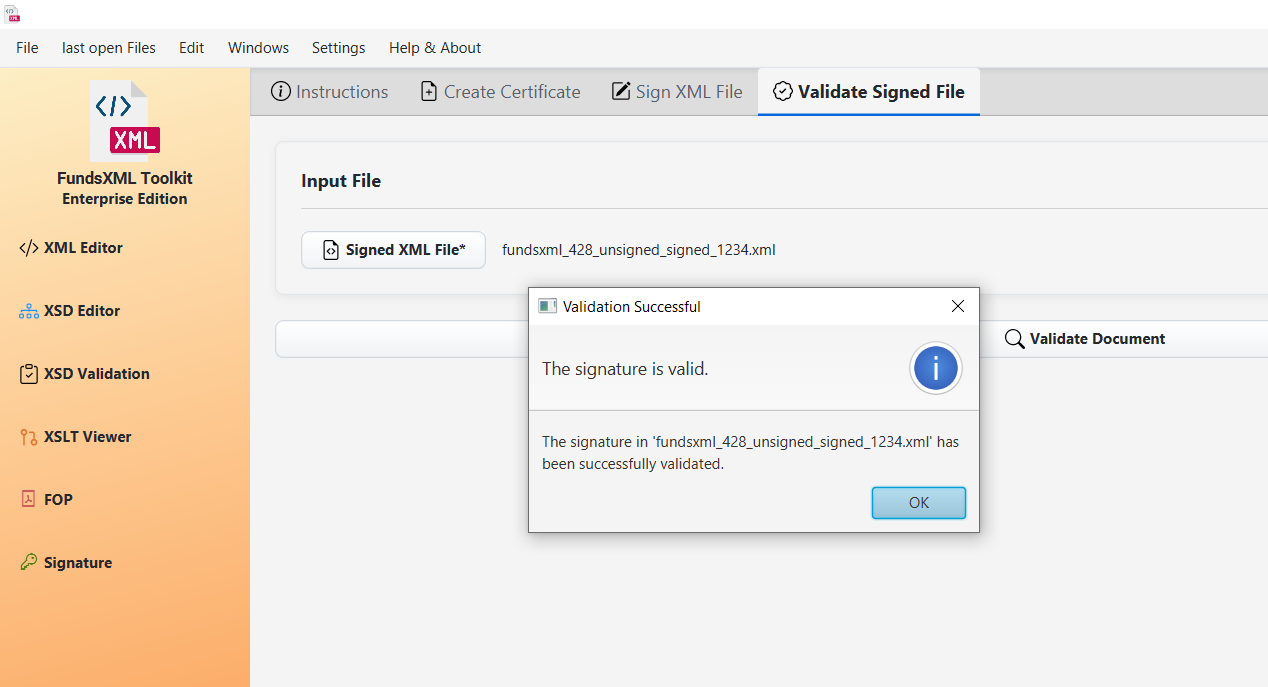 Verifying a signed document
How to Verify a Signature
- Open the signed XML file in the editor (it becomes the active document)
- In the Signature panel, choose the Validate Signature action
- Click the Validate Signature button
- See the result in the status area (failures additionally open an explanatory dialog)
For a detailed report (validity plus signing-certificate details), use the outlined
Validate (Details) button instead - the report opens as Signature-Report.txt in a new tab.
Validation Results
Each validation outcome explains in plain language what happened and what to do about it.
| Result | Meaning |
|---|---|
| Valid (green status) | The signature is authentic and the document is unchanged |
| No signature found (red hint) | The document doesn't contain a signature - sign it first |
| Invalid signature (error dialog) | The document was modified after signing. The dialog names what failed: the signature value itself or a specific reference |
| Certificate cannot be used (dialog) | The signature does not embed an X.509 certificate, only references it, or uses an unsupported algorithm. Ask the sender for a signature that embeds an RSA X.509 certificate, or use Validate (Details) |
| Weak algorithm (rejected) | The signature uses SHA-1, which is rejected for security reasons. Re-sign the document with SHA-256 or SHA-512 |
| Error (dialog) | Something else went wrong - the dialog includes collapsible technical details |
What the Verification Checks
| Check | What It Means |
|---|---|
| Authenticity | The signature was created by the certificate holder |
| Integrity | The document hasn't been changed since signing |
| Certificate | The signing certificate is valid |
4. Expert Mode - Trust Validation
In addition to checking that a signature is mathematically valid, you can check whether the signing certificate is actually trusted.
 Expert Mode: trust store, revocation check and Validate (Trust)
Basic validation confirms that a signature is intact and matches its certificate. Trust validation goes further: it checks the signing certificate's chain against a trust store - a collection of certificate authorities you trust - to decide whether the certificate really comes from a trusted source (PKIX path validation).
Expert Mode consists of the TRUST STORE section and one action:
| Control | Description |
|---|---|
| Trust store row | The trust store to validate against - default (cacerts) until you pick one. Change opens a file chooser (.jks, .p12, .pfx, .keystore); the star menu lists your keystore favorites; dropping a file onto the row works too |
| Check revocation (OCSP/CRL) | Also verify that the certificate has not been revoked |
| Validate (Trust) | Runs the validation on the active document and opens the report |
How to Run Trust Validation
- Open the signed XML document.
- (Optional) Click Change in the trust store row to choose the trust store to validate
against - or pick a favorited keystore from the star menu next to the trust store row.
By default the application uses the JVM's built-in
cacertsstore, which contains well-known public certificate authorities. - (Optional) If your trust store is password-protected, enter its password in the Keystore password field of the KEYSTORE section - it is reused for the trust store.
- (Optional) Tick Check revocation (OCSP/CRL) to also verify that the certificate has not been revoked.
- Click Validate (Trust).
- A trust report (
Signature-Trust-Report.txt) opens in a new tab.
What the Trust Report Tells You
| Item | What It Means |
|---|---|
| Trusted | Whether the signing certificate chains up to a certificate in the trust store |
| Trust anchor | The trusted certificate (certificate authority) at the top of the chain |
| Revocation | Whether the certificate has been revoked (only when revocation checking is on) |
| Timestamp | Timestamp information found with the signature, if any |
Note: A signature can be mathematically valid but not trusted if its certificate is self-signed or issued by an authority that is not in your trust store. Trust validation is the step that tells the two situations apart. Certificates created with Create Certificate are self-signed, so they are only trusted if you add them to the trust store you validate against.
Favorites Integration
Save frequently used files for quick access:
- Add Favorite (Ctrl+D) - Add the active document to favorites
- Favorites (Ctrl+Shift+D) - Show/hide the Favorites activity panel
The Favorites panel provides quick access to your saved keystores, XML files, and signed documents.
Keystore and trust store files (
.jks,.p12,.pfx,.keystore) are their own Keystore favorite type with a lock icon. In the Signature panel, the keystore row (KEYSTORE section) and the trust store row (Expert Mode) each carry a star menu listing your keystore favorites - pick one to select it without browsing the file system. See Favorites System for details.
Keyboard Shortcuts
The Signature panel has no shortcuts of its own; the shell-wide favorites shortcuts are the useful ones here:
| Shortcut | Action |
|---|---|
| Ctrl+D | Add the active document to favorites |
| Ctrl+Shift+D | Toggle the Favorites panel |
Tips
- Keep your keystore safe - It's your digital identity
- Remember your passwords - They cannot be recovered
- Signed files are new files - The original is not modified
- Delete or protect
summary.txt- Certificate creation writes your passwords into it in plain text - Use strong passwords - At least 12 characters with mixed case, numbers, symbols
- Backup your keystore - Store copies in secure locations
- Check validity regularly - Certificates expire after the validity period (one year for certificates created here; Show certificate details on the sign card shows the days remaining)
Troubleshooting
| Problem | Solution |
|---|---|
| Wrong password | Double-check keystore and key passwords |
| A field is highlighted in red | The input is missing - select a keystore or fill in the alias/password; the highlight clears while you type |
| Key not found | Verify the key alias exists in the keystore |
| Validation fails | The error dialog names what changed - the document was modified after signing |
| "Certificate cannot be used" | The signature doesn't embed an RSA X.509 certificate - ask the sender to re-sign with the certificate embedded, or use Validate (Details) |
| "Weak algorithm" (SHA-1) | SHA-1 signatures are rejected for security - re-sign the document with SHA-256 or SHA-512 |
| Certificate expired | Create a new certificate with the Create Certificate action (certificates are valid for one year) |
| Valid but "not trusted" | The certificate is self-signed or its issuer is not in the trust store - pick a trust store that contains it in Expert Mode |
| Detached signature does not verify | The .sig.xml references the original by file name - keep both files in the same folder |
Supported Formats
| Type | Formats |
|---|---|
| Input | XML files (.xml) |
| Keystores / trust stores | .jks, .p12, .pfx, .keystore (Create Certificate always produces a .jks) |
| Output | Enveloped/enveloping: <name>.signed.xml; detached: <name>.sig.xml |
Common Questions
What if I lose my password?
Unfortunately, passwords cannot be recovered. You'll need to create a new certificate.
Can I sign multiple files at once?
Currently, files must be signed one at a time.
What signature type is used?
The tool creates XML signatures (XMLDSig) with RSA-SHA256 and exclusive canonicalization.
You choose the structure on the sign card: enveloped (default - the signature is embedded
within the XML document), enveloping (the content is wrapped inside the signature document)
or detached (a separate .sig.xml file referencing the original).
Can I sign PDFs?
No, this tool is specifically for XML documents. Use the PDF Generator for PDF-related tasks.
Navigation
| Previous | Home | Next |
|---|---|---|
| PDF Generator (FOP) | Home | Auto-Completion |
All Pages: Unified Shell | XML Editor | XML Features | JSON Editor | XSD Tools | Profiled XML Generation | XSD Validation | XSLT Viewer | XSLT Developer | FOP/PDF | Signatures | IntelliSense | Schematron | FundsXML Extensions | Favorites | Templates | Tech Stack | Security | Licenses