PDF Generator (FOP)
Version: 2.1.0
Create professional PDF documents from your XML files using Apache FOP (Formatting Objects Processor).
Overview
The PDF Generator combines your XML data with an XSL-FO stylesheet to create formatted PDF documents.
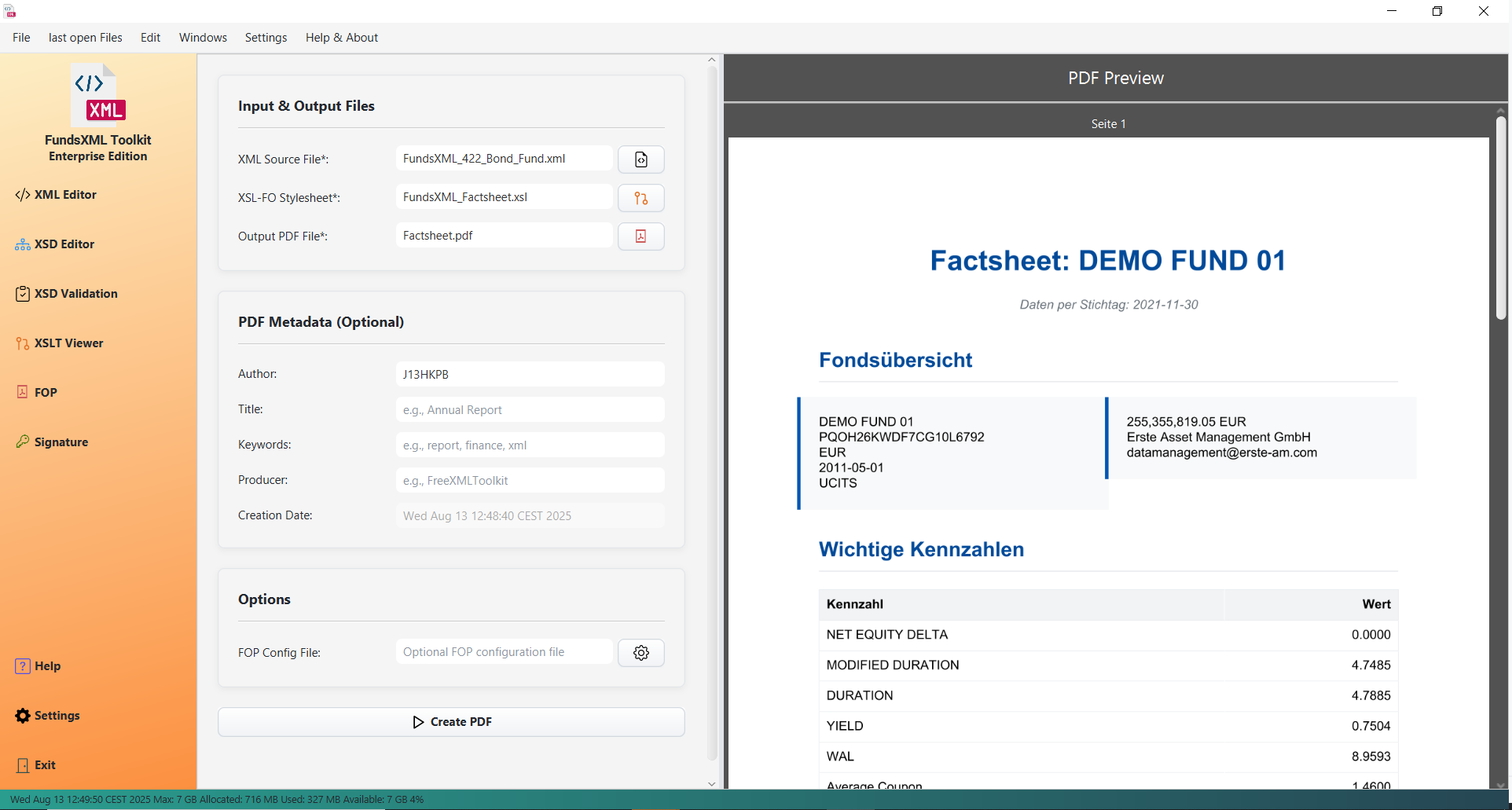 The PDF / FOP panel with the input files, metadata, and options set
How It Works
- XML File - Your data (the content you want in the PDF)
- XSL-FO Stylesheet - A template defining layout and formatting
- PDF Output - The generated document
The PDF / FOP Panel
In the Unified Shell, open the PDF / FOP activity from the activity bar. The panel is organized into three sections plus the primary action:
| Section | Contents |
|---|---|
| INPUT | The XML (follows the active editor; Change fixes it to a file) and the XSL-FO stylesheet |
| METADATA | PDF Title, Author (pre-filled from your user name), Subject |
| OPTIONS | PDF/A-1b compliant toggle and the Page size (A4/Letter · Portrait/Landscape) |
| Generate PDF | Asks for the output file and renders off the UI thread |
Step-by-Step Guide
Step 1: Select Your Files
- Open your XML data file in the editor (or pick one via the INPUT section's Change, or
drop an
.xmlfile from your file manager onto the XML row) - Click Change on the stylesheet row to select your XSL-FO stylesheet - or drop
an
.xsl/.xsltfile onto the row
You can also drag and drop files directly into the application.
Step 2: Set PDF Metadata (Optional)
Add metadata to your PDF document in the METADATA section:
| Field | Description |
|---|---|
| Title | Document title |
| Author | Your name or organization (pre-filled from the configured user name) |
| Subject | What the document is about |
Step 3: Options (Optional)
- PDF/A-1b compliant - produces an archival-grade PDF. The stylesheet must use
embeddable system fonts (e.g.
Liberation Sans); the PDF base-14 fonts (Helvetica, Times, Courier) cannot be embedded and FOP will report exactly that. - Page size - passed to the stylesheet as the XSLT parameters
page-size(A4/Letter) andpage-orientation(Portrait/Landscape). Stylesheets that declare these parameters can switch theirfo:simple-page-masteraccordingly.
Step 4: Generate the PDF
Click Generate PDF. You are asked where to save the output file, and the PDF is rendered in the background - the application stays responsive throughout.
Step 5: Preview
The generated PDF opens in the built-in PDF preview. You can: - Scroll through pages - Review the layout - Check formatting
The Preview and Open PDF buttons re-open the last result at any time.
Favorites Integration
Save frequently used XML and XSL-FO files for quick access:
- Both INPUT rows carry a star menu next to their Change link - XML favorites for the input, XSLT favorites for the stylesheet - so you can pick a favorited file in one click.
- Ctrl+D (or the Favorites panel's Add current) stars the active document.
- The Favorites activity (star icon in the activity bar) lists all your saved files.
Learn more: Favorites System
Features
| Feature | Description |
|---|---|
| Drag & Drop | Drop an .xml file onto the XML row or an .xsl / .xslt file onto the stylesheet row |
| Built-in Viewer | Preview PDFs without leaving the app |
| PDF Metadata | Add title, author, and subject |
| PDF/A-1b | Optional archival-grade output |
| Background Rendering | Generation runs off the UI thread |
| Favorites | Quick access to frequently used files |
XSL-FO Basics
XSL-FO (Extensible Stylesheet Language Formatting Objects) defines how your XML content should be formatted in the PDF.
Simple Example
<?xml version="1.0" encoding="UTF-8"?>
<xsl:stylesheet version="1.0"
    xmlns:xsl="http://www.w3.org/1999/XSL/Transform"
    xmlns:fo="http://www.w3.org/1999/XSL/Format">

  <xsl:template match="/">
    <fo:root>
      <fo:layout-master-set>
        <fo:simple-page-master master-name="A4"
            page-height="29.7cm" page-width="21cm"
            margin="2cm">
          <fo:region-body/>
        </fo:simple-page-master>
      </fo:layout-master-set>

      <fo:page-sequence master-reference="A4">
        <fo:flow flow-name="xsl-region-body">
          <fo:block font-size="24pt" font-weight="bold">
            <xsl:value-of select="/document/title"/>
          </fo:block>
          <fo:block font-size="12pt">
            <xsl:value-of select="/document/content"/>
          </fo:block>
        </fo:flow>
      </fo:page-sequence>
    </fo:root>
  </xsl:template>

</xsl:stylesheet>
Common FO Elements
| Element | Description |
|---|---|
fo:block |
Paragraph or block of text |
fo:inline |
Inline text formatting |
fo:table |
Tables with rows and cells |
fo:external-graphic |
Images |
fo:page-number |
Current page number |
fo:leader |
Dots, lines, or space (for TOC) |
Tips
- Validate first - Ensure your XML and XSL-FO files are valid before generating
- Check error messages - If generation fails, read the error details
- Use the preview - Review the PDF in the built-in viewer
- Save to favorites - Quick access to frequently used files
- PDF/A and fonts - For PDF/A-1b output, use embeddable system fonts in your stylesheet (the PDF base-14 fonts like Helvetica cannot be embedded)
Troubleshooting
| Problem | Solution |
|---|---|
| No output | Check the INPUT section shows both the XML and the XSL-FO stylesheet |
| Font issues (PDF/A) | Use embeddable system fonts in the stylesheet - see the PDF/A-1b note above |
| Image not showing | Check image path is correct and accessible |
| Generation fails | Check the error message for details |
Navigation
| Previous | Home | Next |
|---|---|---|
| XSLT Developer | Home | Digital Signatures |
All Pages: Unified Shell | XML Editor | XML Features | JSON Editor | XSD Tools | Profiled XML Generation | XSD Validation | XSLT Viewer | XSLT Developer | FOP/PDF | Signatures | IntelliSense | Schematron | FundsXML Extensions | Favorites | Templates | Tech Stack | Security | Licenses