XML Editor
Version: 2.1.0
The XML Editor is the main feature of FreeXmlToolkit. It provides a powerful and easy-to-use interface for working with XML files.
Overview
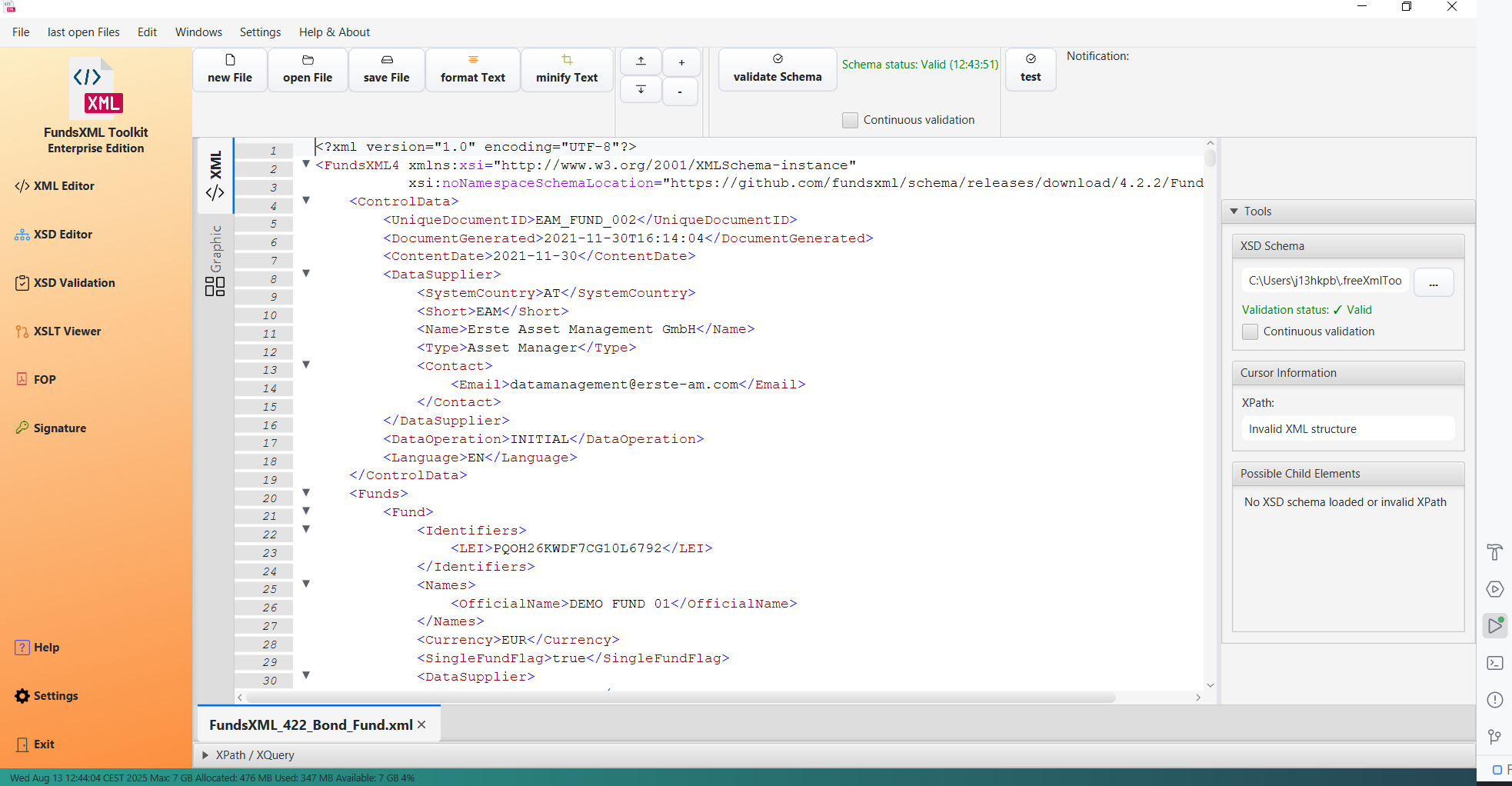 The XML Editor in text mode with syntax highlighting
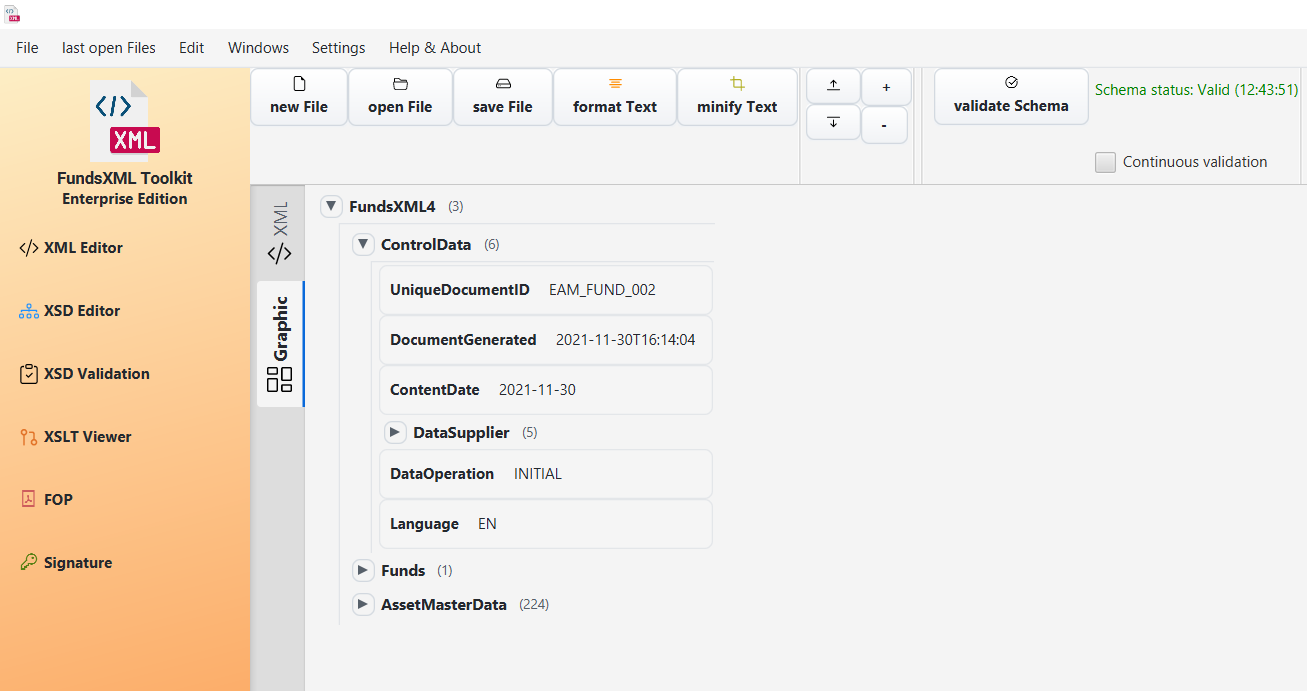 The XML Editor in the Graphic view (grid) for structured editing
Toolbar
The editor toolbar is a single slim row. Related actions sit in split buttons with a visible ▾ arrow menu (e.g. Save As / Save All under Save ▾, Minify under Format ▾); secondary tools are icon-only buttons with tooltips. See Unified Shell - Toolbar for the full reference.
With an XML file active, the toolbar offers:
| Button | Shortcut | Description |
|---|---|---|
| New | Ctrl+N | Open the guided New File dialog |
| Open | Ctrl+O | Open one or more files |
| Save ▾ | Ctrl+S | Save the current file; the arrow menu holds Save As… (Ctrl+Shift+S) and Save All |
| Undo / Redo | Ctrl+Z / Ctrl+Y | Undo / redo the last change (icon buttons) |
| Format ▾ | Shift+Alt+F | Pretty-print the document; the arrow menu holds Minify. (Note: Ctrl+Shift+F opens Find in Files, not document search.) |
| Insert Template | - | Insert a snippet from the template system (icon button) |
| Compare | - | Compare the document with another file, side by side (icon button) |
| Spreadsheet | - | Excel / CSV ↔ XML converter (icon button) |
| Query Console | Ctrl+Shift+X | Toggle the bottom XPath/XQuery console (icon button) |
| Transform XSLT | - | Pick a stylesheet and transform the active XML (icon button) |
| Schema ▾ | - | Set XSD Schema… for IntelliSense and validation; the arrow menu also holds Generate Documentation… and Type Editor… (enabled for XSD files) |
| Validate | F8 | Validate the document (the toolbar's primary action, filled in Validation green - see Colours: workflows and actions) |
The Run ▾ button and the Target dropdown appear when a query, XSLT, or XProc document is active - see Query Documents.
Working with Files
Opening and Saving Files
 The shell header and the editor toolbar with the New, Open, Save ▾, and Format ▾ buttons
- Open Files: Click "Open" or use
Ctrl+Oto browse for XML files - Save Files: Click "Save" or use
Ctrl+Sto save changes to the current file - Save As: Use
Ctrl+Shift+S(or the Save ▾ arrow menu) to save the current file with a new name - Save All: Pick Save All from the Save ▾ arrow menu to save every open document tab at once (untitled tabs prompt you for a file name)
- Create New: Click "New" (Ctrl+N) to open the guided New File dialog - pick a file type, an optional template or schema, and start editing
- Drag & Drop: Drag files from your file explorer into the editor
- Recent Files: Reopen recently used files from the Explorer panel's RECENT section or the Welcome page
Multiple Files
Open multiple XML files in separate tabs. Each tab shows the file name and indicates unsaved changes with an asterisk (*).
Editing Modes
Text Mode
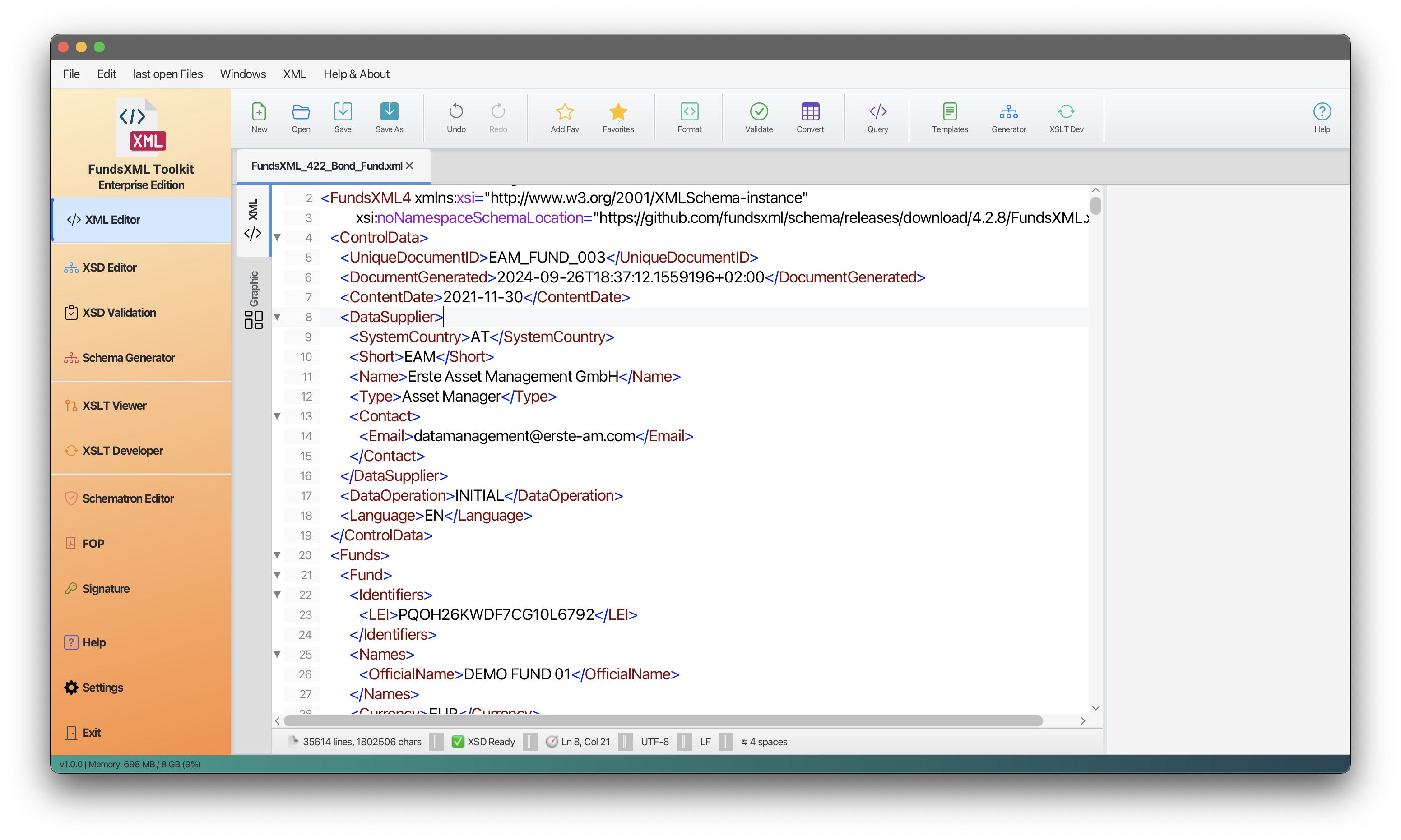 Text editor with syntax highlighting
The text editor provides:
- Syntax Highlighting: XML elements, attributes, and values are color-coded
- Line Numbers: Every line is numbered for easy reference
- Code Folding: Click arrows to collapse or expand sections
- Auto-Completion: Type
<to see suggestions for valid elements - Error Highlighting: Invalid XML is highlighted in red
- Edit Properties: Move the text cursor into an element and edit its properties in the Properties inspector - see Properties Inspector
Tree View
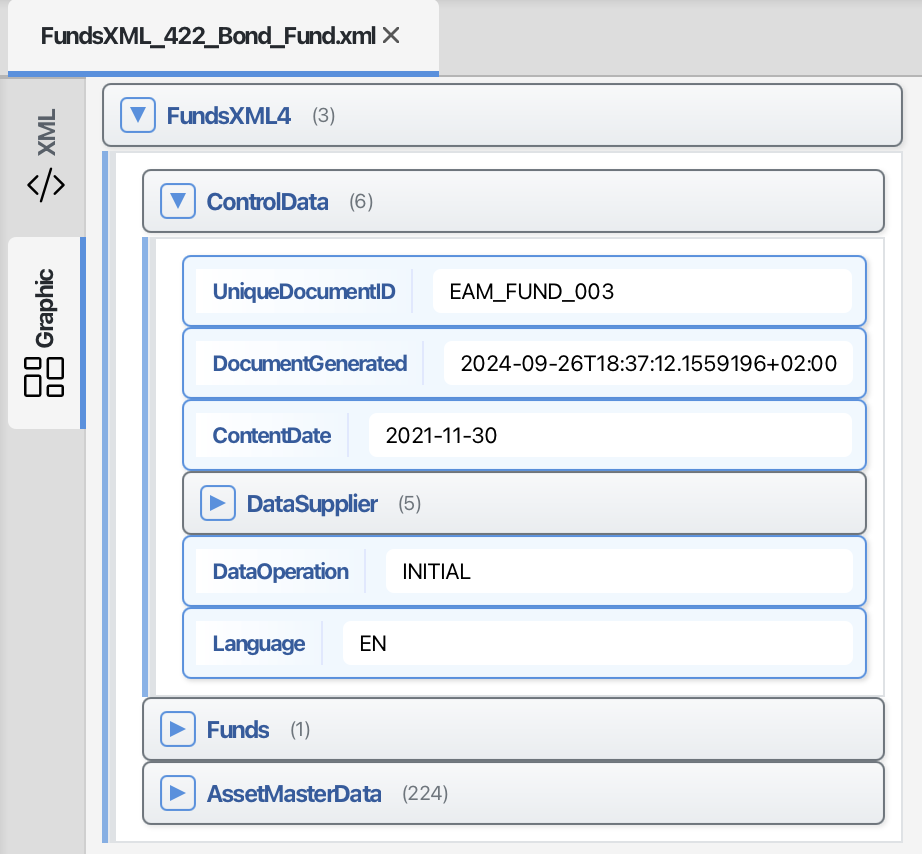 Tree view showing XML structure
- See your XML document as a hierarchical tree
- Click any node (element, text, comment, CDATA, or processing instruction) to select it
- Edit the selected node's properties in the Properties inspector - see Properties Inspector
- Right-click for context menu options
Graphic Mode (Grid)
For XML documents, the Graphic view shows the editable XMLSpy-style grid.
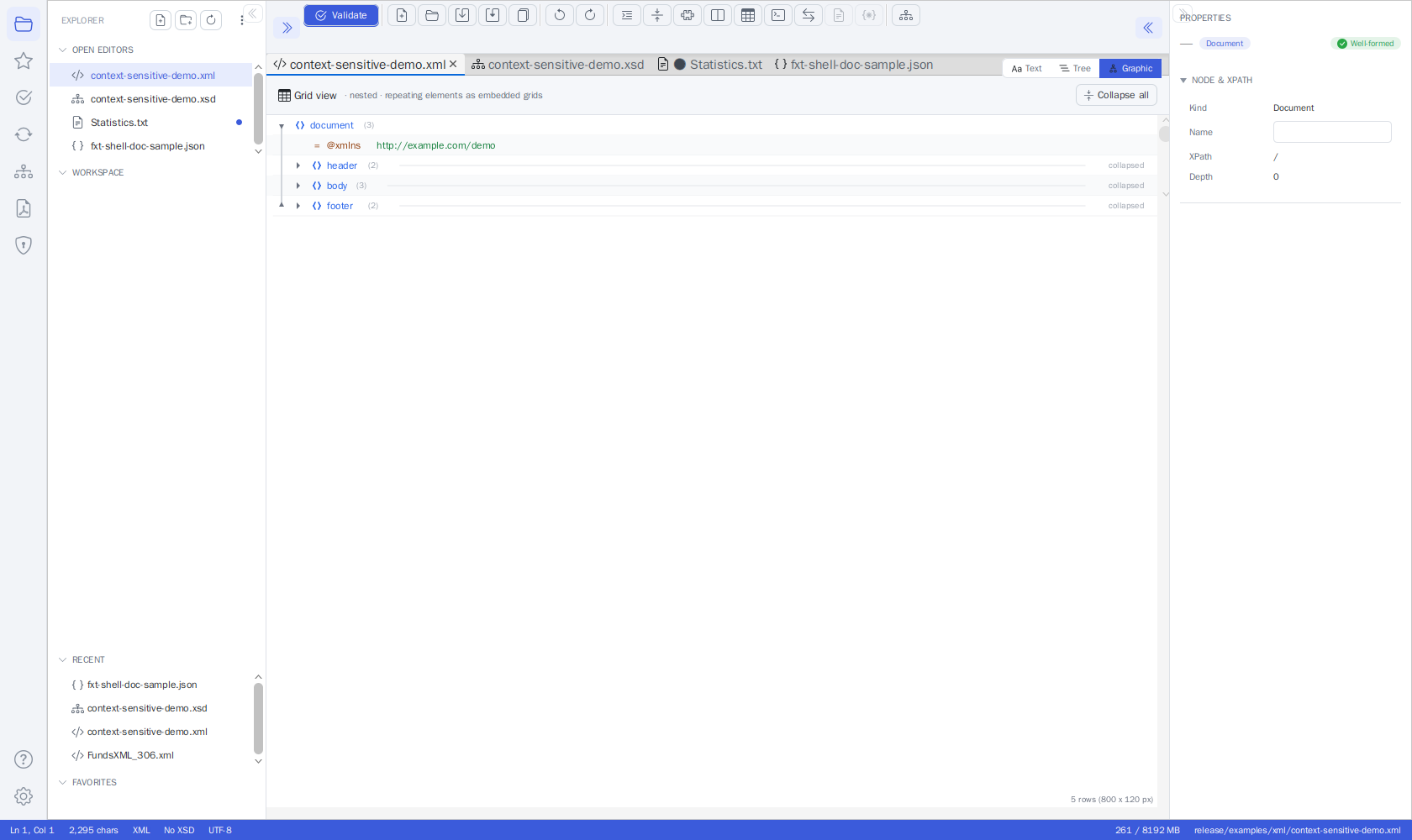 An XML document in the Graphic view (XMLSpy-style grid editing)
The grid provides:
- Table View: Edit XML data in a spreadsheet-like interface
- Header Strip: A header at the top ("Grid view · nested · repeating elements as embedded
grids") with the zoom pill (
− 100% +) and Expand all / Collapse all buttons - Nothing Cut Off: Cells grow to their content and long values wrap onto further lines (the row grows) instead of being shortened with "…"
- Zoom:
Ctrl+mouse wheel orCtrl+/Ctrl−zoom the whole grid (50-300 %),Ctrl0resets; the factor is remembered across files and restarts - Column Widths: Drag a separator in an embedded grid's column-header row to resize a column (text re-wraps); double-click the separator to return to automatic sizing
- Value Markers: Rows with a simple value are marked with
{}; collapsed containers show a "collapsed" hint - Direct Cell Editing: Click cells to edit values directly
- Easy Navigation: Move through the document using arrow keys
- Sorting: Right-click a sortable table column and choose Sort Column → Sort Ascending / Sort Descending (clicking a column header does not sort)
- Structural Editing: Add, delete, and move nodes through the right-click context menu
- Edit Properties: Select a row to edit its properties in the Properties inspector - see Properties Inspector
Properties Inspector
The Properties inspector lets you view and edit a node's properties in all three XML views - Text, Tree, and Graphic.
The Properties inspector shows the details of the currently selected node and lets you change them. Toggle the panel with the toggle at the right end of the editor toolbar; it appears on the right side of the editor.
Selecting a Node
How you select a node depends on the active view:
- Text view - Move the text caret into an element. That element is selected automatically and shown in the inspector. If the caret is not inside a well-formed element, the inspector shows a read-only view with the node's name and XPath.
- Tree view - Click a node in the tree (element, text, comment, CDATA, or processing instruction).
- Graphic view - Select a row in the grid.
What You Can Edit
Depending on the node type, the inspector lets you edit:
- Element name and its namespace (prefix and URI)
- Attributes - add, rename, and remove them
- Text content of leaf elements
- Text of comments, CDATA sections, and processing instructions
Your edits are written straight back to the document, so the source text always stays in sync. In the Text view, edits are applied as a minimal change that keeps your caret and scroll position in place.
Read-Only Schema Hints
When the XML file is bound to an XSD schema, the inspector also shows helpful, read-only information for the selected element:
- The schema type derived from the XSD
- The element's documentation
- Lists of valid child elements and example values
These hints help you fill in correct content but cannot be edited from the inspector.
Shared Across Views
All three views share a single in-memory model for each open document. This means your edits - and your full Undo / Redo history - are preserved when you switch between the Text, Tree, and Graphic views.
Note: Adding, deleting, or moving whole nodes (structural editing) is done in the Graphic view (the grid) via its right-click context menu. The Text and Tree views provide property editing through the inspector.
Search (Find)
Search works in every view mode - Text, Tree, and Graphic.
Press Ctrl+F to find text in your document. An inline search bar opens where you type your search term and use the up and down arrows (Find Previous / Find Next, or Enter / Shift+Enter) to move between matches; the search wraps around at the end.
Search works in all views (case-insensitive):
- Text view - Matches are highlighted in the source. Replace is available here.
- Tree and Graphic views - The search looks through element names, attribute names, and values across the whole document. The editor jumps to each matching node, auto-expanding collapsed parent nodes, selecting the matching row, and scrolling it into view. (Replace is not available here.)
If you switch the view mode (Text / Tree / Graphic) or the file tab while the search bar is open, the search re-targets the active view automatically.
Learn more: Search (Find)
Auto-Completion (IntelliSense)
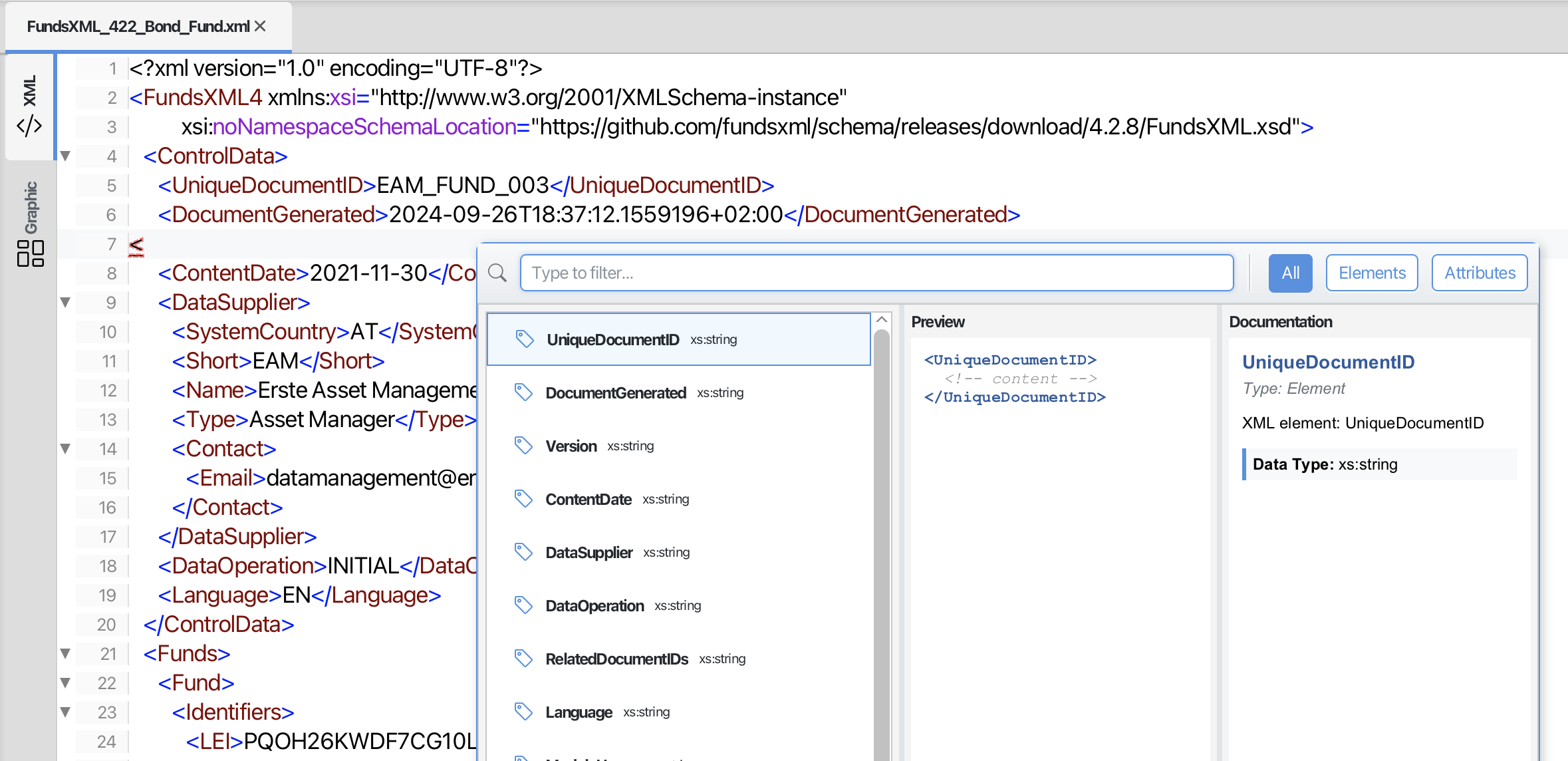 Auto-completion popup showing element suggestions
The editor automatically suggests valid elements and attributes based on your XSD schema:
- Type
<to see a list of valid child elements - Navigate through suggestions with arrow keys
- Press Enter to insert the selected element
- Press Escape to close the suggestions
The suggestions are context-sensitive - only elements valid at your current position are shown.
Learn more: Auto-Completion Guide
Binding an XSD Schema
Bind an XSD to the active document directly from the editor.
If your XML does not reference its schema (or you want to use a different one), you can bind an XSD by hand:
- Click the "No XSD" indicator in the status bar (it shows "XSD: name" once a schema is bound), or click the toolbar's Schema button (Set XSD Schema…).
- Choose an
.xsdfile.
The binding applies to the active document and drives both features at once:
- IntelliSense - auto-completion suggests the elements and attributes the schema allows.
- Schema validation - Validate (F8) and continuous validation check against the bound XSD.
Formatting Tools
Pretty Print
 Before pretty print
Click Format or use Shift+Alt+F to format your XML with proper indentation. (The
Format ▾ arrow menu also offers Minify to strip all insignificant whitespace.)
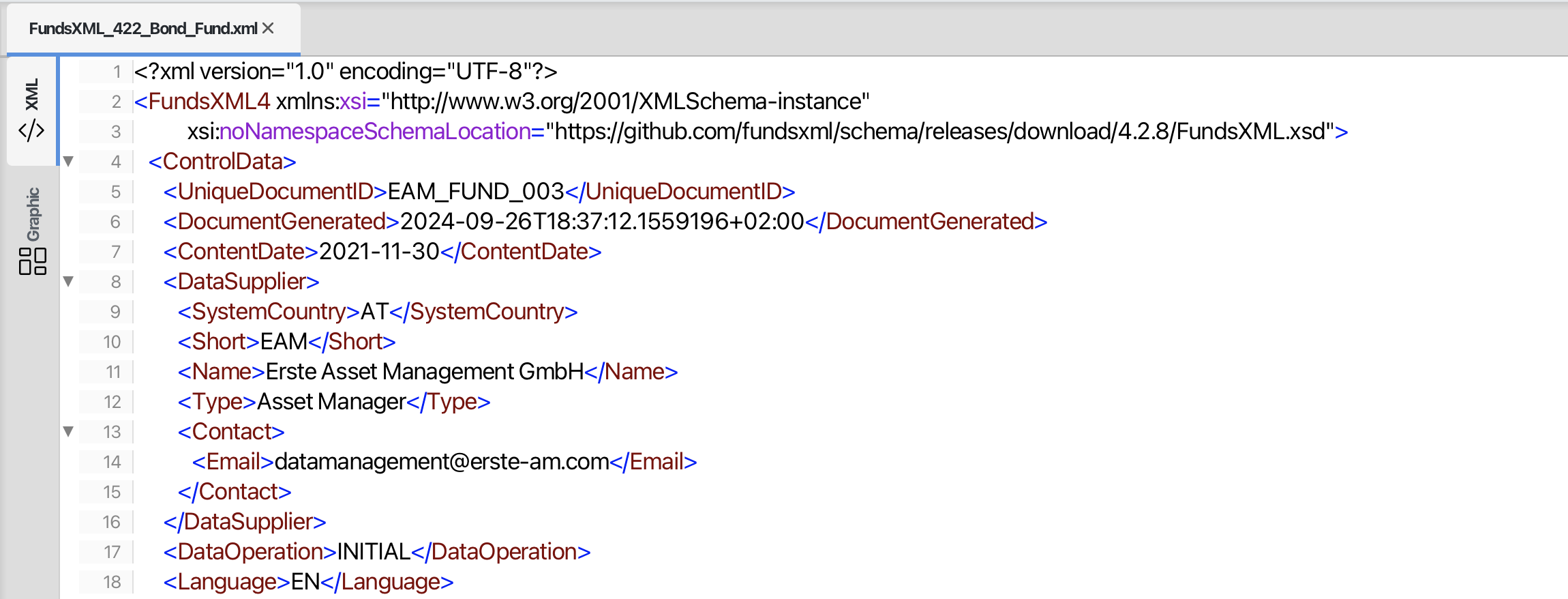 After pretty print
Validation
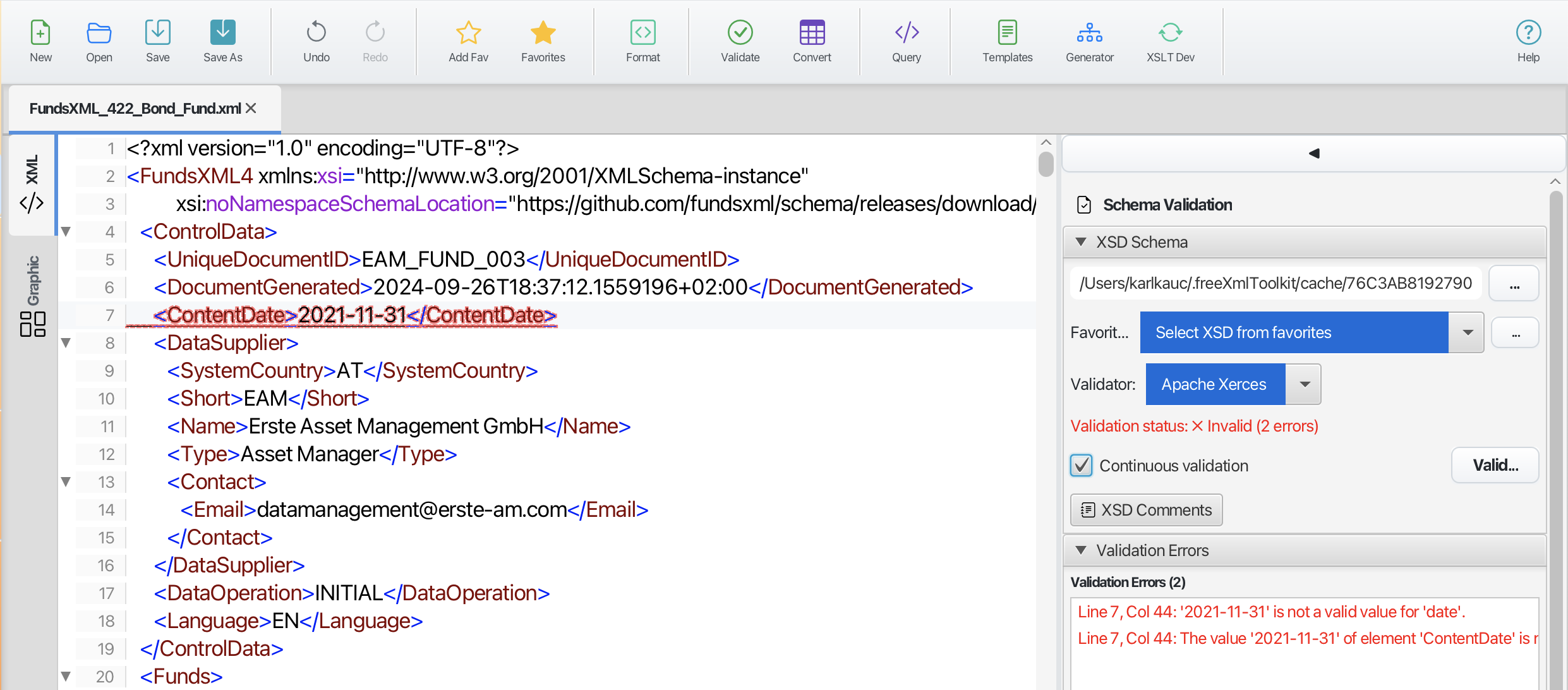 Validation panel showing errors and warnings
How to Validate
- Click Validate or press F8
- If your XML references a schema, it's loaded automatically - or bind one yourself, see Binding an XSD Schema
- Errors and warnings appear in the PROBLEMS panel below the editor (and in the Validation activity's PROBLEMS list)
- Click an error to jump to the problem location
Supported Validation Methods
| Method | Description |
|---|---|
| Well-Formed Check | Ensures basic XML syntax is correct |
| XSD Validation | Validates against XML Schema files |
| Schematron | Validates against business rules |
Supported Schema Formats
| Format | Support |
|---|---|
| XSD (XML Schema) | Full support (1.0 and 1.1) |
| Schematron | Full support |
| DTD | Not supported |
| RelaxNG | Not supported |
XPath and XQuery
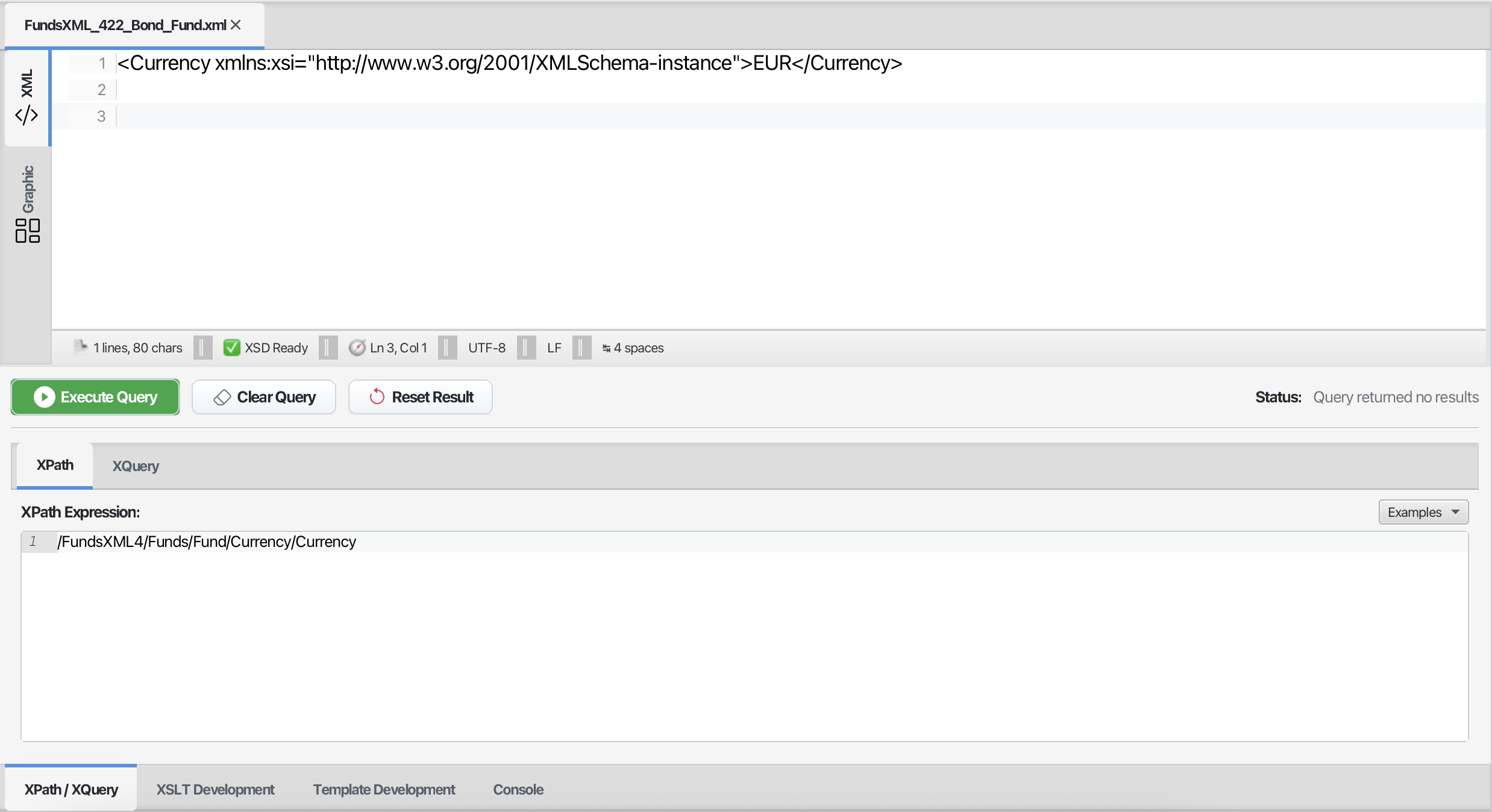 The Query Console docked below the editor - XPath query on the left, the result on the right
Use XPath and XQuery to find and extract data from your XML documents. The fastest way is the Query Console, a panel that docks along the bottom of the editor and always runs against the active document.
Using the Query Console
- Toggle the console with Ctrl+Shift+X or the toolbar's terminal icon
- Choose XPath or XQuery with the mode toggle
- Enter your expression - it is syntax-highlighted, and IntelliSense suggests element names, functions, and axes as you type (or on Ctrl+Space)
- Click Run (in XPath mode, Enter also runs; in XQuery mode use Ctrl+Enter)
- The result appears in the read-only results pane on the right, with syntax highlighting; Copy puts it on the clipboard
Save stores the current expression as a named snippet, and the Snippets menu loads any saved XPath or XQuery snippet back into the console. See Query Console for the full reference.
XPath Examples
| Expression | Description |
|---|---|
//element |
Find all elements named "element" |
//element/@attr |
Find all "attr" attributes on "element" |
/root/child[1] |
Find the first child of root |
count(//item) |
Count all item elements |
//text() |
Find all text nodes |
XQuery Examples
| Expression | Description |
|---|---|
for $x in //item return $x |
Return all items |
for $x in //item where $x/@id='1' return $x/name |
Filter and return |
Use the Examples menu for quick insertion of common expressions.
Bundled Example Collections
Your FreeXmlToolkit installation ships ready-to-run query
collections in the examples folder next to the application:
examples/xpath/- 32 XPath 3.1 expressions (one per file, each with a comment header). Files 01-20 cover the basics; files 21-32 are a reporting series that joins positions, asset master data and transactions and outputs CSV, ASCII tables/charts, Markdown tables or JSON.examples/xquery/- 17 XQuery 3.1 scripts. Files 01-11 are data-quality checks with HTML reports; files 12-17 are reporting/export examples (CSV export, ASCII dashboard, Markdown fund report, JSON export, pivot table, two-fund comparison).examples/xproc/- 8 XProc 3.0 pipelines, from a minimal identity pipeline to multi-step chains: slimming withp:delete, CSV/JSON export by orchestrating the bundled stylesheets, metadata stamping,p:for-eachiteration,p:choosebranching and a Schematron SVRL report. See the folder'sREADME.md.
All examples target the FundsXML4 sample documents in examples/xml/. The simplest way
to run one: open the file directly and press the toolbar's Run button
(Ctrl+Enter) - query, XSLT and XProc files are first-class editor documents that run
against the Target dropdown's
selection (by default the most recently active XML document). Alternatively paste a query
into the query panel or the Query Console - the
map:, array: and math: function namespaces are pre-declared, so expressions using
map:merge(), array:size() etc. run without any prolog. Each folder contains a
README.md describing every example.
XML/Excel/CSV Converter
Click the Spreadsheet Converter toolbar button (Ctrl+E) to open the converter dialog:
- XML to Excel: Export XML data to Excel spreadsheet
- XML to CSV: Export XML data to CSV file
- Excel to XML: Import Excel data as XML
- CSV to XML: Import CSV data as XML
Templates
Click the Insert Template toolbar button (Ctrl+T) to insert a snippet:
- Insert pre-defined XML snippets
- Create your own templates (Settings → Templates)
- Organize templates by category
Learn more: Template Management
Schema Generator
Open the Schema activity and click its Generate XSD from XML tool button (or Generate XSD (Batch)… for several files) to generate an XSD schema from your XML:
- Analyze XML structure
- Generate matching XSD schema
- Customize type detection
Favorites
Save frequently used files for quick access:
- Add Favorite (Ctrl+D) - Save the current file to favorites
- Favorites activity - Click the star icon in the activity bar to open the Favorites panel; click any entry to open it as a tab
- Your favorites also appear in the Explorer panel's FAVORITES section and as star menus next to the file rows of the Transform, Validation, PDF/FOP, and Signature panels
Learn more: Favorites System
Keyboard Shortcuts
| Shortcut | Action |
|---|---|
| Ctrl+N | New file |
| Ctrl+O | Open file |
| Ctrl+S | Save file |
| Ctrl+Shift+S | Save As |
| Ctrl+Z | Undo |
| Ctrl+Y | Redo |
| Ctrl+F | Find |
| Ctrl+H | Replace |
| Ctrl+D | Add the current file to favorites |
| Ctrl+Shift+D | Toggle the Favorites panel |
| Shift+Alt+F | Format/Pretty Print |
| Ctrl+Shift+X | Toggle the Query Console |
| Ctrl+E | XML/Excel converter |
| Ctrl+T | Templates |
| Ctrl+mouse wheel | Zoom the editor font in the Text view, the whole grid in the Graphic view (Ctrl+0 resets) |
| Ctrl++ / Ctrl+- | Graphic view: zoom the grid in / out |
| F8 | Validate |
< |
Open auto-completion |
Tips
- Multiple Files: Open multiple XML files in different tabs
- Remember Location: The editor remembers the last folder you used
- Font Size / Zoom: Hold
Ctrland scroll the mouse wheel to adjust the font size in the Text view (Ctrl+0resets); in the Graphic view the same gesture zooms the whole grid - Quick Validation: Errors are highlighted as you type
- Drag & Drop: Drag files directly into the editor window
- Recent Files: Reopen recent files from the Explorer panel's RECENT section or the Welcome page
Navigation
| Previous | Home | Next |
|---|---|---|
| Home | Home | XML Editor Features |
All Pages: Unified Shell | XML Editor | XML Features | JSON Editor | XSD Tools | Profiled XML Generation | XSD Validation | XSLT Viewer | XSLT Developer | FOP/PDF | Signatures | IntelliSense | Schematron | FundsXML Extensions | Favorites | Templates | Tech Stack | Security | Licenses