XML Editor Features
Version: 2.1.0
This page describes the advanced features available in the XML Editor.
Search (Find)
Search works in every view mode — Text, Tree and Graphic — for XML documents, XSD schemas and JSON documents.
Finding Text in Your Document
Press Ctrl+F to open the Find feature and type the text you are looking for. Use the up and down arrows (Find Previous / Find Next, or Enter / Shift+Enter) to move between matches. When you reach the last match, the search wraps around and continues from the beginning.
Search Works in All Views
You can search in the Text, Tree or Graphic view of a document:
- Text view - Matches are highlighted in the source code. Replace is available here.
- Graphic view (XML instances) - The search looks through element names, attribute names, and values across the whole document. When you press the up/down arrows, the editor jumps directly to the matching node: if the match is inside a collapsed node, its parent nodes are expanded automatically, the matching row is selected, and it is scrolled into view.
- Tree and Graphic views (XSD schemas) - The search looks through the schema nodes themselves: element/attribute/type names, documentation and appinfo, type references, fixed/default values, enumeration and facet values, and comments. Matching nodes are revealed (collapsed branches expand), selected, and scrolled into view — in the Graphic diagram this includes loading lazily rendered subtrees.
- Tree and Graphic views (JSON documents) - The search looks through the keys and values of the document. Matches inside collapsed objects or arrays are revealed, selected, and scrolled into view, the same way as in the XML grid.
Searching is case-insensitive in all views.
Switching Views While Searching
If you switch the view mode (Text / Tree / Graphic) or the file tab while the search bar is open, the search automatically re-targets the view you switched to, so you can keep navigating without retyping your search term.
Where Search Is Available
Pressing Ctrl+F opens an inline search bar at the top of the editor, with up/down chevron arrows for Find Previous / Find Next and a replace toggle (Text view only). The same bar works in every view mode, for every XML-family document type and for JSON documents.
Note: In the Tree and Graphic views, search is for finding and navigating only - Replace is not available there (the replace toggle is disabled). To replace text, use the Text view.
Note: HTML documents have a rendered, read-only Preview view instead of Tree/Graphic (see HTML Preview). Pressing Ctrl+F there searches the document's underlying markup text, not the rendered page.
Searching Across Many Files
Ctrl+F searches the active document. To search - and replace - across all files of a folder, by plain text or by an XPath expression, use the Search activity in the Unified Shell: press Ctrl+Shift+F (Find in Files) or Ctrl+Shift+H (Replace in Files), or click the magnifying-glass icon in the activity bar. See the Search Panel guide.
Changed shortcut: Ctrl+Shift+F used to format the document - Format Document is now Shift+Alt+F.
Schematron Integration
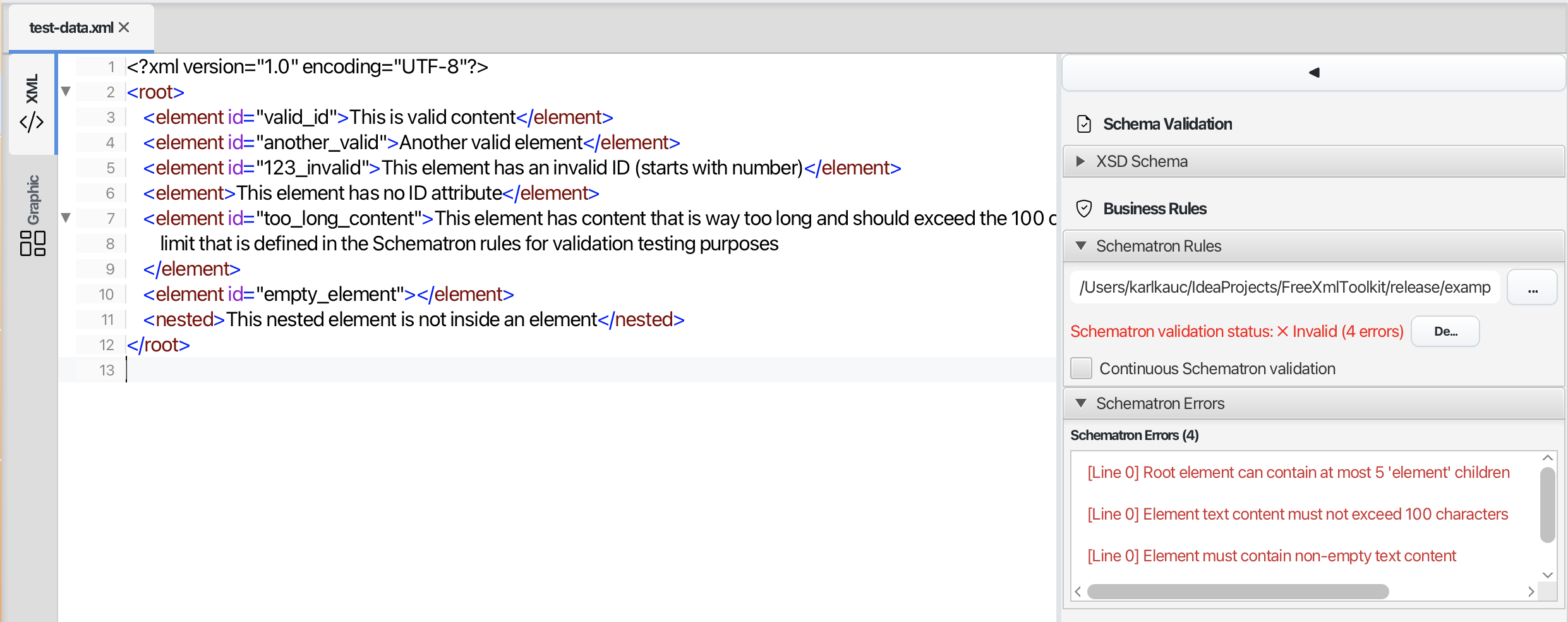 Schematron validation in the Validation panel - the bound rules file in SOURCES, the
findings in the PROBLEMS list
Schematron validation in the Validation panel - the bound rules file in SOURCES, the
findings in the PROBLEMS list
What is Schematron?
Schematron lets you create custom validation rules for your XML documents. While XSD schemas validate the structure, Schematron validates business rules - for example, "if field A contains X, then field B must not be empty."
How to Use Schematron
- Open an XML file in the editor
- Open the Validation panel from the activity bar
- In the SOURCES section, click Change on the Schematron row and pick a
.schfile - or pick a favorited Schematron from the row's star menu, or simply drop a.schfile onto the row - Click Run Validation - the findings appear in the PROBLEMS list (each row tagged with a Schematron badge); click a problem to jump to the offending element
- Enable Validate while typing (the panel's ⋮ menu) to check as you type
Problems whose rules define quick fixes can be corrected in place: click the yellow lightbulb in the editor gutter (or press Alt+Enter / Ctrl+.), or right-click the problem row and pick a fix from the Quick Fix submenu. See Schematron Quick Fixes.
Saving Schematron Files as Favorites
Save frequently used Schematron files for quick access:
- Add them to your Favorites (for example with Add current in the
Favorites panel while the .sch file is open)
- Organize them in favorites folders like "Business Rules"
- Bind a saved rules file in one click via the star menu on the Validation panel's
Schematron row - or from the Explorer's Schematron bar
Learn more: Schematron Support | Favorites System
Auto-Completion (IntelliSense)
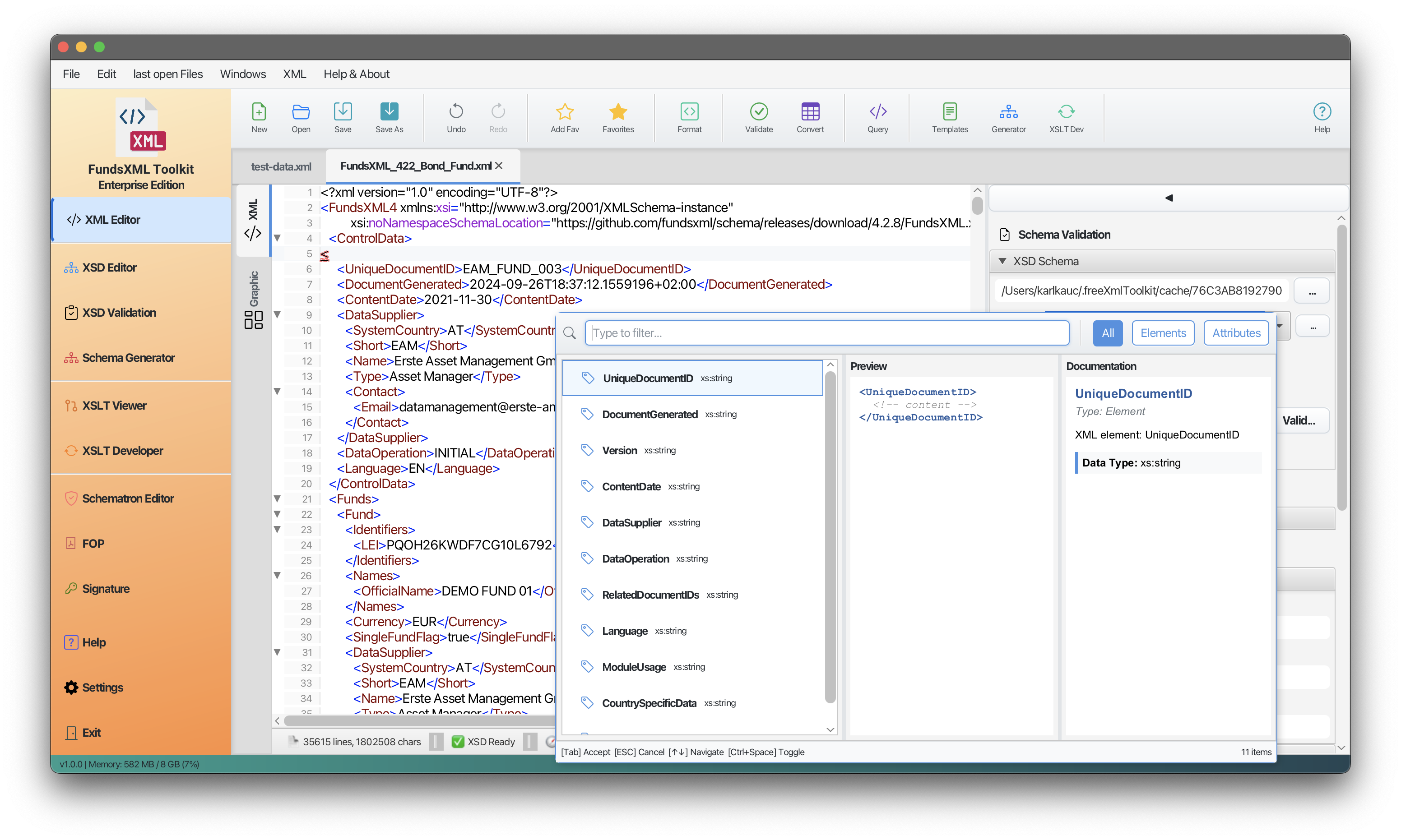 Auto-completion suggestions popup
Smart Element Suggestions
When you type < in the editor, a popup shows only the elements that are valid at your current position based on your XSD schema.
How It Works
- Type
<- A popup appears with valid element options - Use arrow keys - Navigate through the suggestions
- Press Enter - Insert the selected element
- Press Escape - Close the popup
Auto-Closing Tags
When you type an opening tag like <element>, the editor automatically adds the closing tag </element> and places your cursor between them.
Learn more: Auto-Completion Guide
Grid Editor (Graphic View)
For XML (and XSLT/Schematron) documents, switching to the Graphic view opens the editable XMLSpy-style grid.
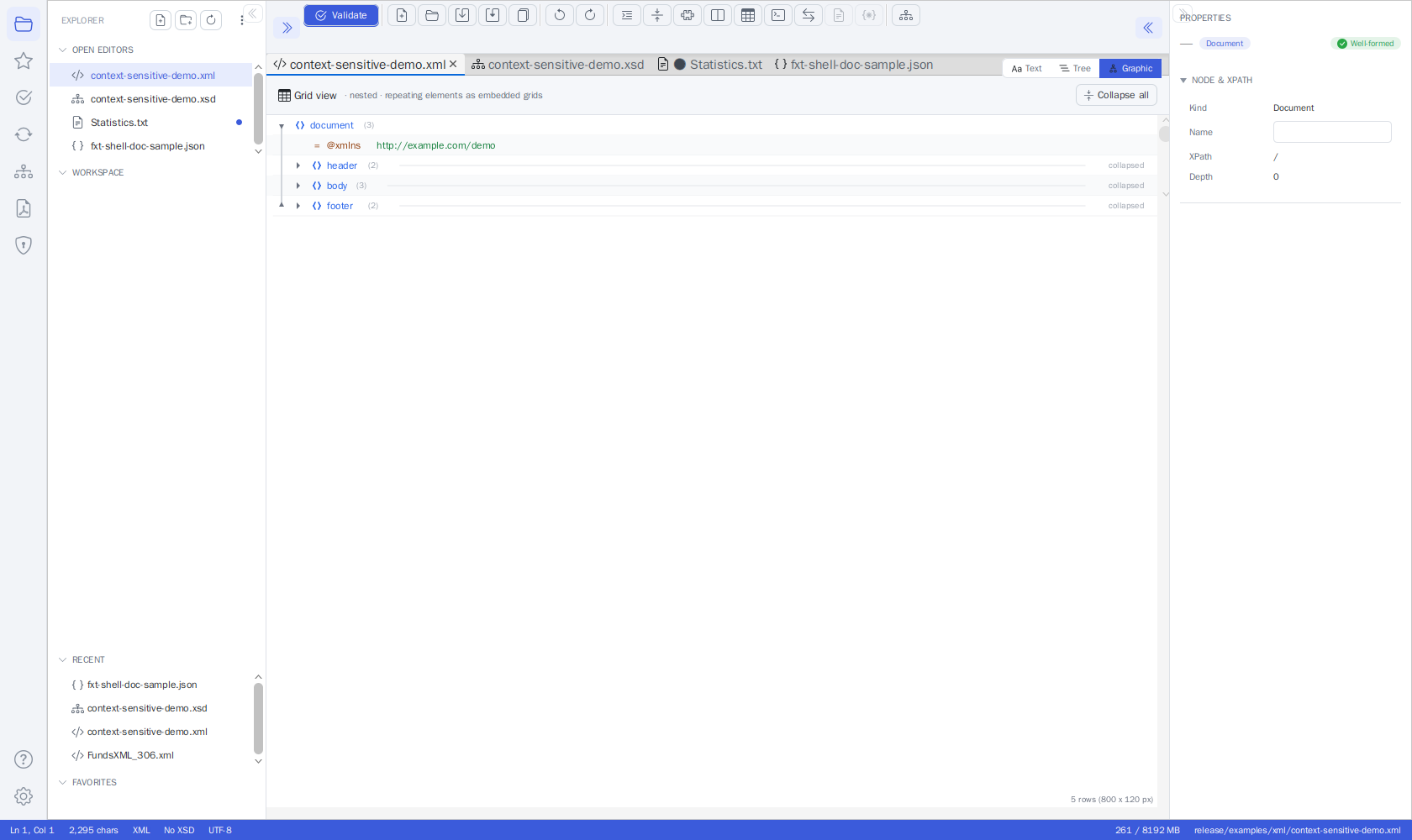 The grid in the Unified Shell's Graphic view — table-like editing with the inspector
Edit XML Like a Spreadsheet
The grid displays your XML data in a table format, making it easy to edit structured data.
How to Use
- Open an XML file in the editor
- Switch to the Graphic view with the segmented view switch
- Click cells to edit values directly
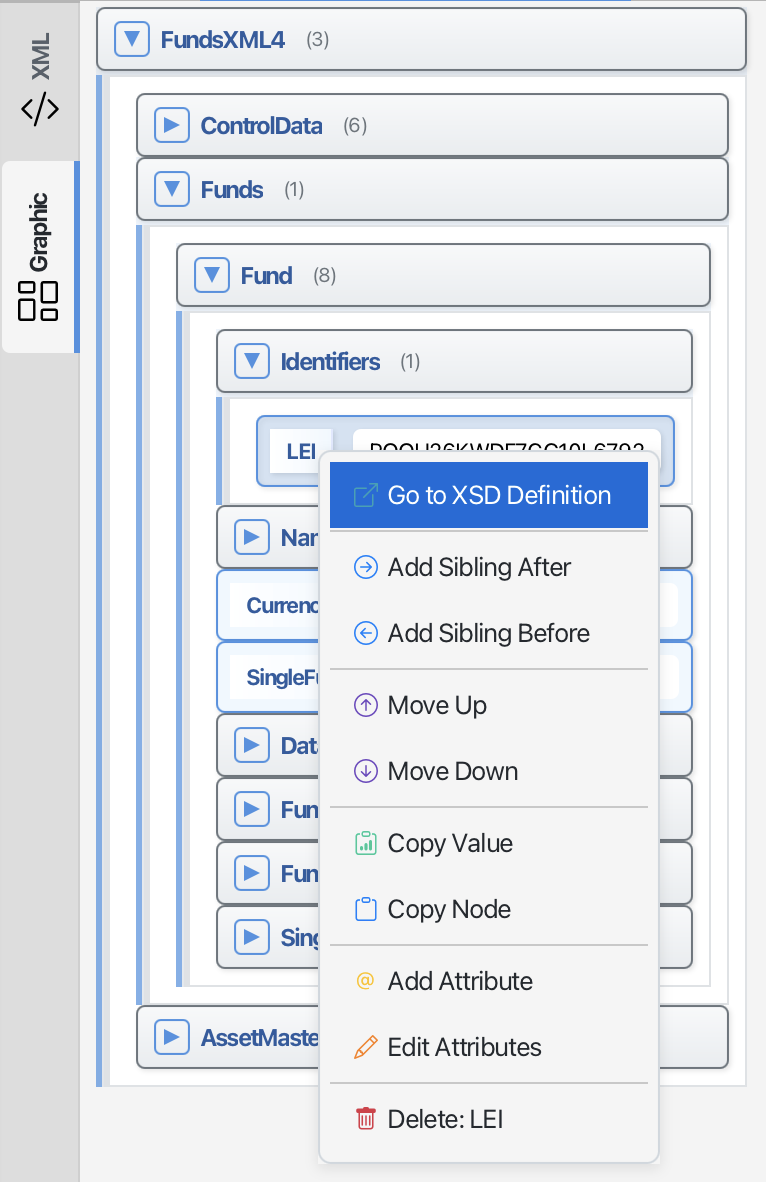
- Add, delete, or move nodes using the right-click context menu
- Select a row to view and edit its properties in the Properties inspector
- Switch back to the Text view to see the updated code
Changes made in any view are synchronized automatically.
Reading the Grid
- The header strip at the top reads "Grid view · nested · repeating elements as embedded
grids" and offers the zoom pill (
− 100% +) plus Expand all and Collapse all buttons. - Nothing is truncated: cells grow to their content, long values wrap onto more lines and the row grows with them.
- Zoom the grid with Ctrl+mouse wheel or Ctrl +/− (Ctrl 0 resets); the factor is remembered for all grids.
- Rows holding a simple value are marked with
{}. - Collapsed containers show a "collapsed" hint so you know there is hidden content.
- Repeating elements appear as embedded grids - small tables nested inside the row. Drag a column separator in the column-header row to resize a column; double-click it to auto-fit.
Properties Inspector
You can view and edit a node's properties from all three XML views (Text, Tree, and Graphic).
The Properties inspector shows the details of the selected node and lets you edit them. Toggle it with the panel toggle at the right end of the editor toolbar.
- Select a node by moving the text caret into an element (Text view), clicking a node (Tree view), or selecting a row in the grid (Graphic view).
- Edit the element name, namespace (prefix/URI), attributes (add/rename/remove), leaf text, and the text of comments, CDATA, and processing instructions.
- Edits are written straight back to the document text, keeping everything in sync.
- When a schema is bound, the inspector also shows read-only hints: the schema-derived type, documentation, and lists of valid child elements and example values.
- All views share one in-memory model, so edits and Undo/Redo history carry over when you switch views.
See the Properties Inspector section for full details.
JSON documents get the same inspector: select a node in the Tree or Graphic (grid) view to edit its key and scalar value and to see its JSONPath - see Unified Shell - JSON Files.
Code Folding
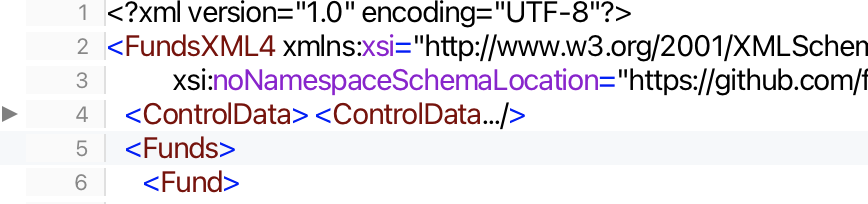 Code folding - collapse XML sections to focus on the parts that matter
Hide Sections for Better Navigation
For large XML files, you can collapse sections to focus on what you're working on:
- Collapse: Click the minus (-) icon next to an element
- Expand: Click the plus (+) icon to show the content again
- Nested Folding: Collapse parent elements to hide all children
Tree View
 An XML document in the Tree view
Visual Document Structure
The tree view shows your XML document as a hierarchical structure:
- Navigate: Click on tree nodes to jump to that location in the text
- Understand Structure: Quickly see how your document is organized
- Expand/Collapse: Click arrows to show or hide child elements
- Edit Properties: Click a node to select it and edit its properties in the Properties Inspector
Supported Schema Formats
| Format | Support |
|---|---|
| XSD (XML Schema) | Full support with IntelliSense |
| Schematron | Business rules validation |
| DTD | Not supported |
| RelaxNG | Not supported |
Navigation
| Previous | Home | Next |
|---|---|---|
| XML Editor | Home | XSD Tools |
All Pages: Unified Shell | XML Editor | XML Features | JSON Editor | XSD Tools | Profiled XML Generation | XSD Validation | XSLT Viewer | XSLT Developer | FOP/PDF | Signatures | IntelliSense | Schematron | FundsXML Extensions | Favorites | Templates | Tech Stack | Security | Licenses