Profiled XML Generation
Version: 2.1.0
Generate customized sample XML from an XSD schema. The Generate Sample XML (Advanced)… dialog lists every element and attribute path of your schema, lets you pick a generation strategy per path, saves those settings as reusable profiles, and can write a whole batch of files in one go.
Overview
The basic Generate Sample XML action (see XSD Tools) invents generic values from the element types. The advanced dialog adds:
- Per-XPath rules -- choose one of 11 strategies for any element or attribute (fixed value, sequence, template, omit, ...).
- Profiles -- save the rules and options under a name and load them again later.
- Batch generation -- write many files at once, with sequence counters that continue from file to file.
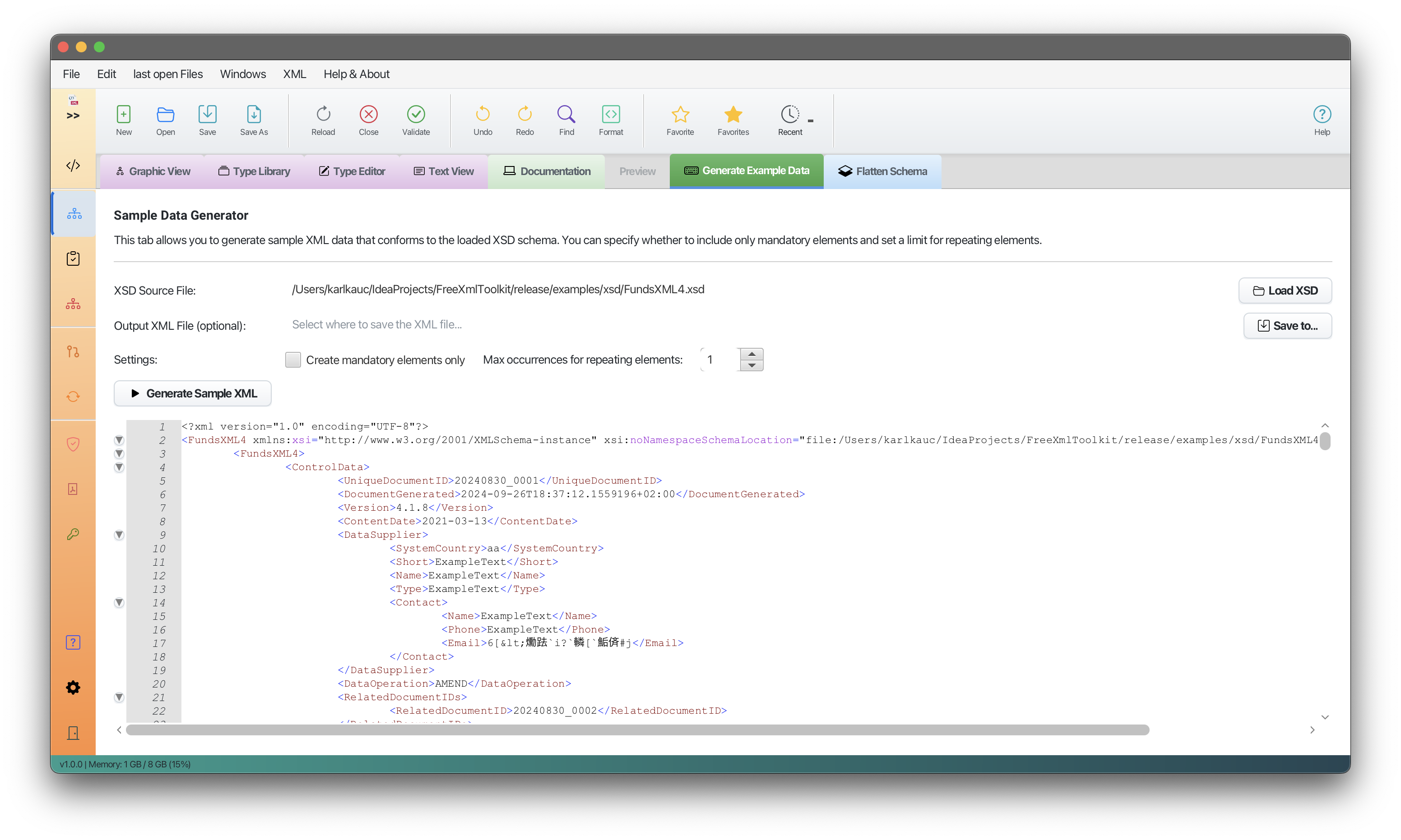
Without any rules (all rows left on Auto) the dialog produces exactly what the basic generator produces, using the same Only mandatory elements and Max. repetitions options.
Opening the Dialog
- Open your XSD in the Unified Shell so it is the active document. An unsaved schema works too -- the current editor text is used.
- Open the Schema activity in the activity bar.
- In the panel's tool button row, click Generate Sample XML (Advanced)… (the sliders icon).
FreeXmlToolkit first scans the schema in the background and then shows the dialog with one row per element and attribute path. If the active document is not an XSD you get the message Open an XSD schema first.; if no paths can be extracted, Could not extract any XPaths from the schema.
The Dialog
 The advanced dialog with its per-XPath rules table
The modal dialog Generate Sample XML (Advanced) is resizable and has, from top to bottom:
| Area | Contents |
|---|---|
| Profile bar | Profile: drop-down of saved profiles, Load, Save As… |
| Per-XPath generation rules | Table with the columns XPath, Type, Strategy, Value / Pattern |
| Hint line | A one-line reminder of what the Value / Pattern cell means per strategy |
| Options | Only mandatory elements, Max. repetitions, Batch count, File name pattern |
| Buttons | OK (generate) and Cancel |
There is no preview inside the dialog: the result opens as a new editor tab (single document) or is written to a folder you choose (batch) once you press OK -- see What Happens After OK.
The Rules Table
The table is pre-filled from the schema; you cannot add or remove rows. Each row is one element or attribute path in schema order:
| Column | Editable | Description |
|---|---|---|
| XPath | no | The path of the element (/order/customer/name) or attribute (/order/@id). Compositor groups (xs:sequence, xs:choice, xs:all) do not appear in the path. |
| Type | no | The XSD type of the element or attribute (xs:string, CustomerType, ...). |
| Strategy | yes | Drop-down with the 11 strategies below. Default: Auto. |
| Value / Pattern | yes | One free-text cell whose meaning depends on the strategy (fixed value, pattern, list, or reference). Double-click to edit, press Enter to commit. |
Only rows whose strategy is not Auto become rules. Everything else is generated as usual.
Strategies
| Strategy | What it does | Value / Pattern cell |
|---|---|---|
| Auto | Standard type-based generation (the default). | ignored |
| Fixed Value | Always writes the literal you enter. | the value, e.g. EUR |
| Omit | Leaves the element or attribute out entirely, even if the schema requires it. | ignored |
| Empty | Writes the element/attribute with no content. | ignored |
| XSD Example | Picks one of the example values found in the element's XSD annotations. If the schema has none, the value is empty. | ignored |
| Enum Cycle | Walks through the enumeration values of the element's type in order (A, B, C, A, ...). Empty if the type has no enumeration. |
ignored |
| Sequence | Auto-incrementing number, starting at 1 in steps of 1. | pattern with {seq:N} (zero-padded to N digits) or {seq} (no padding), e.g. ORD-{seq:4} gives ORD-0001, ORD-0002, ... A pattern without a placeholder yields just the number. |
| XPath Reference | Copies the value that was already generated for another path in the same document. | the source XPath, e.g. /order/@id |
| Random from List | Picks a random entry from your list on every occurrence. | comma-separated values, e.g. Mueller,Schmidt,Huber |
| Template | Builds the value from a string with placeholders (see below). | the template, e.g. INV-{seq:4}-{date:yyyy} |
| Null (xsi:nil) | Writes the element as <name xsi:nil="true"/>. Only valid for nillable elements. |
ignored |
Every strategy applies to attributes as well as elements.
Template Placeholders
| Placeholder | Result | Example |
|---|---|---|
{seq:N} / {seq} |
Auto-incrementing number, zero-padded to N digits (or unpadded) |
{seq:4} -> 0001 |
{date:format} |
Current date/time in a Java DateTimeFormatter pattern (default yyyy-MM-dd) |
{date:yyyy} -> 2026 |
{random:N} |
Random number with N digits (default 4, max 18) |
{random:4} -> 7283 |
{ref:xpath} |
Value already generated for another path in the same document | {ref:/order/@id} |
{file:N} |
Number of the current batch file (1-based), zero-padded to N digits |
{file:2} -> 01 |
Example: INV-{seq:4}-{date:yyyy} produces INV-0001-2026, INV-0002-2026, ...
Notes on Individual Strategies
- Sequence and Enum Cycle keep one counter per XPath. Repeating elements therefore get consecutive values, and the counters continue across batch files.
- XPath Reference and
{ref:...}only find values that were generated earlier in the same document (document order); otherwise the result is empty. The lookup uses the generator's internal path, so it is reliable for elements and attributes directly under the root element (such as/order/@id); paths nested insidexs:sequence/xs:choicegroups may not resolve. - Omit, Empty, Null and Fixed Value are applied literally -- they can produce XML that does not validate (missing mandatory element, empty number,
xsi:nilon a non-nillable element). - Rules inside an
xs:choicesteer the choice: if one option of a choice has a non-Auto rule somewhere in its subtree, the generator picks that option instead of a random one. - Elements with a
fixedordefaultvalue in the schema keep that value under Auto.
Options
| Option | Default | Effect |
|---|---|---|
| Only mandatory elements | off | Optional elements and attributes are skipped. Exception: an optional element or attribute that has a rule, or whose descendants have a rule, is still generated so the rule can take effect. |
| Max. repetitions | 2 (1..50) | Upper bound for elements and choices with maxOccurs greater than 1 or unbounded. |
| Batch count | 1 (1..1000) | Number of documents to generate. 1 opens a single document in the editor; anything above 1 switches to batch generation. |
| File name pattern | sample_{seq:3}.xml |
Names of the batch files; {seq:N} is replaced by the zero-padded file number. Only used when Batch count is greater than 1. |
What Happens After OK
Batch count = 1
The document is generated in the background, pretty-printed like Format Document (Shift+Alt+F), and opened as a new editor tab named Sample.xml, already bound to the schema it was generated from, so Run Validation reports Valid (or the actual problems) right away — not just Well-formed. From there you can edit it and save it wherever you like. If generation fails you get an error dialog instead.
The root element carries an xsi:schemaLocation / xsi:noNamespaceSchemaLocation that names the XSD by file name (for example xsi:noNamespaceSchemaLocation="FundsXML4.xsd") — never an absolute file: path of your machine, so the sample stays valid when it is shared or moved. When you save the sample for the first time into a folder other than the schema's, that reference is rewritten to a relative path (for example ../xsd/FundsXML4.xsd), so the file keeps validating from where it lands — in FreeXmlToolkit after a restart and in other tools alike.
Batch count > 1
A folder chooser titled Choose output folder for N files appears. After you pick a folder, all files are generated and written there in the background, and a message reports how many files were written (for example Wrote 5 of 5 files to: …). Cancelling the folder chooser aborts without generating anything. The files reference the schema relative to that output folder.
Profiles
A profile stores the current rules (all non-Auto rows with their Value / Pattern), plus the four options. Profiles are not tied to a particular schema file.
Save As…
- Set up rules and options.
- Click Save As…, enter a name in the Save Profile prompt and confirm.
- The profile appears in the Profile drop-down and is selected.
Saving under an existing name overwrites that profile. The file name is derived from the profile name; characters other than letters, digits, _ and - are replaced with _, so My Profile and My_Profile refer to the same file.
Load
Select a profile in the drop-down and click Load. Every row is first reset to Auto; then each rule of the profile whose XPath matches a row sets that row's strategy and value. Rules for paths that do not exist in the current schema are ignored (and are dropped when you press OK or save again). The options are restored as well.
Where Profiles Are Stored
Profiles are JSON files in generation-profiles inside your FreeXmlToolkit user folder:
- Windows:
C:\Users\<your-name>\.freeXmlToolkit\generation-profiles\ - macOS:
/Users/<your-name>/.freeXmlToolkit/generation-profiles/ - Linux:
/home/<your-name>/.freeXmlToolkit/generation-profiles/
The dialog has no delete, rename, export or import function. To remove a profile, delete its .json file; to share one, copy the file into the same folder on the other machine -- it shows up in the drop-down the next time the dialog opens.
Batch Generation
- Configure rules and options as usual.
- Set Batch count to the number of files (up to 1000).
- Adjust the File name pattern if needed, for example
order_{seq:3}.xml. - Click OK and choose the output folder.
File Names
{seq:N} in the pattern is replaced by the file number starting at 1, zero-padded to N digits; {seq} gives the unpadded number:
| Pattern | Files |
|---|---|
sample_{seq:3}.xml |
sample_001.xml, sample_002.xml, ... |
test_{seq}.xml |
test_1.xml, test_2.xml, ... |
A pattern without a placeholder names every file the same, so each file overwrites the previous one -- keep the {seq:N} placeholder. An empty pattern falls back to example_1.xml, example_2.xml, ...
How Strategies Behave Across Files
| Strategy | Across files |
|---|---|
Sequence, {seq} |
Counters continue: file 1 has 0001-0002, file 2 continues with 0003. |
| Enum Cycle | Cycling continues where the previous file stopped. |
XPath Reference, {ref} |
Resolved within each file; references never cross files. |
{file:N} |
The number of the current file. |
Random from List, Auto, {random} |
Fresh picks in every file. |
| Fixed Value | The same value in every file. |
If every row is left on Auto, each batch file is produced by the basic generator with the given options.
Common Tasks
Sequential IDs
- Find the ID row (for example
/order/@id) and set its strategy to Sequence. - Enter
ORD-{seq:6}in Value / Pattern. - Click OK -- the new tab contains
ORD-000001,ORD-000002, ...
Realistic Names and Fixed Codes
- Set the name row to Random from List with
Smith,Johnson,Williams,Brown. - Set the country row to Fixed Value with
US. - Set the e-mail row to Template with
user{seq:3}@example.com. - Click OK.
Many Files for Load Testing
- Configure the rules, then set Batch count to
100and the pattern totest_{seq:4}.xml. - Click OK and pick a folder -- you get
test_0001.xmltotest_0100.xml.
Minimal Documents
Check Only mandatory elements, or set specific optional rows to Omit.
Tips and FAQ
The generated XML fails validation. Check for Omit on mandatory paths, Fixed Value entries that do not match the type, Empty on numeric or date types, and Null on elements that are not nillable.
An XPath Reference stays empty. The referenced path must be generated before the referencing one (document order), and nested paths inside compositor groups may not resolve -- see Notes on Individual Strategies. Use Fixed Value or Template if you only need identical literals.
The sequence restarts at 1. Counters live only for one run (single document or one batch). Every click on OK starts again at 1; the start value and step cannot be changed in the dialog.
A saved profile loads with fewer rules than I saved. Rules are matched to table rows by their exact XPath. If the schema changed (renamed or removed paths), those rules have nothing to attach to and are skipped.
Can I generate two files with the same name?
No -- the files are written into one folder, so a later file with the same name replaces the earlier one. Keep {seq:N} in the pattern.
Where is the Validate button? Not in the dialog: open the generated tab and use the Validate action of the shell (see XSD Validation).
Navigation
| Previous | Home | Next |
|---|---|---|
| XSD Tools | Home | XSD Validation |
All Pages: Unified Shell | XML Editor | XML Features | JSON Editor | XSD Tools | Profiled XML Generation | XSD Validation | XSLT Viewer | XSLT Developer | FOP/PDF | Signatures | IntelliSense | Schematron | FundsXML Extensions | Favorites | Templates | Tech Stack | Security | Licenses