XSLT Viewer
Version: 2.1.0
Note: The standalone XSLT Viewer tab has been retired. Quick XSLT transformations now live in the Unified Shell's Transform panel (set a stylesheet, transform, preview the result, open in browser). Parameters, live preview, debugging, profiling, and batch processing sit in the same panel - the XSLT Developer page covers those advanced tools.
This page shows how to quickly transform XML documents using XSLT stylesheets. Simply select your files and view the results immediately.
Overview
The Transform panel is designed for quick transformations where you want to see results immediately. Open it in the Unified Shell from the Transform icon in the activity bar. For advanced features like the debugger, profiling, and batch processing, see the XSLT Developer guide.
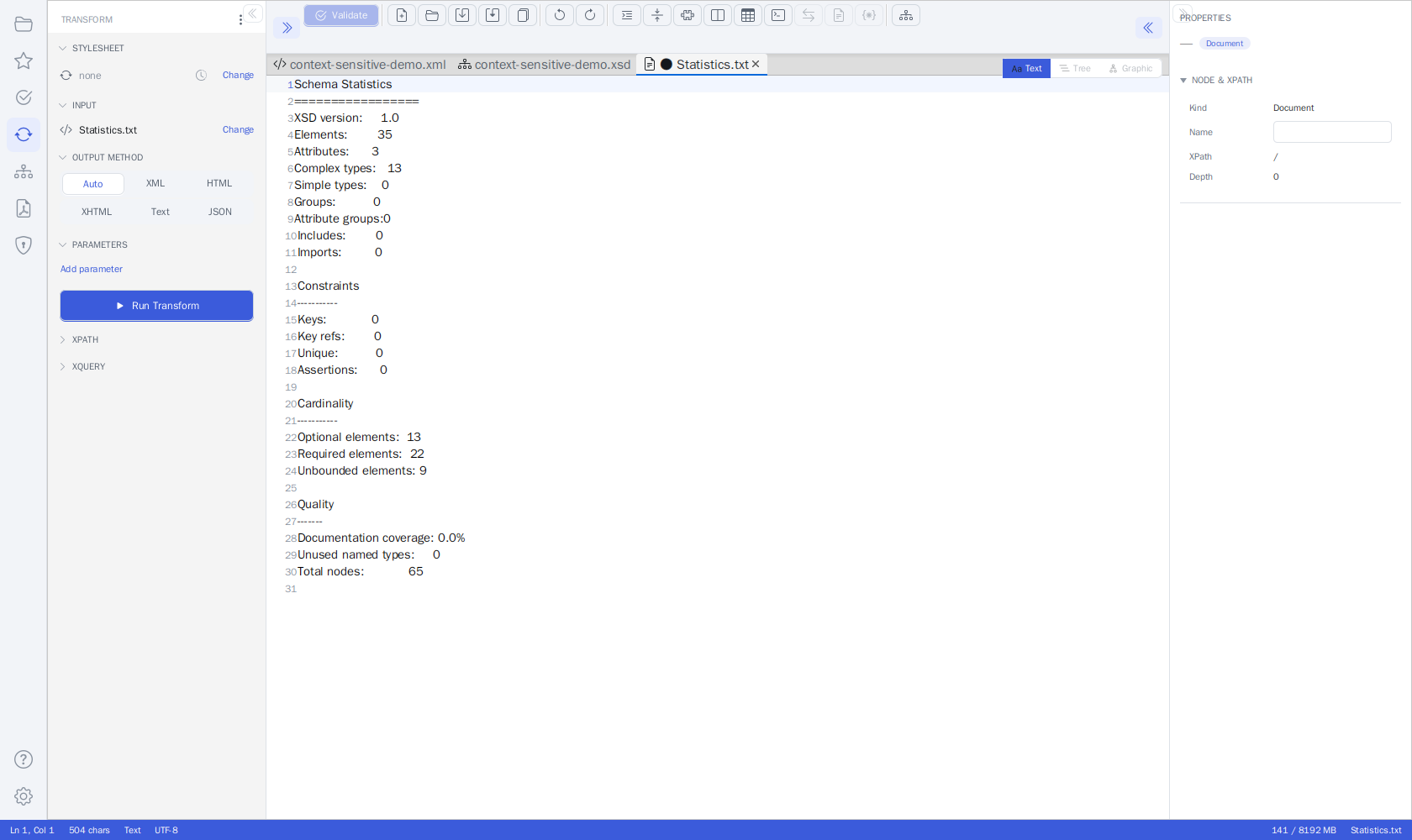 Quick XSLT/XQuery transformations now live in the Unified Shell's Transform panel
What is XSLT?
XSLT (Extensible Stylesheet Language Transformations) is a language for transforming XML documents. Think of it like a recipe that tells the computer how to convert your XML data into a different format such as HTML, text, or another XML structure.
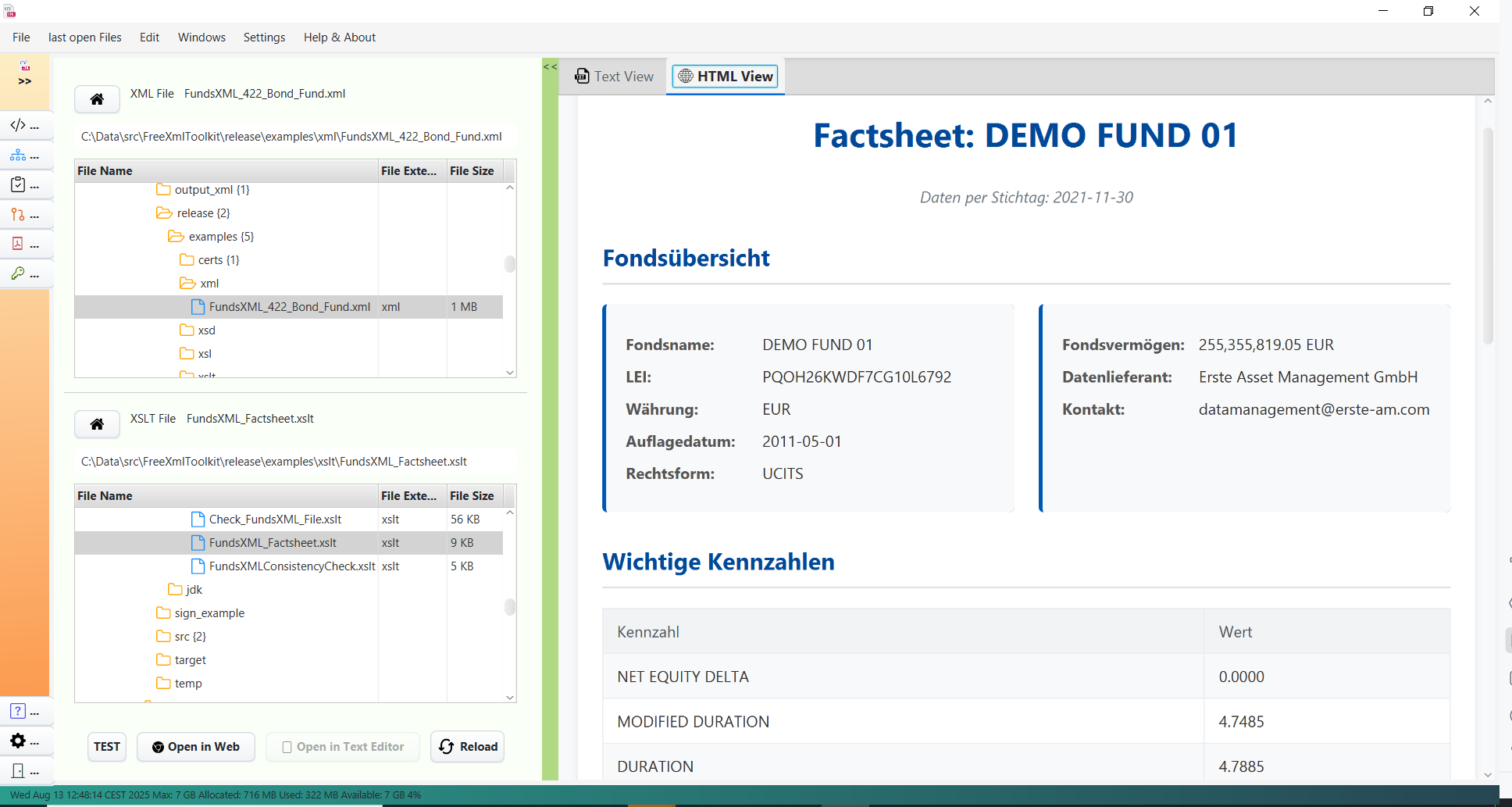 XML input + XSLT rules = Output: the
 examples/xslt/FundsXML_Factsheet.xslt stylesheet
rendered as HTML in the OUTPUT panel below the editor
Common uses:
- Convert XML data to HTML for web display
- Transform XML between different schemas
- Generate reports from XML data
- Extract and restructure data
How to Use
Step 1: Select Your Files
- Open your XML source file in the editor host so it is the active document - the panel's
INPUT section follows the active tab by default (use Change → Select XML file… to
transform a fixed file from disk instead, or drop an
.xmlfile from your file manager onto the INPUT row) - In the STYLESHEET section, click Change to choose an XSLT stylesheet (the clock
icon offers your recently used stylesheets) - or simply drop an
.xsl/.xsltfile from your file manager onto the STYLESHEET row
Step 2: Run and View the Results
Click Run Transform. The result appears in the OUTPUT panel that docks below the
editor - the source stays on top, the result shows underneath. The panel header shows a
format badge, a success/error status with timing (Transformed · N ms · M chars), and view
toggles:
| View | Description |
|---|---|
| Text | The result in a read-only code editor with line numbers and syntax highlighting (the default) |
| Preview | For HTML/XHTML output: the result rendered as a web page |
| Table | For XQuery results that return a sequence: the items shown as a table |
The OUTPUT METHOD defaults to Auto: the format (XML, HTML, XHTML, Text, JSON) is
detected from the stylesheet's xsl:output declaration. Pick a concrete segment to
override the detection.
Transform Panel Actions
| Control | Description |
|---|---|
| Run Transform | Runs the transformation with the current stylesheet and input |
| Open result as editor tab | (OUTPUT panel) Opens the result as an editable, savable document. HTML/XHTML results open as an HTML document rendered in the editor's read-only Preview view; re-running the transform updates the open tab |
| Open in browser | (OUTPUT panel) Opens the result in your default web browser |
| Save result… | (OUTPUT panel) Writes the result straight to a file |
| ⋮ → Watch stylesheet file | Re-runs automatically when the stylesheet changes on disk |
| ⋮ → Live preview | Re-runs automatically (debounced) while you edit the input document |
| ⋮ → Auto-open result tab | Also opens every successful result as an editor tab (off by default) |
XSLT Examples
FreeXmlToolkit includes example XSLT stylesheets in the examples/ folder. Here are some common XSLT patterns:
Example 1: Basic XML to HTML
Transform a simple XML list to an HTML table:
<!-- Input XML -->
<books>
    <book>
        <title>XML for Beginners</title>
        <author>Jane Smith</author>
        <price>29.99</price>
    </book>
    <book>
        <title>Advanced XSLT</title>
        <author>John Doe</author>
        <price>49.99</price>
    </book>
</books>
<!-- XSLT Stylesheet -->
<?xml version="1.0" encoding="UTF-8"?>
<xsl:stylesheet version="1.0"
                xmlns:xsl="http://www.w3.org/1999/XSL/Transform">

  <xsl:output method="html" indent="yes"/>

  <xsl:template match="/">
    <html>
      <head><title>Book List</title></head>
      <body>
        <h1>Available Books</h1>
        <table border="1">
          <tr>
            <th>Title</th>
            <th>Author</th>
            <th>Price</th>
          </tr>
          <xsl:for-each select="books/book">
            <tr>
              <td><xsl:value-of select="title"/></td>
              <td><xsl:value-of select="author"/></td>
              <td><xsl:value-of select="price"/></td>
            </tr>
          </xsl:for-each>
        </table>
      </body>
    </html>
  </xsl:template>

</xsl:stylesheet>
Output: An HTML page with a table listing all books.
Example 2: Filter and Sort Data
Filter items based on a condition and sort the results:
<?xml version="1.0" encoding="UTF-8"?>
<xsl:stylesheet version="1.0"
                xmlns:xsl="http://www.w3.org/1999/XSL/Transform">

  <xsl:output method="xml" indent="yes"/>

  <xsl:template match="/">
    <expensive-books>
      <!-- Select books over $30, sorted by price descending -->
      <xsl:for-each select="books/book[price > 30]">
        <xsl:sort select="price" data-type="number" order="descending"/>
        <book>
          <xsl:copy-of select="title"/>
          <xsl:copy-of select="price"/>
        </book>
      </xsl:for-each>
    </expensive-books>
  </xsl:template>

</xsl:stylesheet>
Example 3: Using Templates for Modular Code
Use templates to organize complex transformations:
<?xml version="1.0" encoding="UTF-8"?>
<xsl:stylesheet version="1.0"
                xmlns:xsl="http://www.w3.org/1999/XSL/Transform">

  <xsl:output method="html" indent="yes"/>

  <!-- Main template -->
  <xsl:template match="/">
    <html>
      <body>
        <xsl:apply-templates select="books/book"/>
      </body>
    </html>
  </xsl:template>

  <!-- Template for each book -->
  <xsl:template match="book">
    <div class="book">
      <h2><xsl:value-of select="title"/></h2>
      <p>By: <xsl:value-of select="author"/></p>
      <xsl:call-template name="format-price">
        <xsl:with-param name="amount" select="price"/>
      </xsl:call-template>
    </div>
  </xsl:template>

  <!-- Named template for price formatting -->
  <xsl:template name="format-price">
    <xsl:param name="amount"/>
    <p class="price">
      <xsl:text>Price: $</xsl:text>
      <xsl:value-of select="format-number($amount, '#,##0.00')"/>
    </p>
  </xsl:template>

</xsl:stylesheet>
Example 4: XML to JSON-like Structure
Convert XML to a JSON-friendly text format:
<?xml version="1.0" encoding="UTF-8"?>
<xsl:stylesheet version="1.0"
                xmlns:xsl="http://www.w3.org/1999/XSL/Transform">

  <xsl:output method="text"/>

  <xsl:template match="/">
    <xsl:text>[</xsl:text>
    <xsl:for-each select="books/book">
      <xsl:if test="position() > 1">,</xsl:if>
      <xsl:text>{"title":"</xsl:text>
      <xsl:value-of select="title"/>
      <xsl:text>","author":"</xsl:text>
      <xsl:value-of select="author"/>
      <xsl:text>","price":</xsl:text>
      <xsl:value-of select="price"/>
      <xsl:text>}</xsl:text>
    </xsl:for-each>
    <xsl:text>]</xsl:text>
  </xsl:template>

</xsl:stylesheet>
Example 5: Conditional Formatting
Apply different styles based on data values:
<?xml version="1.0" encoding="UTF-8"?>
<xsl:stylesheet version="1.0"
xmlns:xsl="http://www.w3.org/1999/XSL/Transform">
<xsl:output method="html" indent="yes"/>
<xsl:template match="/">
<html>
<head>
<style>
.low-price { color: green; }
.high-price { color: red; font-weight: bold; }
</style>
</head>
<body>
<xsl:for-each select="books/book">
<p>
<xsl:value-of select="title"/>:
<span>
<xsl:attribute name="class">
<xsl:choose>
<xsl:when test="price < 30">low-price</xsl:when>
<xsl:otherwise>high-price</xsl:otherwise>
</xsl:choose>
</xsl:attribute>
$<xsl:value-of select="price"/>
</span>
</p>
</xsl:for-each>
</body>
</html>
</xsl:template>
</xsl:stylesheet>
Example 6: Grouping with Keys (XSLT 1.0 Muenchian Grouping)
Group items by a common value:
<?xml version="1.0" encoding="UTF-8"?>
<xsl:stylesheet version="1.0"
                xmlns:xsl="http://www.w3.org/1999/XSL/Transform">

  <xsl:output method="html" indent="yes"/>

  <!-- Key for grouping books by author -->
  <xsl:key name="books-by-author" match="book" use="author"/>

  <xsl:template match="/">
    <html>
      <body>
        <h1>Books by Author</h1>
        <!-- Select first book of each author group -->
        <xsl:for-each select="books/book[count(. | key('books-by-author', author)[1]) = 1]">
          <xsl:sort select="author"/>
          <h2><xsl:value-of select="author"/></h2>
          <ul>
            <!-- List all books by this author -->
            <xsl:for-each select="key('books-by-author', author)">
              <li><xsl:value-of select="title"/></li>
            </xsl:for-each>
          </ul>
        </xsl:for-each>
      </body>
    </html>
  </xsl:template>

</xsl:stylesheet>
Included Example Files
FreeXmlToolkit includes example XSLT stylesheets in the examples/xslt/ folder, for example:
| Stylesheet | Description |
|---|---|
FundsXML_Factsheet.xslt |
Fund factsheet as an HTML page |
FundsXML_DataQualityReport_HTML.xsl |
Data quality report (HTML) |
FundsXML_CompleteDQReport_HTML.xsl |
Complete data-quality report (HTML) |
FundsXML_AssetAnalysis_HTML.xsl |
Asset analysis with tables (HTML) |
FundsXML_to_JSON.xslt |
Export a FundsXML document as JSON |
FundsXML_Positions_to_CSV.xslt |
Export positions as CSV |
Check_FundsXML_File.xslt |
Consistency checks with a text report |
Use these with the example XML file examples/xml/FundsXML_422_Bond_Fund.xml.
The stylesheets in examples/xsl/ (FundsXML_Factsheet.xsl, FundsXML_RiskReport.xsl, …) are
XSL-FO stylesheets for PDF output - use them with the PDF Generator (FOP),
not with the XSLT transform.
Performance Statistics
After each transformation, the OUTPUT panel's status line shows compact statistics in the
form Transformed · N ms · M chars:
- Execution time - How long the transformation took (milliseconds)
- Output size - Size of the generated output (characters)
For detailed per-template timings, enable Profile run in the Transform panel's ⋮ menu - the next run also opens a read-only Profile tool tab.
Tips
- Validate first - Make sure your XML and XSLT files are valid before transformation
- Check the OUTPUT panel status - If a transformation fails, the red error status in the OUTPUT panel header shows the error message
- Use the Preview view - For HTML output, the OUTPUT panel's Preview toggle shows you exactly how it will look
- Try the example files - Learn from the included examples in the
examples/folder - Need more features? - See the XSLT Developer guide for parameters, the interactive debugger, profiling/tracing, and batch processing (all in the Transform panel and its ⋮ menu)
Next Steps
- XSLT Developer - Advanced XSLT/XQuery development: parameters, debugger, batch processing
- PDF Generator (FOP) - Generate PDFs from XSL-FO stylesheets
Navigation
| Previous | Home | Next |
|---|---|---|
| XSD Validation | Home | XSLT Developer |
All Pages: Unified Shell | XML Editor | XML Features | JSON Editor | XSD Tools | Profiled XML Generation | XSD Validation | XSLT Viewer | XSLT Developer | FOP/PDF | Signatures | IntelliSense | Schematron | FundsXML Extensions | Favorites | Templates | Tech Stack | Security | Licenses