JSON Editor
The JSON Editor provides a powerful environment for editing, validating, and querying JSON files with support for multiple JSON formats.
Version: 2.1.0
Note: The standalone JSON Editor tab has been retired. JSON editing — text editing, the tree and grid views, and validation — now lives in the Unified Shell: open a
.jsonfile and the Text, Tree and Graphic (grid) views are available there. The capabilities below are unchanged; they are now part of the shell rather than a dedicated sidebar tab.
Overview
FreeXmlToolkit includes a full-featured JSON Editor that supports:
- Standard JSON - RFC 8259 compliant
- JSONC syntax - JSON with Comments (single-line // and block /* */)
- JSON5 syntax - trailing commas, unquoted keys, single-quoted strings, and comments
File extensions:
.json,.jsoncand.json5all open in the JSON editor (tree view, grid view, JSONPath, schema binding). The flavor is detected from the content, not from the extension - a.jsonfile with comments is treated as JSONC just like a.jsoncfile. Only.jsonis offered for operating-system file associations (.jsonc/.json5have no MIME type in the shared databases).
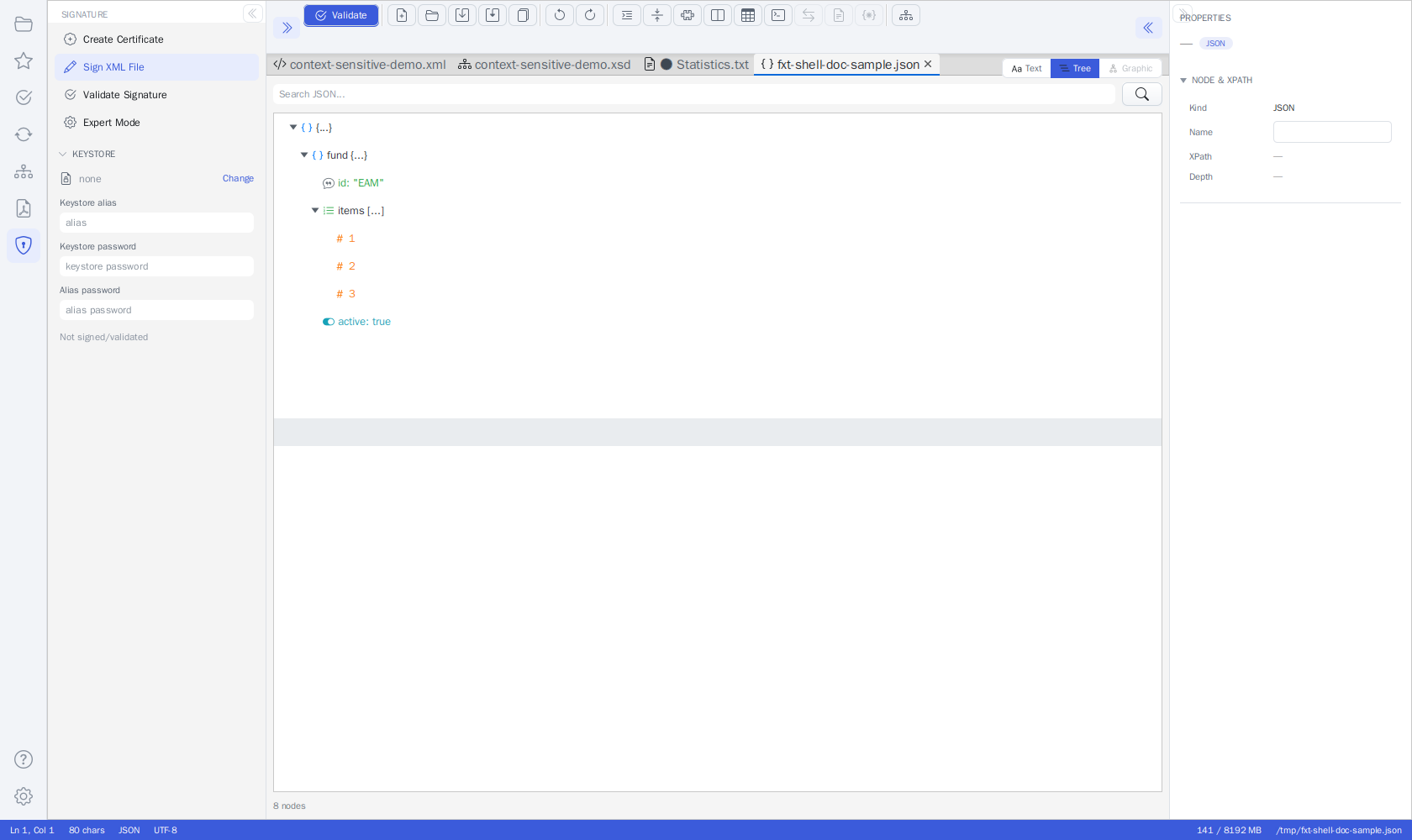 The Tree view of a JSON document in the Unified Shell
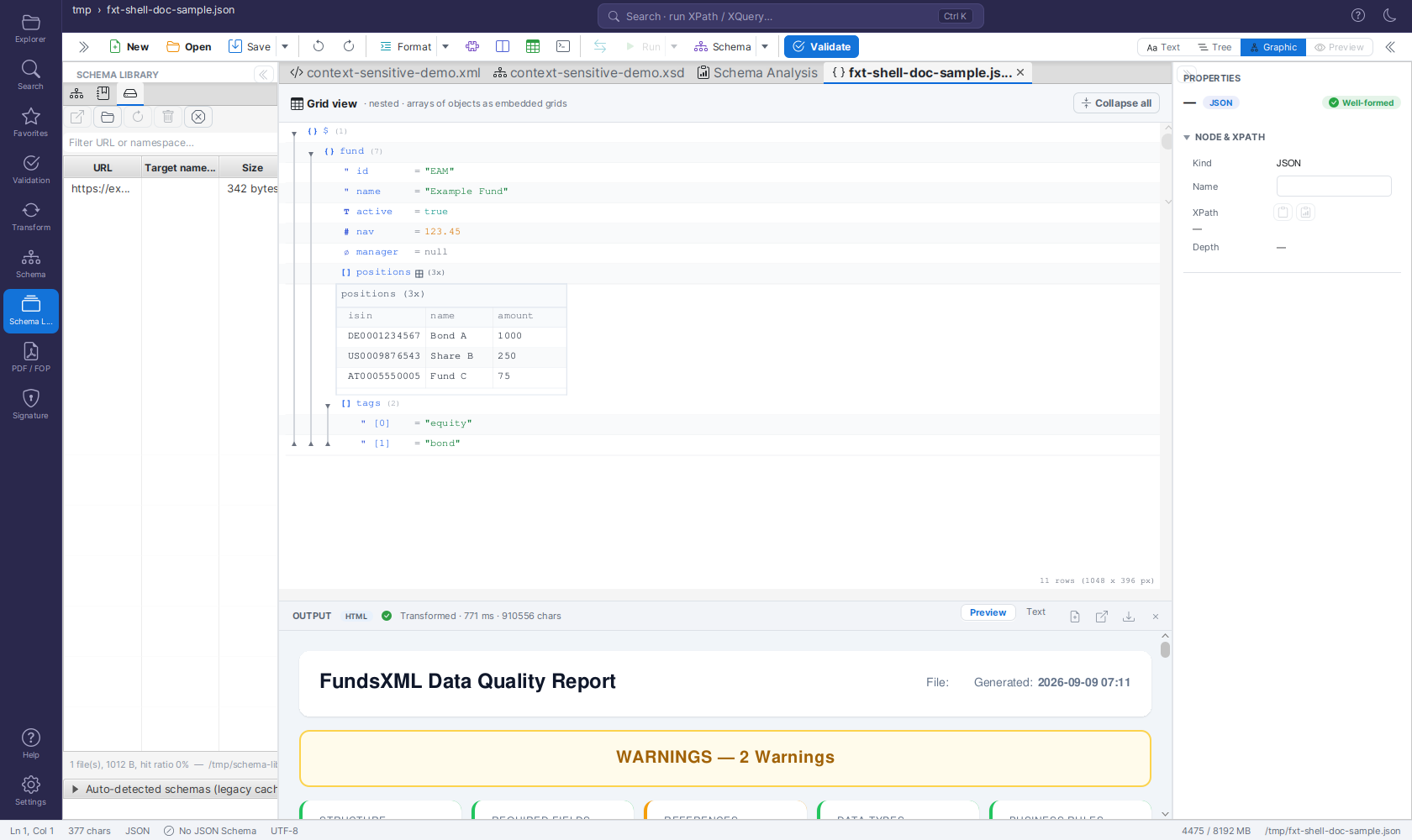 The same document in the Graphic (grid) view - the XMLSpy-style grid the shell also uses for XML
Features
Text Editor
| Feature | Description |
|---|---|
| Syntax Highlighting | Color-coded JSON for easy reading |
| Auto Format | Beautify JSON with proper indentation |
| Minify | Compress JSON by removing whitespace |
| Undo/Redo | Full undo/redo support |
| Line Numbers | Numbered lines for easy navigation |
| Drag & Drop | Drop JSON files directly into the editor |
Tree View
The tree view provides a hierarchical view of your JSON structure:
| Feature | Description |
|---|---|
| Interactive Navigation | Click on nodes to jump to that location in the text |
| Expand/Collapse | Expand or collapse nodes to focus on specific areas |
| Search | Search for keys or values within the tree |
| Sync with Editor | Synchronize selection between tree and text |
| Type Icons | Visual icons for objects, arrays, strings, numbers, booleans, and null |
The tree shares the document model with the grid view and the Properties inspector, so an edit made there shows up in the tree immediately, and Ctrl+F searches keys and values.
Grid View
The Graphic view mode shows the document as the editable XMLSpy-style grid - the very same grid the shell uses for XML files, so it is instantly familiar:
| Feature | Description |
|---|---|
| Rows | The root $, object properties (key = value) and array items ([0], [1], …); objects and arrays collapse/expand |
| Type glyphs | {} object, [] array, " string, # number, T/F boolean, ∅ null - each in its own colour; strings are shown quoted |
| Arrays of objects | Rendered as embedded tables (one column per key); click a column header to sort, expand nested objects inline |
| Inline editing | Double-click a value; the type is kept (numbers must stay numbers, booleans toggle, null stays null unless you type text). Double-click a key to rename it |
| Context menu | Add Property / Array Item / Sibling Before / After, Rename Key (F2), Duplicate (Ctrl+D), Copy / Cut / Paste as Sibling / Paste as Child, Copy Cell Content (Ctrl+Shift+C), Copy JSONPath (Ctrl+Shift+X), Copy Node (JSON) (Ctrl+Alt+C), Change Type, Move Up/Down (Alt+↑/↓), Expand All / Collapse All, Sort Column, Delete |
| Undo/Redo | Every grid edit is one undo step (Ctrl+Z / Ctrl+Y) and is written back into the text |
| Search | Ctrl+F finds keys and values, revealing matches inside collapsed nodes |
| Zoom & layout | Zoom the whole grid with Ctrl+mouse wheel, Ctrl + / Ctrl − or the header's zoom pill (Ctrl 0 resets; the factor is shared with the XML grid). Nothing is cut off - long strings wrap onto further lines - and the columns of an array table can be dragged to a new width (double-click the separator to auto-fit). Expand all / Collapse all buttons sit in the header |
See Unified Shell - The Grid for JSON for details.
Properties Inspector
The Properties inspector on the right (Ctrl+Shift+P) works for JSON documents too. Select a node in the Tree or Graphic (grid) view and the inspector shows:
- the key - editable for object properties (renaming a key here is the same as Rename Key in the grid; duplicate keys are refused),
- the node type (object, array, string, number, boolean, null) and its depth,
- the JSONPath of the node in the NODE & XPATH line (e.g.
$.items[1]) - click it to copy the path, - the value - editable for strings, numbers, booleans and
null; the type is kept, so a number stays a number.
Edits made in the inspector are undoable (Ctrl+Z) and written back into the text just like grid edits. See Unified Shell - Properties Inspector for details.
Hover Information
When you hover over any element in the JSON editor, you'll see:
- JSONPath - The full path to the current element (e.g., $.store.book[0].title)
- Type - The JSON type (object, array, string, number, boolean, null)
- Key - The property key name
- Value - A preview of the value (truncated for long values)
JSONPath Queries
Execute JSONPath queries to extract data from your JSON documents:
| Query Example | Description |
|---|---|
$.store.book[*].author |
All authors in the store |
$..author |
All authors anywhere in the document |
$.store.book[?(@.price < 10)] |
Books cheaper than 10 |
$.store.book[0,1] |
First two books |
$.store.book[-1:] |
Last book |
To run a query: 1. Open the Query Console (terminal icon in the toolbar, or Ctrl+Shift+X) - with a JSON document active it evaluates JSONPath 2. Enter your JSONPath expression 3. Run it to see the results in the console's result pane
Validation
Syntax Validation
Click Validate to check if your JSON is syntactically correct. The editor will report: - Parse errors with line and column numbers - Detected format (JSON, JSONC, or JSON5)
JSON Schema Validation
JSON documents bind a JSON Schema the same way XML documents bind an XSD:
- Automatic: a top-level
"$schema"member pointing at a schema file or URL (e.g."$schema": "./product-schema.json") is detected when the file opens. Relative paths resolve against the document's folder;http(s)URLs are downloaded and cached. (Values pointing atjson-schema.orgmeta-schemas are dialect declarations, not bindings, and are ignored - unless you map that meta-schema URI in the Schema Library yourself; none are bundled.) If the$schemaURI isn't directly resolvable, the Schema Library is consulted next - see Schema Library. - Manual: click the JSON Schema indicator in the status bar, use the
JSON Schema source row in the Validation panel (Change link, favorites
star, or drag & drop a
.jsonschema onto the row or the status bar).
Validation runs via Run Validation in the panel, the toolbar's Validate button / F8, or continuously while typing (Validate while typing, on by default). Schema violations appear in the PROBLEMS list with the offending line number — clicking a problem jumps to it. Each problem also carries the failing schema keyword and the JSON pointer of the invalid value.
The validator supports JSON Schema Draft-07, 2019-09, and 2020-12;
the dialect is selected by the schema's own $schema declaration (2020-12 is
the default for schemas without one). Relative $refs between schema files
resolve as expected.
Ready-made examples
The examples/json/ folder shipped with the application contains a complete
demo set: a product-catalog schema with a relative $ref, a valid and a
deliberately invalid instance (six line-navigable violations), and one
dialect demo each for Draft-07 and 2019-09. Open
examples/json/products-invalid.json and press F8 to see it in action.
Keyboard Shortcuts
| Shortcut | Action |
|---|---|
Ctrl+N |
New JSON file |
Ctrl+O |
Open file |
Ctrl+S |
Save file |
Ctrl+Shift+S |
Save as |
Shift+Alt+F |
Format JSON |
F8 |
Validate JSON |
Ctrl+Z |
Undo (also for tree/grid/inspector edits) |
Ctrl+Y |
Redo |
F2 |
Rename the selected key (grid) |
Ctrl+D |
Duplicate the selected node (grid; elsewhere Ctrl+D adds the file to favorites) |
Alt+↑ / Alt+↓ |
Move the selected node up / down (grid) |
Ctrl+Shift+X |
Copy JSONPath (grid; elsewhere it toggles the Query Console) |
Ctrl+Shift+C |
Copy Cell Content (grid) |
Ctrl+Alt+C |
Copy Node (JSON) (grid) |
Ctrl++ |
Zoom in (Text view: font size, Graphic view: the grid) |
Ctrl+- |
Zoom out (Text view: font size, Graphic view: the grid) |
Ctrl+0 |
Reset zoom (Text view: font size, Graphic view: the grid) |
Ctrl+mouse wheel |
Zoom (Text view: font size, Graphic view: the whole grid) |
Supported Formats
All three flavors below are recognized in .json, .jsonc and .json5 files; the
editor auto-detects the flavor from the content (syntax highlighting and the tree view
strip comments and trailing commas before parsing).
JSON (Standard)
Grid edits rewrite JSONC / JSON5 as standard JSON
Comments, unquoted keys, single quotes and trailing commas are not part of the document model behind the tree and grid views. Editing in the grid (or through the Properties inspector) therefore rewrites the file as standard JSON on the first edit - the grid warns you once when it opens such a file. Edit in the Text view to keep them.
JSONC syntax (JSON with Comments)
JSON5 syntax
{
  // Unquoted keys
  name: 'John',
  // Single quotes
  city: 'New York',
  // Trailing commas allowed
  items: [1, 2, 3,],
}
Toolbar
JSON files use the shell's single-row editor toolbar. Related actions sit in split buttons with a visible ▾ arrow menu; see Unified Shell - Toolbar for the full reference.
With a JSON file active, the relevant actions are:
| Button | Description |
|---|---|
| New | Open the guided New File dialog (includes JSON) |
| Open | Open an existing file |
| Save ▾ | Save the current document; the arrow menu holds Save As… and Save All |
| Undo / Redo | Undo or redo changes (icon buttons) |
| Format ▾ | Pretty-print the JSON; the arrow menu holds Minify (compress by removing whitespace) |
| Query Console | Toggle the bottom query console - for JSON documents it runs JSONPath queries (icon button, Ctrl+Shift+X) |
| Validate | Check the JSON syntax (F8) |
Actions that do not apply to JSON (e.g. Run or the XSLT transform) are greyed out. The Tree and Graphic (grid) views are switched with the Text/Tree/Graphic view switch at the right end of the toolbar.
Tree View Icons
| Icon | Type |
|---|---|
{ } |
Object (blue) |
[ ] |
Array (green) |
" " |
String (gray) |
# |
Number (orange) |
| Toggle | Boolean (cyan) |
- |
Null (gray, italic) |
// |
Comment (green, italic) |
Tips and Best Practices
- Use the Tree View for navigating large JSON documents, and the Grid View to edit arrays of objects like a table
- Enable Auto-Format after pasting JSON from external sources
- Use JSONPath to quickly extract specific data
- Validate against Schema to ensure data quality
- Drag and Drop files for quick access
Related
- XML Editor - Edit XML files with similar features
- XSLT Developer - Transform JSON to other formats
Navigation
| Previous | Home | Next |
|---|---|---|
| Schematron | Home | XML Editor |
All Pages: Unified Shell | XML Editor | XML Features | JSON Editor | XSD Tools | Profiled XML Generation | XSD Validation | Schema Library | XSLT Viewer | XSLT Developer | FOP/PDF | Signatures | IntelliSense | Schematron | FundsXML Extensions | Favorites | Templates | Tech Stack | Security | Licenses