Settings
Settings open as a full page (a tab in the main editor area) rather than in the narrow left side panel. The options are presented as color-coded cards, sorted into seven groups.
Click the gear icon at the bottom of the activity bar (or press Ctrl+,): the Settings page opens as a tab in the main editor area, where there is room for all options.
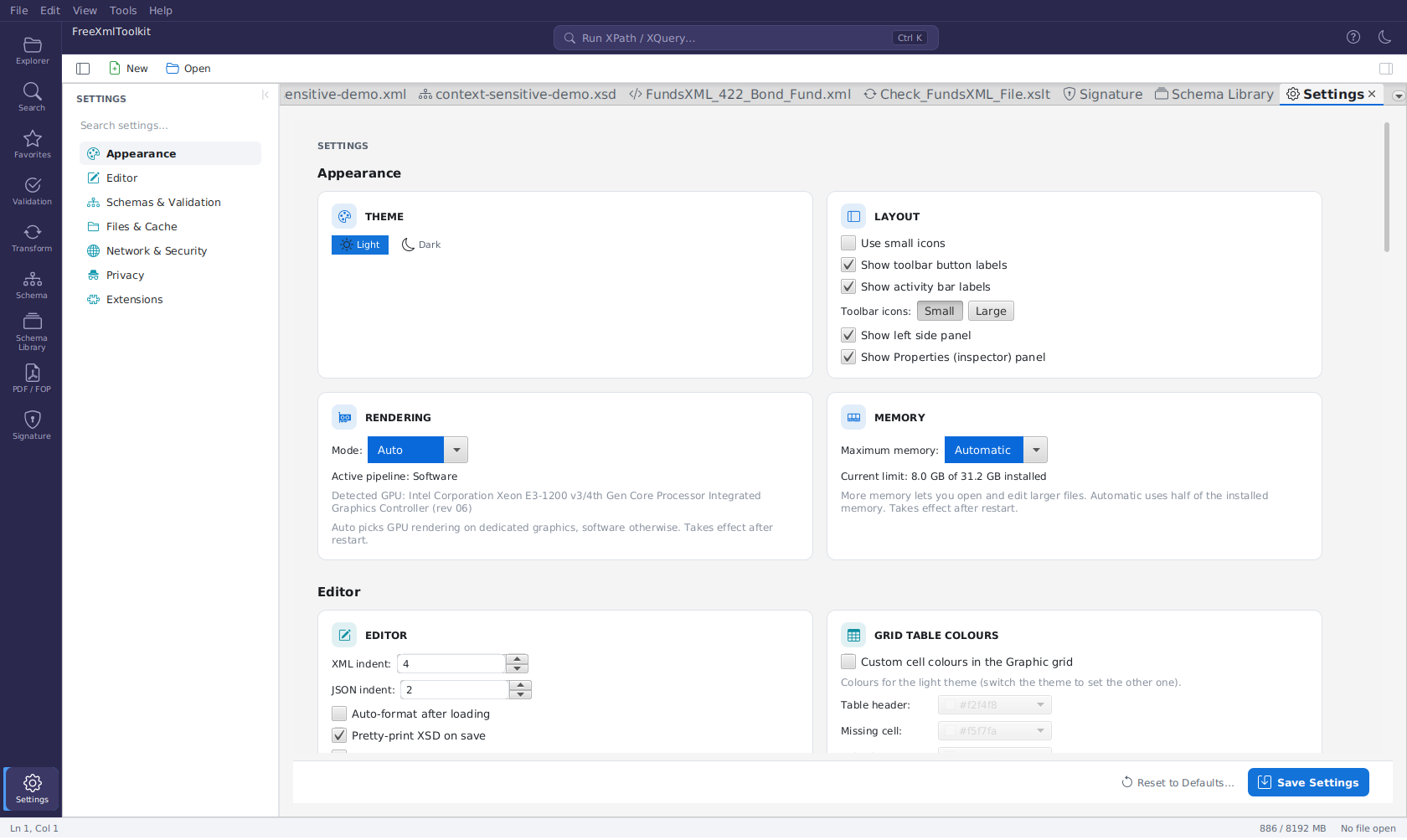
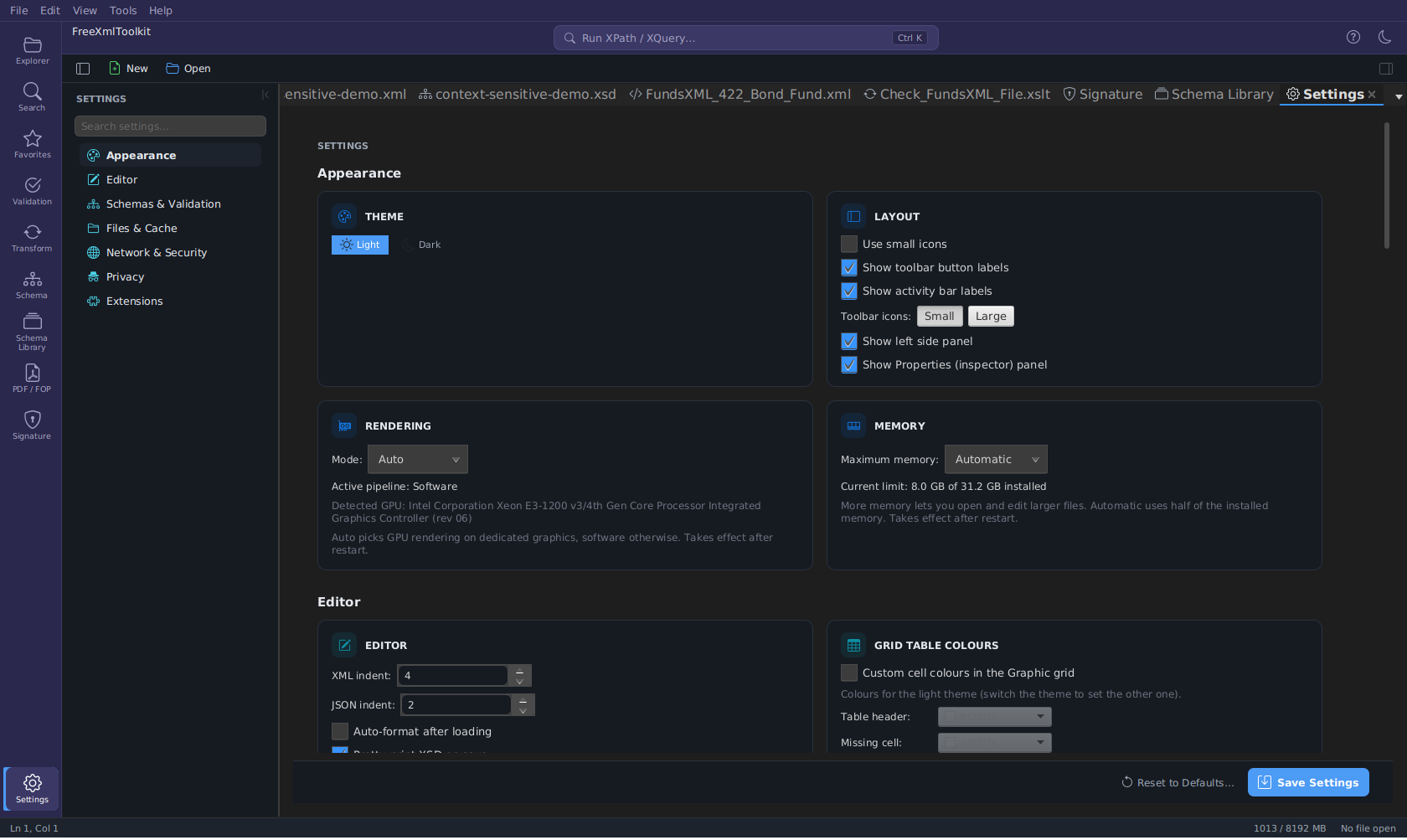 The Settings page: groups in the side panel, colour-coded cards in the main area
Finding a setting - the side panel on the left lists the seven groups. Click a group to scroll the page to it; the group you are looking at is highlighted. Type into the search field at the top of the side panel to filter both the group list and the cards on the page down to the matching settings; if nothing matches, the page shows "No settings match the search.".
Saving - a save bar stays fixed at the bottom of the page:
- Unsaved changes appears as soon as you change an option that has not been saved yet.
- Save Settings stores and applies your changes.
- Reset to Defaults… asks for confirmation and then puts the default values into the controls. Nothing is stored until you click Save Settings, so you can still review or adjust the values first. The reset leaves your privacy / usage statistics choices, your user info, your templates, the file associations and the extension settings (FundsXML, Developer) unchanged.
- A few actions take effect immediately, without Save: switching the theme, registering or unregistering file associations, and creating, editing or deleting templates.
| Group | Cards and options |
|---|---|
| Appearance | Theme - switch between Light and Dark. Layout - Show toolbar button labels; Show activity bar labels; Use small icons; toolbar icon size (Small / Large); Show left side panel; Show Properties (inspector) panel. Rendering - JavaFX graphics pipeline: Auto / Hardware / Software (takes effect after restart), with the active pipeline and GPU status; see Rendering mode (hardware vs. software) below. Memory - Maximum memory for the application: Automatic (half of the installed memory) or a fixed limit (takes effect after restart); see Memory and large files below. |
| Editor | Editor - XML indent and JSON indent (spaces); Auto-format after loading; Pretty-print XSD on save; Pretty-print Schematron on load; Recent files to remember (1–100, default 20) - every file opened in the editor, opened in the background or saved with Save As goes into File → Recent, the Explorer's RECENT list and the Welcome page. Templates - a configurable templates directory, plus a New / Edit / Delete list of your own templates; see Managing your templates below. User Info - Name, Email and Company, used for example when generating documentation or signing. |
| Schemas & Validation | XSD - Auto-save (with an interval in minutes); Create backups on save (with the number of versions to keep, and an optional separate backup directory). Schema Library - Use the Schema Library to bind schemas automatically; shows the library file's location and a Manage schema cache… link; see Schema Library. Parser - XML parser engine (Xerces or Saxon); Allow XSLT extension functions. |
| Files & Cache | Temp & Cache - Use system temp folder or a custom temp folder; Clear Temp Folder to free disk space; Clear Cache Folder to delete cached files (downloaded schemas etc.); Manage schema cache…. Log Files - Delete old log files automatically at startup (on by default) with Keep for (days) (default 14) and Maximum total size (MB) (default 100; 0 = no limit); Clean Up Now applies the limits at once, Open log folder shows the folder, and the card names the folder with its file count and size. The log file in use is never deleted. File Associations - make FreeXmlToolkit the default application for XML, XSD, XSLT, Schematron and JSON files (per user, no admin rights); see File Associations. |
| Network & Security | HTTP Proxy - Connection: System proxy (default, includes automatic configuration via PAC/WPAD), Manual proxy (host and port) or No proxy; No proxy for: hosts connected directly (* wildcard, e.g. *.corp.example, 10.*; local addresses always); Proxy authentication: user (DOMAIN\user or user@domain also work), password (stored encrypted) and NTLM domain, or — without a user — sign-in with the Windows account (NTLM/Kerberos; takes effect after a restart); Timeouts for connecting and reading; Test Connection checks an address with the values shown, saved or not. Every connection uses these settings: schema and catalog downloads, updates, FundsXML, telemetry, doc() in XPath/XQuery, JSON Schema $refs, XProc (incl. p:http-request) and HTML previews. Security - Trust all certificates: accept any TLS certificate for HTTPS downloads (schemas, updates); use with care. Updates - Check for updates on startup. |
| Privacy | Usage Statistics - Enable usage tracking (local, anonymous feature-usage counters shown on the Welcome page) and Clear statistics. Below them: Send anonymous usage statistics and Send anonymous error reports (both on by default) and a What is sent? link that shows the exact data and your anonymous installation ID. See Privacy & Anonymous Telemetry. |
| Extensions | FundsXML - Enable FundsXML extensions adds the FundsXML activity to the activity bar. Developer - Record execution statistics collects duration, CPU and memory per XSLT/XQuery/validation run; view them in the Execution Statistics tool tab or via the "last run" item in the status bar. Support the Project - a Sponsor on GitHub link. |
Clearing the Cache Folder
The Clear Cache Folder button in the TEMP & CACHE section deletes the contents of the
application's local cache folder (~/.freeXmlToolkit/cache) - for example downloaded schemas,
including schemas fetched automatically for missing xs:import references. Clearing is safe:
such schemas are simply re-downloaded the next time they are needed. A confirmation dialog is
shown first, because the action cannot be undone. The cache folder itself is kept; only its
contents are removed.
Memory and large files
The MEMORY card sets how much memory the application may use, so that large files can be opened on machines with plenty of RAM.
The editor keeps a whole document in memory several times over (text, line model, highlighting, structured views), roughly 16 times the file size. The memory limit therefore decides how large a file can be:
| Maximum memory | Largest file that opens |
|---|---|
| 4 GB | about 256 MB |
| 8 GB | about 512 MB |
| 16 GB | about 1 GB |
- Automatic (default) uses half of the installed memory.
- A fixed value (2 GB up to the installed memory) applies from the next start; the application restarts itself once with that limit. The card shows the limit of the current session and the installed memory.
- If the chosen limit cannot be used, the application falls back to Automatic on its own.
- In a development run (
./gradlew run) the setting has no effect; the Gradle task sets the memory.
Opening a file of 50 MB or more asks for confirmation first, because editing it will be slow. A file that does not fit into the current memory limit is not opened; the message names the limit and points to this card.
Rendering mode (hardware vs. software)
The RENDERING card lets you choose how JavaFX draws the UI, per machine, without relying on a fixed JVM flag.
JavaFX can render either on the GPU (hardware-accelerated, faster) or purely in software. On machines with only an integrated GPU, hardware rendering can become unstable on very large diagrams/grids, while machines with a dedicated GPU benefit from it. The Mode dropdown controls this:
| Mode | Behaviour |
|---|---|
| Auto (default) | The application detects the graphics adapter at startup and picks hardware rendering on a dedicated GPU (and on macOS), or software rendering on integrated/unknown adapters. The detection result is cached. |
| Hardware | Always prefer GPU rendering (with an automatic software fallback if the GPU pipeline cannot start). Use this if Auto does not recognize your dedicated GPU. |
| Software | Always use software rendering. Use this if hardware rendering causes display glitches or crashes on your machine. |
Below the dropdown the card shows the current run's rendering status:
- Active pipeline - what JavaFX is actually using right now: Hardware — Direct3D, Hardware — OpenGL ES2, Hardware — Metal, or Software. This is read from the live graphics pipeline, so with Auto you can see at a glance whether you ended up on hardware or software rendering.
- Detected GPU - the graphics adapter(s) the application found on this machine.
Notes:
- A restart is required for a change to take effect - the graphics pipeline is chosen once when the application starts. The Active pipeline line always reflects the pipeline of the running session, not an unsaved dropdown change.
- An explicit
-Dprism.order=...JVM flag (command line) still overrides this setting, so power users can force a specific pipeline for troubleshooting. - Auto is intentionally conservative: any adapter it cannot confidently identify as a dedicated GPU falls back to software rendering. If your dedicated GPU is not detected, switch the mode to Hardware.
Managing your templates
The TEMPLATES card lets you keep your own starting templates, which then show up (filtered by file type) in the New File dialog.
- Templates directory - Use Browse… to point the application at the folder where your templates live. Leave it empty to use the default location. Changing the directory takes effect immediately, without restarting the application.
- Your templates - The card lists your own (non-built-in) templates. Use:
- New - Create a template. A dialog asks for its Name, Category, Description, File type, and Content.
- Edit - Change the selected template.
- Delete - Remove the selected template.
Each template is stored as a .template file in the templates directory. Once saved, your
templates appear in the New File dialog whenever their file type is selected. For the wider
template and XPath-snippet system, see Template Management.