Properties Inspector
Property editing works in all views - for XML files in Text, Tree, and Graphic, and for XSD files in the Text view as well as the Tree and Graphic views (see XSD Files below). For JSON files the inspector edits keys and values from the Tree and Graphic views (see JSON Files below).
The inspector is not fixed-width: drag the divider line between the editor and the inspector to make it wider (handy for long XPaths, attribute values, or documentation). The width is remembered across restarts - see Resizing and collapsing the side panels.
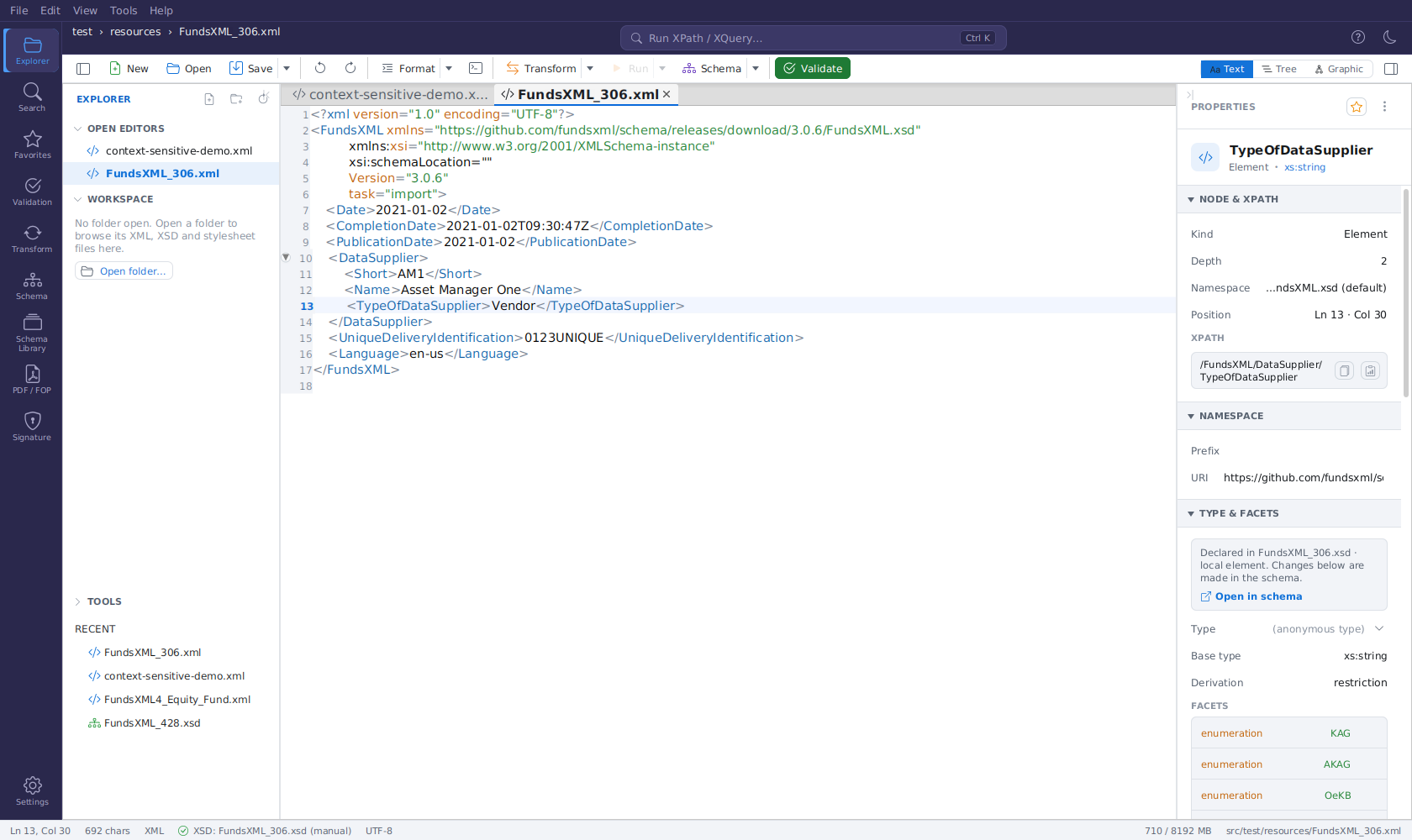
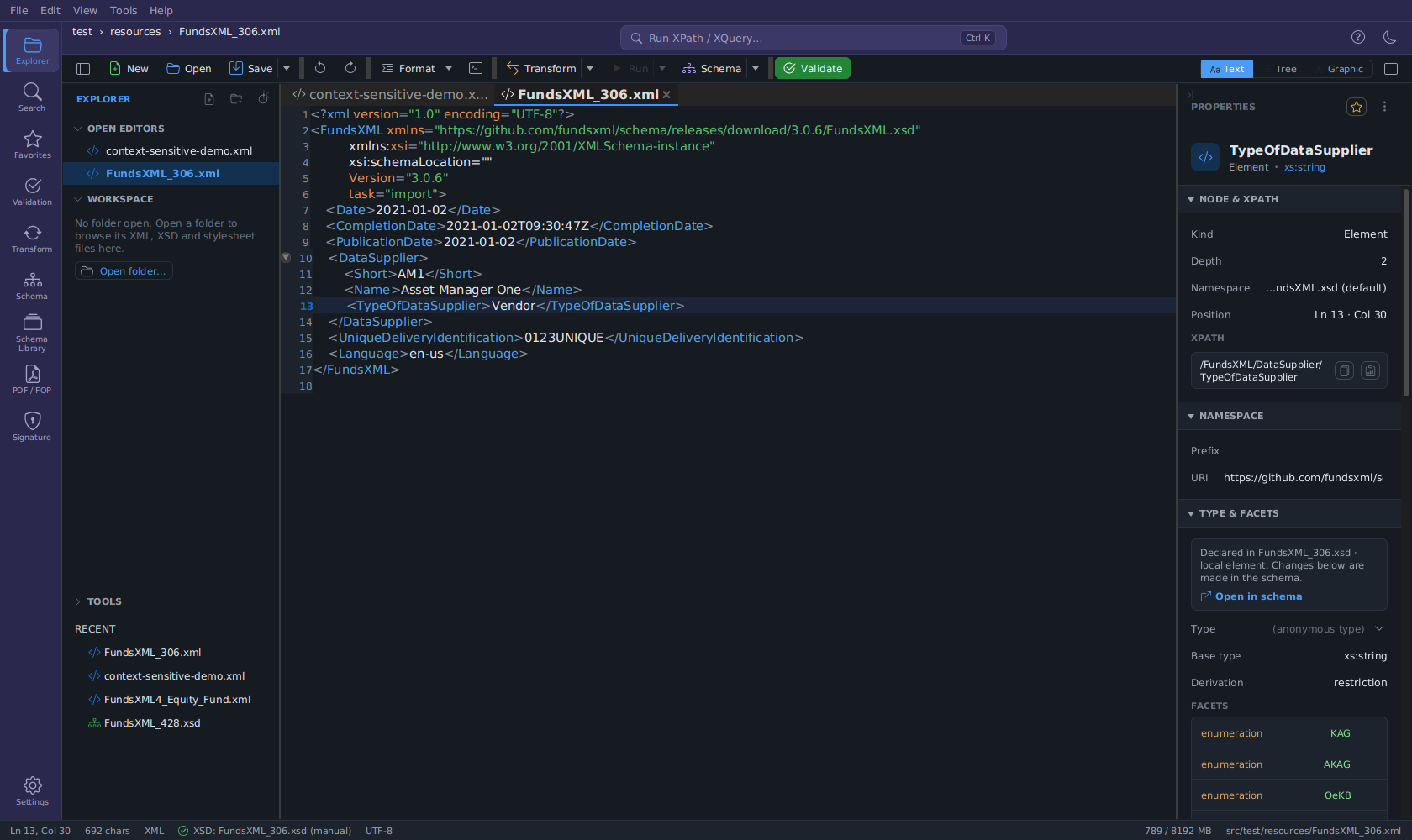 The Properties inspector for an XML element with a bound schema: node header with validation
pill, NODE & XPATH, schema facts, and documentation with example values and valid children.
While nothing is selected, the inspector shows a short hint instead of empty sections: "Open a document to see the properties of its nodes here." when no document is open, and "Select a node in the Tree or Graphic view to see and edit its properties." (or, in the Text view, a hint to place the caret on an element) when no node is selected.
Layout of the inspector
From top to bottom:
- Top bar - the title PROPERTIES, a star button and a ⋮ menu.
- The star adds the active file to Favorites (or removes it, when it is already a favorite). It is greyed out for a document that has never been saved.
- The ⋮ menu offers Copy XPath, Copy Node (XML), Expand All Sections and Collapse All Sections (the two copy actions are also buttons in NODE & XPATH).
- Node header - an icon for the kind of node, the node's name, a subtitle such as Element · xs:string (kind · type), and the validation pill: Valid, the number of errors, or Well-formed · no schema bound. Click the name to rename the node in place (only for nodes that have a name).
- Sections - collapsible sections with a full-width title bar. Each row shows the property name on the left and its value on the right.
Editing in place: editable values (type, minOccurs/maxOccurs, use, form, fixed, default, …) look like plain text until you point at them or click them - then the field frame, the drop-down arrow or the spinner buttons appear. Values without that hover effect are read-only.
The sections appear in this order. A section is shown only when it has content for the selected node - empty sections are left out:
| Section | Content |
|---|---|
| NODE & XPATH | Kind, Namespace, Depth (the nesting level; the root element is 0), Position Ln x · Col y (Text view only), and the XPath in a code box with the Copy XPath and Copy Node (XML) buttons |
| NAMESPACE | Edit the element's namespace prefix and URI (expanded by default) |
| TYPE & FACETS | Type, Base type, Derivation (restriction / extension / list / union) and the list of facets; for an XML element with a bound schema it starts with the declaration box (see Editing the bound schema from the XML document) |
| CARDINALITY & USE | minOccurs / maxOccurs, Use, and Order - the node's position in its parent compositor, e.g. 3 of 3 · sequence |
| VALUE & ATTRIBUTES | The element text and the list of attributes |
| CONTENT / PROCESSING INSTRUCTION / XML DECLARATION | The text of comments, CDATA sections, processing instructions and the XML declaration |
| DOCUMENTATION & REFS | Documentation, value check, example values, valid children and USED IN (see below) |
| ADVANCED, SCHEMA, CONSTRAINTS | Further schema-node properties (fixed/default, nillable, form, final, appinfo, identity constraints, assertions, …) |
The Namespace row in NODE & XPATH shows the URI, marked (default) for an unprefixed namespace, otherwise prefix → URI. An undeclared prefix shows as prefix → (unbound), an element without a namespace as (no namespace). For an XSD declaration the row shows the target namespace for global and qualified declarations, and (no namespace) for unqualified local ones.
Copying the XPath or the node
The NODE & XPATH section shows the selected node's XPath in a code box:
- Copy XPath - click the Copy XPath button next to the code box, or click the XPath
itself, to copy the positional XPath (e.g.
/root/item[2]) to the clipboard. - Copy Node (XML) - the second button next to the code box; copies the selected node's XML serialization.
Both actions are also in the ⋮ menu of the top bar. In the Text view they act on the element enclosing the caret; in the Tree/Graphic views they act on the selected node. For an XSD node selected in the Tree or Graphic view, Copy XPath copies the schema XPath and Copy Node copies the XSD source of that node; for JSON they copy the JSONPath and the JSON source.
Facets and attributes lists
Facets (in TYPE & FACETS) and attributes (in VALUE & ATTRIBUTES) are shown as framed lists that you edit directly:
- Click a value to edit it. Enter saves the change, Esc cancels it.
- For attributes, click the name to rename the attribute.
- Point at a row to show its trash icon; click it to delete the facet or attribute.
- Add a new entry with the row below the list (facet kind or attribute name, value, Add).
- Inherited facets (from a base type) are shown in italics and cannot be edited here.
- Long values wrap onto several lines instead of being cut off. The row's tooltip shows the full value, plus where it comes from (inherited from the referenced named type or defined by the schema).
- Keyboard: press Tab to move to a row; Enter edits its value and Delete removes the row.
XML Files
When an XML file is open, the Properties sidebar (Ctrl+Shift+P) shows the selected node and lets you edit it from whichever view you are in:
- Text view - Move the text caret into an element to select it. The inspector shows the element's name, namespace, attributes, and text as editable fields. Edits round-trip into the source as a minimal change that preserves your caret and scroll position. If the caret is not inside a well-formed element, the inspector falls back to a read-only name/XPath view. When you switch back to the Text view, the inspector shows the node at the caret again right away.
- Tree view - Click any node (element, text, comment, CDATA, or processing instruction) to edit its properties.
- Graphic view (the grid) - Select a row to edit its properties. The grid also handles structural editing (adding, deleting, and moving nodes) through its right-click context menu.
All three views share one in-memory model per open document, so your edits and Undo/Redo history are preserved when you switch between Text, Tree, and Graphic.
With a bound XSD schema, the inspector also shows what the schema says about the selected element: Type, Base type, Derivation (including the list item type or the union member types), the facets (including the enumeration values), minOccurs/maxOccurs/Use, Order, nillable, default and fixed values, Since … / Deprecated: … from the schema's documentation tags, the schema's appinfo, and in CONSTRAINTS the identity constraints, assertions and type alternatives. Where the declaration is editable you can change many of these right here - see Editing the bound schema from the XML document. The DOCUMENTATION & REFS section adds:
- the element's documentation from the schema, or "No documentation in the schema" when the schema has none;
- a value check - "Value matches the schema facets" in green, or an amber warning such as "Value should be one of: …" when the current text breaks a facet;
- EXAMPLE VALUES as chips - click one to set it as the element's text;
- VALID CHILDREN as chips - click one to add that child element (None for a container element that allows no children);
- USED IN - the containing element and its type.
Attributes with a bound schema: each attribute row shows its declared type as a small badge
(* marks a required attribute). Attributes the schema does not declare are marked
undeclared. For an attribute with enumerated values, the value editor is a drop-down. Below
the list, DECLARED, NOT SET shows chips such as + id * for declared attributes that are
missing - click one to add the attribute. Required ones are highlighted, and a default or fixed
value is filled in for you.
Editing the bound schema from the XML document
For an XML element with a bound XSD, TYPE & FACETS starts with a box such as Declared in order.xsd · local element · type AmountType and an Open in schema link. The link opens the XSD in the Graphic view, expanded along the element's path in the document (root element › … › element), and selects exactly this card - also when the schema has several local elements with the same name or the element sits in a named type used in several places.
When the declaration is editable, these inspector fields change the declaration in the XSD (not the XML): Type, minOccurs/maxOccurs, Nillable, Fixed, Default (in ADVANCED), the facets (add, edit, delete) and the documentation/appinfo. What happens:
- The XSD opens as a background tab - your XML document stays in front.
- The change is one undo step in the XSD tab, and the XSD tab shows as unsaved.
- Save the XSD. The XML document's schema facts (value check, example values, attribute information) are then reloaded.
Things to know:
- The Type field here is the same type picker as in the XSD inspector: it lists the schema's own types and the XSD built-in datatypes and explains the highlighted one.
- If the element uses a named simple type, its facets are the facets of that type. The list says so: "Facets of the named type T – a change applies to every element of that type".
- Before you change a type or a global declaration that is used in several places, the inspector asks once for confirmation (Change T).
- Some declarations are read-only, with a note:
- "Read-only: declared in an included or imported schema."
- "Read-only: a cached copy from the Schema Library." (also for read-only files)
XSD Files
When an XSD (schema) file is open, the Properties sidebar shows the selected schema node and lets you edit it from whichever view you are in. XSD files have the same three views - Text, Tree, and Graphic (for XSD, the Graphic view shows the schema diagram):
- Tree and Graphic views - Select a schema node to edit its name, type,
cardinality/occurrence, use, form, constraints, documentation, and facets.
Compositors (
xs:sequence,xs:choice,xs:all), group references andxs:anyshow editable minOccurs/maxOccurs and their Order in CARDINALITY & USE. A simple type shows its final value (read-only) in ADVANCED. When all facets of an element or attribute come from a named type, the add row is replaced by the hint "Facets come from T – click to edit them there."; clicking it selects that type. - Text view - Move the text caret into an XSD construct (such as an
xs:element,xs:complexType,xs:simpleType,xs:attribute, a compositor, or a facet) to select the matching schema node and edit the same properties you would in the Tree and Graphic views - without leaving the source editor. Edits round-trip into the schema text as a minimal change that preserves your caret and scroll position. If the caret is not inside a recognizable construct (for example inside anxs:annotation, a comment, or blank space), the pane falls back to a read-only caret/XPath view.
Choosing a type with the type picker
The Type row of an element or attribute is a text field with a chevron button that opens a list of every type you can reference - in the Text, Tree and Graphic view alike. The same field sits in the small dialog behind Change Type… in the right-click menu of the Graphic view (the schema diagram) and of the Tree view, pre-filled with the current type, and in the SimpleType Editor for the base type, the list item type and new union member types - there it offers simple types only.
The list is grouped under section headers:
- Simple types and Complex types defined in the schema itself, in included schemas and
in imported schemas. Imported types carry the namespace prefix your schema declares for their
namespace (for example
cmn:Money). If the schema declares no prefix for that namespace, the bare name is shown and the detail pane reminds you to add anxmlnsprefix for it before referencing the type. - Built-in XSD datatypes - all of them, grouped by category: Any, String, Numeric, Date &
Time, Binary, Boolean, URI & Names, IDs & References. They use the prefix your schema actually
uses (
xs:orxsd:). The XSD 1.1 additions (dateTimeStamp,dayTimeDuration,yearMonthDuration,precisionDecimal) are included and marked as XSD 1.1 only.
Each row shows the type's name and a one-line summary - a short description for a built-in
type, otherwise its make-up such as restriction of xs:string, extension of BaseType or
sequence. The detail pane on the right explains the highlighted type: what kind of type it
is (built-in with its category, simple or complex), its description or xs:documentation
(English preferred), base type and derivation (restriction / extension / list / union), facts
such as enumeration values, patterns, length limits, abstract, mixed content, the content
model and the number of attributes, where it comes from (Imported from common.xsd, Included
from …), an example value for built-in types, and notes such as XSD 1.1 only or not
supported by Xerces (for precisionDecimal). Point at a row to read its explanation; click it
or press Enter to pick it.
Working with the field:
- Type to filter. The list opens as you type and narrows to matching names. Exact matches
come first, so typing
xs:inthighlightsxs:int, notxs:integer. - Open the full list with the chevron button, ↓ or Ctrl+Space - the current type is highlighted.
- ↑ / ↓ move through the list, PageUp / PageDown jump eight rows at a time, Enter picks the highlighted type, Esc closes the list; a second Esc reverts an edit you have not committed yet.
- Free text still works. When nothing in the list matches, Enter commits exactly what you typed - useful for a type reference the picker does not know.
A picked type is applied like every other inspector edit: one undo step (Ctrl+Z), written into the schema text right away. If the element defines its own content (for example a sequence of child elements), a dialog asks before the type replaces it, and Cancel shows the previous type again. For an element or attribute reference the field is locked. See Only Valid Changes.
The type picker arrived in version 2.6.0; earlier versions took the type as plain text.
USED IN (in DOCUMENTATION & REFS) shows where a node is used:
- For a global type, element or group, it lists every place that references it. Click an entry to select the referring node in the Tree or Graphic view.
- For a local declaration, it shows the global component that contains it.
All three XSD views share one in-memory schema model, so your edits and Undo/Redo history are preserved when you switch between Text, Tree, and Graphic. Structural editing (adding, deleting, and moving nodes) remains a Tree/Graphic capability through the right-click context menu.
JSON Files
When a JSON file is open, select a node in the Tree or Graphic (grid) view and the Properties sidebar shows it:
- NODE & XPATH shows the node's JSONPath (e.g.
$.items[1]) instead of an XPath; click the value to copy it. - The key is editable for object properties - click the name in the node header to rename
the key (duplicate keys are refused). Array items (
[0],[1], …) and the root$have no key. - The Value field is editable for scalars (strings, numbers, booleans,
null); the type is kept, so a number must stay a number. Objects and arrays show a summary instead. - The node kind (object, array, string, …) is shown for information.
The inspector shares the document model with the grid, the tree and the text, so an edit here is one undo step (Ctrl+Z) and is written back into the text immediately. Structural editing (adding, deleting, moving or duplicating nodes, changing a value's type) is done in the grid's right-click context menu - see The Grid for JSON. In the Text view the inspector shows only the document type for JSON files.
More XSD editing in the inspector
When an XSD file is open, the Properties inspector (Ctrl+Shift+P) shows the selected schema node. In addition to name, type, cardinality, facets, and constraints, you can now:
- Pick the type from a list - The Type field opens a dropdown of the schema's own simple and complex types and all XSD built-in datatypes, each explained in a side pane as you move through the list. See Choosing a type with the type picker.
- Edit the node's
xs:appinfo- The machine-readable metadata attached to the node. Structured fields cover@since,@version,@see,@deprecated, a Markdown choice (Not set / Markdown / Plain text, written as@markdown) and the node's example values. Everything the fields do not cover - other tags and custom XML inside the appinfo - is preserved untouched. See Adding Technical Notes to Your Schema. - Edit multi-language
xs:documentation- One row per language. Use Add language to add a translation and the ✕ button to remove one. - Edit comments - Select an XSD comment in the tree to edit its text. To add a new comment, use Add Comment… in a node's right-click context menu.
- Delete a constraint - In the CONSTRAINTS section, select a
key,keyref,unique, orassertconstraint and click Delete constraint to remove it. - See where a component is used - USED IN (in DOCUMENTATION & REFS) lists every reference to a global type, element or group; click one to select the referring node.