XSD Validation
Last Updated: December 2025 | Version: 1.1.0
Validate your XML files against XSD schemas to check if documents follow the rules defined in the schema. Supports both single file and batch validation.
Overview
The XSD Validation tool provides two modes:
| Mode | Description |
|---|---|
| Single File | Validate one XML file at a time |
| Batch Validation | Validate multiple XML files at once |
 The XSD Validation interface
What Does It Check?
| Check | Description |
|---|---|
| Structure | Are elements in the right order? |
| Required Fields | Are all mandatory elements present? |
| Data Types | Are values the correct type (text, number, date)? |
| Constraints | Do values meet length, range, or pattern requirements? |
| XSD 1.1 Assertions | Do values pass custom assertion rules? |
Single File Validation
Use this mode to validate one XML file against a schema.
Step 1: Load Your Files
- Open XML File: Click "Open XML" in the toolbar or use the Browse button
- Schema Selection:
- Autodetect (default): Automatically finds schema references in the XML
- Manual: Uncheck Autodetect and select an XSD file manually
Step 2: Validate
Click Validate or press F5 to start validation.
Step 3: View Results
Results appear immediately:
| Status | Meaning |
|---|---|
| Green checkmark | Your XML is valid |
| Red X | Errors were found |
If validation fails, you'll see a list of errors with: - Error message - What's wrong - Line number - Where the problem is - Severity - Error, Warning, or Info
Click an error to see more details.
Batch Validation
Validate multiple XML files at once. Useful for testing entire folders of XML documents.
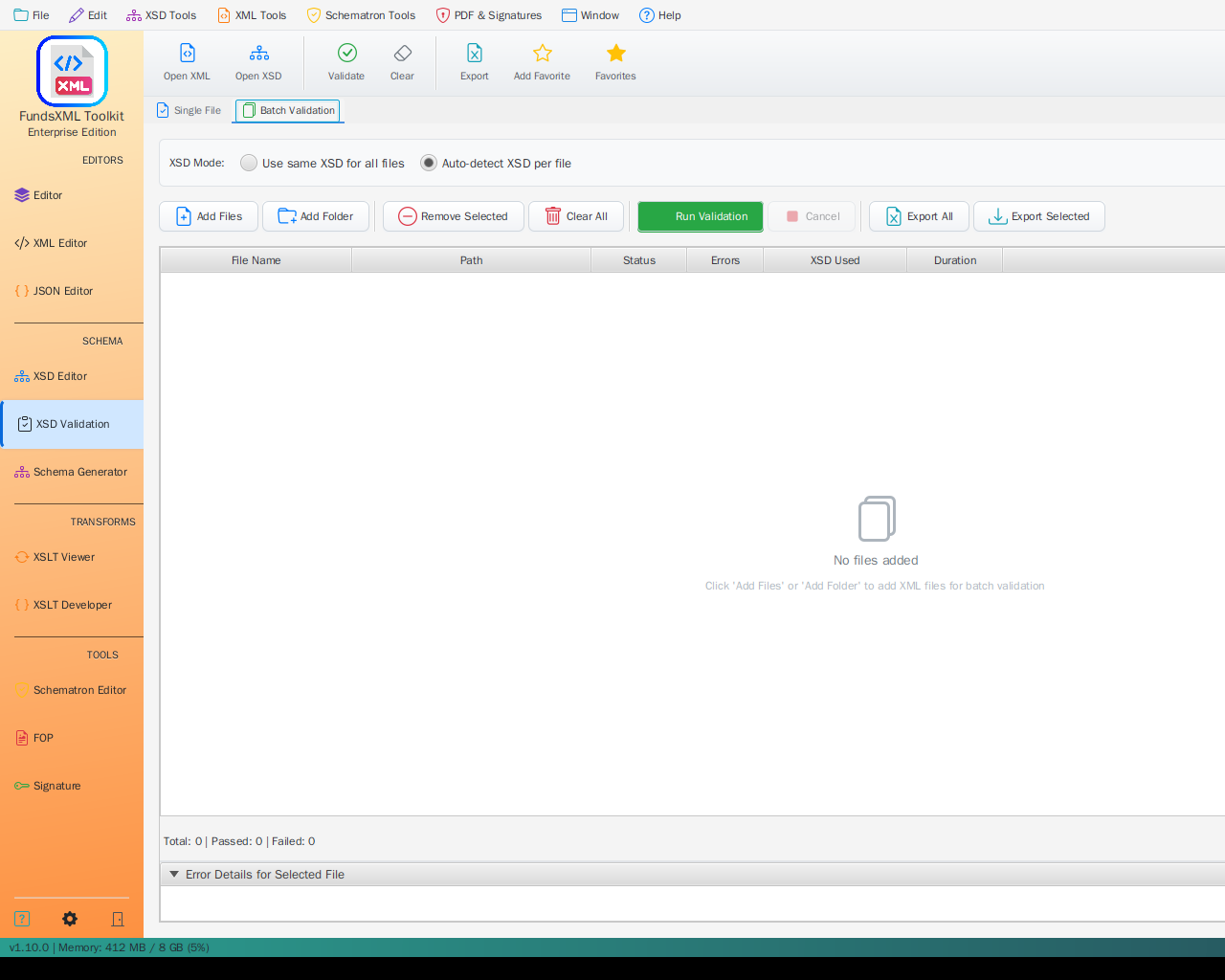 Batch validation with multiple files
XSD Mode Selection
Choose how schemas are determined for each file:
| Mode | Description |
|---|---|
| Auto-detect XSD per file | Each XML file uses its own referenced schema |
| Use same XSD for all files | All files are validated against a single schema you select |
Adding Files
| Button | Description |
|---|---|
| Add Files | Select individual XML files |
| Add Folder | Add all XML files from a folder (recursive) |
| Remove Selected | Remove selected files from the list |
| Clear All | Remove all files |
Running Batch Validation
- Add your XML files
- Choose the XSD mode
- Click Run Validation
- Watch progress in the progress bar
You can Cancel a running batch validation at any time.
Results Table
The results table shows:
| Column | Description |
|---|---|
| File Name | Name of the XML file |
| Path | Full path to the file |
| Status | Valid, Invalid, or Error |
| Errors | Number of validation errors |
| XSD Used | Which schema was used |
| Duration | How long validation took |
Summary
Below the table, you'll see a summary:
Filter Results
Use the filter dropdown to show: - All - All files - Passed - Only valid files - Failed - Only files with errors
Error Details
Click on a file to see its validation errors in the Error Details panel below the table.
Exporting Results
Single File Export
Click Export in the toolbar to save errors to Excel.
Batch Export
| Button | Description |
|---|---|
| Export All | Export all validation results to Excel |
| Export Selected | Export only the selected file's errors |
The Excel export includes: - File name and path - Error messages with line numbers - Schema used - Validation timestamp
Favorites Integration
Save frequently used XML and XSD files to favorites for quick access:
- Add Favorite (Ctrl+D) - Add current file to favorites
- Favorites (Ctrl+Shift+D) - Show/hide favorites panel
Toolbar Reference
| Button | Shortcut | Description |
|---|---|---|
| Open XML | - | Load XML file to validate |
| Open XSD | - | Load XSD schema manually |
| Validate | F5 | Start validation |
| Clear | - | Clear results |
| Export | - | Export to Excel |
| Add Favorite | Ctrl+D | Add to favorites |
| Favorites | Ctrl+Shift+D | Toggle favorites panel |
| Help | F1 | Show help |
Supported Standards
| Standard | Support |
|---|---|
| XSD 1.0 | Full support |
| XSD 1.1 (with assertions) | Full support |
The validation engine uses Xerces 2.12.2 with full XSD 1.1 support.
Tips
- Use Autodetect when your XML already references its schema via
xsi:schemaLocation - Use Batch Validation for testing multiple files efficiently
- Export to Excel when working with large documents or sharing results
- The Filter dropdown helps focus on files that need attention
- Double-click a file in the batch table to open it in the XML Editor
Keyboard Shortcuts
| Shortcut | Action |
|---|---|
| F5 | Start validation |
| Ctrl+D | Add to favorites |
| Ctrl+Shift+D | Toggle favorites |
| F1 | Help |
Navigation
| Previous | Home | Next |
|---|---|---|
| XSD Tools | Home | XSLT Viewer |
All Pages: XML Editor | XML Features | XSD Tools | XSD Validation | XSLT Viewer | XSLT Developer | FOP/PDF | Signatures | IntelliSense | Schematron | Favorites | Templates | Tech Stack | Licenses